
You’ve got an Echo Show or want to use your Amazon Echo as a speaker with your PC, but you’re wondering: can Alexa work like a monitor or external display? The answer is yes with the right setup. Whether you want to extend your desktop to an Echo Show or route computer audio through an Echo speaker, this guide covers everything you need to know. You’ll learn how to connect Alexa to a monitor, use Echo Show as a secondary screen, and stream PC audio to any Echo device.
By the end, you’ll be able to repurpose your Alexa devices for productivity, entertainment, and seamless multi-device workflows without buying extra hardware.
Set Up Echo Show as a Second Monitor

Turn your Echo Show into a functional extended display for your Windows or Mac computer. This setup works best for viewing notes, dashboards, or presentations while keeping your main screen free.
Install a Screen-Streaming Server App
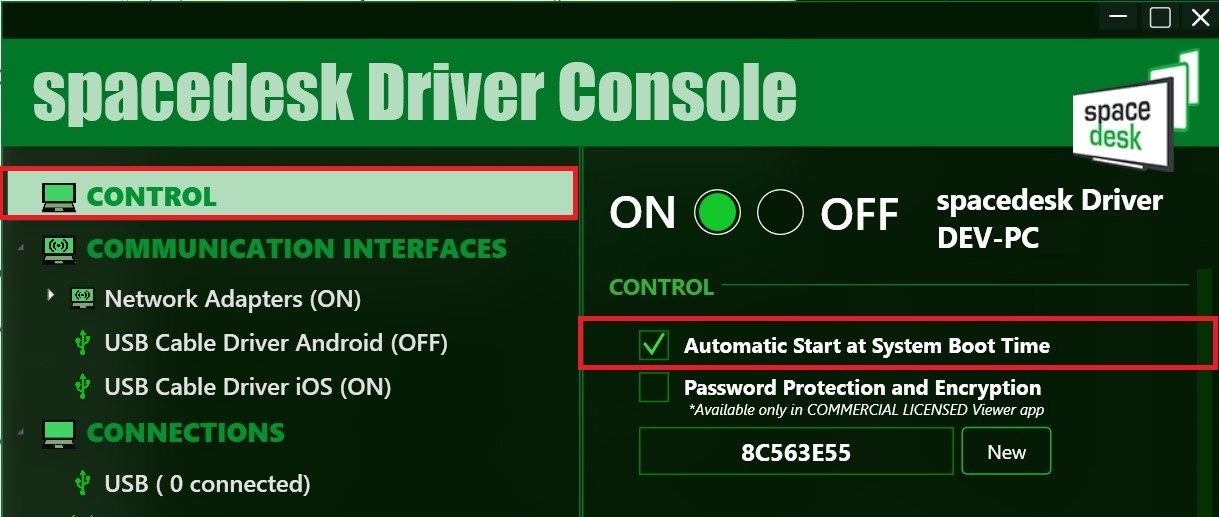
Download a compatible server application such as Spacedesk, Duet Display, or a similar HTML5-based desktop mirroring tool. These apps encode your screen and broadcast it over your local network. The Echo Show acts as a client that accesses the video stream through the Silk browser.
Match Wi-Fi Networks on Both Devices
Both your PC and Echo Show must connect to the same Wi-Fi network. This ensures low-latency communication and proper device discovery. For best results, use a 5 GHz network to maximize data transfer speeds.
Find Your PC’s Local IP Address
On Windows, press Win + R, type cmd, then run ipconfig. Look for the IPv4 Address (for example, 192.168.1.100). On Mac, go to System Settings, then Network, then Wi-Fi, and check the IP address listed.
Open Silk Browser on Echo Show
Say “Alexa, open the web browser” or tap the Browser icon on the home screen. Once the Silk browser opens, you’re ready to connect.
Enter the Server Address
Type the URL in this format: http://[PC-IP-Address]:[Port]. For example, http://192.168.1.100:8000. The port number depends on the server app you use, so check its documentation.
Connect and Extend Your Display
Once loaded, the Echo Show displays your PC’s extended desktop. You can drag windows and move your mouse between screens.
Pro Tip: Assign a static IP address to your PC so the connection doesn’t break after reboots.
Stream Audio from PC to Alexa
Use any Amazon Echo as a wireless or wired speaker for your computer. This setup is perfect for improving sound quality during videos, music, or calls.
Connect via Bluetooth (Wireless)
Pair your Echo with your PC or Mac using Bluetooth for a clean, cable-free setup.
Enable Pairing Mode on Echo
Use one of these methods:
- Say “Alexa, prepare to connect to a device” or “Alexa, Bluetooth pairing”
- Open the Alexa app, then Devices, then Echo & Alexa, select your device, then Bluetooth, then Pair a New Device
- Visit alexa.amazon.com, then Settings, then Device, then Bluetooth, then Pair a New Device
The Echo will now appear as a discoverable Bluetooth device.
Pair with Windows
- Press Win + I to open Settings
- Go to Bluetooth & devices, then Add device, then Bluetooth
- Wait for your Echo to appear (for example, “Echo Studio”)
- Click Connect
- Test by playing audio such as a YouTube video
Fix No Sound? Right-click the speaker icon in the taskbar, then Open Sound settings. Under Output, select your Echo.
Pair with Mac
- Click the Apple menu, then System Settings
- Select Bluetooth and make sure it’s turned on
- Find your Echo in the list and click Connect
- Enable Show Bluetooth in menu bar for quick switching
Now all audio plays through your Echo automatically.
Use a Wired Connection (3.5mm Aux)
For zero-latency audio, ideal for video editing or live streaming, use a physical cable.
Important: Only certain Echo models support aux-in:
– Echo (4th gen), Echo Plus, Echo Studio
– Echo Dot has aux-out only, not input
Steps to Connect with Cable
- Connect one end to your computer’s headphone jack and the other to the aux-in port on the back of a compatible Echo
- Open the Alexa app
- Tap Devices, then Echo & Alexa, then choose your Echo
- Tap Settings (gear icon), then Aux Audio, then Line in
- Play audio from your PC
No Headphone Jack? Use a USB-C to 3.5mm adapter for modern laptops.
Fix Common Connection Problems
Even with clear steps, issues can arise. Here’s how to troubleshoot the most frequent problems users face.
Echo Not Showing Up in Bluetooth List
Reboot both devices first. Then ensure the Echo is in pairing mode by saying “Alexa, Bluetooth pairing.” On Windows, go to Settings, then Bluetooth, and confirm “Let other devices discover this PC” is enabled. You can also restart the Bluetooth service by pressing Win + X, then Windows PowerShell (Admin), then running net stop bthserv && net start bthserv.
No Sound After Connecting
Check the default output device in your OS sound settings. On Echo, say “Alexa, volume up.” For wired connections, confirm Line in is selected in the Alexa app. Try unpairing and reconnecting if the issue persists.
Echo Show Monitor Disconnects Frequently
Check Wi-Fi signal strength near the Echo Show. Assign a static IP to your PC to prevent address changes. Update the server app and ensure the Silk browser is current. Reduce screen resolution or refresh rate in the server settings to lower bandwidth use.
Optimize Performance and Reduce Latency

Get the most out of your setup with these tuning tips.
Reduce Audio Delay
Use a wired aux connection for near-zero latency. Avoid Bluetooth for real-time tasks like video editing or gaming commentary. Keep your Echo within 10 feet (3 meters) and in line of sight.
Improve Display Streaming Quality
Use a 5 GHz Wi-Fi network for faster data transfer. Close background apps on your PC to free up bandwidth. Lower the mirroring resolution in the server app if lag occurs.
Real-World Use: Echo Show 8 (1280×800) works well for text, email, or chat apps, though it’s not ideal for HD video or fast-paced games.
Advanced Tips for Power Users
Take your Alexa monitor integration further with these pro strategies.
Automate Alexa Monitor Startup
Create a shortcut or script that launches the server app on boot, displays the IP address on desktop, and sends a notification when ready to connect. On Windows, use a batch file like this:
bat

start "" "C:\Program Files\spacedesk\spacedesk.exe"

timeout /t 5

echo Server running at 192.168.1.100:8000 > C:\Users\You\Desktop\Connect.txt
Use Multiple Echo Devices Strategically
While you can’t stereo-pair Echos when used as PC speakers, you can use one Echo for media audio via Bluetooth and another for smart alarms or notifications. Route system sounds to one Echo and music to another using third-party audio routers like Voicemeeter on Windows.
Secure Your Setup
Disable remote access in the server app unless needed. Use a guest Wi-Fi network for Echo Show if security is a concern. Regularly update Echo firmware via the Alexa app.
Limitations to Know Before You Start

Be aware of what Alexa can’t do when connected to a monitor or computer.
No Stereo Pairing with PC Audio
You cannot pair two Echos as left/right speakers when streaming from a PC. Stereo pairing only works with native Alexa music services like Spotify or Amazon Music.
Echo Dot Can’t Accept Wired Input
The Echo Dot has a 3.5mm audio-out port only. It can send audio to external speakers but cannot receive audio from a PC via cable.
Echo Show Isn’t a Full Monitor Replacement
Touch input from the Echo Show does not control your PC. Mouse control is the only option, so you can view and navigate but not tap or swipe. There’s no audio back-channel, meaning the microphone and speaker on Echo Show won’t act as PC mic or speaker unless separately configured.
Frequently Asked Questions About Connecting Alexa to a Monitor
Can you use an Echo Show as a computer monitor?
Yes, you can use an Echo Show as a secondary monitor by installing a screen-streaming server app on your PC and accessing it through the Silk browser on the Echo Show. Both devices must be on the same Wi-Fi network for this to work properly.
Can Echo Dot connect to a computer via aux cable?
No, the Echo Dot cannot connect to a computer via aux cable because it only has a 3.5mm audio-out port. You must use Bluetooth to connect an Echo Dot to a computer for audio output.
Does connecting Alexa to a PC disable smart features?
No, connecting Alexa to a PC does not disable smart features. You can still use Alexa for queries, timers, and smart home control while the Echo acts as a speaker for your computer.
How do I fix audio delay when streaming to Echo?
Use a wired 3.5mm aux connection for near-zero latency instead of Bluetooth. Keep your Echo within 10 feet of your computer and in line of sight for best results.
Can I stereo pair two Echos for PC audio?
No, stereo pairing two Echos does not work when streaming from a PC. This feature only works with native Alexa music services like Amazon Music or Spotify.
What is the best Echo for PC audio quality?
The Echo Studio offers the best audio quality for PC use due to its enhanced speaker hardware. The Echo Show 10 (3rd Generation) is another strong option for both audio and visual output.
Key Takeaways for Connecting Alexa to Any Monitor

Connecting Alexa to a monitor opens up two main possibilities: turning your Echo Show into a secondary display and using any Echo as a high-quality PC speaker. For visual extension, the Silk browser plus a server app delivers a functional extended desktop. For audio, Bluetooth works for wireless convenience while a 3.5mm aux cable delivers zero-latency performance.
Start by deciding which use case fits your needs best. If you want a second screen for productivity, set up the Echo Show with a streaming server. If you simply want better sound from your computer, pair any Echo via Bluetooth or cable. Either way, your Alexa devices become more valuable tools in your daily workflow without requiring any extra hardware purchases.


