
You’ve unboxed your new ViewSonic monitor and you’re ready to go. Knowing how to connect a ViewSonic monitor correctly saves you time and prevents frustrating display issues. This guide covers everything from powering up the unit to selecting the right input source and troubleshooting common problems. You’ll learn the proper steps for HDMI, DisplayPort, and USB connections using universal procedures that apply to most ViewSonic displays.
Let’s get your monitor set up quickly and running smoothly.
Power On the Monitor
Before connecting any video sources, make sure your ViewSonic monitor receives power safely and reliably.
Connect Power Safely
- Locate the power switch on the back of the monitor and confirm it is set to OFF.
- Plug one end of the power cable into the power connector on the back of the monitor.
- Insert the other end into a grounded electrical outlet.
- Flip the power switch to ON.
The monitor should power up and display the ViewSonic logo or a no-signal message. If the screen stays black, verify the power connections and test the outlet.
Check Power Indicator Lights
- Solid white or blue light: Power is connected and active.
- Blinking light: No video signal detected. Check the input source or cable.
- No light: Confirm the power switch is on and the outlet works.
Avoid using extension cords or power strips without surge protection to prevent voltage issues.
Connect HDMI Devices
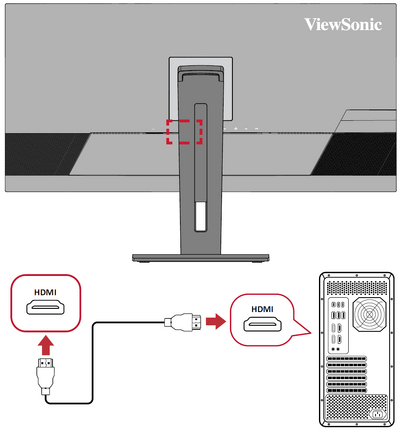
HDMI is the most common connection for laptops, desktops, and streaming devices when you connect a ViewSonic monitor.
Set Up HDMI Input
- Plug one end of an HDMI cable into the HDMI port on the back of the monitor.
- Connect the other end to the HDMI output on your computer or device.
- Press the Source button on the monitor (usually located on the front or side).
- Use the navigation buttons to select HDMI as the input source.
Your desktop or device screen should appear within seconds.
Fix No Signal on HDMI
- Ensure the HDMI cable is fully inserted at both ends.
- Try a different HDMI cable, since some cables fail silently.
- Confirm your computer is set to display on the external monitor (press Win + P on Windows).
- Test the HDMI port on your device with another screen if possible.
Pro Tip: Use HDMI 2.0 or higher for 1080p at 144Hz or higher refresh rates on compatible models.
Use DisplayPort for High Performance

DisplayPort delivers superior performance for gaming, design work, and high-refresh-rate displays.
Connect via DisplayPort
- Insert one end of a DisplayPort cable into the DP port on the monitor.
- Connect the other end to your computer’s DisplayPort output.
- Press the Source button on the monitor.
- Select DisplayPort from the input menu.
DisplayPort supports higher bandwidth than HDMI on many ViewSonic models, making it ideal for 144Hz, HDR, or 1440p setups.
Troubleshoot DisplayPort Issues
- No signal? Re-seat the cable. DisplayPort connections can be finicky if not fully locked.
- Flickering? Update your GPU drivers, especially for AMD or NVIDIA cards.
- Auto-switching fails? Manually select DisplayPort using the Source button.
Use a certified DisplayPort 1.2 or higher cable for best results.
Enable USB Hub Functionality
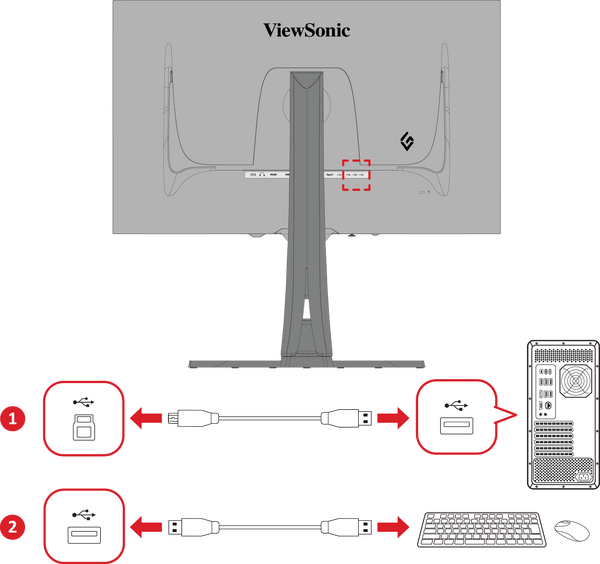
Many ViewSonic monitors include built-in USB ports that add convenience to your workspace.
Connect USB to Activate Hub
- Use a standard USB Type-B to Type-A cable (usually included).
- Plug the Type-B end into the USB port on the monitor.
- Insert the Type-A end into a USB port on your computer.
Once connected, the monitor’s USB ports (often labeled USB-A downstream) will function as a hub.
Plug in Peripherals
Now connect any of these devices:
– Keyboard
– Mouse
– Flash drive
– Webcam
All will communicate through the monitor and your computer.
Warning: The USB hub only works when the monitor is powered and connected to the computer. It does not charge devices unless specified as a charging port.
Select the Correct Input Source
Choosing the wrong input is the number one reason for blank screens when you connect a ViewSonic monitor.
Switch Inputs with Source Button
- Press the Source button on the monitor.
- Cycle through options such as HDMI, DisplayPort, or VGA (if available).
- Select the option matching your connected cable.
Some models auto-detect the active source, while others require manual selection.
What to Expect on Screen
- “No Signal”: Cable not connected or source not selected.
- “Input Not Supported”: Resolution or refresh rate too high. Adjust in your computer’s display settings.
- Logo screen: Monitor is on but waiting for signal.
Use the on-screen display (OSD) menu to confirm the current input.
Troubleshoot Common Connection Problems
Even with correct cabling, issues can arise. Here is how to fix them fast.
Screen Stays Blank After Setup
- Check power and confirm the monitor light is on.
- Verify the video cable is firmly connected to both the monitor and device.
- Press Source and select the correct port.
- Try another cable or port to rule out hardware failure.
If using a laptop, press the function (Fn) key + display toggle key (often F4, F5, or F8) to cycle display modes.
Image Quality Looks Off
- Blurry text? Ensure your computer is set to the monitor’s native resolution (such as 1920×1080).
- Flickering? Check cable quality and replace with a certified HDMI or DP cable.
- Wrong colors? Reset monitor color settings via OSD menu, then select Restore Default.
USB Hub Not Working
- Confirm the USB upstream cable is connected from monitor to computer.
- Try a different USB port on your computer.
- Restart your computer with the monitor connected.
If USB devices still aren’t recognized, check Device Manager (Windows) or System Information (Mac) for USB errors.
Optimize Your Setup for Daily Use

Once you connect a ViewSonic monitor, fine-tune it for comfort and performance.
Adjust Monitor Settings
Use the OSD menu (navigation buttons on front or side) to:
– Set brightness and contrast
– Choose color mode (Standard, Game, Movie, and similar options)
– Enable FreeSync or adaptive sync (if supported)
– Position the display (tilt, swivel, height if adjustable)
Cable Management Tips
- Use Velcro ties to bundle power, HDMI, and USB cables.
- Route cables behind your desk to reduce clutter.
- Label cables if using multiple devices.
A clean setup improves airflow and reduces tripping hazards.
Dual Monitor Setup Tips
To connect a second ViewSonic monitor:
1. Use the same connection type (HDMI or DisplayPort) on both displays.
2. Connect the second monitor to an available video output on your computer.
3. Press Win + P and select “Extend” to use both screens.
Ensure your graphics card supports multiple displays.
Frequently Asked Questions About Connecting a ViewSonic Monitor
Why is my ViewSonic monitor showing “No Signal” after I connect it?
The cable may not be fully inserted, or the wrong input source is selected. Press the Source button on the monitor and choose the correct input (HDMI or DisplayPort). Also verify your computer is outputting video to the correct port.
Which cable should I use to connect a ViewSonic monitor for gaming?
DisplayPort is the best choice for gaming because it supports higher bandwidth, adaptive sync, and high refresh rates. Use a certified DisplayPort 1.2 or higher cable for optimal performance.
How do I enable the USB hub on my ViewSonic monitor?
Connect a USB Type-B to Type-A cable from the monitor’s USB upstream port to your computer. Once linked, the monitor’s downstream USB ports will work as a hub for peripherals like keyboards, mice, and flash drives.
Can I connect a laptop to a ViewSonic monitor with HDMI?
Yes. Plug an HDMI cable into the monitor’s HDMI port and your laptop’s HDMI output. Press the Source button and select HDMI. On Windows, press Win + P to choose Extend or Duplicate display mode.
What should I do if my ViewSonic monitor’s display looks blurry?
Set your computer’s resolution to the monitor’s native resolution (commonly 1920×1080). If the issue continues, try a different cable or update your graphics drivers to fix scaling problems.
How do I know which input source my ViewSonic monitor is using?
Open the OSD menu by pressing the menu or settings button on the monitor. The current input source is displayed at the top of the menu. You can also cycle through inputs using the Source button.
Key Takeaways for Connecting a ViewSonic Monitor
Connecting a ViewSonic monitor comes down to a few simple steps. First, power the monitor on using the rear switch and a grounded outlet. Next, connect your video cable through HDMI or DisplayPort, then press the Source button to select the correct input. Finally, use the USB upstream cable if you want to activate the built-in hub for peripherals.
If you run into problems, revisit the input source, test with another cable, and confirm your computer is outputting video to the right port. With the proper setup, your ViewSonic monitor will deliver crisp visuals and reliable performance for work, gaming, or entertainment. Start by powering on your monitor today and enjoy a flawless display in minutes.


