
You press the power button, the fans spin, the keyboard lights flicker, but your monitor stays black with a stubborn “No Signal” message staring back. It’s one of the most frustrating PC problems, especially when deadlines or gaming sessions hang in the balance. The good news is that a monitor not connecting to a PC rarely means your entire system is dead. More often, it’s a loose cable, wrong input setting, or a hardware hiccup blocking the video signal.
This guide walks you through a complete, step-by-step process to fix your monitor connection issue. You’ll learn how to diagnose the root cause, apply targeted fixes, and prevent future display failures. Whether you use HDMI, DisplayPort, or integrated graphics, you’ll find actionable solutions that work.
Check Monitor Power and Input Source
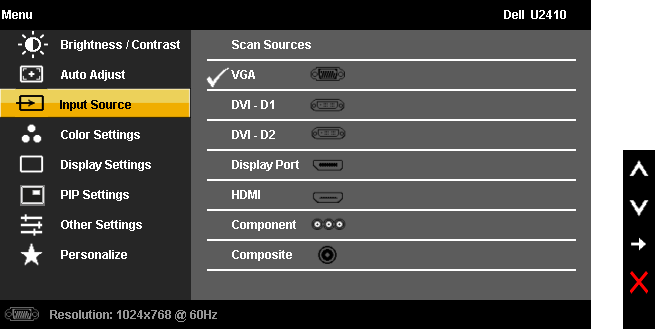
Before touching your PC, confirm what your monitor is telling you. The power light and on-screen messages are your first diagnostic clues.
Read the “No Signal” Message Carefully
If your monitor displays “No Signal,” “No HDMI Connection,” or “Check Video Cable,” the display is powered but receiving no video feed. This confirms the issue lies with your PC or the connection, not the monitor itself. Don’t assume your system is dead; many PCs boot silently without sending a display signal.
Verify the Correct Input Source
Monitors often have multiple input ports. Your screen might be set to HDMI 2 while your cable is plugged into HDMI 1. Use the physical buttons on your monitor to open the On-Screen Display menu and manually select the correct input.
- Press the Input or Source button on your monitor.
- Cycle through HDMI 1, HDMI 2, DisplayPort, and VGA options.
- Select the port matching your cable connection.
- Toggle between inputs and back to force a signal re-handshake.
Test the Monitor with Another Device
Grab a laptop, gaming console, or another PC and connect your monitor to it. If the display works with a different device, your monitor and cable are fine. The problem lives inside your computer. If the monitor fails on multiple devices, the monitor or cable likely needs replacement.
Inspect and Reseat Video Cables
A loose or damaged cable is one of the most common reasons a monitor won’t connect. Even cables that look connected can have a poor connection.
Reseat Both Ends of the Cable
Unplug the video cable from both your PC and monitor, then firmly reconnect each end. A slightly loose HDMI or DisplayPort cable breaks the signal even when it appears seated.
- Push the connector until you hear a click, especially with DisplayPort.
- Check for bent pins on VGA or DVI connectors.
- Avoid using adapters unless absolutely necessary, since each adapter adds a potential failure point.
Swap with a Known-Good Cable
Cables can fail internally without visible damage. Test your setup with a different HDMI, DisplayPort, or VGA cable you know works.
- Try different cable versions like HDMI 2.0 versus 2.1.
- Avoid long or visibly damaged cables that may not support your resolution.
- Replace any cable showing kinks, frays, or bent connectors.
Try Different Video Ports
Both your PC and monitor likely have multiple video outputs. Switching ports can quickly identify a faulty connection.
- Move from HDMI 1 to HDMI 2 on your monitor.
- Switch from a GPU port to a motherboard port if using integrated graphics.
- Ensure USB-C or Thunderbolt docks are powered and properly connected before use.
Test Integrated Graphics to Rule Out GPU Failure
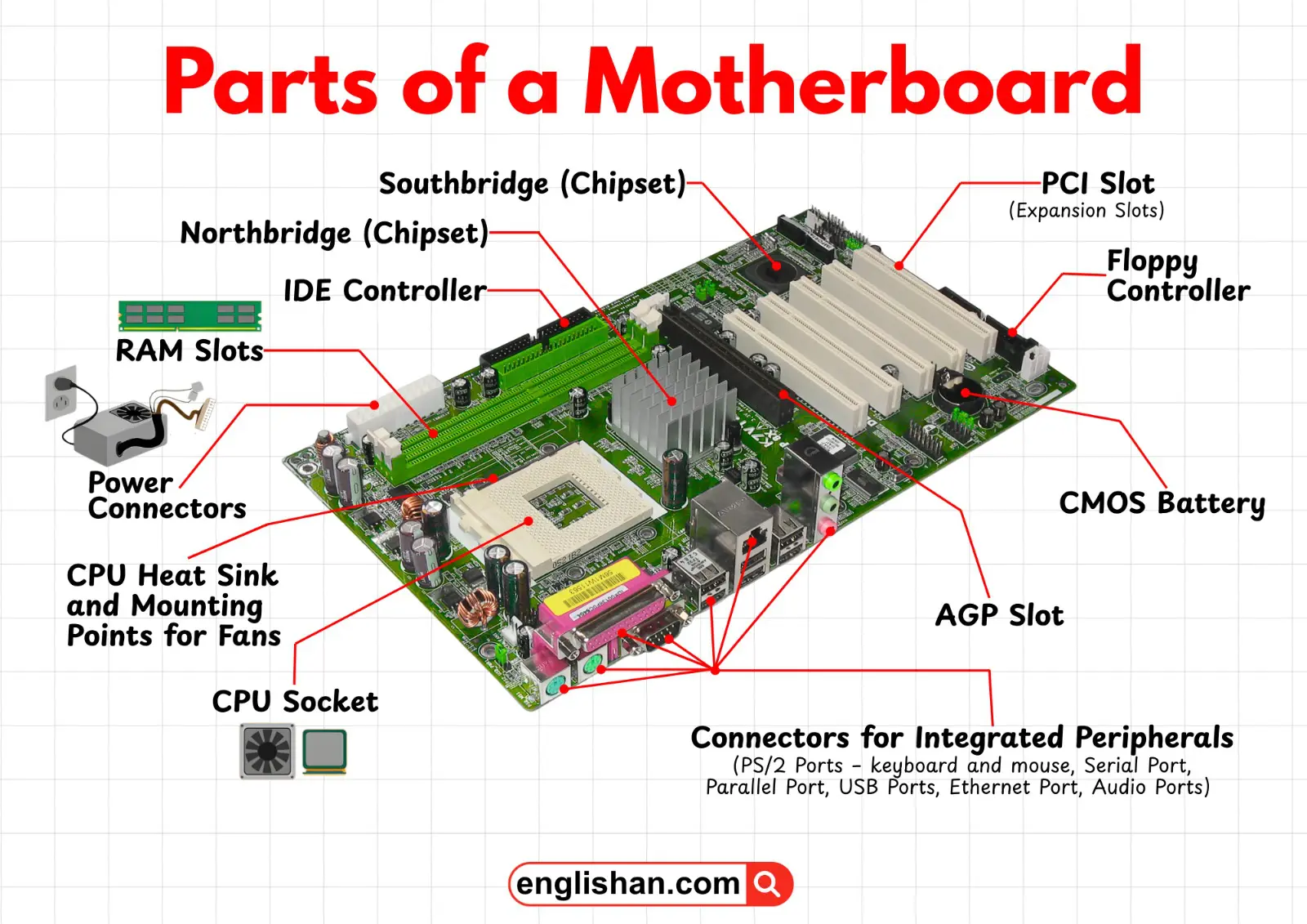
If your CPU has integrated graphics, this serves as a powerful diagnostic tool to determine whether your dedicated GPU is the culprit.
Remove the Dedicated Graphics Card
Power off your PC completely and unplug it from the wall. Open the case and carefully remove the dedicated graphics card from its PCIe slot.
- Locate the retention clip at the end of the PCIe slot and release it.
- Gently pull the GPU straight out without rocking it.
- Disconnect any 6-pin or 8-pin power cables from the card.
Connect the Monitor to the Motherboard
Plug your video cable directly into the HDMI, DisplayPort, or VGA port built into your motherboard. Power on the system and observe the result.
- If you get a display, your dedicated GPU or its power connection is faulty.
- If you still see no signal, the issue may involve the CPU, RAM, or motherboard.
Important: Not all CPUs have integrated graphics. Intel CPUs without an “F” in the model number (like i5-13400) include integrated graphics. AMD CPUs with a “G” (like Ryzen 5 5600G) include them, while standard Ryzen CPUs do not.
Reseat and Test the Graphics Card
A loose or failing GPU is a frequent cause of monitor connection failures. Thermal expansion can gradually loosen the card in its slot.
Reinstall the Graphics Card Securely
Even if the GPU appears seated, removing and reinstalling it ensures a solid connection.
- Power down and unplug the PC before opening the case.
- Remove the GPU and clean the PCIe slot with compressed air.
- Reinsert the card firmly until the retention clip clicks.
- Secure the card with its mounting screw.
Check PCIe Power Cable Connections
High-performance GPUs require additional power beyond what the PCIe slot provides. Loose power cables often cause display failures.
- Ensure 6-pin or 8-pin connectors are fully seated in the GPU.
- Use separate cables from the PSU rather than daisy-chaining when possible.
- A GPU with spinning fans but no display output may be underpowered.
Test the GPU in Another PC
If you have access to a second desktop, install your GPU there to verify its functionality.
- If the GPU works in another system, your original PC has the issue.
- If the GPU fails to output video in the second PC, the GPU itself is likely dead.
Clear CMOS and Reset BIOS Settings
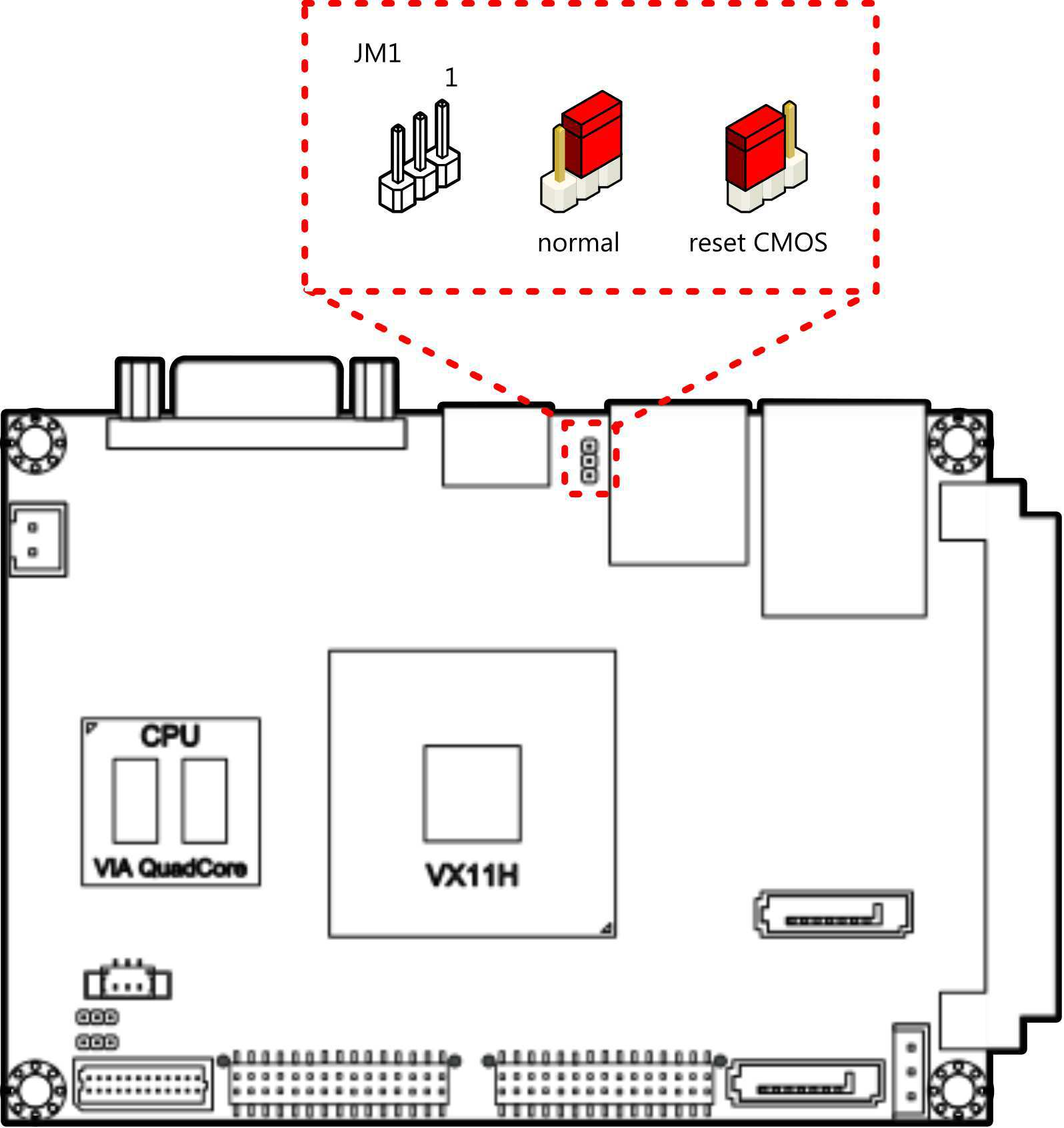
A corrupted or misconfigured BIOS can prevent video output, especially after hardware changes or firmware updates.
Why Clearing CMOS Helps
BIOS settings control how your PC boots. Incorrect configurations like wrong primary display settings or unstable memory overclocks can halt the boot process before video initializes. Resetting the BIOS to factory defaults clears these problematic settings.
Reset BIOS Using the CMOS Battery
The most reliable method involves removing the motherboard’s coin-cell battery.
- Power off and unplug the PC completely.
- Locate the round CMOS battery on the motherboard.
- Remove the battery carefully using a small tool or your fingernail.
- Wait at least 5 minutes to ensure all capacitors discharge.
- Reinsert the battery with the positive side facing up.
- Plug in the PC and power it on.
Reset BIOS Using the CMOS Jumper
Some motherboards feature a dedicated jumper for clearing BIOS settings.
- Power off and unplug the PC.
- Locate the jumper labeled CLR_CMOS or similar on the motherboard.
- Move the jumper cap to the clear position for 10 seconds.
- Return the jumper to its original position.
- Power on the system.
After clearing CMOS, your system may take 10 to 20 minutes to boot as it retrains memory and re-detects hardware. Do not interrupt this process.
Enter BIOS and Adjust Display Settings

If you can access the BIOS screen, you’re close to resolving the issue through software configuration.
Access the BIOS Setup Utility
Press the appropriate key during startup before Windows loads. Common keys include Delete, F2, or Escape, though your motherboard manual will confirm the exact key.
- If you see the BIOS screen, your core hardware is functional.
- If the screen remains black, return to the earlier hardware checks.
Set the Primary Display Output
Navigate to the Advanced or Peripheral Settings menu in your BIOS. Find the Primary Display option and configure it based on your setup.
- Select PEG for systems using a dedicated GPU.
- Select IGPU for systems using integrated graphics.
- Avoid the Auto setting if you’re experiencing conflicts between graphics outputs.
Disable Fast Boot and Secure Boot
These features can skip video initialization steps and prevent your monitor from syncing properly.
- Navigate to the Boot Settings section in BIOS.
- Set Fast Boot to Disabled.
- Set Secure Boot to Disabled temporarily.
- Save your changes and exit the BIOS.
Listen for Beep Codes and Check Debug LEDs
When your PC powers on but shows no display, listen and look for diagnostic clues from the motherboard.
Interpret Beep Code Patterns
If your motherboard includes a PC speaker, beep patterns indicate which component is failing during POST.
- One short beep typically means a successful POST.
- Continuous or repeating beeps often signal RAM or CPU issues.
- Specific patterns point to GPU initialization failures.
Consult your motherboard manual for the exact beep code definitions, since they vary by manufacturer.
Read Motherboard Debug LEDs
Many modern motherboards feature labeled diagnostic LEDs that pinpoint boot failures.
- A steady CPU light indicates a processor or power delivery problem.
- A DRAM light signals RAM detection or seating issues.
- A VGA light means the system cannot initialize the graphics card.
- A BOOT light suggests storage device issues.
These LEDs tell you exactly where the boot sequence is halting, saving significant troubleshooting time.
Boot into Safe Mode to Test Drivers
If you can get a display at any point, Safe Mode helps determine whether corrupted graphics drivers are the cause.
Enter Windows Safe Mode
Use the following method to boot into Safe Mode when Windows won’t load normally.
- Force the system to restart three times during boot to trigger recovery mode.
- Navigate to Troubleshoot, then Advanced Options.
- Select Startup Settings and click Restart.
- Press F4 to enable Safe Mode.
Diagnose the Display Issue in Safe Mode
Once inside Safe Mode, observe whether your monitor displays correctly.
- If the display works in Safe Mode, corrupted graphics drivers are likely the cause.
- If the display still fails in Safe Mode, the issue is hardware or BIOS related.
Reinstall Graphics Drivers Cleanly
With a working display in Safe Mode, perform a clean driver installation.
- Press Win + X and open Device Manager.
- Expand the Display Adapters section.
- Right-click your GPU and select Uninstall Device.
- Check the option to delete driver software.
- Restart and download the latest driver from NVIDIA, AMD, or Intel.
Perform a Hard Power Cycle and Minimal Boot
Sometimes a peripheral or residual power state prevents your system from completing POST.
Execute a Full Power Cycle
A hard power cycle clears residual electricity from components and resets hardware states.
- Shut down the PC completely.
- Unplug the power cord from the wall outlet.
- Hold the power button for 15 seconds.
- Wait at least 30 seconds before reconnecting power.
- Plug the cord back in and restart the system.
Disconnect Non-Essential Devices
Faulty USB devices or peripherals can prevent POST completion and block video output.
- Keep only the keyboard, mouse, and monitor connected.
- Remove external hard drives, USB hubs, and RGB controllers.
- Disconnect secondary SSDs, HDDs, and optical drives.
- Test with a single RAM stick if your system uses multiple modules.
Update BIOS Firmware for Hardware Compatibility
An outdated or corrupted BIOS can break video support for newer hardware or cause instability after Windows updates.
Determine When a BIOS Update Is Needed
Consider updating your BIOS in specific scenarios where firmware issues likely contribute to the problem.
- After a failed or interrupted BIOS update.
- When your system fails to detect newly installed hardware.
- Following a Windows update that broke display functionality.
- When troubleshooting persistent boot issues with no clear cause.
Update BIOS Using USB Flash Drive
Most motherboards support BIOS updates without an operating system installed.
- Download the latest BIOS from your motherboard manufacturer’s website.
- Extract the files to a formatted USB flash drive.
- Restart and enter the BIOS or boot into the flash utility.
- Use Q-Flash, BIOS Flashback, or EZ Flash depending on your brand.
- Follow on-screen instructions and never interrupt the update.
Caution: A power loss during a BIOS update can brick your motherboard. Use a UPS or ensure stable power before proceeding.
Diagnose New Build Issues Systematically

Building a new PC introduces specific failure points that prevent monitor connection.
Verify CPU and RAM Installation
Improperly seated components are the leading cause of no-display issues in new builds.
- Reseat the CPU and check for bent pins on AMD processors or damaged contacts on Intel chips.
- Install RAM in the correct slots, typically A2 and B2 for two-stick configurations.
- Test with one RAM stick at a time to isolate faulty modules.
Confirm All Power Connections
Modern PCs require multiple power cables, and missing connections prevent boot completion.
- Ensure the 24-pin ATX motherboard cable is fully seated.
- Connect the 8-pin CPU power cable near the processor socket.
- Attach all required PCIe power cables to the graphics card.
Check for PCIe Lane Conflicts
Some motherboards disable certain video outputs when specific M.2 or SATA ports are in use.
- Review your motherboard manual for PCIe lane sharing limitations.
- Try different M.2 slots if your NVMe drive occupies a shared lane.
- Test different RAM slots to rule out memory channel conflicts.
Final Checks and When to Seek Professional Help
If you’ve exhausted all troubleshooting steps and still have no display, component failure is likely.
Recognize Signs of Hardware Failure
Certain symptoms indicate that professional repair or replacement is necessary.
- No display even with integrated graphics and cleared CMOS.
- GPU fails to output video in a second, known-working PC.
- Motherboard debug LEDs remain stuck on CPU or VGA.
- Disk activity lights never illuminate during boot attempts.
Take Action on Persistent Failures
When basic troubleshooting fails, escalate to professional diagnostics.
- Test individual components with known-good replacements if available.
- Contact manufacturer support, since most GPUs and motherboards carry 3 to 5 year warranties.
- Visit a qualified repair shop for advanced component-level diagnostics.
Frequently Asked Questions About Monitor Not Connecting to PC
Why does my monitor say “No Signal” even though the PC is on?
A “No Signal” message means your monitor is powered but receiving no video feed from the PC. This typically indicates a loose cable, wrong input source, or a hardware initialization failure. The PC may still be running normally while failing to send a display signal.
Can a bad HDMI cable cause no signal?
Yes, a faulty HDMI cable is one of the most common causes of monitor connection failures. Cables can develop internal breaks without visible external damage. Swapping in a known-good cable is a quick way to rule out this cause.
How do I know if my GPU is dead?
Test your GPU by installing it in another PC. If it fails to output video in a second system, your GPU is likely dead. Other signs include spinning fans with no display, blinking GPU lights, or a motherboard VGA debug LED that stays illuminated.
Will clearing CMOS delete my files?
No, clearing CMOS only resets BIOS settings to factory defaults. Your operating system, personal files, and installed programs remain completely untouched. The process affects hardware configuration settings, not stored data.
Why does my monitor take a long time to turn on after hardware changes?
After BIOS resets or major hardware swaps, your motherboard performs memory training and hardware enumeration. This process can take 10 to 20 minutes during which the screen remains black. Avoid interrupting the system during this initialization period.
Is it worth repairing an old motherboard?
Repair costs often exceed replacement value for older motherboards. If your motherboard is out of warranty and replacement parts are scarce, upgrading to a new board and CPU may be more cost-effective. However, high-end recent motherboards may warrant professional repair attempts.
Key Takeaways for Restoring Your Monitor Connection
A monitor not connecting to a PC is rarely a single catastrophic failure. It’s a chain of signals from power supply to BIOS to GPU to cable, and isolating the weak link resolves most issues. Start with the simplest fixes: reseat cables, verify input sources, and power cycle your equipment. These steps resolve the majority of connection problems within minutes.
When basic fixes fail, escalate systematically through GPU testing, CMOS clearing, and BIOS configuration. Remember to allow 10 to 20 minutes for hardware initialization after major changes. Save this guide for future reference, and you’ll handle any monitor connection issue with confidence the next time your screen goes dark.


