
You plug in the HDMI cable, expecting your laptop to mirror or extend to the external monitor, but nothing happens. The screen stays black, shows “No Signal,” or your laptop fails to detect the display entirely. This common frustration can derail your productivity, especially when you need a second screen for work or presentations.
The good news is that most connection failures trace back to simple issues like wrong input sources, loose cables, or outdated graphics drivers. By working through a systematic troubleshooting process starting with physical checks and moving into software settings, you can usually restore the connection in under 30 minutes. This guide covers every fix for HDMI, DisplayPort, and USB-C connections on both Windows and macOS systems.
Confirm Monitor Power and Input Source First
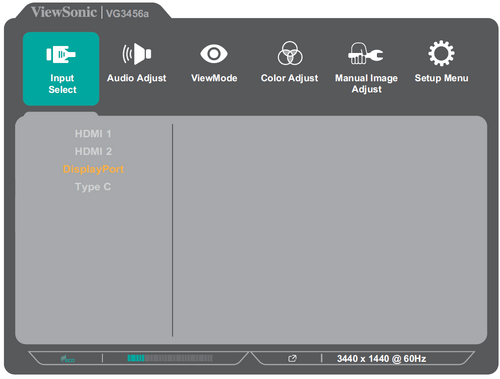
Before adjusting any software settings, verify that your monitor is actually receiving power and listening to the correct input.
Check the Power LED and Cable Connection
Look at your monitor for a power indicator light, typically white, green, or blue. If no light appears, the screen isn’t receiving electricity. Test the power cable by plugging the monitor directly into a wall outlet to bypass any faulty surge protectors or power strips.
Manually Select the Correct Input Through the OSD Menu
Monitors don’t always auto-detect the active port. Use the physical buttons on your monitor to open the On-Screen Display menu. Navigate to the Input Source option and cycle through choices like HDMI 1, HDMI 2, DisplayPort, or USB-C until you find the one matching your cable connection.
Pro Tip: If your monitor has multiple HDMI ports, try each input option even when you’re certain about which port you’re using. Monitors frequently default to a different input than the one in use.
Swap Cables and Test Alternate Ports

A damaged or incompatible cable ranks among the top causes of monitor detection failures.
Replace the Cable to Eliminate Wiring Faults
Borrow a different HDMI, DisplayPort, or USB-C cable and connect it between your laptop and monitor. If the display works with the new cable, the original was defective. Inspect the old cable for bent pins, frayed ends, or loose connectors that might interrupt the video signal.
Cross-Test with Another Device
Connect your laptop to a different monitor or TV using the same cable. If that setup works, your original monitor is the problem. Alternatively, plug a friend’s laptop into your monitor with your cable. If their device also fails to display, the monitor or its input port is likely defective.
Verify USB-C Video Capabilities
Not every USB-C port supports video output. Look for symbols near the port on your laptop:
- A lightning bolt icon indicates Thunderbolt support
- A small screen icon indicates DisplayPort Alt Mode
- Unmarked ports may only support charging or data transfer
Try different USB-C ports on your laptop if the first one doesn’t transmit video. Connecting to a non-video USB-C port will never produce a display output, even when the cable fits perfectly.
Force Detection Through Windows Display Settings
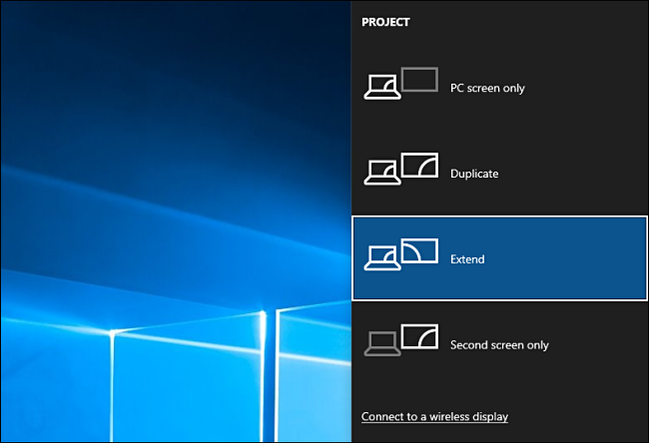
When hardware checks pass but the monitor still doesn’t appear, Windows offers built-in tools to manually trigger detection.
Use the Win + P Projection Shortcut
Press the Windows key and P together to open the projection menu. You’ll see four options:
- PC Screen Only (disables the external monitor)
- Duplicate (mirrors your laptop screen)
- Extend (creates one continuous workspace across both screens)
- Second Screen Only (uses only the external monitor)
Select Extend or Duplicate and wait a few seconds for the connection to establish.
Click Detect in Display Settings
If the projection menu doesn’t help, navigate to Display Settings:
- Right-click your desktop and select Display Settings
- Scroll to the Multiple Displays section
- Click the Detect button
- Wait 10 to 15 seconds for Windows to search
When a second display appears in the layout diagram, drag it into a logical position relative to your laptop screen. Also confirm the dropdown menu isn’t set to “Disconnect this display.”
Common Mistake: Users often drag the second monitor representation far off-canvas, making it impossible to move their cursor to the external screen. Always verify the diagram position before assuming detection failed.
Troubleshoot Display Settings on macOS
Apple users follow a slightly different path when an external monitor isn’t recognized.
Check System Settings for Display Recognition
Click the Apple menu and select System Settings, then navigate to Displays. If your external monitor appears in this menu, choose Mirror Displays or Extend Desktop based on your preference. You can also adjust resolution and refresh rate from this screen.
Try Alternative Detection Methods
When macOS doesn’t automatically detect the monitor, hold the Option key while clicking Detect Displays. If that fails, restart your Mac while the external monitor remains connected. macOS occasionally hides displays when the resolution or refresh rate falls outside supported parameters.
Update or Roll Back Your Graphics Drivers
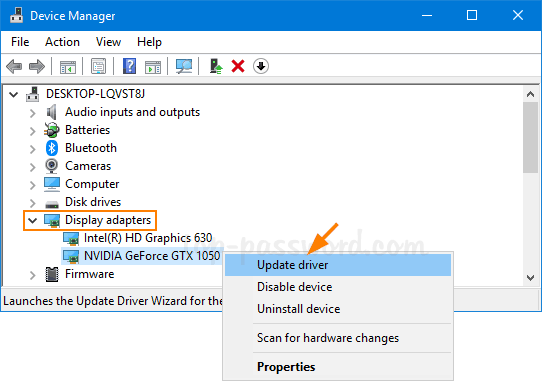
Outdated or corrupted graphics drivers prevent your operating system from communicating properly with external monitors.
Update Drivers Through Device Manager
Open Device Manager by pressing Win + X and selecting it from the menu. Expand the Display Adapters category, right-click your graphics card (such as Intel UHD, NVIDIA, or AMD), and choose Update Driver. Select Search Automatically for Drivers and let Windows complete the process.
For best results, download the latest driver directly from the manufacturer’s website. This ensures you receive the most recent stable version rather than waiting for Windows to push an update.
Roll Back a Recent Driver Update
If your monitor stopped working immediately after a driver update, the new driver may be incompatible. Return to Device Manager, right-click your GPU, and select Properties. Navigate to the Driver tab and click Roll Back Driver if the option is available. Restart your laptop after the rollback completes.
Warning: During driver installation, your screen may flicker or go completely black. Wait one to two full minutes before assuming the installation failed.
Lower Resolution and Refresh Rate for Compatibility

Signal mismatches between your laptop’s output and your monitor’s capabilities often cause black screens even when the connection registers.
Set Universal Baseline Settings
Open Display Settings and select the external monitor. Under Display Resolution, choose 1920×1080. Set the refresh rate to 60Hz and click Apply. These conservative settings force your laptop to output a signal that virtually every modern monitor accepts.
Older monitors may not support 4K resolution, 120Hz refresh rates, or HDR content. When your laptop sends a signal beyond the monitor’s capability, the result is often a blank screen or “No Signal” message.
Run Built-In Monitor Diagnostics
Modern monitors include self-testing features that confirm whether the panel itself functions correctly.
Access the OSD Diagnostic Mode
Press the menu button on your monitor and navigate to Settings, then Diagnostics or Self-Test. Many monitors cycle through solid color screens (red, green, blue, and white) to verify panel functionality. If these test patterns display correctly, your monitor hardware works properly.
When the self-test succeeds but “No Signal” still appears during laptop connection, the fault lies with your laptop, cable, or software configuration rather than the monitor itself.
Test with a New User Profile
Corrupted user settings sometimes block external display detection even when hardware and drivers function normally.
Create a Local Test Account in Windows
Press Win + R, type netplwiz, and press Enter. Click Add, then select “I don’t have this person’s sign-in info,” followed by “Add a user without a Microsoft account.” Enter a username like “TestUser” and complete the setup. Log out of your current account and sign into the new profile.
Connect your monitor and test the display. If the external screen works in the new account, your original profile contains corrupted display settings. Consider migrating your data to the new profile or performing a system restore to repair the original account.
Check BIOS/UEFI and Install System Updates
Firmware bugs or missing operating system patches occasionally interfere with video output.
Verify GPU Settings in BIOS
Restart your laptop and repeatedly press F2, F10, or Delete to enter BIOS setup. Navigate to the Advanced or Integrated Peripherals section and confirm that Integrated Graphics or HDMI Output remains Enabled. Most laptops don’t disable these options by default, but firmware bugs occasionally alter settings unexpectedly.
Install Pending Operating System Updates
Open Windows Update through Settings and click Check for Updates. Install any pending patches, particularly those labeled as display or graphics related. On macOS, navigate to System Settings and select Software Update to download the latest macOS version.
Use a Powered USB-C Hub for Unstable Connections
USB-C connections sometimes suffer from power delivery issues that disrupt video signals.
Why Powered Hubs Solve Intermittent Problems
Some laptops underpower their USB-C ports, especially when simultaneously charging and transmitting video. A powered USB-C dock provides stable power delivery, handles signal conversion between protocols, and supports multi-monitor configurations more reliably than direct connections.
If your display flickers or disconnects randomly, routing through a powered hub often eliminates the instability permanently.
Identify and Work Around Hardware Damage
When every software fix fails and multiple cables produce no signal, your laptop’s video port may be physically damaged.
Recognize Hardware Failure Signs
Several indicators suggest port-level hardware damage:
- Your internal display works perfectly but no external signal appears
- The port powers USB devices like a mouse but transmits no video
- Multiple cables and monitors all fail when connected to the same port
Use a USB-C Adapter as a Permanent Workaround
If your laptop supports video over USB-C, purchase a USB-C to HDMI adapter or docking station. This affordable accessory bypasses a broken HDMI port entirely and costs far less than motherboard replacement.
Frequently Asked Questions About Laptop Monitor Connection Problems
Why does my monitor say “No Signal” when connected?
A “No Signal” message means your monitor receives power but detects no data stream from your laptop. Common causes include wrong input source selection, damaged cables, resolution mismatches, or driver issues. Start by verifying the input source matches your cable connection, then try a different cable to isolate the problem.
How do I force my laptop to detect an external monitor?
Press Windows + P to open the projection menu and select Extend or Duplicate. If the monitor still doesn’t appear, right-click your desktop, open Display Settings, scroll to Multiple Displays, and click Detect. On macOS, hold the Option key while clicking Detect Displays in System Settings.
Can a faulty HDMI cable cause a monitor not to display?
Yes. Damaged HDMI cables with bent pins, frayed wiring, or loose connectors frequently interrupt video signals. Swap your current cable with a known-working one to test. Even cables that appear undamaged can fail internally, especially after repeated bending or pressure.
Why won’t my USB-C port connect to a monitor?
Not all USB-C ports support video output. Check for a lightning bolt icon (Thunderbolt) or screen icon (DisplayPort Alt Mode) near the port. Unmarked USB-C ports typically only handle charging or data transfer. Try different USB-C ports on your laptop or connect through a powered USB-C hub.
Do I need to update drivers when my monitor stops working?
Outdated or corrupted graphics drivers commonly prevent monitor detection. Open Device Manager, expand Display Adapters, right-click your GPU, and select Update Driver. If the problem started after a recent update, use the Roll Back Driver option instead to restore the previous working version.
What if my laptop connects to the monitor but the screen is black?
A black screen with successful detection often indicates a resolution or refresh rate mismatch. Open Display Settings, select the external monitor, and manually set the resolution to 1920×1080 with a 60Hz refresh rate. This conservative baseline forces a compatible signal that most monitors accept.
Key Takeaways for Restoring Your Laptop Monitor Connection
A laptop failing to connect to an external monitor rarely indicates permanent hardware failure. In most cases, the fix involves swapping a damaged cable, correcting the input source, or updating outdated graphics drivers. Start every troubleshooting session with physical checks before moving into software configurations, since hardware issues cause the majority of detection failures.
For long-term reliability, invest in certified cables rated for your connection standard and use a docking station to reduce wear on your laptop’s native ports. Keep your graphics drivers current through manufacturer websites rather than relying solely on automatic Windows updates. When hardware damage is confirmed, a USB-C to HDMI adapter provides an affordable workaround that restores your dual-screen workflow without expensive repairs.


