
Your monitor freezes mid-task, then your PC restarts on its own. Sometimes it happens during gaming. Other times it strikes while you’re just browsing or updating a spreadsheet. If your machine eventually refuses to power on after a crash, you’re likely dealing with a serious hardware issue rather than a simple software glitch.
Learning how to fix monitor freezing requires looking beyond the obvious. Most users blame graphics drivers, but recurring freezes combined with random restarts and boot failures usually point to power delivery problems, overheating, or motherboard degradation. This guide walks you through systematic diagnosis, starting with hardware checks and ending with clear replacement decisions.
Diagnose Hardware Stability Before Changing Drivers
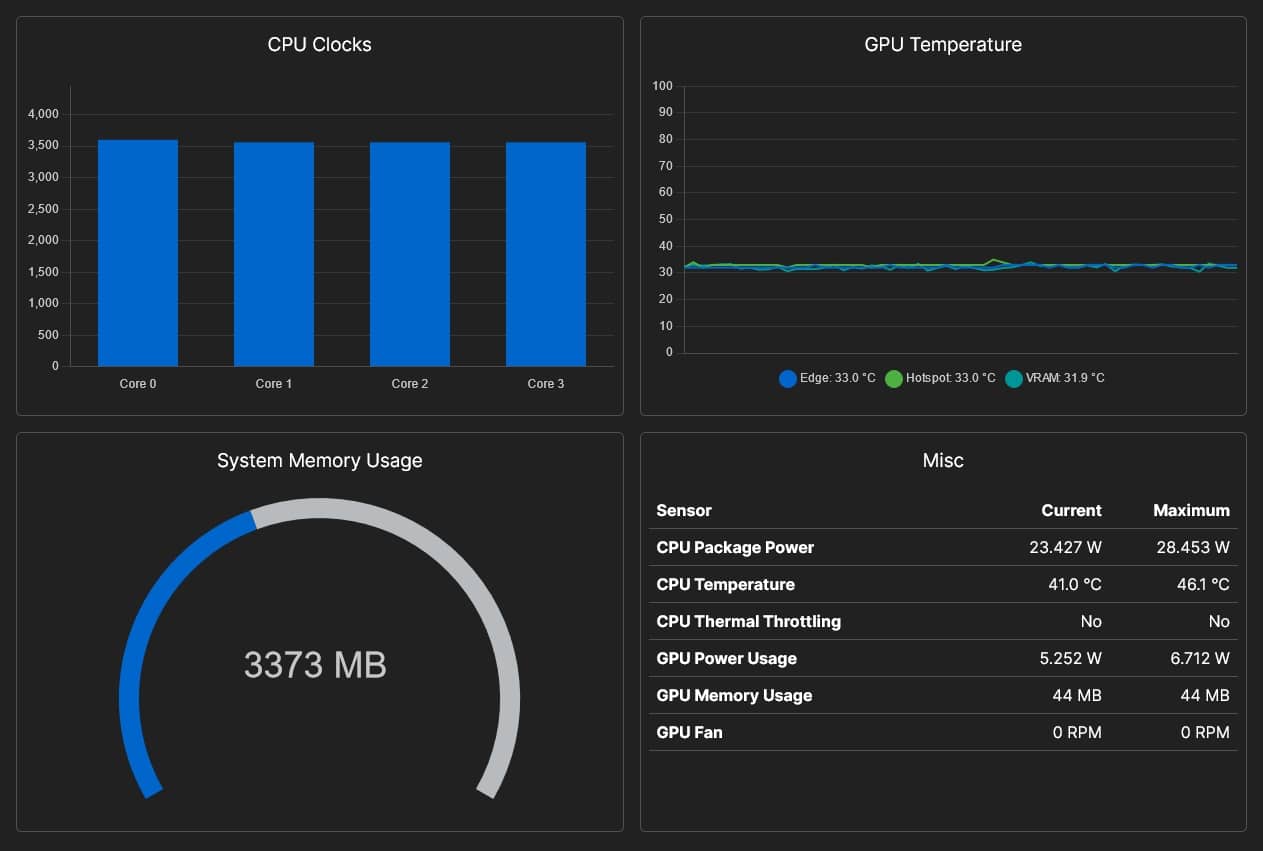
When your PC won’t turn on after a freeze, software fixes rarely solve the root cause. Focus on core hardware stability first to avoid wasting time on driver updates that won’t stick.
Monitor CPU and GPU Temperatures
Overheating triggers instability even during light workloads. A CPU spiking to 90°C while browsing or a GPU throttling unexpectedly can force both freezes and restarts.
Steps to check temperatures:
– Download HWInfo or HWMonitor.
– Run during normal use and under load.
– Watch for sustained readings:
– CPU above 85°C signals danger
– GPU above 80°C suggests instability
Pro tip: Check fan curves in BIOS or through manufacturer software like MSI Afterburner. Clogged heatsinks or failed fans cause overheating even when the system appears cool.
Stress Test Your Graphics Card
A failing GPU can freeze the display without crashing the entire operating system right away.
Follow these steps:
1. Run DDU (Display Driver Uninstaller) in Safe Mode to wipe all GPU drivers completely.
2. Reinstall the latest driver directly from NVIDIA, AMD, or Intel.
3. Launch FurMark for 15 to 30 minutes to stress the GPU.
If the screen freezes or the system crashes during this test, suspect the GPU or power delivery. Stop the test immediately if temperatures exceed 85°C.
Run MemTest86 Overnight
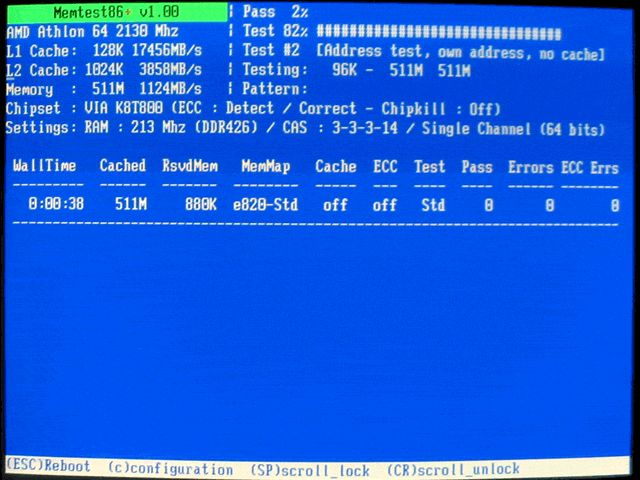
Windows Memory Diagnostic offers limited accuracy. For thorough RAM testing, use MemTest86 instead.
How to run it:
1. Burn MemTest86 to a USB drive using their official tool.
2. Boot from the USB and let it run at least 4 passes (6 to 8 hours).
3. Any reported errors indicate a failing RAM module.
Start by reseating your RAM sticks. If errors continue, test each stick individually and replace any faulty modules.
Test Your Power Supply Unit

A weak or failing PSU ranks among the top causes of random restarts and failure to power on after a crash.
Warning signs of PSU failure:
– System dies under minor load
– No POST screen after a freeze
– Random shutdowns despite low temperatures
How to verify:
– Borrow a known-good PSU with sufficient wattage and swap it in.
– Use a PSU tester or multimeter to check voltage rails (12V, 5V, 3.3V).
– Fluctuations beyond plus or minus 5% indicate failure.
A PSU that “works sometimes” isn’t reliable. Intermittent power delivery damages other components over time.
Check Event Viewer for Hidden Clues
Windows logs often reveal what your screen doesn’t show. Two specific entries deserve attention, though only one actually relates to crashes.
Analyze the PerfDiag Logger Error
Event ID 0xC0000188 under PerfDiag Logger means the performance log reached its size limit. This entry does not directly cause crashes, but it signals system stress.
Steps to clear it:
1. Open Event Viewer and navigate to Windows Logs, then System.
2. Find PerfDiag Logger, right-click, and select Clear Log.
3. Choose “Overwrite events as needed.”
4. Monitor for recurrence.
If this error returns quickly, your system is logging excessively, possibly due to background apps stressing the CPU.
Ignore the Edge GameAssist Error
Event ID 0x3D55 from Microsoft.Edge.GameAssist is typically harmless. It stems from a corrupted Windows app cache and is often triggered by optimization tools like Razer Cortex or MSI Afterburner.
Quick fixes:
– Temporarily disable Razer Cortex or similar apps.
– Reset the Windows Store cache by running wsreset.exe.
– Re-register Edge if needed using PowerShell.
This won’t fix freezes, but it reduces noise in your logs.
Rule Out Software Conflicts
Software can mask or worsen hardware symptoms. Eliminate these variables before concluding the motherboard or PSU is at fault.
Run SFC and DISM Scans
Corrupted system files contribute to instability. Run these tools in Command Prompt as Administrator.
First command:
cmd

sfc /scannow
This scans and repairs protected system files.
Second command:
cmd

DISM /Online /Cleanup-Image /RestoreHealth
This fixes the Windows image itself.
Both scans take 10 to 20 minutes. Reboot after completion. If SFC finds issues it cannot fix, DISM usually resolves the underlying image corruption.
Perform a Clean Boot
Third-party services such as RGB control software, overclocking tools, or antivirus programs can crash your system.
Step-by-step process:
1. Press Win + R, type msconfig, and hit Enter.
2. Go to the Services tab, check “Hide all Microsoft services,” then click “Disable all.”
3. Go to the Startup tab, open Task Manager, and disable all startup items.
4. Reboot and test your PC normally.
If no freezes occur, re-enable services in batches to isolate the culprit. Common offenders include Corsair iCUE, ASUS Armoury Crate, Malwarebytes real-time protection, and Logitech G Hub.
Test with Integrated Graphics

If your CPU has integrated graphics (Intel UHD or AMD APU), removing the discrete GPU isolates the problem quickly.
Remove the GPU and Boot on iGPU
Steps:
1. Power off and unplug the PC.
2. Open the case and remove the dedicated GPU.
3. Plug your monitor into the motherboard video output (HDMI or DisplayPort).
4. Boot and use the system for a full day.
Interpret the results:
– If freezes stop, the problem lies with the GPU, PCIe slot, or power to the GPU.
– If freezes continue, the issue points to the motherboard, PSU, RAM, or CPU.
Ensure the 8-pin CPU power connector is seated properly. Some boards require full power even without a discrete GPU installed.
Inspect Physical Components

Hardware degradation isn’t always obvious, but a few visual checks can save hours of guesswork.
Clean Dust and Check Airflow
Dust acts as insulation, trapping heat in critical components.
What to do:
– Power down and unplug the system.
– Open the case and use compressed air to clean:
– CPU cooler fins
– GPU heatsink
– PSU exhaust
– Case fans
Perform this cleaning every 3 to 6 months, especially in pet-friendly or dusty environments.
Look for Swollen Capacitors
Bulging or leaking capacitors on the motherboard mean power regulation is failing.
Where to inspect:
– Near the CPU socket (VRM area)
– Around RAM slots
– Close to the 24-pin ATX connector
Warning signs include:
– Domed or cracked tops
– Brown residue underneath
Replace the motherboard if you find damaged capacitors. No fix exists for this type of failure.
Reseat Power Cables
Loose connections cause intermittent power loss.
Check these connections:
– 24-pin main motherboard power
– 8-pin CPU power (usually near the top of the board)
– 6-pin or 8-pin GPU power (if using a discrete card)
Unplug each cable and firmly reconnect it. Listen for a click on connectors that lock into place.
Prioritize Likely Hardware Failures
Given the pattern of failure to power on after a freeze, certain components deserve priority attention.
Replace the Power Supply First
The PSU is the most common cause of sudden shutdowns and boot failure. It can pass a basic “turns on” test but fail under load.
Recommendations:
– Replace if the unit is over 3 years old or from a low-tier brand.
– Upgrade to an 80+ Bronze or better unit from Corsair, Seasonic, or EVGA.
Check Motherboard Power Delivery
VRM (Voltage Regulator Module) failure causes instability, often when the system runs games fine but crashes during idle tasks.
Diagnostic clue: The system boots but dies unpredictably, even with a new PSU installed.
Address Degraded Components or Loose Connections
Several smaller issues can cause major headaches:
– Old thermal paste leads to CPU overheating
– A failing CMOS battery causes BIOS corruption
– Static damage or bent pins create intermittent faults
Reseat everything. Replace the CMOS battery (around $5). Reapply thermal paste if the CPU runs hot.
Frequently Asked Questions About Monitor Freezing
Why does my monitor freeze and then my PC restarts randomly?
This combination usually indicates power delivery failure, overheating, or motherboard degradation. Software issues alone rarely cause the system to fail powering on afterward.
Can outdated graphics drivers cause monitor freezing?
Yes, but only temporarily. If driver updates fix the issue once but the problem returns, the underlying cause is likely hardware-related rather than software-related.
How do I know if my PSU is failing?
Warning signs include sudden shutdowns under minor load, failure to POST after a crash, and random restarts despite low temperatures. Testing with a known-good PSU confirms the diagnosis.
Is monitor freezing the same as a display panel issue?
No. Monitor freezing caused by your PC involves the entire system locking up, not just the display panel. If the monitor works fine with another device, the problem lies inside your computer.
Should I reinstall Windows to fix random restarts?
Reinstalling Windows rarely helps when hardware is failing. It only makes sense if you suspect malware or severe software corruption that standard scans cannot repair.
When should I replace my motherboard instead of repairing it?
Replace the motherboard when you find swollen capacitors, when the system dies unpredictably even with a new PSU, or when the board is more than 4 years old and showing instability.
Key Takeaways for Fixing Monitor Freezing Issues
Monitor freezing combined with random restarts and boot failure almost always traces back to hardware. Start by checking temperatures with HWInfo, then stress test your GPU with FurMark and your RAM with MemTest86. Clear the PerfDiag Logger error in Event Viewer and run SFC plus DISM to rule out software corruption.
The most productive next step is testing with integrated graphics. If crashes stop without your discrete GPU, focus on the GPU and its power supply. If crashes continue, inspect the motherboard for swollen capacitors and replace the PSU first since it’s the cheapest and easiest swap. Don’t waste time reinstalling Windows or updating BIOS on an unstable system. Address the hardware, and the freezes will stop.


