
A wobbly monitor is more than a minor annoyance. Every keystroke, mouse click, or desk adjustment sends visible shaking across your screen, breaking focus and straining your eyes. The root cause is rarely the display itself. Instead, instability in your desk, mount, cables, or weight distribution gets amplified through leverage, turning tiny vibrations into persistent sway.
This guide shows you exactly how to fix a wobbly monitor using a systematic, professional approach. You will learn how to audit your desk, optimize your mount, manage cable tension, and handle heavy or multi-monitor setups. Most fixes take less than an hour and cost nothing, so you can achieve a rock-solid workspace without buying new gear.
Run a Desk Stability Audit First
Your desk is the foundation of your entire setup. If the desk wobbles, no monitor adjustment will solve the problem.
Tighten Every Fastener on the Frame
Micro-vibrations from typing slowly loosen bolts over months of daily use. Start with a full fastener sweep, inspecting every connection on the legs, crossbars, and brackets. For standing desks, focus on the joints between legs and desktop, plus feet and floor contact. Use a hex key or screwdriver to snug each bolt without overtightening.
Level the Desktop Surface
An uneven desk rocks and transfers motion directly to your monitor. Place a bubble level on the surface and adjust the leveling feet until the desk sits flat. Test by pressing down on each corner. If any corner bounces or shifts, fine-tune the feet until all make firm contact with the floor.
Test for Rocking on Flat Floors
Even on a perfectly flat floor, an unlevel desk will pivot. Push down on opposite corners to check for rocking. If the desk pivots instead of resisting, one or more feet are not touching the ground. On carpet, ensure feet are not sinking unevenly into the fibers.
Evaluate Your Desk Frame Design
Some frame designs are inherently unstable under heavy loads. Single-motor standing desks and C-leg frames flex more, especially at full standing height. If you use heavy monitors or an ultrawide, consider upgrading to a dual-motor frame with a wide cross-brace. For L-shaped desks, never place your monitor on the unsupported wing.
Reinforce Weak Tabletops
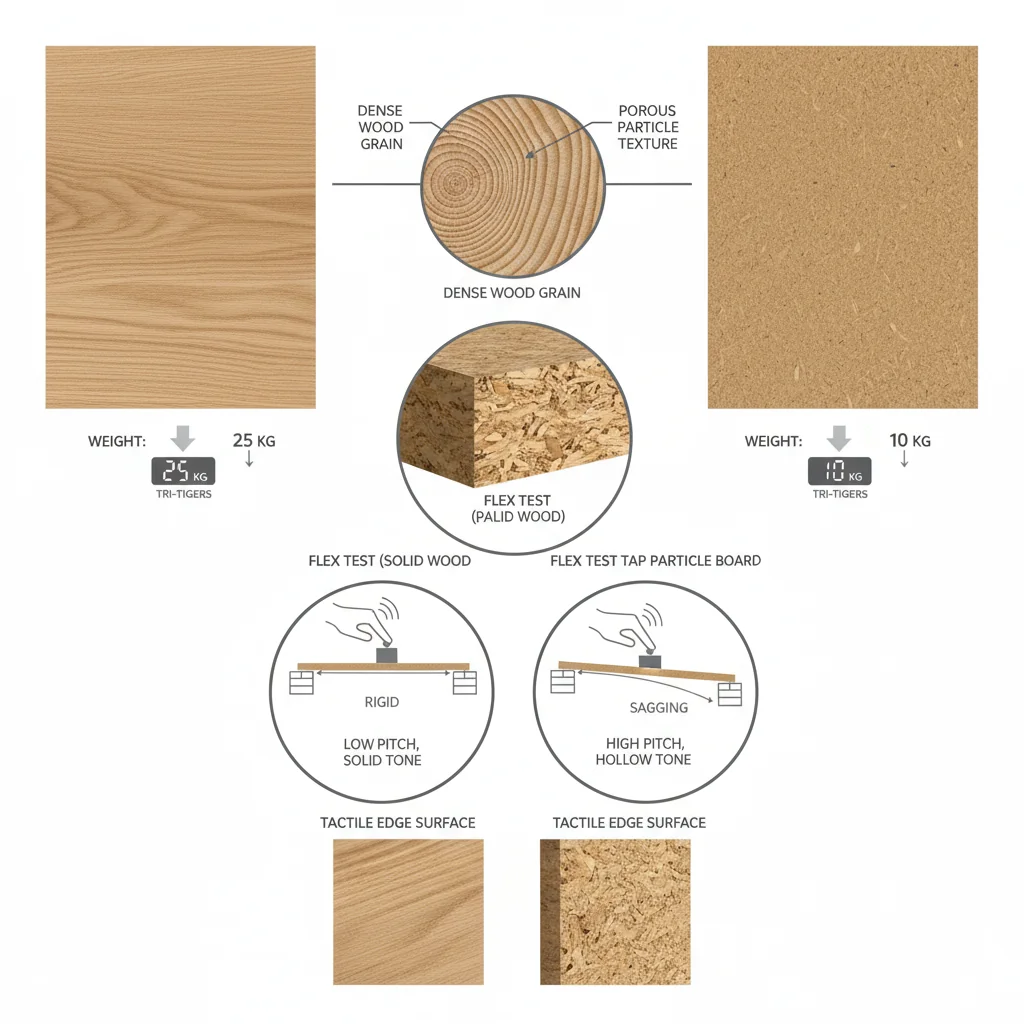
Particleboard desks flex under pressure and create persistent wobble. If your tabletop bends when pressed, add support beams between the leg joints. For long-term stability, switching to a metal or solid wood desk provides the best foundation.
Optimize Your Monitor Mount Setup
Once your desk is solid, focus on the mount. This is the critical link between your foundation and your screen.
Move the Monitor Closer to the Support Pole
Leverage amplifies wobble dramatically. The farther your monitor extends from the arm’s central pole, the more it shakes. Reposition your display 8 to 12 cm closer to the base. Even this small change can cut oscillation by half. Keep ergonomics in mind, with your eyes aligned to the top third of the screen.
Relocate the Mount to the Strongest Point
Clamping to the thin front or back edge of a desk creates a weak anchor. Move the mount to the center span, where the tabletop has maximum rigidity. Installing through a grommet hole is even better, since it anchors directly to the underside and minimizes flex.
Tighten VESA Bolts in a Star Pattern
A loose monitor-to-arm connection causes shifting and wobble. Remove the screen, inspect the VESA plate, and reattach it using a star or X pattern, similar to tightening car lug nuts. This ensures even pressure and prevents warping. Re-tighten after one week, since components settle over time.
Adjust Arm Tension for Your Monitor Weight
If your monitor sags or bounces after adjustment, the tension is wrong. Locate the tension screw on the arm’s pivot point and tighten it incrementally. Test after each turn by lifting and releasing the monitor. It should stay in place without dipping or rebounding excessively.
Run the Tap and Settle Test
Here is how to confirm your fix worked. Firmly tap the top corner of the monitor. It should stop moving within 2 seconds. If it keeps swaying, return to desk stability checks or consider upgrading your arm.
Fix Cable Tension Issues

Cables are silent wobble triggers, especially on standing desks where vertical motion creates constant pull.
Check for Taut Cables at Full Height
Raise your desk to maximum standing height and grab the power and video cables connected to your monitor. If they feel stretched tight, they are pulling the screen downward or sideways, creating constant tension that translates into wobble.
Add a 10 to 20 cm Service Loop
You need 10 to 20 cm of slack, called a service loop, at maximum desk height. This allows full motion without strain. If your cables are too short, replace them with longer versions or use extension cables. Route excess slack behind the desk or clip it to the arm rather than coiling it tightly.
Inspect Cable Routing for Snags
Make sure cables are not catching on desk edges, drawers, or other devices when the desk moves. Snags create sudden pulls that destabilize the monitor. Use adhesive clips or a cable management arm to keep wires clear and floating freely throughout the full range of motion.
Handle Heavy or Multi-Monitor Setups

Ultrawides and dual-monitor rigs demand extra attention to balance and support.
Balance Weight on L-Shaped Desks
Avoid placing heavy monitors on the outer edge of an L-shaped desk’s unsupported wing. Instead, position them near the inner corner, where both desk sections and a support leg meet. This minimizes leverage and flex that cause persistent wobble.
Add a Third Support Leg if Needed
If you must place a heavy display on a weak spot, install a third leg or corner brace underneath. This directly supports the load and stops the desk from sagging. Use adjustable legs to fine-tune leveling across the entire surface.
Upgrade to a Sturdier Arm
Standard arms may not handle ultrawide or high-resolution monitors. Check your arm’s weight rating. Your monitor should fall between 80 and 100 percent of its maximum capacity. If it is undersized, upgrade to a heavy-duty model with reinforced joints and better dampening.
Use Third-Party Support Brackets
For extreme setups, consider professional-grade support systems like SmallRig or Manfrotto. These add anchor points, tension control, and rigidity beyond what stock arms offer. They work especially well for cinema monitors or dual-arm configurations.
Fix Wobble on Cinema Camera Monitors
On rigs like the Sony FX3 or FX6, monitor shake affects handheld stability and framing accuracy.
Tighten Mounting Screws Carefully
Use a T6 Torx or Phillips #0 screwdriver to gently tighten all screws securing the monitor to the camera body. Focus on side and base screws, which often loosen after use or impact. Avoid over-tightening, since stripped screws require a full bracket replacement.
Inspect the Bracket for Damage
Remove the monitor and examine the mounting bracket for cracks, bends, or wear, especially near pivot points. A damaged bracket will not hold firm no matter how tight the screws. Replace it with an OEM part, which costs around $40 for Sony models.
Reseat the Monitor Housing Properly
Ensure the monitor clicks fully into place. Misalignment from improper seating causes wobble. Press it in until you hear a click, verifying that alignment pins are seated. If it still shifts, the housing or connector may be worn.
Install a Dedicated Support Arm
For handheld shooting, attach a dedicated monitor support arm. These provide adjustable tension and secondary mounting points, isolating the screen from camera vibrations. Models with rubber dampeners or counterweights offer even better stability.
Prevent Monitor Wobble Long-Term
Fixing wobble is not a one-time job. Components settle, bolts loosen, and setups evolve over time.
Re-Tighten After the First Week
VESA bolts and arm clamps often loosen slightly during initial use. After seven days, re-check and tighten all key connections. This simple step prevents gradual drift and instability from undermining your fix.
Schedule Quarterly Fastener Sweeps
Every three months, inspect all desk and mount hardware. Micro-vibrations from daily use slowly undo even the tightest bolts. A 10-minute sweep keeps everything secure and prevents wobble from returning.
Monitor Load Changes Carefully
Adding a new monitor, webcam, or accessory changes weight distribution. Always re-evaluate stability, especially on standing or L-shaped desks. An extra 2 kg can tip the balance and reintroduce wobble.
Inspect Cables Regularly
Cable ties can tighten over time, and extensions can shift. Every few months, verify that your service loop still has slack at full desk height. Re-route or replace cables as needed to maintain proper tension relief.
Frequently Asked Questions About Fixing a Wobbly Monitor
Why does my monitor wobble when I type?
Typing creates micro-vibrations that travel through your desk and into the monitor mount. If your desk bolts are loose or your tabletop flexes, these small vibrations get amplified into visible screen shake. Tightening all fasteners and reinforcing weak tabletops usually solves this problem.
How do I know if my monitor arm is strong enough?
Check the arm’s weight rating and compare it to your monitor’s actual weight. Your monitor should weigh between 80 and 100 percent of the arm’s maximum capacity. An undersized arm causes long oscillation times after bumps and gradual sagging over time.
What is a service loop and why does it matter?
A service loop is 10 to 20 cm of extra slack in your cables at maximum desk height. Without this slack, taut cables pull on your monitor as the desk moves, translating vertical motion into horizontal wobble. Adding a proper service loop eliminates this hidden source of instability.
Can rubber pads fix monitor wobble permanently?
Rubber pads, foam, or even a pack of paper under the monitor base can reduce the perception of vibration, but they are temporary fixes at best. They do not address the root cause, which is usually loose fasteners, poor mount placement, or inadequate cable slack. Use dampening only as a diagnostic step while you implement permanent solutions.
How tight should VESA bolts be?
Tighten VESA bolts firmly using a star or X pattern to ensure even pressure distribution. Do not overtighten, since this can warp the plate or strip the threads. After one week of use, re-check and tighten again, as components settle and may require a small adjustment.
Is it worth upgrading my desk to fix wobble?
If your desk is particleboard and flexes under pressure, upgrading to a metal or solid wood frame with a wide cross-brace provides the best long-term solution. No amount of mount adjustment will fully compensate for a fundamentally unstable foundation, especially with heavy or ultrawide monitors.
Key Takeaways for a Rock-Solid Monitor Setup

Learning how to fix a wobbly monitor comes down to systematic diagnosis. Start with the desk, since a shaky foundation undermines everything above it. Then optimize your mount by reducing leverage, tightening VESA bolts correctly, and adjusting arm tension. Address cable tension by creating a proper service loop and routing wires to avoid snags. For heavy or multi-monitor setups, balance weight near support points and upgrade undersized arms. Run the tap and settle test after each fix to confirm results.
Your next step is simple. Pick the most likely culprit from this guide and spend 10 minutes testing that specific fix. Most users solve their wobble in under an hour using nothing but basic tools they already own.


