
You press the power button, hear the fans spin, and watch the keyboard lights respond, but your monitor stays completely dark. This frustrating “blank monitor” problem affects both desktops and laptops, and it can strike at any moment, whether during startup, after a Windows update, or mid-task. The good news is that most blank screen issues come from simple causes like loose cables, wrong input settings, or driver conflicts, not dead hardware.
The trick is to start with the easiest fixes and work your way toward more advanced solutions. This guide walks you through every proven troubleshooting step, from checking power connections to resetting graphics drivers and testing internal components. By the end, you will have a complete toolkit to fix a blank monitor on your own, plus tips to prevent it from happening again.
Power and Connection Issues to Check First
Before diving into software fixes, rule out physical causes. A blank monitor often comes down to a power or connection problem that takes only seconds to resolve.
Confirm the Monitor Is Receiving Power
If your monitor shows no signs of life at all, no power light, no logo, no sound, then it is not getting electricity. First, make sure the power cable is firmly plugged into both the monitor and the wall outlet. Test the outlet by plugging in a lamp or phone charger to confirm it works. If the outlet is fine, swap the power cable for a known working one. Many monitors use standard IEC cables that are easy to replace.
For laptops, plug in the charger and check the charging indicator light. If the light does not turn on, the issue may be with the adapter or battery rather than the display itself.
Inspect Video Cables and Ports
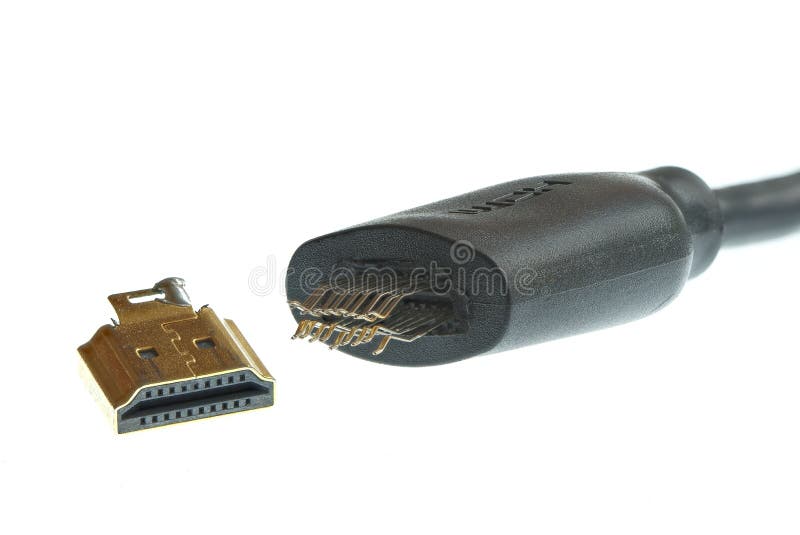
Even when the monitor powers on, a loose or damaged video cable blocks the signal entirely. Check HDMI, DisplayPort, VGA, or DVI cables at both ends and gently unplug and reconnect them. Look closely for bent pins, frayed wires, or cracked connectors.
Swap the cable with a known working one if you have a spare. Adapters like USB-C to HDMI are common failure points, so test with a direct connection when possible. If your graphics card has multiple output ports, try a different one to rule out a damaged port.
Set the Correct Input Source
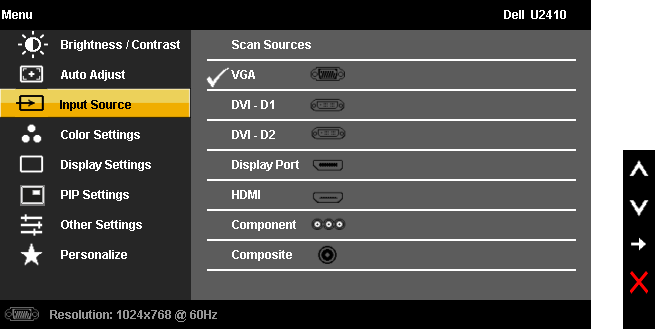
Monitors do not automatically detect which input to use. If your cable is plugged into HDMI 2 but the monitor is set to DisplayPort, you will see nothing. Use the physical buttons on your monitor to open the On-Screen Display (OSD) menu. Navigate to the Input Source setting and manually select the matching port.
If you suspect the menu is appearing but the screen looks black, shine a flashlight at the display at an angle. A faint image of the OSD means the backlight may be failing while the signal still reaches the panel.
Isolate the Problem with Cross-Testing
The fastest way to identify the faulty component is to swap parts between devices. This process, called cross-testing, removes guesswork from the equation.
Test Your Monitor on Another Device

Connect your monitor to a different computer, laptop, or gaming console using the same cable. If the image appears, your monitor works fine and the problem lies with your original PC. If the screen stays blank, the monitor itself is likely defective.
Try a Different Monitor on Your Computer
Plug a known working monitor into your computer using the same cable. If it displays an image, your original monitor is the culprit. If it remains blank, the problem sits inside your computer, possibly with the GPU, motherboard, or software.
Test a Laptop with an External Display
For laptops showing a blank screen, connect an external monitor via HDMI or USB-C. If the external display works, the laptop’s internal screen or its ribbon cable may be damaged. If nothing appears on either screen, the issue likely involves the GPU or system board.
Quick Keyboard Shortcuts to Restore Display
When your computer seems to be running but the display is missing, specific key combinations can reset the graphics subsystem without rebooting.
Reset the Graphics Driver
Press Windows + Ctrl + Shift + B at the same time. You should hear a short beep, and the screen may flicker or go black for a moment. This command restarts the graphics driver and often restores the display immediately. Your unsaved work stays intact.
Cycle Through Display Projection Modes
Press Windows + P, then press P again and hit Enter. This cycles through four modes: PC screen only, Duplicate, Extend, and Second screen only. If your system accidentally switched to “Second screen only,” your main monitor will appear blank. Cycling back to “PC screen only” brings it back.
Restart Windows Explorer
If you see a cursor on a black screen, Windows Explorer may have crashed. Press Ctrl + Shift + Esc to open Task Manager. Find Windows Explorer in the Processes tab, right-click it, and select Restart. If it is missing, click File > Run new task, type explorer.exe, and press Enter.
Check If Your System Is Responsive
Press the CapsLock or NumLock key. If the indicator light toggles on and off, the operating system is running and the issue is software-related. If the light does not respond, the system may be frozen and require a hard reset.
Boot Into Safe Mode for Deeper Diagnosis
If the screen stays black during startup, Safe Mode loads Windows with minimal drivers, which helps you bypass the very thing causing the blank screen.
Trigger Automatic Repair Mode
Force a shutdown by holding the power button for 10 to 20 seconds during boot. Repeat this two or three times. On the next attempt, Windows should launch the Automatic Repair screen.
Navigate to Safe Mode
From the recovery screen, follow these steps:
- Select Troubleshoot
- Choose Advanced options
- Click Startup Settings
- Press Restart
- After reboot, press F4 or 4 to enter Safe Mode
If the display works in Safe Mode, the root cause is almost certainly a driver, resolution setting, or recently installed software.
Fix Graphics Driver Conflicts
Driver issues rank among the top causes of blank screens, especially after Windows updates or GPU driver installations.
Update Your Graphics Driver
In Safe Mode, press Windows + X and open Device Manager. Expand Display adapters, right-click your GPU, and choose Update driver. Select Search automatically for drivers.
If automatic search fails, download the latest driver from the manufacturer’s website using another device, transfer it via USB, and install it manually.
Roll Back a Recent Driver Update
If the blank screen started right after a driver update, follow these steps:
- Open Device Manager
- Right-click your GPU and select Properties
- Go to the Driver tab
- Click Roll Back Driver if the option appears
This reverts to the previous working version.
Perform a Clean Driver Reinstall
For stubborn cases, fully remove the old driver:
- In Safe Mode, open Device Manager
- Right-click the GPU and select Uninstall device
- Check Delete the driver software for this device if prompted
For best results, use DDU (Display Driver Uninstaller), a free tool that removes every trace of the old driver before you install a fresh copy.
Adjust Display Settings in Safe Mode
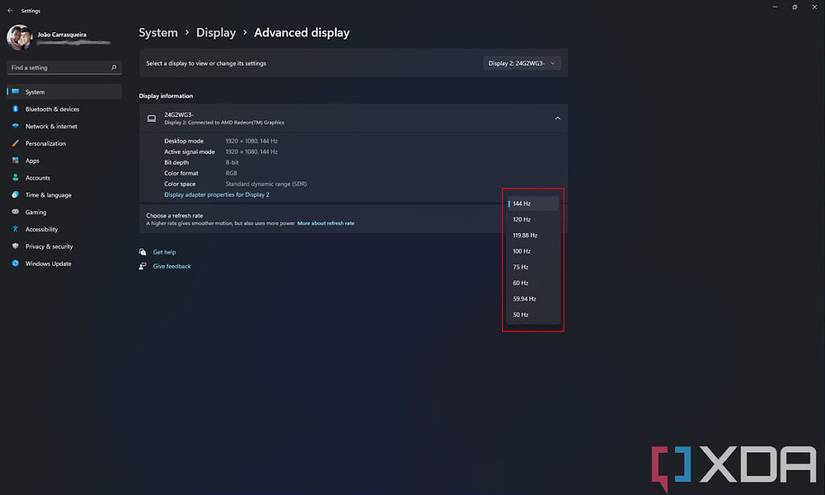
High refresh rates and unsupported resolutions can cause handshake failures, especially on newer monitors.
Lower the Refresh Rate
In Safe Mode, go to Settings > System > Display > Advanced display. Change the refresh rate to 60Hz. Some high-refresh monitors fail to display at higher rates until properly initialized.
Reset Display Resolution
Set the resolution to a standard value like 1920×1080. If the screen was set to an unsupported resolution, this often restores visibility instantly.
Disable Unused Multiple Displays
If your system was set to extend to a non-existent third monitor, fix it this way:
- Press Windows + P
- Select PC screen only
Alternatively, open Display Settings, detect displays, and disable any unused outputs.
Use System Recovery Tools
When recent changes triggered the blank screen, built-in recovery options can reverse them.
Restore to a Previous Working State
Press Windows + R, type rstrui, and press Enter. Choose a restore point from before the issue began. This undoes system changes, drivers, and updates without affecting personal files.
You can also access System Restore through Troubleshoot > Advanced options in the recovery environment.
Uninstall Recent Windows Updates
Go to Settings > Update & Security > Windows Update > View update history > Uninstall updates. Remove the most recent Feature or Quality update, then restart and check if the display returns.
Inspect Internal Hardware Components
If software fixes fail, open the case and check the physical hardware. Always power off and unplug the device before touching internal parts.
Reseat the Graphics Card
Open the case, unscrew the dedicated GPU, and firmly reinsert it into the PCIe slot. Reconnect any 6-pin or 8-pin power cables. A loose GPU is a surprisingly common cause of no display.
Test Integrated Graphics
If your CPU has integrated graphics, follow these steps:
- Remove the dedicated GPU entirely
- Connect the monitor to the motherboard’s video port
- Power on the system
If the display works, your dedicated graphics card is likely faulty.
Check RAM and Motherboard
Reseat RAM modules by removing and reinserting them. Faulty RAM can prevent the system from initializing the display. Listen for motherboard beep codes during startup, as repeated beeps often indicate GPU or RAM failure.
Power Cycle a Laptop
For laptops, follow this sequence:
- Shut down and unplug the device
- Remove the battery if possible
- Hold the power button for 30 seconds
- Reconnect power and try starting again
This drains residual power and often resolves stubborn boot issues.
Monitor-Specific Fixes
Sometimes the monitor itself has internal settings or hardware problems that cause the blank screen.
Factory Reset the Monitor
Open the OSD menu and find the Reset or Factory Reset option. This clears corrupted settings like brightness, input timing, or custom profiles that may block the display.
Check for Backlight Failure
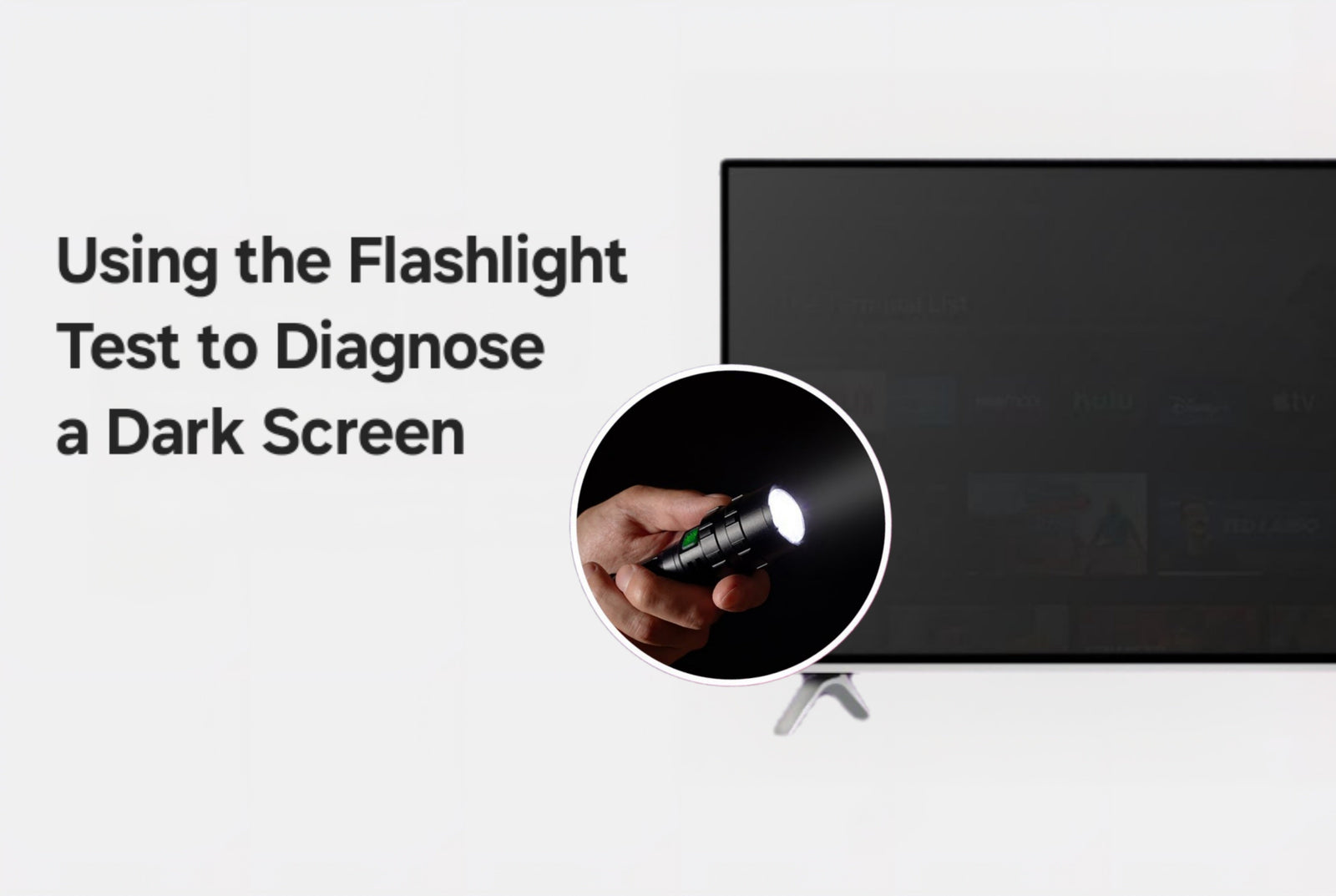
Shine a flashlight at the screen at a sharp angle. If you can faintly see the desktop or login screen, the backlight has died but the image still reaches the panel. This requires professional repair or panel replacement.
Update Monitor Firmware
Visit the manufacturer’s website and look for firmware updates. Some brands release patches that fix handshake issues, especially on high-refresh models.
Prevent Future Blank Monitor Issues
A few simple habits keep blank screen problems from coming back.
Use High-Quality Video Cables
For 144Hz or higher monitors, use DisplayPort 1.4 or HDMI 2.0+ cables. Cheap or old cables cannot handle high bandwidth and cause signal drops.
Keep Drivers Updated
Use manufacturer tools like NVIDIA GeForce Experience, AMD Adrenalin, or Intel Driver and Support Assistant to stay current. Avoid automatic updates if stability matters more than new features.
Clean Dust from Components
Dust buildup causes overheating, which destabilizes GPUs and leads to crashes. Clean fans and heatsinks every 3 to 6 months using compressed air.
Avoid Forced Shutdowns
Only force a shutdown as a last resort. Sudden power loss can corrupt system files and trigger black screen boot failures.
Frequently Asked Questions About Fixing a Blank Monitor
Why is my monitor blank but the computer is running?
A blank monitor with running fans usually points to a signal issue. The computer is on, but no image reaches the display. Common causes include loose video cables, wrong input source, failed graphics drivers, or a faulty GPU.
Can a blank monitor be fixed without replacing hardware?
Yes, most blank monitor issues come from software or connection problems. Reseating cables, updating drivers, and adjusting display settings resolve the majority of cases without any hardware replacement.
How do I know if my blank monitor is a hardware or software issue?
Cross-testing gives you the answer. Connect your monitor to another computer or try a different monitor on yours. If the problem follows the monitor, it is hardware. If it stays with the computer, it is software or driver related.
What is the first thing to check when fixing a blank monitor?
Always start with the power cable and video cable. Ensure both are firmly connected and the monitor is set to the correct input source. These simple checks solve more blank screen problems than any other step.
Will fixing a blank monitor delete my files?
No. Most troubleshooting steps like reseating cables, updating drivers, and adjusting settings do not affect personal files. System Restore also preserves your data. Only a full Windows reset or clean install would remove files.


