
You’re setting up your dual-monitor workspace when suddenly, a third display appears in your settings, even though you only have two screens. Worse, it is not even a monitor. It is your soundbar, mistakenly detected as Monitor #3. This common HDMI quirk can clutter your display layout and disrupt your workflow. The good news is that learning how to disconnect a monitor, even one that is not a real display, takes only a few clicks in Windows 10.
This guide shows you how to identify and disable unwanted displays, avoid audio-video conflicts, and keep your setup running smoothly. You will also learn quick keyboard shortcuts and prevention tips for the future.
Open Display Settings to Begin Disconnecting a Monitor

Right-Click Desktop to Access Settings
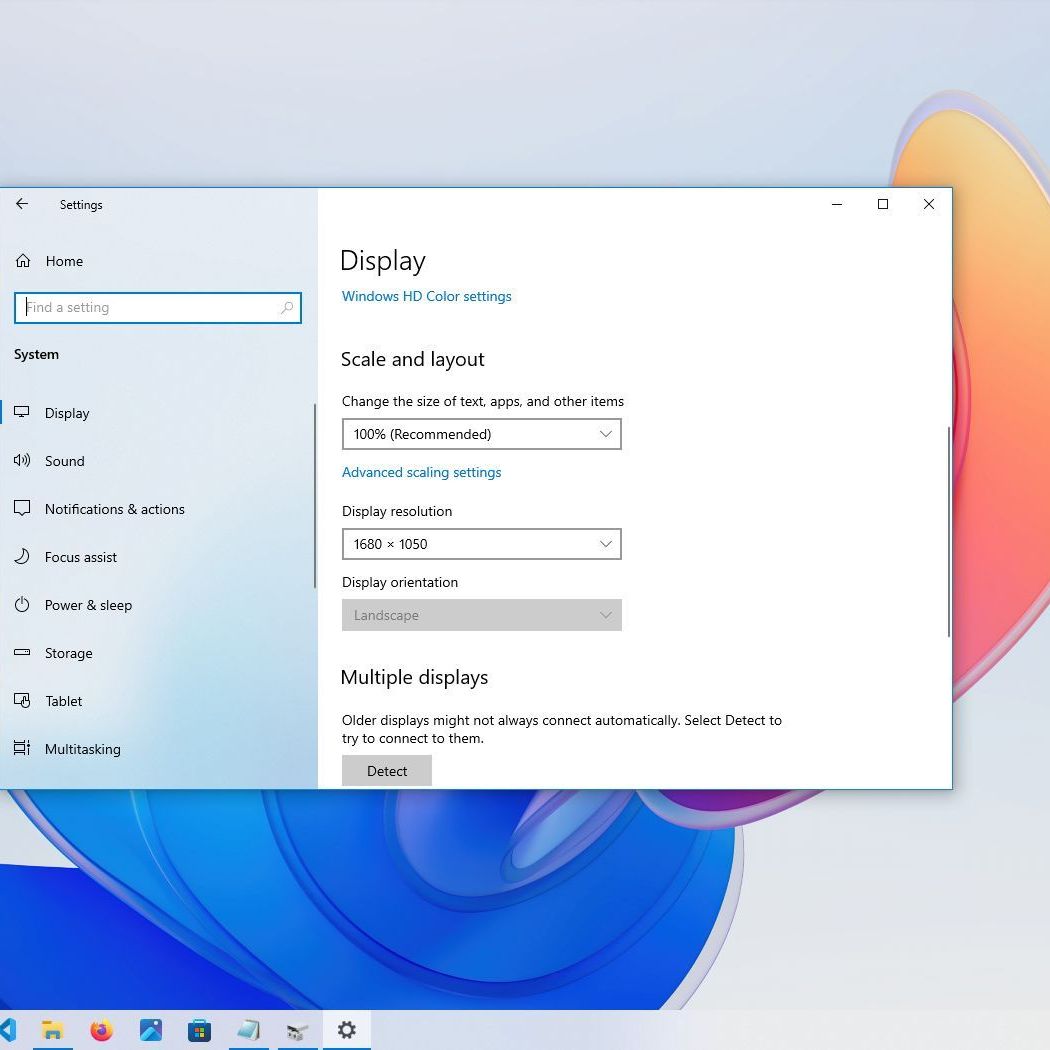
To begin disconnecting a monitor, right-click anywhere on your desktop. From the context menu, select Display settings. This opens the main display configuration panel where all connected screens appear as numbered boxes.
Locate Active Displays
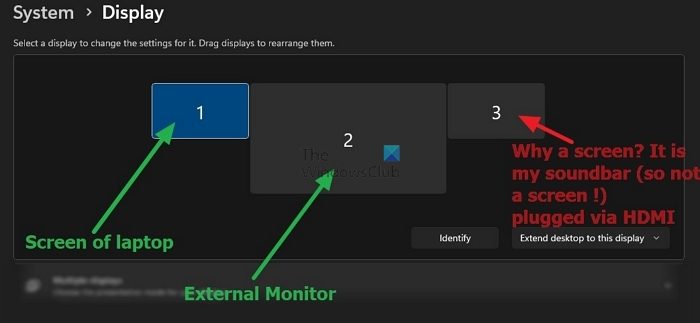
Windows will show each detected screen as a labeled box, numbered 1, 2, 3, and so on. Even non-monitor devices like HDMI-connected soundbars may appear here. Identify Monitor #3, or whichever display you want to disconnect.
Identify the Correct Monitor Before Disconnecting
Match Number to Physical Display
Click on each numbered box and look for the Identify button. Windows will briefly flash the number on the corresponding screen. Use this to confirm which is your actual monitor and which is the misidentified device.
Recognize Misidentified Devices
If Monitor #3 does not correspond to a physical screen, it is likely an audio device sending an EDID signal via HDMI. Common culprits include:
- Soundbars
- AV receivers
- HDMI audio extractors
These devices sometimes trick Windows into thinking they are displays because HDMI handles video and audio together.
Disconnect the Unwanted Monitor in Display Settings

Select the Monitor to Disable
Click on the box labeled #3, or the phantom display. This highlights the display and reveals its settings below.
Choose “Disconnect This Display”
Scroll down to the Multiple displays dropdown menu. Click it and select Disconnect this display. This tells Windows to stop sending any signal to the device and removes it from the display layout.
Apply and Confirm Changes
Click Apply. Windows will prompt you to confirm whether you want to keep the new display settings. Click Keep changes. The monitor will disappear from your setup and will not reappear unless reconnected.
Note: If you accidentally disconnect the wrong display, wait 15 seconds. Windows will revert automatically, and you can try again.
Troubleshoot HDMI Audio Conflicts When Disconnecting a Monitor
Why Soundbars Appear as Monitors
HDMI transmits both video and audio signals. Some soundbars send a minimal EDID (Extended Display Identification Data) signal, which makes Windows register them as displays even without a screen. This causes Monitor #3 to appear falsely in your settings.
Switch to Alternative Audio Connections
To prevent recurrence after you disconnect a monitor, try these alternatives:
- Bluetooth: Pair your soundbar wirelessly if supported.
- 3.5mm Audio Cable: Connect via aux cable from PC to soundbar.
- Optical Audio (TOSLINK): Use if both devices support it.
- HDMI Audio Extractor: Splits audio from video so only your TV or monitor receives video, and audio goes to the soundbar cleanly.
Pro Tip: Disconnect the HDMI audio cable from your PC and plug it into your TV’s ARC port instead. Let the TV handle audio pass-through.
Reset Display Settings if Needed After Disconnecting
Restore Original Configuration
After you disconnect a monitor, you may experience resolution or scaling issues on your main displays.
Access Advanced Display Properties
- Go to Display settings.
- Scroll down and click Advanced display settings.
- Select Display adapter properties for Display 1.
Reapply Correct Display Mode
In the new window:
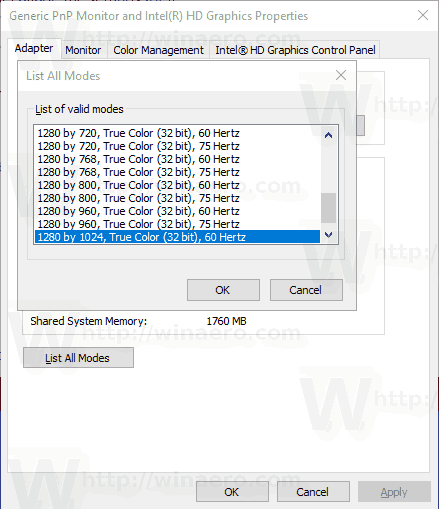
1. Click List All Modes.
2. Choose your preferred resolution and refresh rate, such as 1920×1080 at 60Hz.
3. Click OK and then Apply in Display Settings.
This ensures your primary monitors return to optimal performance.
Prevent Future Detection Issues After You Disconnect a Monitor
Disable Plug and Play for Displays (Optional)
To stop Windows from auto-detecting phantom displays:
1. Press Win + R, type devmgmt.msc, and press Enter.
2. Expand the Monitor category.
3. Right-click any Generic PnP Monitor entries tied to audio devices.
4. Select Disable device.
Warning: Only disable entries you are certain are not real monitors.
Use Dedicated GPU Control Panel
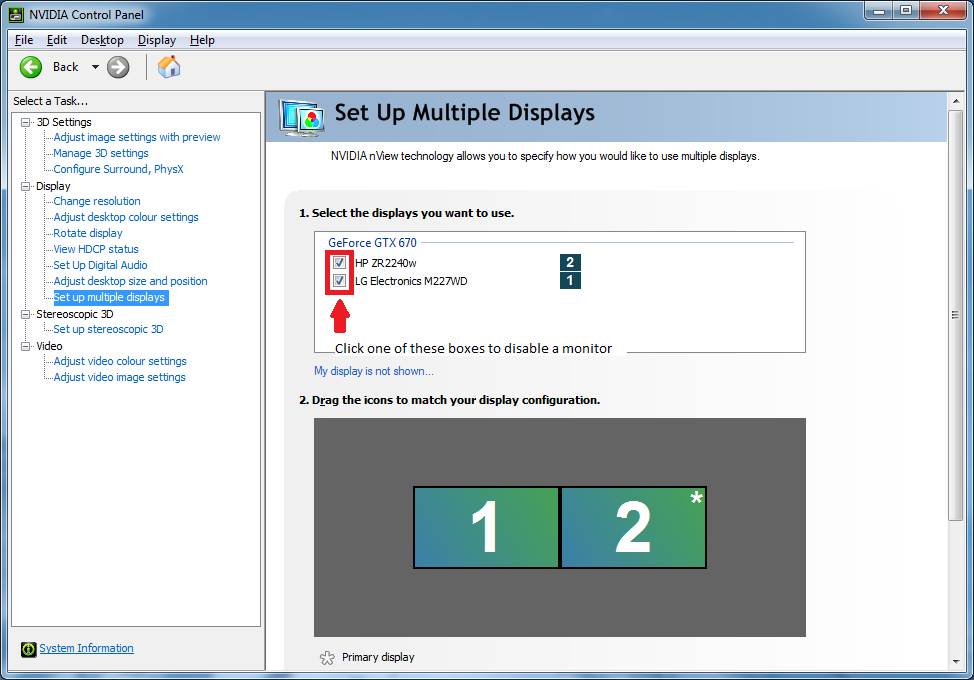
NVIDIA, AMD, or Intel graphics software offers more granular control over how to disconnect a monitor.
In NVIDIA Control Panel:
- Open NVIDIA Control Panel.
- Go to Display and then Set up multiple displays.
- Uncheck the box next to the unwanted display, such as “HDMI Audio” or “#3”.
- Click Apply.
This method often shows more accurate device labels than Windows Display Settings.
Reconnect a Monitor Later After Disconnecting
Re-enable a Disconnected Display
If you later need to use the device, such as connecting a real monitor to that port, follow these steps:
- Open Display settings.
- Click Detect under the display layout.
- Windows will rediscover the display.
- Select it, choose a mode like Extend or Duplicate, and click Apply.
The monitor will reappear and function normally.
Keyboard and Shortcut Methods to Disconnect a Monitor
Use Windows + P for Quick Switching
Press Win + P to open the Project menu. Choose from these options:
- PC screen only: Disables all external displays.
- Duplicate: Shows the same screen on all displays.
- Extend: Adds monitors as extended desktop.
- Second screen only: Turns off the main display.
This is useful for temporarily disconnecting monitors without going into full settings.
Disable via Command Line (Advanced)
Use PowerShell to disable a display using its instance ID. This method is for advanced users comfortable with command-line tools.
Frequently Asked Questions About Disconnecting a Monitor
Why does my soundbar show up as Monitor #3 in Windows 10?
HDMI carries both video and audio signals. Some soundbars send a minimal EDID signal that makes Windows register them as displays, even though no screen is connected. This creates a phantom Monitor #3 in your settings.
Will disconnecting a monitor delete my files or programs?
No. Learning how to disconnect a monitor only affects how Windows sends video signals to that display. Your files, programs, and settings remain completely untouched.
How long do I have to wait if I disconnect the wrong monitor?
Windows gives you 15 seconds to confirm changes. If you do not click “Keep changes” within that window, your display settings revert automatically to the previous configuration.
Can I disconnect a monitor without right-clicking the desktop?
Yes. Press Win + P to open the Project menu and select “PC screen only.” This disables all external displays instantly without opening Display Settings.
Do I need special software to disconnect a monitor in Windows 10?
No special software is required. Windows 10 built-in Display Settings handles most disconnection needs. However, your GPU control panel (NVIDIA, AMD, or Intel) offers more detailed options for advanced users.
Will the disconnected monitor come back automatically?
Only if it remains physically connected and Windows detects it again. After you disconnect a monitor through settings, it stays disabled until you manually click Detect or reconnect the device.
Key Takeaways for Disconnecting a Monitor in Windows 10
Learning how to disconnect a monitor in Windows 10 is straightforward once you know where to look. The Display Settings panel gives you full control over phantom displays, misidentified HDMI audio devices, and unwanted screens. For HDMI soundbar conflicts, switching to Bluetooth or a 3.5mm cable prevents the issue from recurring.
If your display settings feel off after disconnecting, use Advanced Display Settings to restore your preferred resolution and refresh rate. For persistent phantom displays, your GPU control panel offers more reliable device identification than Windows alone.
Your next step: Open Display Settings right now and check how many displays Windows detects. If you see a Monitor #3 that should not be there, follow the steps above to disconnect it and reclaim a clean workspace.


