
You plug in your monitor, fire up your computer, and suddenly your audio routes through the display even though it has no speakers. This frustrating scenario happens more often than you might expect. When monitors connect through HDMI, DisplayPort, or USB-C, they often advertise audio capabilities to your operating system, forcing Windows and macOS to treat them as valid playback devices.
The good news is that you can disable the sound from your monitor and stop this behavior for good. However, not all methods work the same across platforms. Windows offers reliable, persistent ways to hide or block monitor audio devices through native sound settings. macOS lacks a permanent solution, forcing users into manual reconfiguration after every wake or reconnect. This guide delivers clear, step-by-step instructions tailored to your operating system, monitor model, and setup so your headset stays in control, not your display.
Disable Monitor Audio Through Windows Sound Settings

Windows provides multiple built-in methods to disable monitor audio output without uninstalling drivers or risking reactivation on reboot. These approaches are more reliable than Device Manager and persist across reconnections.
Use the Sound Control Panel on Windows 10
This legacy interface remains one of the most effective ways to disable unwanted playback devices.
- Right-click the volume icon in the taskbar and select Sounds.
- Go to the Playback tab.
- Locate your monitor’s audio device, usually labeled with the brand and port (such as DELL U2417H DisplayPort).
- Right-click it and choose Disable.
- Click OK to confirm.
The device stays hidden from the volume tray and app audio selectors. It remains disabled after restarts and waking from sleep.
Pro Tip: Always set your preferred headset or speakers as the Default Device in this same window to ensure consistent audio routing.
Manage Devices in Modern Windows 10 Settings
Newer versions of Windows 10 include a streamlined option directly in Settings.
- Press Win + I to open Settings.
- Navigate to System, then Sound.
- Scroll down and click Manage sound devices under Related settings.
- Under Output devices, find your monitor’s audio entry.
- Click the device name, then select Disable.
Return to the main Sound screen to verify your monitor no longer appears in the output dropdown. This method is ideal for users who prefer the modern interface and want quick access without diving into legacy panels.
Apply the “Don’t Allow” Rule on Windows 11
Windows 11 replaces the simple Disable option with a stronger “Don’t allow” feature that removes the device from selection entirely.
- Open Settings using Win + I, then go to System and Sound.
- In the Output section, view the list of available devices.
- Click on the monitor audio device (such as LG HDR HDMI).
- Select the option labeled Don’t allow.
- Confirm the action if prompted.
The system actively blocks the device from appearing in any audio selection menu, even in apps like Zoom or Teams.
Note: If the device reappears after waking from sleep or switching KVM inputs, revisit this setting and reapply “Don’t allow.” Some KVMs trigger full device re-enumeration.
Why Device Manager Fails to Disable Monitor Audio
Many users try disabling monitor audio through Device Manager, but this approach often fails to provide lasting results.
The Persistence Problem
Disabling the High Definition Audio Device under Sound, video and game controllers may seem effective at first. However, when the monitor reconnects or wakes up, Windows redetects the EDID signal and re-enables the device automatically. The setting does not persist across sleep cycles, cable replugging, or KVM switching.
Device Manager is not a reliable solution for suppressing monitor audio. Stick to the native Sound Settings or Control Panel methods instead for better results.
Handle macOS Limitations for Monitor Audio
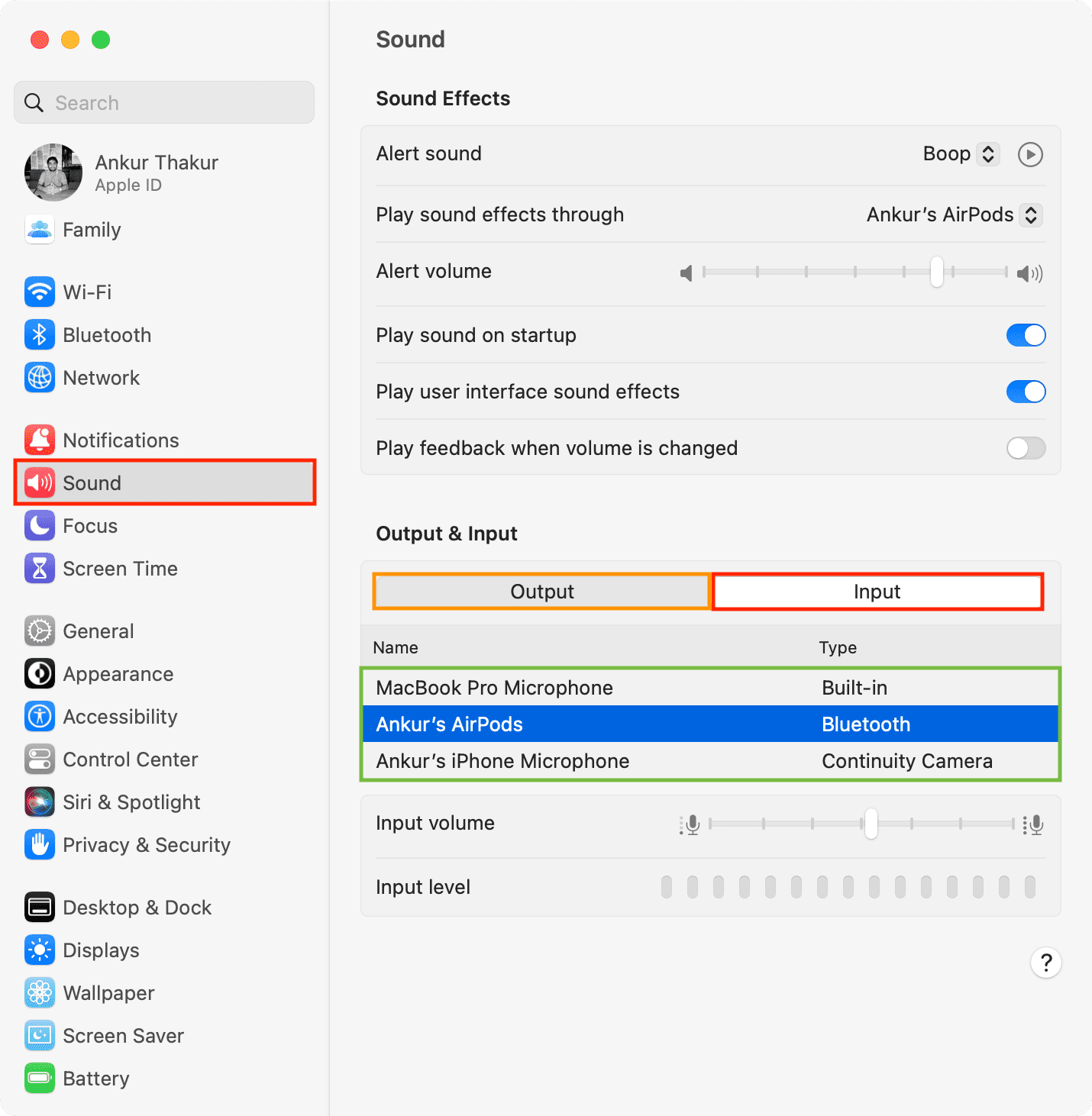
Unlike Windows, macOS currently lacks a built-in way to permanently disable a monitor’s audio output. Users must rely on workarounds to minimize disruption.
Manual Selection Is Required Every Time
- Go to System Settings, then Sound and Output.
- Select your desired device (such as a headset or external speakers).
- Avoid selecting the monitor (such as Dell U2723QE).
Every time the monitor reconnects through wake-from-sleep, KVM switch, or cable replug, macOS may revert to the monitor as the default output. There is no “Don’t allow” equivalent on macOS to block or hide the monitor audio device permanently.
Workarounds That Reduce Disruption
While imperfect, these strategies help manage the issue:
Use Third-Party Tools
Apps like SwitchAudioSource (command-line) or SoundSource by Rogue Amoeba let you:
• Create audio presets
• Automate output switching based on connected devices
• Lock apps to specific audio endpoints
You can run a script that switches output back to your headset whenever the Mac wakes.
Rely on App-Specific Settings
Force critical apps to ignore system defaults:
1. Open Zoom, Teams, or Symbo.
2. Go to Settings, then Audio.
3. Manually select your microphone and speaker.
4. Do not choose “System Default.”
Even if macOS routes system audio to the monitor, your meeting app continues using your headset.
Fix KVM and Multi-Monitor Audio Routing Issues

Using a KVM switch or multiple monitors amplifies audio routing problems and requires extra precautions.
Why Devices Reappear After Switching
When switching inputs on a KVM, the computer detects a new connection. All USB and audio devices re-enumerate, and previously disabled monitor audio reappears and may become active again.
Lock Apps to Specific Hardware
Even with correct system defaults, use application-level audio binding:
1. In Zoom: Settings, Audio, Speaker, then choose “Logitech Headset” instead of “Default.”
2. In Microsoft Teams: Settings, Devices, Speaker, then pick specific hardware.
3. In Symbo: Audio Settings, then select “Headset Earpiece” explicitly.
This creates a direct link between the app and your audio device, bypassing OS-level switches.
In shared workspaces, one user may disable monitor sound while another logs in, triggers a KVM switch, and experiences silent meetings. App-specific settings prevent this scenario.
Dell Monitors and the Missing Firmware Audio Toggle
Users of popular models like the Dell U2723QE often ask whether there is an OSD setting to disable audio.
Dell Support Confirms: No Firmware Option Exists
Dell Support has confirmed that there is no menu option in the On-Screen Display to disable audio pass-through. Even monitors without speakers transmit audio capability via EDID. Audio signaling is passive, meaning the monitor advertises support but cannot suppress it.
You cannot disable audio at the hardware level. The only solution is OS-level suppression using the Windows methods described above.
Note: Some monitors allow turning off built-in speakers, but this does not stop the OS from detecting the audio endpoint.
Prevent Accidental Audio Switching After Disabling Monitor Sound
Even after you disable monitor sound, Windows may temporarily switch audio during connection events. Follow these best practices to maintain control.
Set the Default Device Correctly
In the Sound Control Panel, right-click your headset or speakers and select Set as Default Device. Do not rely solely on the “Don’t allow” or “Disable” function. Combine it with a clear default for maximum stability.
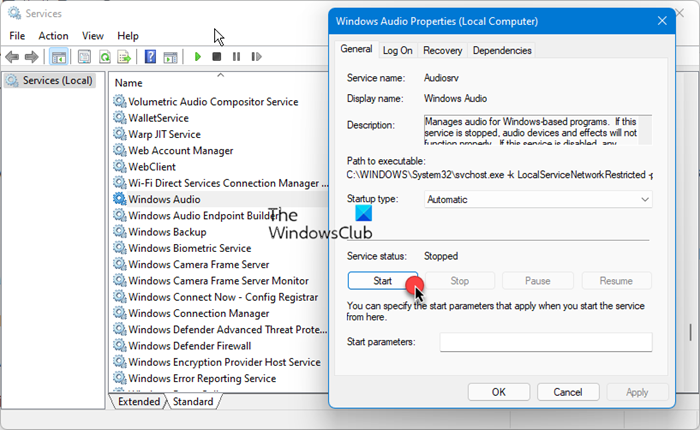
Restart Audio Services When Needed
If audio gets stuck on the monitor:
1. Press Win + R, type services.msc, then press Enter.
2. Find Windows Audio.
3. Right-click and select Restart.
4. Test your output.
This forces a refresh of audio routing and often resolves temporary glitches.
Quick Reference: Best Methods by Operating System
| Operating System | Method | Persistence |
|---|---|---|
| Windows 10 | Sound Control Panel, right-click, Disable | High |
| Windows 10 (Updated) | Settings, Manage sound devices, Disable | High |
| Windows 11 | Settings, Select device, Don’t allow | Highest |
| macOS | Manual selection plus app-specific settings | Low (requires repetition) |
| All Systems (KVM) | Lock audio in Zoom, Teams, or Symbo | Critical for stability |
Frequently Asked Questions About Disabling Monitor Sound
Why does my monitor show up as an audio device when it has no speakers?
Modern monitors connected via HDMI, DisplayPort, or USB-C transmit an EDID signal that includes audio capability flags. The operating system installs an audio driver and creates a playback endpoint regardless of whether the monitor has actual speakers.
Will disabling monitor audio in Device Manager work permanently?
No. Disabling the High Definition Audio Device in Device Manager often fails because Windows redetects the EDID signal and re-enables the device when the monitor reconnects or wakes from sleep. Use Sound Settings or the Control Panel instead for reliable results.
Can I disable monitor audio through the monitor’s own menu?
Most monitors, including the Dell U2723QE, do not offer a firmware or OSD option to disable audio pass-through. The monitor simply advertises audio availability, and suppression must happen at the operating system level.
How do I stop Windows from switching audio back to the monitor?
Use the “Don’t allow” option in Windows 11 or disable the device through the Sound Control Panel in Windows 10. Also, configure your communication apps (Zoom, Teams, Symbo) to bind to a specific audio device rather than the system default.
Is there any way to permanently disable monitor audio on macOS?
macOS does not currently offer a native, persistent method to disable monitor audio. You must manually reselect your preferred output device after every reconnection, or use third-party tools like SwitchAudioSource or SoundSource to automate the process.
What should I do if disabled monitor audio reappears after a KVM switch?
Reapply the “Don’t allow” or “Disable” setting after each KVM switch, and configure your meeting apps to use specific hardware instead of system defaults. This combination provides the most stable experience in multi-monitor or KVM environments.
Key Takeaways for Permanently Disabling Monitor Sound
You can disable sound from your monitor, but only Windows gives you true, persistent control. Use the “Don’t allow” feature in Windows 11 or disable through the Sound Control Panel in Windows 10 to permanently remove monitor audio from your workflow.
On macOS, rely on application-specific audio settings and third-party tools to minimize disruption. Remember that no current monitor lets you disable audio advertising in firmware, so the fix always starts on your computer, not the display.
Your next step: open your Sound Settings today, identify your monitor’s audio entry, and apply the appropriate Disable or Don’t allow option. Then verify your preferred headset or speakers is set as the default device to lock in your audio routing for good.


