
Green dots on your monitor can interrupt work, gaming, and streaming at the worst possible moment. Whether they flicker during a video call or sit stubbornly in one corner of your screen, the cause is usually identifiable and fixable. This guide on how to fix green dots on monitor walks you through every proven solution.
The key is matching the right fix to the right problem. Flickering green dots almost always trace back to software or hardware issues with your GPU. A single, static green dot usually points to a stuck sub-pixel in the panel itself. In the next few minutes, you will learn how to tell them apart and apply the correct repair for each.
Identify the Green Dot Type on Your Monitor
Before trying any fix, you need to confirm what kind of green dot you are seeing. This single decision determines whether you spend 20 minutes on a driver fix or file a warranty claim.
Dynamic vs. Static Green Dot Symptoms
Flickering green dots or lines that appear during video playback, gaming, or high-resolution work are software or hardware related. They often start small in one corner and escalate into full-screen green flashes under heavy load.
A single, unmoving green dot that stays visible on every screen is almost certainly a stuck sub-pixel. It does not flicker, shift, or disappear. It simply sits there like a tiny speck embedded in the display.
Run Quick Diagnostic Tests to Confirm the Issue
Use these three tests to pinpoint the source:
- Static Color Test: Display full-screen images of pure red, green, blue, black, and white. A stuck green sub-pixel disappears against a green background and stands out against black or white.
- Safe Mode Check: Boot into Windows Safe Mode. If the green dots vanish, the issue is driver related. If they remain, suspect hardware or panel defects.
- GPU Load Test: Run a stress tool like FurMark. New or worsening green artifacts under load point to VRAM or GPU failure.
Fix Flickering Green Dots with Driver and Software Solutions
When green dots appear under load, the culprit is usually corrupted drivers or unstable GPU memory. Start with the easiest fix first.
Clean Reinstall GPU Drivers Using DDU
A standard driver uninstall often leaves corrupted files behind. Use Display Driver Uninstaller (DDU) for a complete wipe of all graphics driver components.
Steps:
1. Download the latest driver from NVIDIA, AMD, or Intel, but do not install it yet.
2. Disconnect from the internet to block automatic Windows driver updates.
3. Reboot into Safe Mode.
4. Run DDU and select “Clean and restart.”
5. After reboot, install your downloaded driver.
Most users report immediate resolution of flickering green lines after this process. Always install drivers manually from the manufacturer site rather than relying on Windows Update.
Lower VRAM Clock Speed to Reduce Artifacts
If the green dots return after a clean driver install, your GPU’s VRAM may be degrading. Use GPU-Z or MSI Afterburner to reduce VRAM frequency by 50 to 100 MHz below the default value. Then test stability with gaming or benchmarks.
This does not repair the hardware, but it reduces electrical stress on weak memory cells and can extend the life of a failing GPU temporarily.
Diagnose Hardware Failures Causing Green Dots

When software fixes fail, the problem is physical. Stop wasting time on pixel tools and target the real culprits.
Check GPU Health for VRAM Degradation
Persistent green artifacts after DDU and clock adjustments usually mean the GPU is failing. Watch for these warning signs:
- Green, red, or purple dots and lines appearing randomly
- Distorted geometry or texture corruption during games
- Symptoms that worsen with heat or extended use
No software fix will resolve physical VRAM degradation. The only real solution is replacing the graphics card.
Test Your Power Supply for Instability
An aging power supply (5 years or older) may fail to deliver stable voltage to the GPU. This is especially common with 500W units paired with mid-range GPUs like the GTX 1060.
Swap in a known-good PSU or use a power supply tester to check the 12V rail. Replace the PSU if you see voltage ripple or instability. Ignoring PSU problems can lead to complete GPU or motherboard failure.
Fix a Stuck Green Pixel on Your Monitor
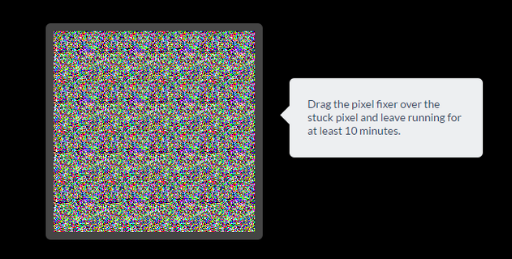
A single, static green dot is usually a stuck sub-pixel where the green transistor is locked in the “on” position. Unlike dead pixels, stuck pixels can often be repaired.
Use Pixel Repair Software to Unstick Pixels
These tools rapidly cycle colors to jolt the stuck pixel back into normal operation. Top options include:
- Stuck Pixel Fixer (desktop application)
- Pixel Healer (web-based, no installation required)
How to use them:
1. Maximize the tool to full screen.
2. Select the green flashing mode or random color cycling.
3. Let it run for 10 to 30 minutes.
4. Check whether the dot disappeared.
Repeat the process if needed. Success rates are highest within the first few weeks of noticing the dot.
Try the Manual Flash Method Without Software
No software handy? Try this DIY approach. Play a full-screen video that alternates rapidly between black and white, or open a browser tab with a flickering GIF set to full screen. Run it for 30 minutes or longer.
Rapid voltage changes can sometimes unstick the liquid crystal controlling the sub-pixel and restore normal function.
Avoid Dangerous Fixes That Damage Your Monitor
Some outdated advice can permanently destroy your display. Never do the following:
- Press or rub the screen. Modern LCDs are fragile, and pressure can crack the panel or create more stuck pixels.
- Use tape or suction tools. These risk delamination and permanent scratches.
- Tap the screen. Vibration may worsen the defect.
These methods were sometimes used on older LCDs but are not safe for modern displays.
Document the Defect and File a Warranty Claim
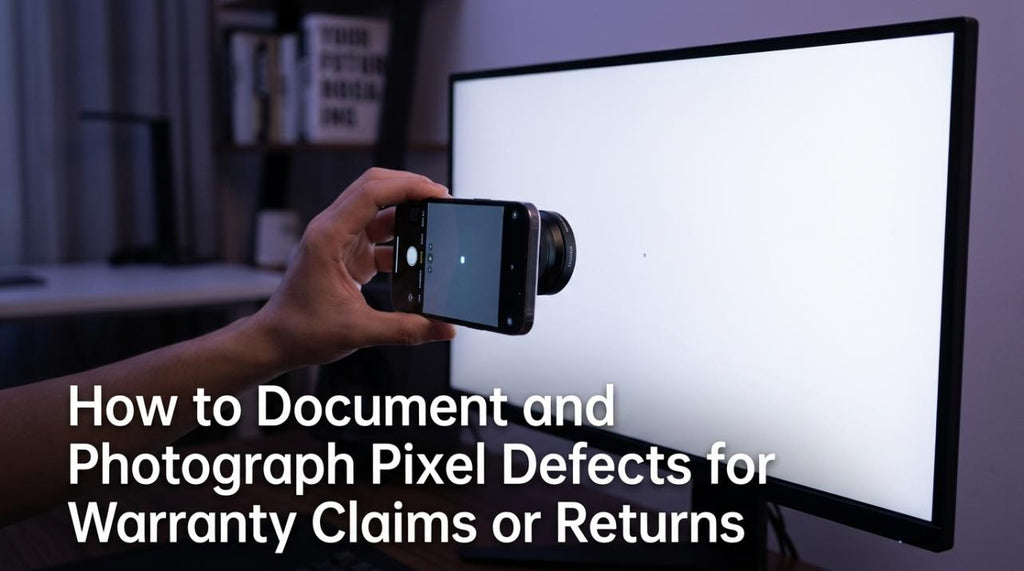
If software fixes fail and the green dot is permanent, it is time to contact support with proper evidence.
Capture Clear Evidence of the Green Dot
Take high-resolution photos of the green dot against both a solid black background and a solid white background. This proves it is not dust under the bezel and shows the defect clearly to support staff.
Understand Manufacturer Pixel Defect Policies
Most manufacturers follow ISO 13406-2 standards with specific tolerance levels:
- 1 to 3 stuck or dead pixels are often considered within tolerance
- Premium models like Dell UltraSharp or Apple Studio Display may offer zero-tolerance policies
- Some brands replace units if the defect sits in the center 20% of the screen
Check the manufacturer’s pixel defect policy online, then contact support with your photos and proof of purchase. If you bought from Amazon or a major retailer, return the unit within 30 days for a full refund, even if the manufacturer refuses.
Prevent Green Dots from Returning
Avoid future issues with these maintenance habits.
Maintain Healthy GPU Drivers
- Update drivers manually from NVIDIA, AMD, or Intel websites
- Run DDU every 3 to 6 months if you frequently switch driver versions
- Avoid overclocking VRAM unless you have advanced cooling in place
Monitor Hardware Age and Performance
- GPUs and PSUs older than 5 years are high-risk for failure
- Green dots are often the first warning sign of VRAM degradation
- Use HWInfo or GPU-Z to track VRAM temperature and error counts
Handle Your Monitor Safely
- Never press on the screen, even with light force
- Use original packaging when moving or storing the display
- Transport with the screen facing up and padded on all sides
When to Accept a Stuck Green Dot
Sometimes the cost of replacement outweighs the annoyance of a tiny defect. If the green dot sits off-center and your monitor is out of warranty, living with it may be the smartest choice.
Use black borders, reposition your taskbar, or enable dark mode apps to reduce its visibility. For many users, a single stuck pixel fades into the background over time.
Frequently Asked Questions About Green Dots on Monitors
Can a stuck green pixel fix itself?
Yes, in rare cases a stuck pixel resolves on its own as the liquid crystal settles back into position. However, most stuck pixels remain permanent without intervention using pixel repair tools.
Are green dots on a monitor a sign of a dying GPU?
Flickering green dots under load often indicate failing VRAM or a degrading GPU. A single static green dot is unrelated to the GPU and is instead a panel defect.
Will pressing on the screen actually fix a stuck pixel?
No. Pressing modern LCD screens can crack the panel, damage surrounding pixels, or create new defects. Avoid any physical pressure on your display.
How long should I run pixel repair software?
Run pixel repair tools for 10 to 30 minutes per session. You can repeat multiple sessions over several days. Success rates drop significantly after the first few weeks.
Is one stuck pixel enough for a warranty replacement?
Usually not. Most manufacturers allow 1 to 3 defective pixels under their tolerance policy. Premium models with zero-tolerance guarantees are the main exception.
Can a bad power supply cause green dots on screen?
Yes. An aging or failing PSU can deliver unstable voltage to the GPU, causing green artifacts under load. This is especially common with power supplies older than 5 years.
Key Takeaways for Fixing Green Dots on Your Monitor
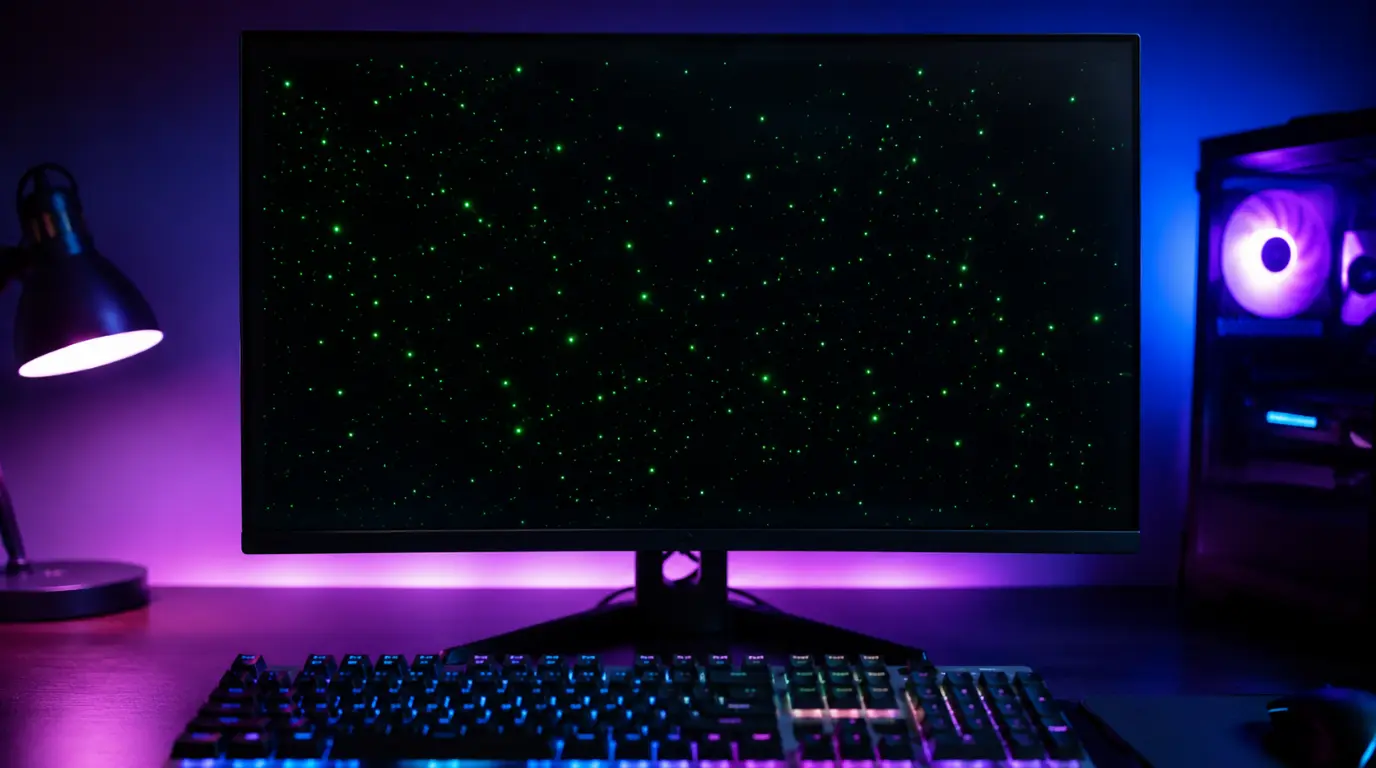
Start by identifying whether your green dots are flickering under load or stuck in one position. Flickering dots are almost always fixed in under 30 minutes with a clean DDU driver reinstall. Static dots require pixel repair tools, warranty claims, or simply learning to live with the defect.
Your next step is to run the static color test and Safe Mode check from this guide. Those two tests alone will tell you which repair path to follow. Skip the dangerous pressure tricks, and you will save both your monitor and your money.


