
Is your monitor flickering or cutting to black for a few seconds during normal use? You’re not alone. This frustrating problem, where the screen suddenly loses signal and reconnects, often appears after upgrading your motherboard or CPU, even when the GPU and monitor stay the same. The root cause usually lies somewhere in the signal chain, including cables, drivers, power delivery, or GPU stability.
The good news is that most flickering issues are fixable without replacing hardware. In this guide, you will learn how to fix a monitor that flickers using a structured troubleshooting process that starts with the simplest solutions. You will discover how to run real-world diagnostic tests, identify weak links in your setup, and apply targeted fixes that address the actual cause rather than just the symptoms.
Replace Your HDMI Cable First
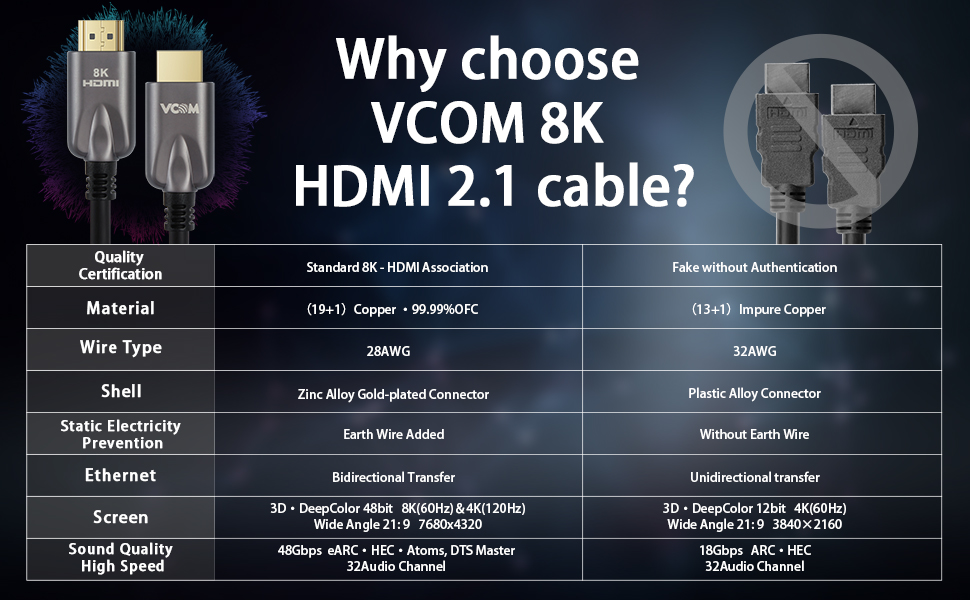
A faulty or low-quality HDMI cable is the most common cause of intermittent flickering and blackouts. Digital signals like HDMI operate on an all-or-nothing basis, so any interference disrupts the connection and causes the screen to cut out completely.
Choose a Shielded High-Speed HDMI Cable
Unshielded or outdated HDMI cables are vulnerable to electromagnetic interference and voltage fluctuations from nearby devices. This interference breaks the digital handshake between your GPU and monitor, triggering temporary signal loss.
- Upgrade immediately to a high-speed, shielded HDMI cable
- Look for cables labeled “High-Speed HDMI” with Ethernet and metal shielding
- Trusted options include AmazonBasics High-Speed HDMI, Cable Matters, or Tripp Lite
- Avoid thin, flat, or ultra-long cables unless specifically rated for high bandwidth
Test Different HDMI Ports on Your Hardware
Even with a quality cable, a damaged HDMI port on your GPU or monitor can cause flickering.
- Try plugging into a different HDMI port on your graphics card
- If your motherboard has integrated graphics, test the monitor using the onboard HDMI output
- If flickering stops with integrated graphics, the issue likely lies with the GPU or its power delivery
Run a GPU Stress Test to Confirm the Cause
If replacing the cable does not stop the flickering, the next step is determining whether the graphics card fails under load. This helps distinguish between signal issues and hardware instability.
Perform the Cinebench OpenGL Test
Cinebench is a reliable tool for stressing your GPU and reproducing flickering under controlled conditions.
Steps to Run the Test:
- Download and install Cinebench R23 or later from Maxon
- Launch the program and select “OpenGL” from the test options
- Watch your monitor closely while the animation renders
- Repeat the test two to three times to confirm consistency
Interpreting Your Results:
- Flickering during the test indicates the GPU is losing signal under load
- Likely causes include insufficient power, overheating, or failing hardware
- No flickering suggests the issue may be software-related or limited to specific applications
Check Power Supply and GPU Installation
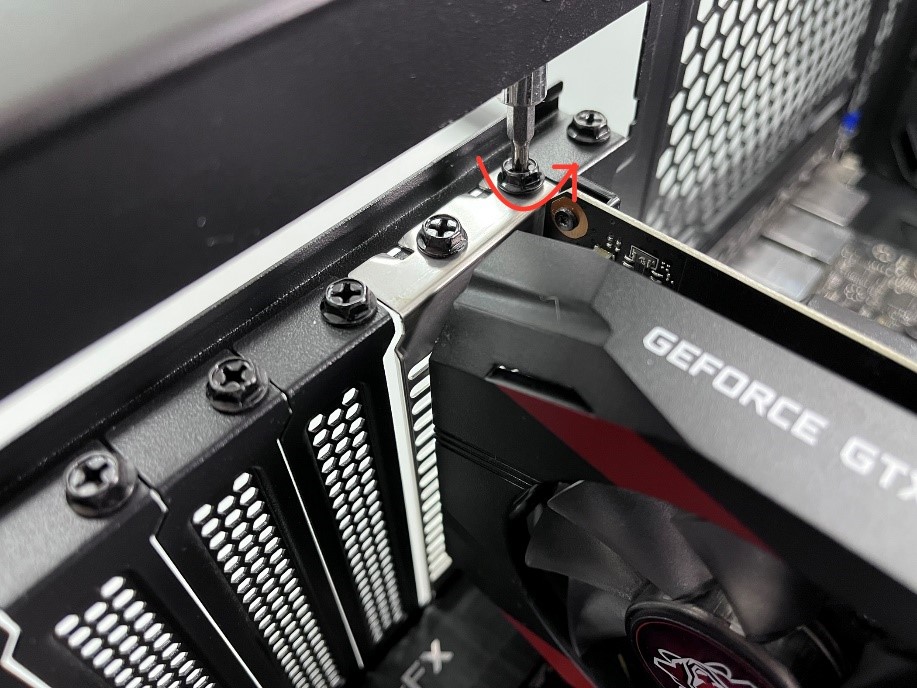
When the GPU draws more power during gaming or rendering, a weak or overloaded PSU can cause voltage drops that lead to temporary signal loss.
Verify PSU Wattage and Stability
After upgrading your motherboard or CPU, your system’s total power draw may now exceed what your PSU can handle.
- Minimum recommendation: 450W for a GTX 1050 system, 550W+ for modern CPUs or higher-end GPUs
- Older or low-efficiency PSUs may deliver unstable voltage rails under load
- Consider upgrading to an 80 Plus Bronze or better unit from brands like EVGA, Corsair, or Seasonic
Reseat the Graphics Card Properly
A loose PCIe connection can cause intermittent signal drops that mimic monitor failure.
How to Reseat Your GPU:
- Shut down the PC and unplug it from the wall
- Open the case and locate the GPU
- Press the release tab on the PCIe slot and gently remove the card
- Blow out any dust from the slot using compressed air
- Reinstall the GPU firmly until it clicks into place
- Secure it with screws and reconnect power cables if required
- Boot the system and test for flickering
If your motherboard has a second PCIe x16 slot, try installing the GPU there to rule out a faulty slot.
Update Graphics and Motherboard Drivers
Outdated, corrupt, or missing drivers are a frequent source of display instability, especially after a motherboard upgrade.
Install the Latest GPU Drivers
NVIDIA, AMD, and Intel regularly release driver updates that fix display bugs and improve compatibility.
For an NVIDIA GTX 1050 or Similar Card:
- Visit NVIDIA’s official Driver Download page
- Enter your GPU model and operating system details
- Download the latest Game Ready Driver
- Run the installer and choose “Custom Installation”
- Select “Perform a clean install” to remove old settings and conflicting files
Repeat this process for AMD or Intel GPUs using their respective official sites.
Install Motherboard Chipset Drivers
After replacing a motherboard, missing chipset drivers can disrupt PCIe communication and power management.
- Visit your motherboard manufacturer’s support page (ASUS, MSI, Gigabyte, etc.)
- Enter your model number and download the latest chipset drivers
- Download audio and LAN drivers as well for full system stability
- Install them in order and reboot after each installation
- Update the BIOS if a stable version is available for your CPU and GPU
Isolate the Problem with Alternate Hardware

To confirm whether the issue lies with your PC or the monitor, perform simple substitution tests that swap components.
Connect to a Different Monitor or TV
Plug your PC into another display using the same HDMI cable to compare behavior.
- If the new monitor works fine, your original monitor may be failing
- If flickering continues, the problem lies with your PC, GPU, or cable
- Try connecting to a 4K TV, since many users report flickering disappears on TVs
This test reveals whether your monitor has HDMI sensitivity issues that other displays do not share.
Test the Monitor on Another Computer
Connect your suspect monitor to a laptop, work PC, or gaming console for comparison.
- If it flickers on other devices, the monitor or its internal hardware is likely faulty
- If it works perfectly elsewhere, the issue is specific to your PC setup
This cross-test definitively rules out or confirms monitor failure as the root cause.
Adjust Display Settings and Power Options
Sometimes, software-level settings can trigger flickering even when hardware is functioning perfectly.
Disable GPU Scaling and Desktop Effects
On NVIDIA GPUs:
1. Open NVIDIA Control Panel
2. Navigate to “Adjust desktop size and position”
3. Set Scaling to “No Scaling” or “Full-screen”
4. Under “Manage 3D Settings,” disable “Vertical Sync” temporarily for testing
On AMD systems, disable GPU scaling and Enhanced Sync in Radeon Software to see if behavior changes.
Turn Off Power-Saving Features
Windows or GPU power management may throttle performance or disable ports unexpectedly.
In Windows:
- Press Win + I to open Settings
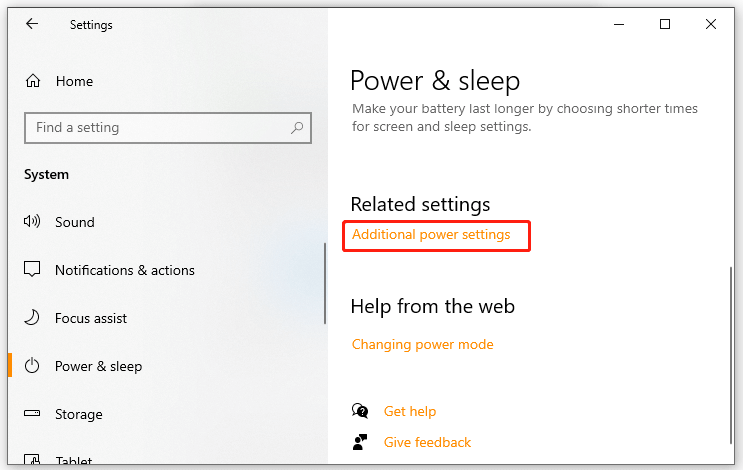
- Go to System, then Power & sleep, then Additional power settings
- Select “High performance” or “Balanced” instead of Power saver
- Click “Change plan settings,” then “Change advanced power settings”
- Expand PCI Express, then Link State Power Management
- Set this option to “Off”
This prevents Windows from putting your GPU into low-power states that interrupt the display signal.
Prevent Future Flickering Issues

Once you have fixed the problem, take proactive steps to keep your display stable over the long term.
Switch to DisplayPort When Possible
DisplayPort is generally more stable than HDMI, especially under load, and supports adaptive sync and higher refresh rates.
- If both your GPU and monitor have DisplayPort inputs, switch to a certified DP cable
- Use a DisplayPort 1.4 cable for best results and full feature support
Keep Drivers Updated Automatically
Enable automatic driver updates to catch fixes before they cause problems.
- Use NVIDIA GeForce Experience or AMD Adrenalin to receive update notifications
- Set Windows Update to install optional driver updates automatically
Monitor Temperatures and Power Regularly
Use tools like HWMonitor or MSI Afterburner to track system health indicators.
- GPU temperature should stay below 85°C under load
- Watch for unstable power draw or voltage fluctuations
- Clean dust from your GPU regularly and ensure good case airflow
Overheating or unstable clocks can reintroduce flickering if left unchecked.
Frequently Asked Questions About Monitor Flickering
Why does my monitor flicker only sometimes?
Intermittent flickering usually points to a loose connection, a marginal HDMI cable, or power delivery issues that only surface under load. The problem may not appear during light tasks but shows up during gaming, rendering, or stress tests.
Can a bad HDMI cable cause monitor flickering?
Yes. Unshielded or low-quality HDMI cables are highly susceptible to electromagnetic interference and voltage fluctuations. When interference occurs, the digital handshake between GPU and monitor fails momentarily, causing the screen to cut out.
Is monitor flickering caused by the GPU or the monitor?
It can be either. The fastest way to determine the source is to connect your PC to a different monitor, or connect your monitor to a different computer. Whichever component reproduces the problem is the likely culprit.
Will updating drivers fix monitor flickering?
Updating GPU and motherboard chipset drivers resolves many flickering issues, especially after a hardware upgrade. Outdated or corrupt drivers can disrupt PCIe communication and power management, mimicking hardware failure.
How do I know if my PSU is causing the flickering?
If flickering occurs during high-load activities like gaming or the Cinebench OpenGL test, the PSU is a prime suspect. Check that your wattage meets your system’s requirements and consider upgrading to an 80 Plus Bronze or better unit if your current PSU is aging.
Should I use HDMI or DisplayPort to avoid flickering?
DisplayPort is generally more stable than HDMI, particularly under load, and offers better support for adaptive sync. If both your GPU and monitor support DisplayPort, switching to a certified DP cable is a reliable preventive measure.
Key Takeaways for Fixing a Flickering Monitor
Start with the HDMI cable, since most flickering issues trace back to a faulty or unshielded cable. Run the Cinebench OpenGL test to determine whether the GPU loses signal under load, then verify your PSU wattage and reseat the graphics card. Update both GPU and motherboard chipset drivers, especially after a recent hardware upgrade. Finally, isolate the problem by testing with alternate monitors or computers to confirm where the fault lies. With this systematic approach, you can fix a monitor that flickers efficiently and keep it stable for the long run.


