
A flickering screen, “no signal” message, or cracked display can bring your work or gaming to a sudden halt. When your monitor stops working, learning how to fix monitor issues yourself can save hundreds on replacement costs. Many common problems, including dead pixels, backlight failures, and connection errors, are fixable with the right knowledge and tools.
This guide walks you through every step of diagnosing and repairing your monitor. You will learn isolation techniques to confirm the problem, software troubleshooting for flickering and resolution issues, hardware repair strategies for cracked screens and failed components, and when replacement makes more sense than repair. You will also find tool recommendations, brand-specific tips, and preventive steps to extend your monitor’s lifespan.
Identify the Failure Mode
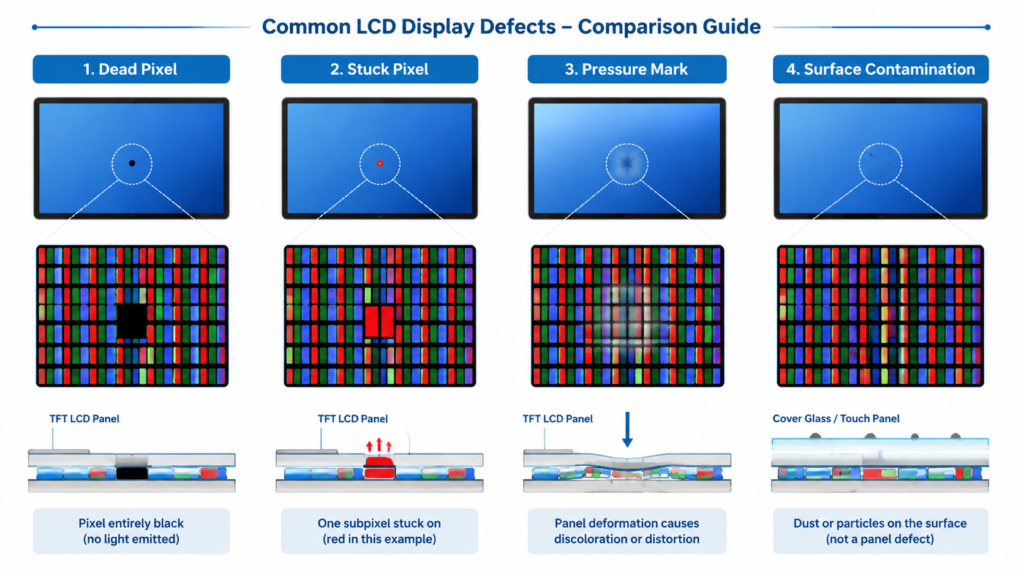
Before attempting any fix, pinpointing the exact symptom is crucial. Misdiagnosing a graphics driver issue as a dead panel can lead to unnecessary disassembly. Most monitor problems fall into three categories: physical damage, display anomalies, and signal or power failures.
Check for Physical Damage
Visible trauma often dictates repair feasibility:
– Cracks in screen or bezel: Surface cracks may be cosmetic, while LCD-layer cracks usually require panel replacement.
– Screen separation: Black splotches behind the glass mean internal delamination, which is common after heat exposure or impact.
– Bulging or warping: Indicates internal pressure or failed adhesives, especially near edges.
– Broken stand or ports: Affects usability but not display function.
If the screen is cracked and spreading ink-like blotches, the LCD layer is compromised. Tape can slow propagation but will not restore image quality.
Diagnose Display Anomalies
These issues point to panel, backlight, or driver board failure:
– Dead or stuck pixels: Tiny dots that stay black or one color. Often fixable with pixel refreshers or gentle pressure.
– Flickering screen: Can stem from cable issues, refresh rate mismatches, or failing backlight.
– Backlight bleed: Glowing corners on dark scenes. Common in IPS panels and not repairable but manageable via settings.
– White screen on startup: Points to panel driver or signal board failure.
– Burn-in: Ghost images from static content. Permanent on OLED and rare on LED or LCD.
Use built-in diagnostics if available or display test websites to isolate pixel and color issues.
Test Signal and Power Issues
Many “dead” monitors are actually suffering from connection or power glitches:
– “No Signal” message: Monitor powers on but sees no input. Usually cable, port, or GPU-related.
– Black screen with power light on: Backlight or panel is not receiving signal.
– Random shutdowns: Often caused by failing capacitors or overheating power boards.
– Intermittent display: Loose cables or worn ports.
Start with the simplest fixes here, since many signal issues are resolved in under five minutes.
Confirm the Problem Source
Do not assume the monitor is at fault. Rule out your computer, cables, and settings first to avoid wasted repair effort.
Perform External Monitor Test
Connect your PC to a different monitor or TV:
– If the second display works, your original monitor is likely defective.
– If the problem persists, the issue is with your computer’s GPU or OS.
For laptops, this test confirms whether the internal screen is the culprit.
Cross-Device Compatibility Check
Plug the problematic monitor into another device:
– Use a game console, secondary PC, or docking station.
– If the monitor works, the original source device has the issue.
– If it still shows no signal, the monitor or cable is faulty.
This step eliminates guesswork and prevents unnecessary repairs.
Swap Cables and Ports
Faulty cables are the leading cause of “no signal” errors:
– Unplug and reseat HDMI, DisplayPort, or VGA cables on both ends.
– Try a different port on the monitor, such as switching from HDMI 1 to HDMI 2.
– Replace the cable with a known-working one, especially if bent pins or fraying are visible.
Use high-speed cables for 4K or high-refresh displays to avoid handshake failures.
Execute Power Cycle Reset
Clear electrical buildup that can cause black screens:
1. Unplug power cords from both monitor and PC.
2. Hold the power button on each for 15 seconds.
3. Wait 10 seconds, then reconnect and power on.
This simple reset fixes many transient power and signal issues.
Fix Software and Driver Issues
Before opening the case, rule out software conflicts, especially for flickering, resolution mismatches, or black screens.
Adjust Display Settings
Incorrect configurations mimic hardware failure:
– Set correct resolution: Go to Windows Settings > System > Display or Mac System Settings > Displays.
– Choose “Recommended” resolution for your model.
– Fix blurry text by adjusting scale to 125% or 150%.
Mismatched resolution can cause black borders or cut-off images.
Set Proper Refresh Rate
Flickering during gaming often stems from incorrect refresh rate:
– Navigate to Advanced Display Settings (Windows) or Displays (Mac).
– Set refresh rate to match your monitor, such as 60Hz or 144Hz.
– Ensure your cable supports the rate. DisplayPort 1.2+ or HDMI 2.0+ handles 144Hz at 1080p.
Using 60Hz on a 144Hz monitor causes choppiness, while exceeding cable limits causes flicker.
Update Graphics Drivers
Outdated or corrupted drivers cause instability:
– Windows: Right-click Start > Device Manager > Display adapters > Update driver.
– Or download latest drivers from NVIDIA, AMD, or Intel website.
– Mac: Apple Menu > System Settings > Software Update.
Always reboot after driver updates.
Restart Graphics Driver Instantly
For sudden black screens or flickering:
– Press Windows + Ctrl + Shift + B.
– Screen will flash and sound may cut briefly as the GPU driver restarts.
– No reboot needed, making this ideal for fixing temporary glitches.
Boot in Safe Mode
If the screen is unusable, boot into Safe Mode:
– Windows: Restart via Recovery > Advanced Startup > Startup Settings > F4.
– Mac: Hold Power button > Startup Options > Safe Mode.
– In Safe Mode, disable third-party display software or uninstall recent drivers.
This isolates software conflicts from hardware failure.
Repair Cracked Screens
Not all cracks are fatal. The repair path depends on which layer is damaged.
Surface Cracks Only
If the image is unaffected, only the outer glass is broken:
– Apply clear tape: Use high-quality Scotch tape over the crack to hold shards.
– Install tempered glass protector: Full-coverage screen protectors reduce visibility and prevent further spread.
– Avoid pressure: Do not press on the crack, since thermal expansion can worsen it.
These are temporary fixes, so plan to replace the screen or monitor soon.
LCD Panel Cracks
Ink-like blotches or flickering mean the LCD layer is damaged:
– Not repairable by patching: Liquid crystals are disrupted, and no glue or resin can restore function.
– Resin injection (high risk): Inject optical-grade epoxy into the crack and cure with UV light.
– May reduce visibility of crack.
– Risks include bubbles, discoloration, and short circuits.
– Not recommended for beginners.
For most users, panel replacement or full monitor swap is the only real solution.
Bezel or Frame Cracks
Plastic or metal casing damage does not affect display:
– Replace bezel: Order a model-specific part and snap it on.
– Use external bracket: Mount the monitor with an arm or stand to stabilize the unit.
– Seal with adhesive: Use plastic-safe epoxy for minor splits.
This prevents internal damage from further stress.
Replace Failed Internal Components
Many “dead” monitors have a single faulty part that is often cheaper to fix than replace.
Fix Capacitor Failure

Common in older monitors like Acer AL1716 and Dell 1905FP:
– Symptoms: Random shutdowns, white screen, no power.
– Diagnosis: Open the back and look for bulging or leaking capacitors on the power board.
– Repair: Desolder and replace with exact specs for voltage, capacitance, and size.
– Tools needed: Soldering iron, desoldering wick, multimeter.
This repair can extend a monitor’s life by years and is worth it for quality units.
Repair Backlight Issues
Dim or flickering screen points to backlight failure:
– Flashlight test: Shine a bright light at the screen at an angle.
– If you see a faint image, the backlight is dead.
– Causes: Failed LED strips, bad inverter (for CCFL), or power board issue.
– Fix: Replace LED strips or universal inverter board.
– Match voltage and connector type.
– For Viotek W2711SE, watch for fragile back panel latches during disassembly.
Backlight kits cost between $10 and $30, which is much cheaper than a new monitor.
Replace Button Board
If the monitor powers on but menu buttons do not respond:
– The button board, a small PCB behind the power button, is likely dead.
– Order a replacement online by searching your model number.
– Swap it during disassembly since it is usually connected via a short ribbon cable.
The swap takes about 5 minutes and costs under $10.
Replace the Entire Panel

When the LCD or LED panel is cracked or has massive dead zones, replacement is the only fix.
Source a Compatible Panel
Match the exact model number and connector type:
– Search eBay, AliExpress, or specialty sites like PanelLook.
– Verify size, resolution, interface (LVDS or eDP), and backlight type.
– Panels range from $50 for 1080p to $200+ for 4K and high-refresh models.
Ensure the new panel matches your monitor’s firmware and power specs.
Follow Disassembly Steps
- Power off and unplug.
- Remove screws, which are often hidden under stickers or rubber feet.
- Use plastic tools to pry open the bezel, starting at the bottom.
- Disconnect video and power ribbons carefully.
- Remove broken panel and install new one.
- Reassemble and test before final tightening.
Use iFixit guides for model-specific teardowns.
Weigh Cost vs. Replacement
Panel plus labor often exceeds the value of older monitors:
– A $100 monitor with an $80 panel is not worth fixing.
– For high-end models like 4K or OLED, replacement makes sense.
– Consider upgrading to a newer model with better specs and durability.
Use the Right Tools

DIY repair requires precision tools to avoid further damage.
Essential Disassembly Kit
- Screwdrivers: Phillips #00, #0, #1, and flathead 2.5mm.
- Opening tools: iFixit picks or plastic spudgers. Never use metal tools.
- Needle-nose pliers: For gripping small parts.
- Nitrile gloves: Prevent fingerprints and static discharge.
A Pro Tech Toolkit covers most needs.
Soldering Equipment
For capacitor or board-level repairs:
– Soldering station: Hakko 503F or FixHub 60W.
– Solder: Rosin-core, lead-free.
– Desoldering wick: Removes old solder cleanly.
– Heat gun: For reflowing or shrinking tubing.
Practice on old boards first.
Cleaning Supplies
- Isopropyl alcohol (90%+): Cleans flux and contacts.
- Soft brushes: Remove dust from vents and boards.
- Compressed air: Blow out debris without touching components.
Keep the inside clean to prevent overheating.
Prevent Future Damage
Extend your monitor’s life with smart habits and proper setup.
Protect from Physical Harm
- Use a sturdy stand or VESA mount to prevent tipping.
- Avoid stacking items on the monitor.
- Apply a screen protector for scratch and crack resistance.
- Support the base, not the screen, when moving.
Gaming monitors like Viotek W2711SE have fragile latches, so open gently.
Control the Environment
- Avoid direct sunlight and heat sources, which cause swelling and separation.
- Ensure airflow and do not enclose the monitor in a tight space.
- Use a surge protector to guard against power spikes.
Extreme temperatures accelerate capacitor and backlight failure.
Optimize Usage
- Enable screen savers or auto-dimming to reduce burn-in risk.
- Turn off when not in use, especially for OLED or plasma displays.
- Update drivers monthly for smooth performance.
- Power cycle weekly to clear electrical residue.
For touchscreens like Telikin Elite, clean with a microfiber cloth and avoid liquids.
Decide: Repair or Replace?
Use this quick decision matrix to choose the best path.
| Issue | Action | Why |
|---|---|---|
| Loose cable | Replace cable | $10 fix with instant results |
| Driver glitch | Reset or update | Free and resolves flicker or black screen |
| Capacitor failure | Repair if skilled | $5 parts and extends life |
| Surface crack | Tape plus protector | Prevents spread at low cost |
| Cracked LCD | Replace monitor | Panel cost exceeds monitor value |
| Backlight failure | Replace LEDs | $20 fix worth it for good units |
| Old monitor with damage | Upgrade | Better specs and reliability |
Under warranty? Contact the manufacturer, since opening the case voids most warranties.
For severe damage, consider upgrading to models with anti-glare coatings, reinforced frames, and better cooling.
Frequently Asked Questions About Monitor Repair
Can a cracked monitor screen be fixed without replacement?
Surface cracks on the outer glass can be temporarily covered with clear tape or a tempered glass protector, but the image quality remains unaffected only if the LCD layer underneath is intact. If you see ink-like blotches, flickering, or spreading distortion, the LCD layer is damaged and cannot be repaired through patching. In those cases, full panel replacement or buying a new monitor is the only real solution.
Why does my monitor say “no signal” when the computer is on?
The “no signal” message means the monitor is powered but receiving no video data from your computer. The most common causes are loose or damaged cables, wrong input source selected on the monitor, faulty ports, or graphics card issues. Start by reseating both ends of your HDMI, DisplayPort, or VGA cable and trying a different port. If that fails, test the monitor with another device to isolate whether the problem is the cable, the source, or the monitor itself.
How do I know if my monitor’s backlight is broken?
The flashlight test confirms a failed backlight. Power on the monitor and shine a bright flashlight at the screen at an angle in a dark room. If you can see a faint image or menu outline, the backlight is dead while the panel still works. Common causes include failed LED strips in modern monitors, a bad inverter in older CCFL models, or power board failure. Replacement kits cost between $10 and $30.
Is it cheaper to repair or replace a monitor?
It depends on the problem and the monitor’s age. Cable replacements, driver updates, and capacitor swaps cost under $20 and are worth doing. However, cracked LCD panels often cost $50 to $200+ to replace, which can exceed the value of budget or older monitors. For high-end 4K or OLED displays, panel replacement makes sense. For older or budget monitors with major damage, upgrading is usually smarter.
How do I fix a flickering monitor screen?
Flickering usually comes from one of three causes: a loose or damaged cable, an incorrect refresh rate setting, or a failing backlight. Start by reseating your video cable and trying a different one. Then check your display settings and ensure the refresh rate matches your monitor’s capability (such as 60Hz or 144Hz). If the flicker persists, the issue is likely hardware-related, specifically the backlight or internal board.
Can dead pixels be repaired on a monitor?
Stuck pixels (which display a single color) can sometimes be revived using pixel-refreshing software that cycles colors rapidly, or by applying gentle pressure with a soft cloth. True dead pixels (permanently black) are generally not repairable. Most manufacturers require a minimum number of dead pixels before honoring a warranty replacement, so check your monitor’s warranty policy before attempting repairs.
Key Takeaways for Fixing Your Monitor Successfully
Knowing how to fix monitor issues empowers you to save money and reduce e-waste. Start with software and cable checks before moving to hardware repairs. Isolate the problem using external monitor tests and cross-device compatibility checks. Most “dead” monitors can be revived with a driver update, a power cycle, or a capacitor replacement costing just a few dollars.
For cracked panels, weigh repair costs carefully, since sometimes upgrading is the smarter financial choice. With the right tools, including precision screwdrivers, soldering equipment, and plastic spudgers, you can extend your monitor’s life and avoid premature replacement. Begin with the simplest fixes today and work your way up only as needed.


