
You just unboxed your ROG Ally and want to push those games onto a bigger screen. Whether you prefer couch gaming, a full desk setup, or maximum FPS with an external GPU, connecting your ROG Ally to a monitor is entirely possible. The trick is picking the right method based on what you want: quick mirroring, a complete desktop experience, or high-end performance. This guide covers every proven connection option so you can get your device running on any external display.
Below, you’ll learn three reliable ways to connect your ROG Ally to a monitor using a USB-C to HDMI cable, a USB-C docking station, or the XG Mobile port. We’ll also cover display configuration, controller setup, performance tuning, and quick fixes for common issues. Everything here applies to both the ROG Ally and the ROG Ally X.
Pick the Right Connection Method for Your Setup
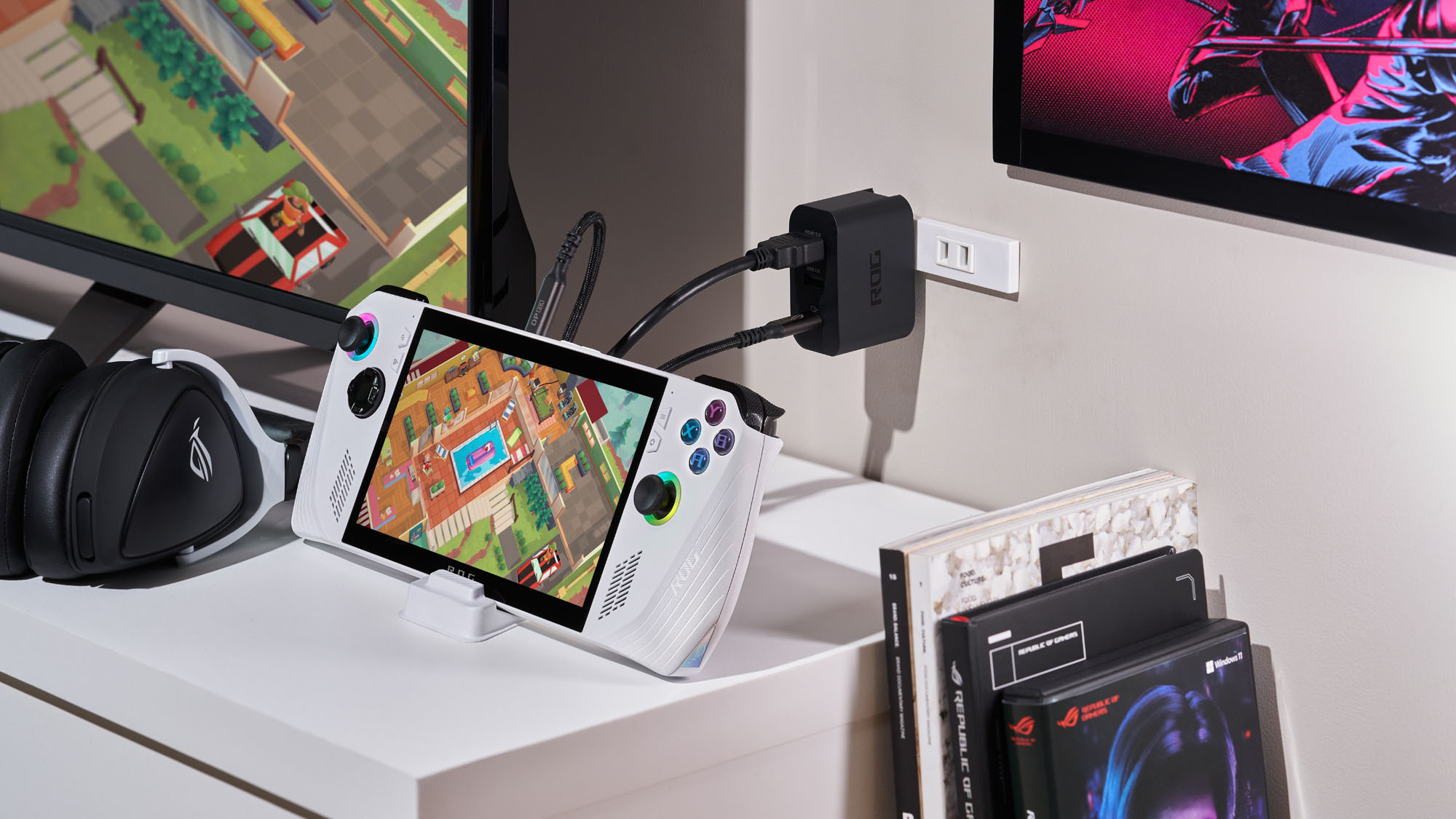
USB-C to HDMI: The Quickest Option
For gamers who want video output without buying extra hardware, a USB-C to HDMI cable is the simplest path. It sends both video and audio straight from your ROG Ally to any HDMI-equipped monitor or TV.
Both the ROG Ally and Ally X support DisplayPort Alternate Mode through their top USB-C port. This means the port can output video natively with no drivers or software required.
What You Need
- A USB-C to HDMI cable or adapter paired with a standard HDMI cable
- A monitor or TV with an HDMI input
- For 4K at 60Hz, your cable must support HDMI 2.0 or higher
Look for “Ultra High Speed” labeling on the packaging to confirm 4K bandwidth support.
Steps to Connect
- Plug the USB-C connector into the top port of your ROG Ally.
- Connect the HDMI end to your monitor or TV.
- Switch the display’s input source to the correct HDMI port.
- Wait for Windows to detect the new display automatically.
Most USB-C to HDMI cables do not deliver power to the device. Your ROG Ally will not charge during use, so start with a full battery or connect a powered USB-C hub to avoid mid-game shutdowns.
USB-C Dock: The Full Desktop Experience
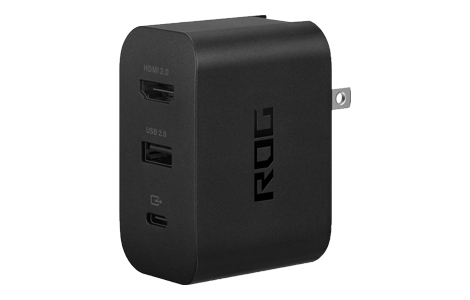
If you want to turn your ROG Ally into a complete desktop replacement, a USB-C docking station is the best choice. It handles charging, video output, and peripheral connections through a single cable.
Power and Performance Requirements
- Your dock must support USB Power Delivery at 65W or higher to charge the device during gameplay
- The official ROG 65W Gaming Charger Dock is optimized for this purpose
- Third-party docks also work as long as they meet the 65W PD standard and support video output
The official dock includes one USB-C port for the Ally, one HDMI output for video, and one USB Type-A port for accessories.
Key Features of a Good Dock
- Simultaneous charging, video, and data transfer
- At least one USB-A port for controllers or input devices
- HDMI or DisplayPort output rated HDMI 2.0 or higher for 4K support
- Native DisplayPort Alternate Mode support for true plug-and-play
Avoid docks that rely on DisplayLink technology unless you plan to install their drivers. DisplayLink requires extra software and does not offer the same seamless experience as native Alt Mode.
Setup Process
- Connect the dock to a power outlet.
- Link the dock to your ROG Ally using a USB-C cable.
- Run an HDMI cable from the dock to your monitor.
- Plug your keyboard, mouse, or controller into the dock’s USB-A port.
- Power on the monitor and select the correct input.
Your ROG Ally will now charge, display video, and recognize all connected peripherals at once.
XG Mobile Port: Maximum Performance with an External GPU
For desktop-class graphics power, use the proprietary XG Mobile port on the side of your ROG Ally. This connection supports an external GPU enclosure for serious gaming performance.
The XG Mobile port delivers PCIe 3.0 x8 bandwidth directly to an external graphics card. This bypasses the limitations of standard USB-C and unlocks far higher frame rates at 1440p or 4K.
Why Use XG Mobile?
- Delivers PCIe 3.0 x8 bandwidth for high-end GPU performance
- Enables high-refresh-rate gaming at 1440p or 4K resolutions
- Supports plug-and-play GPU switching through Armoury Crate SE
- Provides video output, power delivery, and USB hub functions in one cable
Compatible Hardware
- Only ASUS XG Mobile enclosures work with this port
- The XG Mobile 2 with RTX 4090 is one supported option
- No third-party GPUs or adapters are compatible
- The included proprietary connector cable is required
How to Connect
- Power off your ROG Ally completely.
- Attach the XG Mobile cable to the side port.
- Connect the other end to the XG Mobile enclosure.
- Power on the XG Mobile unit, then the Ally.
- Open Armoury Crate SE and switch GPU mode to XG Mobile when prompted.
The system will reroute all graphics processing to the external GPU. When using XG Mobile, plug your monitor into the enclosure’s video output port rather than the USB-C port on the Ally itself.
Configure Your Display Settings After Connecting

Once your ROG Ally is connected to a monitor, fine-tune the display settings for the best visual experience.
Switch Between Projection Modes
After connecting, your screen may flicker briefly as Windows detects the new display. By default, the system often switches to Second Screen Only mode.
How to Change Display Mode
- Hold the M1 or M2 button on the back of the Ally
- Press the X button to open the Projection menu
- Choose from Duplicate, Extend, or Second Screen Only
Duplicate mirrors the handheld screen onto your monitor. Extend treats the monitor as a separate workspace. Second Screen Only turns off the built-in display entirely.
For big-screen gaming, use Second Screen Only to save battery life and avoid input lag from mirroring.
Set the Correct Resolution
Match your monitor’s native resolution for the sharpest image quality.
Steps to Adjust Resolution
- Open Start, then go to Settings, System, and Display.
- Under Display Resolution, select your preferred option.
- Choose 1920×1080 for most games or 3840×2160 for 4K displays.
If text appears blurry on a 4K screen, adjust the scale percentage under Scale and Layout to 100 percent for external displays.
Enable High Refresh Rates
Smooth gameplay depends on a high refresh rate setting.
How to Set Refresh Rate
- In Settings, System, Display, scroll down to Advanced Display.
- Select your external monitor from the dropdown menu.
- Set the refresh rate to 60Hz, 120Hz, or 144Hz based on your monitor.
If you mirror the internal 120Hz display to a 144Hz monitor, the system caps the refresh rate at 120Hz. To unlock 144Hz, switch to Extend mode so each display runs independently.
Use Upscaling for Better Frame Rates
If native 4K is too demanding for your games, use upscaling technology to maintain smooth performance.
Available Upscaling Options
- FSR (FidelityFX Super Resolution) is built into many games and can be toggled in-game
- RSR (Radeon Super Resolution) works system-wide and is enabled through AMD Adrenalin Software
Both options render games at 1080p and upscale the image to 4K, boosting frame rates with minimal visual loss.
Optimize Performance When Connected to a Monitor
A docked ROG Ally can take advantage of higher power limits since thermals are less of a concern in stationary play.
Enable Turbo Mode for Higher FPS
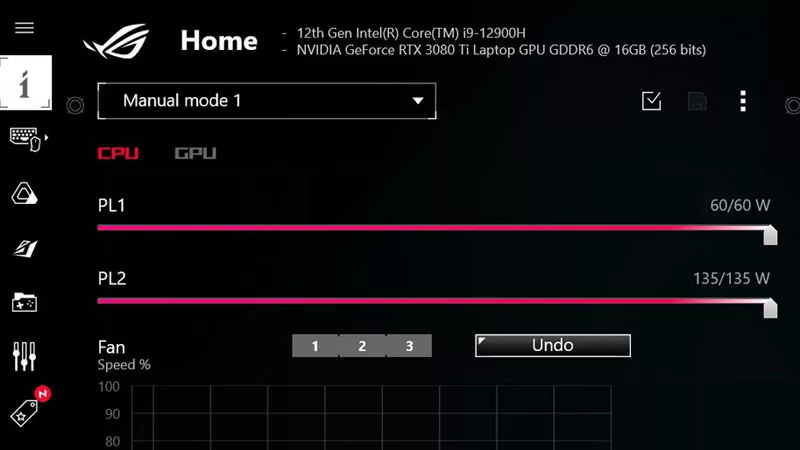
By default, the ROG Ally limits performance to preserve battery life and manage heat in handheld mode. When connected to a monitor, switch to Turbo Mode for higher frame rates.
How to Activate Turbo Mode
- Open Armoury Crate SE by pressing the ROG button.
- Tap the performance slider and select Turbo.
This unlocks the full 30W TDP of the AMD APU, raising CPU and GPU clock speeds for noticeably better gaming performance. Always enable Turbo Mode when using a dock or XG Mobile.
Connect and Configure External Controllers
To complete the console-style experience, pair external controllers and disable the built-in gamepad.
Supported Controller Types
- Wired USB controllers plug directly into the dock’s USB-A port
- 2.4GHz wireless controllers like the ROG Raikiri Pro use a USB dongle
- Bluetooth controllers pair through Settings, Bluetooth and Devices
Up to four controllers can connect to the ROG Ally at the same time.
Disable the Built-in Gamepad
This step is critical. If the internal controls stay active, Windows may assign them as Player 1 and cause input conflicts with your external controller.
How to Turn Off the Embedded Controller
- Press the ROG button to open the overlay.
- Open Command Center.
- Find the Embedded Controller option.
- Toggle it OFF.
Now only your external controller will register, eliminating double inputs and unresponsive buttons. Re-enable the embedded controller when switching back to handheld mode.
Troubleshoot Common Connection Problems

Even with the right setup, occasional issues can arise. Here are quick fixes for the most common problems.
No Signal on the Monitor
Possible Causes and Fixes
- Try a different USB-C to HDMI cable rated for HDMI 2.0 or higher
- Confirm the monitor is set to the correct HDMI input source
- If using a DisplayLink dock, install the DisplayLink Manager software
- Test a different connection method to rule out port damage
Wrong Refresh Rate or Resolution
Windows sometimes defaults to 60Hz or 1080p even on capable displays.
How to Fix
- Go to Settings, System, Display, Advanced Display.
- Select the external monitor from the dropdown.
- Manually set the resolution and refresh rate to match your monitor’s specs.
Controller Not Responding
Quick Checklist
- Confirm the Embedded Controller is disabled in Command Center
- Check that the controller is charged or properly plugged in
- For Bluetooth, re-pair the device in Windows settings
- For 2.4GHz, ensure the wireless dongle is seated in the dock’s USB port
Maintain and Upgrade Your Connection Setup
Keep your connection stable and future-proof your gaming station with a few simple habits.
Cable and Port Care
- Unplug cables gently rather than yanking them from the USB-C port
- Use protective caps when the XG Mobile port is not in use
- Clean ports occasionally with compressed air to remove dust
Check for Firmware Updates
- Update Armoury Crate SE regularly for better GPU switching and performance tuning
- Use the MyASUS app to check for system and dock firmware updates
Consider Hardware Upgrades
- Upgrade to a 144Hz monitor for competitive gaming
- Add a multi-port USB-C dock for more peripheral connections
- Invest in an XG Mobile 2 enclosure for RTX 4090-level graphics performance
Frequently Asked Questions About Connecting ROG Ally to a Monitor
Can the ROG Ally output 4K at 60Hz to a monitor?
Yes. Both the ROG Ally and ROG Ally X support 4K output at 60Hz through their USB-C port using DisplayPort Alternate Mode. You need a USB-C to HDMI cable or dock rated for HDMI 2.0 or higher, and your monitor must support 4K at 60Hz input. Look for “Ultra High Speed” HDMI cables to ensure sufficient bandwidth.
Does the ROG Ally charge while connected to a monitor?
It depends on your connection method. A standard USB-C to HDMI cable does not deliver power, so the device will not charge. A USB-C dock with 65W Power Delivery or higher will charge the ROG Ally during use. The XG Mobile enclosure also provides integrated power delivery through its proprietary connector.
Why is my external monitor capped at 120Hz instead of 144Hz?
This happens when you mirror the ROG Ally’s internal 120Hz display to a 144Hz monitor. Windows defaults to the lower common refresh rate during mirroring. To unlock the full 144Hz, switch to Extend mode in the Projection menu and set each display’s refresh rate independently through Advanced Display settings.
How do I stop input conflicts between the built-in gamepad and my controller?
Open Command Center through the ROG button overlay and toggle the Embedded Controller option OFF. This disables the physical buttons and joysticks on the ROG Ally itself, forcing Windows to recognize only your connected external controller as the primary input device.
Can I use any USB-C dock with the ROG Ally?
Most third-party USB-C docks work with the ROG Ally as long as they support 65W Power Delivery and video output through DisplayPort Alternate Mode. Avoid docks that rely on DisplayLink technology unless you install their drivers, since DisplayLink does not offer native plug-and-play support.
What is the XG Mobile port used for on the ROG Ally?
The XG Mobile port connects to ASUS XG Mobile external GPU enclosures, providing PCIe 3.0 x8 bandwidth for desktop-class graphics performance. It also handles video output, USB hub functionality, and power delivery through a single proprietary cable. Only genuine ASUS XG Mobile enclosures are compatible with this port.
Final Takeaways for Connecting Your ROG Ally to a Monitor
Connecting your ROG Ally to a monitor turns a portable handheld into a versatile gaming PC. Use a USB-C to HDMI cable for quick TV play without extra hardware. Choose a 65W USB-C dock for a full desktop setup with charging and peripheral support. Pick the XG Mobile port when you need maximum graphics performance through an external GPU.
For the best experience, always disable the embedded controller, set the correct refresh rate and resolution, and enable Turbo Mode in Armoury Crate SE. With the right setup, your ROG Ally becomes a hybrid powerhouse that handles both handheld and desk-based gaming with ease. Start by choosing the connection method that matches your goals, gather the required cable or dock, and follow the setup steps in this guide to get your games running on the big screen today.


