
You have two powerful computers but only one desk space, creating a frustrating bottleneck for your daily workflow. Trying to swap cables constantly is inefficient, yet buying a second monitor might not be an option right now. The solution lies in learning how to connect two CPUs to one monitor using the right hardware or software tools.
This guide details four proven methods to solve this problem without the clutter. You will discover how to use KVM switches for total control, utilize manual input switching for zero-cost solutions, and leverage remote software for network-based access. We will walk through specific setup steps, troubleshooting tips, and product recommendations to get both systems running on a single screen instantly.
Select the Best Method to Connect Two CPUs
Choosing the right approach depends on whether you need to share just the screen or your keyboard and mouse as well. There are four distinct ways to achieve this, each with specific benefits for different users.
KVM Switch for Full Peripheral Control
A KVM (Keyboard, Video, Mouse) switch is the most robust hardware solution. It allows you to control two computers with one set of peripherals and a single display. When you press a button, the video signal and USB data switch instantly between machines. This method keeps both computers running fully in the background while you focus on one.
Manual Input Switching via Monitor OSD
If you only need to view the second computer occasionally, your monitor likely has this built-in. Most modern displays feature multiple input ports like HDMI and DisplayPort. You connect each CPU to a different port and use the monitor’s physical buttons to toggle the active source. This costs nothing extra but requires separate keyboards for each machine.
Remote Desktop Software Solutions
This method uses your network to stream one computer’s screen to the other. Software like VNC or TeamViewer lets you control a secondary PC from your primary machine. While this requires no extra cables, it depends heavily on network speed and often fails with high-performance tasks like gaming or video playback due to latency.
Hybrid Video and USB Switching
For setups with mismatched ports, you can combine a video switcher with a separate USB switch. This modular approach lets you mix HDMI and DisplayPort inputs while sharing a mouse and keyboard. It offers flexibility but often requires pressing two separate buttons to switch both video and control simultaneously.
Use a KVM Switch for Seamless Dual PC Control

A KVM switch provides the smoothest experience for users who need frequent access to both systems. It eliminates cable clutter and maintains system stability during every switch.
Choose a KVM with EDID Emulation
The most critical feature to look for is EDID emulation. Without it, your computer thinks the monitor disconnected when you switch away, causing windows to rearrange or resolution to drop. A KVM with EDID lock mimics a constant video signal, keeping your desktop layout intact. This is essential for professionals running long renders or downloads in the background.
Match Video Specs to Your Workflow
Gamers and creators need specific bandwidth capabilities. Look for switches supporting 4K at 144Hz or 8K at 60Hz if you have high-end displays. Ensure the device supports Variable Refresh Rate (VRR) technologies like G-Sync or FreeSync to prevent screen tearing. Office users typically only need 4K at 60Hz, which is more common and affordable.
Verify USB and Power Delivery Needs
Check if the KVM supports USB 3.0 or higher for fast external drives and webcams. If you are connecting laptops, verify the power delivery wattage. Some docking-style KVMs can charge your laptop while you work, reducing the need for extra power adapters on your desk.
Set Up a KVM with USB-C or HDMI Connections

Installing a KVM switch is straightforward if you follow the correct order of operations. The process varies slightly depending on whether you use modern USB-C laptops or traditional HDMI desktops.
Connect Two USB-C Laptops
- Connect the KVM power adapter to ensure stable performance for all peripherals.
- Run an HDMI or DisplayPort cable from the KVM output to your monitor.
- Plug each laptop into the KVM using certified USB-C cables that support video alt-mode.
- Attach your keyboard, mouse, and headset to the USB ports on the KVM.
- Press the toggle button to switch between systems and verify control.
Pro Tip: Always use certified USB-C cables. Cheap cables often deliver power but fail to transmit video signals reliably.
Connect HDMI Desktop and USB-C Laptop
- Connect the monitor to the KVM “HDMI OUT” port.
- Link your desktop PC to the KVM using an HDMI cable and a separate USB-A cable for data.
- Connect your laptop to the front USB-C port on the KVM for video, data, and charging.
- Plug your shared peripherals into the front USB ports for easy access.
- Use the top-mounted switch to toggle between the desktop and laptop instantly.
Manually Switch Monitor Inputs Without Extra Hardware
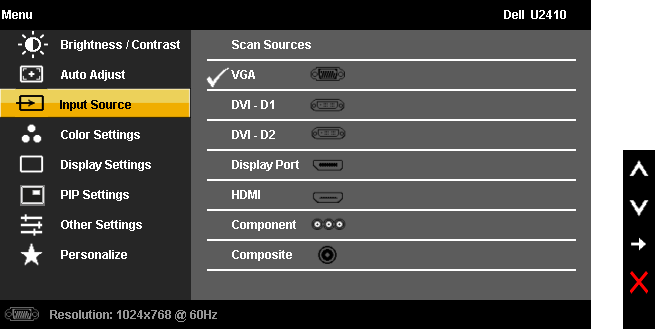
This method is ideal for users on a tight budget who do not need to share a keyboard or mouse. It relies entirely on the capabilities of your existing monitor.
Verify Available Input Ports
Inspect the back or side of your monitor for multiple video inputs. Common combinations include two HDMI ports, or one HDMI and one DisplayPort. Older monitors might have VGA or DVI options, but modern setups rely on digital connections.
Connect Each CPU to a Different Port
- Connect the first computer to the HDMI 1 port.
- Connect the second computer to the DisplayPort or HDMI 2 port.
- Power on both computers to ensure they are sending a signal.
Toggle Using On-Screen Display Menu
Use the physical joystick or buttons on your monitor to open the menu. Navigate to the “Source” or “Input” option and select the desired computer. The screen will switch immediately. Be aware that the inactive computer may detect a display disconnect, potentially moving open windows or changing resolution settings when you switch back.
Share Keyboard and Mouse Between Systems
If you choose manual input switching, you still need a way to control both computers without buying two sets of peripherals.
Use a USB Switch for Manual Sharing
A simple USB switch costs very little and solves the peripheral problem. Plug the USB cables from both computers into the switch, then connect your keyboard and mouse to the switch output. Pressing the button on the switch moves control to the other computer. You will need to press the monitor input button and the USB switch button to fully change systems.
Try Software-Based Mouse Bridging
Tools like Barrier or Synergy allow you to move your mouse cursor across the edge of one screen to control the other computer over the network. This creates a seamless experience where both computers feel like one giant desktop. However, both machines must be powered on and connected to the same local network for this to work effectively.
Troubleshoot No Signal or Black Screen Issues

Even with quality hardware, you might encounter display issues. Most problems stem from cable limitations or handshake errors.
Check Cable Compatibility and Signal Standards
A black screen often indicates the cable cannot handle the requested resolution. Ensure you are using HDMI 2.0 or higher for 4K at 60Hz. For USB-C connections, verify the cable supports DisplayPort Alt Mode. Avoid using cables longer than two meters unless they are active cables designed for long-distance transmission.
Use Active Adapters for Conversion
If you are converting from DisplayPort to HDMI, passive adapters often fail at resolutions above 1080p. Use an active adapter to boost the signal for 4K output. Always plug the DisplayPort end into the computer and the HDMI end into the monitor or switch.
Restart KVM to Reset HDCP Handshake
Streaming services like Netflix may show a black screen if the content protection handshake fails. This is common when switching sources. To fix this, power off the KVM completely, wait ten seconds, and plug it back in. This forces the devices to renegotiate the secure connection.
Optimize for Dual Laptop or Gaming Setups
Your specific use case dictates which features matter most in your setup.
Dual Laptop Users Should Prioritize Docking
If you use two laptops, a USB-C docking KVM is the best choice. These devices provide a single cable connection for video, data, and charging. Models with built-in Ethernet ports and SD card readers allow you to share internet connections and transfer files easily between machines.
Gamers Must Prioritize Low Latency
Gamers need switches that support high refresh rates and variable refresh technologies. Look for devices explicitly listing support for 120Hz or 144Hz at your target resolution. Avoid low-end switches that compress video signals, as this introduces input lag and ruins competitive gameplay.
Avoid Common Setup Mistakes
Small errors can lead to significant frustration. Avoid these common pitfalls to ensure a stable dual-PC environment.
Do Not Use Unpowered USB Hubs
Connecting power-hungry devices like external SSDs or webcams through an unpowered hub can crash the KVM. If your KVM does not have its own power supply, use a powered USB hub for your peripherals to ensure consistent performance.
Never Rely on KVMs for File Transfer
A KVM switches control signals, not data files. You cannot drag a file from one computer to another through the switch. Use network sharing, cloud storage, or an SD card reader built into a docking KVM to move files between systems.
Maintain Long-Term KVM Performance
Proper maintenance ensures your switching setup lasts for years without degradation.
Choose Metal Chassis for Heat Dissipation
High-resolution video processing generates heat. Metal enclosures dissipate this heat better than plastic ones, preventing signal drops caused by overheating. Aluminum models are generally more durable and reliable for 24/7 operation.
Update Firmware for Compatibility
Manufacturers occasionally release firmware updates to fix bugs or improve compatibility with new monitors. Check the manufacturer’s website periodically to ensure your device has the latest software for optimal performance.
Frequently Asked Questions About Connecting Two CPUs
Can I connect two CPUs to one monitor without a KVM switch?
Yes, you can use the manual input switching feature built into most monitors. Connect each CPU to a different video port and use the monitor buttons to toggle between them. However, you will need separate keyboards and mice for each computer.
Will connecting two computers damage my monitor?
No, connecting multiple computers will not damage your monitor. The monitor simply receives a signal from one source at a time. Just ensure you do not force cables into ports, as physical damage is the only real risk during connection.
Can I transfer files between computers using a KVM switch?
No, standard KVM switches only transmit video and input signals. They do not transfer data between the connected computers. You must use a network share, cloud service, or external drive to move files.
Why does my resolution change when I switch between computers?
This happens if your KVM lacks EDID emulation. The computer detects the monitor as disconnected when you switch away and resets the display settings. Using a KVM with EDID locking prevents this issue.
Can I use a KVM switch for gaming on two PCs?
Yes, provided the KVM supports high refresh rates and resolutions like 4K at 144Hz. Look for switches that explicitly support VRR, G-Sync, or FreeSync to ensure smooth gameplay without tearing.
Key Takeaways for Connecting Two CPUs to One Monitor

Connecting two CPUs to one monitor is best achieved using a KVM switch for full peripheral sharing and seamless toggling. If you only need occasional screen access, manual input switching via your monitor offers a cost-free alternative. Always verify cable compatibility and EDID support to prevent resolution issues and ensure a stable workflow.
Start by assessing your port types and performance needs, then select a KVM or switching method that matches your hardware. This simple upgrade will declutter your desk and streamline your interaction with multiple systems.


