
You just unboxed a new Alienware monitor, but skipping the setup steps often leaves players stuck at 60Hz or missing HDR features entirely. Simply plugging it in rarely unlocks the full speed and color accuracy your hardware deserves without specific configuration.
This guide details exactly how to set up Alienware monitor models like the AW2518H and AW2725DM for maximum frames. You will learn proper stand assembly, cable selection for 240Hz, and essential Windows tweaks to fix common signal issues immediately.
Unbox and Verify Model-Specific Contents
Lay out every item from the box before assembly to ensure you have the correct cables for your specific model. Missing a single component like a DisplayPort cable can delay your entire setup process.
Check Included Cables by Model
Different Alienware units ship with distinct accessories tailored to their connectivity needs.
- AW2724DM: Includes DisplayPort, HDMI 2.1, and USB-C cables with 90W Power Delivery.
- AW2725DM: Comes with two HDMI 2.1 cables and a small connector cable for firmware control.
- AW2518H: Includes a DisplayPort cable and a USB 3.0 Type-B to Type-A upstream cable.
- AW5520QF: Ships with stand and power cord but often lacks video cables.
Inspect Panel and Remove Protectors
Carefully remove foam inserts and check the screen edges for any shipping damage. Peel off protective films from the corners gently without using sharp tools that could scratch the panel.
Assemble the Stand with Butterfly-Lock Precision
Alienware stands use heavy-duty materials designed for stability, requiring precise alignment during installation. Incorrect assembly can lead to wobbling or difficulty engaging the locking mechanisms.
Install the Butterfly-Lock Mechanism
- Align the stand mounting plate with the slot on the rear of the monitor.
- Press the unit firmly while engaging the butterfly lever to lock it in place.
- Listen for a solid click confirming the lock is fully secure.
- Avoid forcing the mechanism as realignment is better than applying excess pressure.
General Stand Attachment Steps
- Attach the base to the vertical arm if it is not pre-connected at the factory.
- Slide the arm into the VESA-compatible slot on the monitor back.
- Tighten any provided screws or engage lock levers as specified in your manual.
- Place the monitor upright on a flat soft surface to prevent scratching.
Pro Tip: Perform assembly on a carpet or towel to protect the screen and stand from scratches during installation.
Enable Full Ergonomic Adjustments
Proper positioning reduces neck strain and improves visibility during long gaming sessions. Your monitor supports multiple axes of movement for customized comfort.
Adjust Height Tilt Swivel and Pivot
- Height: Lift or lower the panel so the top third aligns with your eye level.
- Tilt: Angle the screen forward or backward between 5 and 15 degrees to reduce glare.
- Swivel: Rotate the base left or right for shared viewing or dual-monitor alignment.
- Pivot: Rotate the screen 90 degrees to portrait mode for coding or document editing.
Warning: Avoid using excessive force on these mechanisms as they are durable but not indestructible.
Route Cables Through Management Channels
- Loosen the cable cover located on the stand arm to access the internal channel.
- Feed power video and USB cables from the monitor down through the stand.
- Reattach the cover to keep your desk clean and prevent tangling.
Connect Cables for Maximum Refresh Rates
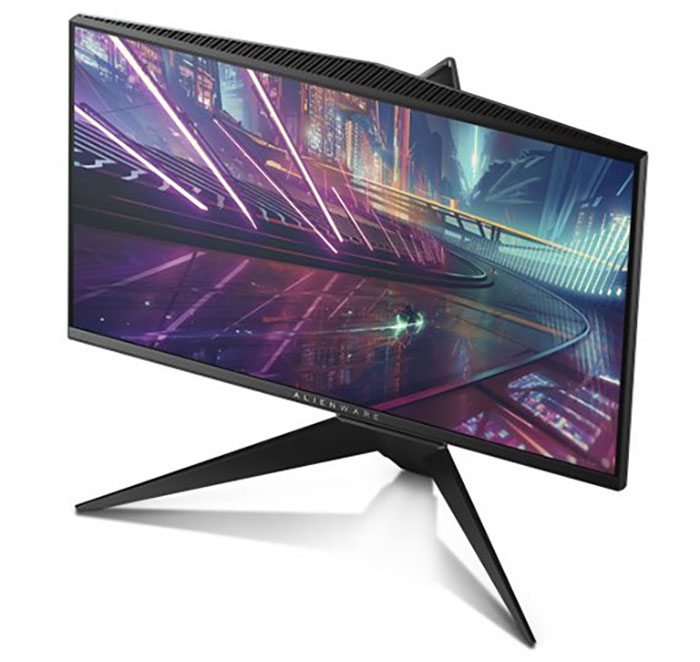
Using the wrong port limits your performance significantly. Select the connection type that matches your hardware capabilities and model specifications.
Select the Correct Port for Your Model
| Model | Best PC Connection | Best Console Connection | Connection to Avoid |
|---|---|---|---|
| AW2724DM | DisplayPort or USB-C | HDMI 2.1 | HDMI 2.0 |
| AW2725DM | HDMI 2.1 | HDMI 2.1 | HDMI-to-DP Adapters |
| AW2518H | DisplayPort (240Hz) | HDMI 2.0 (144Hz max) | HDMI for 240Hz |
| AW5520QF | HDMI 2.1 or DP | HDMI 2.1 | Low-bandwidth HDMI |
Avoid Adapters and Use Native Ports
Never use HDMI-to-DisplayPort adapters as they often fail at high bandwidths and cause flickering. Use native DisplayPort 1.4 cables for 1440p at 180Hz or 1080p at 240Hz.
Connect USB Hub and Audio Features
- Connect the USB 3.0 Type-B to Type-A cable from the monitor to your PC.
- This activation step enables downstream USB ports for keyboards or mice.
- Plug headphones into the 3.5mm jack on supported models like the AW2518H.
Configure Windows for High Refresh Rates
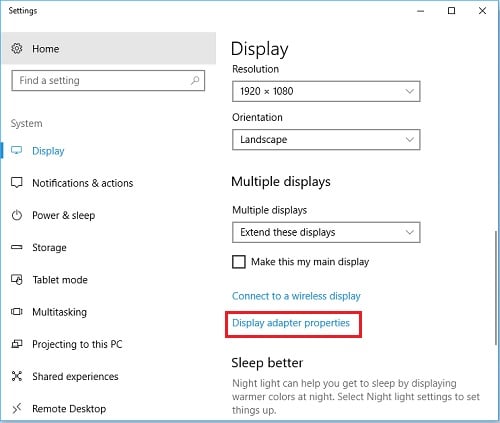
Windows often defaults to 60Hz even with high-end hardware connected. You must manually select the maximum refresh rate to utilize your monitor fully.
Enable 240Hz or 180Hz in Display Settings
- Right-click your desktop and select Display Settings.
- Scroll down and click Advanced Display Settings.
- Select your Alienware monitor from the dropdown list.
- Click Display Adapter Properties then go to the Monitor tab.
- Choose 240 Hz or 180 Hz from the Screen Refresh Rate menu.
- Click Apply and select Keep Changes to lock in the setting.
Critical: If higher rates do not appear verify your GPU supports the resolution and that you are using a High-Speed DisplayPort cable.
Set Native Resolution Correctly
Ensure your output matches the panel native resolution for the sharpest image quality. Go to Display Settings and select the Recommended resolution option.
- AW2724DM/AW2725DM: 2560 × 1440
- AW2518H: 1920 × 1080
- AW5520QF: 3840 × 2160
Optimize On-Screen Display Settings

Access the On-Screen Display (OSD) using the joystick knob or buttons located on the monitor bezel. These settings control visual performance and gaming features.
Navigate the OSD Menu System
- Joystick/Knob: Push in any direction to navigate and press to select options.
- Source Button: Quickly switch between HDMI DisplayPort and USB-C inputs.
- Power Button: Hold to turn off the unit or cycle through active inputs.
Calibrate Visual Performance
- Enable Smart HDR in the Display menu to enhance contrast and color depth dynamically.
- Set Response Time to Fast to reduce motion blur during rapid movement.
- Adjust Dark Stabilizer to levels 3 through 5 to brighten shadows in dark games.
- Select Game Mode for optimized contrast or Standard for general use.
Activate Gaming Overlays and Crosshairs
Alienware monitors include built-in overlays that provide competitive advantages without software installation. These tools help track performance and improve aiming accuracy.
Enable FPS Counter and Timer
- Navigate to Game Enhancements in the OSD menu.
- Select FPS Counter and turn it on to see real-time frame rates.
- Toggle this feature off when watching movies for a clean image.
Use Custom Crosshair Overlay
- Go to Game Enhancements and select Crosshair.
- Choose your preferred color such as red green or blue and adjust the size.
- Use this tool for aiming in games that lack built-in crosshairs like Warzone.
Pro Tip: Disable the crosshair overlay in single-player story games to avoid visual distraction.
Customize AlienFX and Ambient Lighting
Personalize your battlestation with RGB lighting that syncs with your gameplay or mood. The rear panel lighting adds a futuristic aesthetic to your setup.
Control AlienFX via OSD Menu
- Select Lighting Effects then AlienFX in the main menu.
- Choose from preset colors or create custom lighting zones.
- Sync effects with other Alienware peripherals using Alienware Command Center.
Enable Ambient Glow Features
Activate Ambient Lighting on supported models to project a soft glow behind the monitor. Adjust brightness and color to match your room theme or game environment.
Update Firmware for Stability and Performance

Outdated firmware can cause flickering input lag or HDR issues. Regular updates ensure your monitor runs smoothly with the latest fixes.
Check for and Install Updates
- Connect the monitor to your PC via the USB upstream cable.
- Open Alienware Command Center or Dell Display Manager.
- Navigate to Firmware Update and follow the on-screen prompts.
Warning: Do not power off the monitor during an update as this may brick the device.
Troubleshoot Common Setup Issues
Even with careful setup you might encounter signal or performance hiccups. These solutions address the most frequent problems users face.
Fix No Signal Detected Errors
- Press the Source button to cycle through available inputs manually.
- Reseat cables at both the monitor and PC ends to ensure tight connections.
- Try a different HDMI or DisplayPort cable to rule out hardware failure.
- Test the monitor with another device like a laptop to isolate the issue.
Resolve Stuck 60Hz Refresh Rates
- Confirm you are using DisplayPort or HDMI 2.1 cables specifically.
- Manually change the refresh rate in Windows Display Adapter Properties.
- Update your GPU drivers to the latest version from NVIDIA or AMD.
- Disable HDR temporarily as some applications cap refresh rates when active.
Fix USB Hub or Audio Issues
Connect the USB upstream cable from the monitor to your PC to power the hub. Reboot your system if the ports remain inactive after cable connection.
Optimize Settings for Your Specific Use Case
Tailor your configuration based on whether you prioritize competitive speed or visual fidelity. Different scenarios require different OSD and OS adjustments.
Competitive Gaming Configuration
- Port: Use DisplayPort for maximum bandwidth.
- Refresh Rate: Set to 240Hz for smoothest motion.
- OSD: Enable Fast response time and crosshair overlay.
- OS: Disable fullscreen optimizations in game properties.
Creative Work Configuration
- Color Gamut: Utilize 95% DCI-P3 coverage for accurate editing.
- Calibration: Use Windows Color Calibration tool for precision.
- HDR: Enable for 4K video playback and content creation.
- Panel: Leverage matte finish to reduce glare during work.
Console Gaming Configuration
- Port: Connect via HDMI 2.1 for PS5 or Xbox Series X.
- Settings: Enable VRR and 120Hz in the console system menu.
- Monitor: Ensure HDR is on for compatible games.
- Ergonomics: Swivel and tilt for comfortable couch viewing.
Maintain and Extend Monitor Lifespan
Proper care ensures your investment lasts for years without degradation. Regular maintenance prevents physical damage and performance issues.
Clean Screen Safely
- Use a microfiber cloth slightly damp with water for cleaning.
- Never spray liquid directly onto the screen surface.
- Avoid alcohol-based cleaners that can damage panel coatings.
Prevent Burn-In on OLED Models
Enable pixel shift and screen saver features on OLED units like the AW5520QF. Limit static UI elements during long sessions to protect the panel.
Frequently Asked Questions About Alienware Monitor Setup
Why is my Alienware monitor stuck at 60Hz?
Your system likely defaults to 60Hz until manually changed. Go to Display Settings > Advanced Display > Monitor tab and select 240Hz or 180Hz from the dropdown menu.
Do I need a special cable for 240Hz gaming?
Yes you must use the included DisplayPort cable for 240Hz on models like the AW2518H. HDMI connections on this model are limited to 144Hz maximum.
How do I enable HDR on my Alienware monitor?
Navigate to the OSD menu select Display then turn HDR On. Ensure your Windows HDR settings and game content also support High Dynamic Range.
Can I use my Alienware monitor with a PS5?
Yes connect via HDMI 2.1 port and enable 120Hz and VRR in your PS5 system settings. The AW2724DM and AW2725DM support high refresh console gaming.
Why are my USB ports on the monitor not working?
You must connect the USB upstream cable from the monitor to your PC first. This cable provides data connection and power to the downstream USB ports.
Key Takeaways for Setting Up Your Alienware Monitor
Setting up your Alienware monitor correctly requires more than just plugging it in. You must assemble the stand securely select the right cables like DisplayPort for 240Hz and manually configure Windows display settings to unlock full performance.
Optimizing OSD features like Smart HDR and response time ensures you get the visual quality and speed you paid for. Follow these steps to avoid common pitfalls and enjoy a seamless high-performance gaming experience immediately.


