
Struggling to get your Arzopa portable monitor to display an image? You are not alone. Many users face confusion because this compact 10.1-inch Full HD screen lacks an internal battery and relies entirely on external power sources. The secret to success lies in choosing the correct connection method for your specific device, whether it is a modern laptop or an older gaming console.
This guide shows you exactly how to power, connect, and configure your Arzopa monitor for Windows, Mac, Android, and iPhones. You will learn the critical difference between USB-C and HDMI setups while mastering the troubleshooting steps needed to fix flickering or no-signal errors. Follow these instructions to turn your portable screen into a productive second display instantly.
Choose the Right Connection Method for Your Device

Your setup path depends entirely on the ports available on your host device. The Arzopa monitor supports two primary connection types: USB-C for modern single-cable solutions and HDMI for legacy systems requiring dual cables. Selecting the wrong method often leads to power failures or black screens.
USB-C vs HDMI: When to Use Each
Use the USB-C to USB-C method if your laptop or phone supports DisplayPort Alt Mode. This single cable transmits both video data and electrical power simultaneously. Use the HDMI method for older computers, desktops, and gaming consoles. HDMI carries video only, so you must connect a separate power cable to run the display.
Identify Your Device Type
Match your hardware to the correct setup category before plugging in cables.
* Modern laptops: Use USB-C if the port supports video output.
* Older desktops: Use HDMI plus a USB power cable.
* Android phones: Use USB-C with external power for long sessions.
* iPhones: Use a Lightning adapter or USB-C cable depending on the model.
* Gaming consoles: Use HDMI plus a dedicated power source.
Power Requirements Explained
The Arzopa monitor has no built-in battery and demands continuous 5V power to function. You need a minimum of 5V/3A (15W) for basic operation. We recommend a 30W or higher adapter for stable performance. Using underpowered sources like weak laptop USB ports causes flickering, random restarts, or total signal loss.
Connect to USB-C Devices Using Single Cable

This method is ideal for laptops, MacBooks, and smartphones equipped with full-featured USB-C ports. It delivers both video and power through one cable when executed correctly.
Laptops and PCs with Thunderbolt or USB-C
- Plug the USB-C to USB-C cable into the monitor port.
- Connect the other end to your laptop USB-C or Thunderbolt 3/4 port.
- The monitor powers on automatically and displays your screen.
Note: If the screen flickers while adjusting brightness, connect the USB-C to USB-A power cable to a 30W+ wall adapter. This offloads power demand from your laptop port.
Android Phones and Tablets
- Use the USB-C to USB-C cable to connect your phone to the monitor.
- The display extends or mirrors instantly upon connection.
Warning: Your phone battery drains quickly without external power. For extended use, connect the monitor power input to a wall charger. This lets the monitor run independently while your phone charges.
iPhone 15 and Newer Models
- Use the included USB-C to USB-C cable.
- Connect directly between the iPhone and the monitor.
- The device detects the screen automatically.
While power can be drawn from the iPhone, performance may drop at high brightness levels. For best results, power the monitor externally using a USB-A to USB-C cable and wall adapter.
Use HDMI for Non-USB-C Devices

When your device lacks video-capable USB-C ports, HDMI is the reliable alternative. This method requires two cables: one for video transmission and one for power delivery.
PCs and Laptops with HDMI Output
- Power first: Connect the USB-C end of the power cable to the monitor and the USB-A end to a 30W+ wall adapter.
- Then video: Plug the Mini HDMI end into the monitor and the full HDMI end into your computer.
- Wait a few seconds for the image to appear automatically.
Critical: Never reverse the order. Connecting video before power can cause handshake failures and no signal errors.
Desktop Computers and Older Macs
Follow the same two-cable HDMI setup for these devices. Use a Mini HDMI to HDMI cable for video and a USB-C to USB-A cable for power from a wall adapter.
In Display Settings, set resolution to 1920×1080 @ 60Hz for optimal clarity. If the monitor is not detected, click “Detect” or restart the computer with both cables connected.
iMac and MacBook Pro (Pre-2016)
These models lack USB-C video output capabilities. You must use a Mini HDMI to HDMI cable for video and a USB-A to USB-C cable for power from a wall adapter.
Ensure the power source provides at least 5V/3A. Using a USB port on the iMac may not supply enough power, leading to flickering or sudden shutdowns during use.
Connect Smartphones and Tablets Effectively
The Arzopa monitor turns mobile devices into full workstations but only with the correct cables and power setup. Proper configuration prevents rapid battery drain on your phone.
Android Devices with USB-C
Most modern Android phones like Samsung Galaxy and Google Pixel support video output via USB-C.
- Connect using the USB-C to USB-C cable.
- Screen mirrors or extends automatically upon connection.
Pro Tip: Enable Desktop Mode such as Samsung DeX or Motorola Ready For if available. This transforms your phone into a PC-like interface on the monitor. For long sessions, plug the monitor into a power bank or wall outlet.
iPhone with Lightning Port (Pre-iPhone 15)
You will need an Apple Lightning to HDMI adapter sold separately along with the included Mini HDMI to HDMI cable.
- Plug the Lightning to HDMI adapter into your iPhone.
- Connect the HDMI cable from the adapter to the monitor.
- Power the monitor using the USB-C to USB-A cable and wall adapter.
- Wait for auto-detection to complete.
Why power matters: The Lightning port cannot power the monitor. Skipping external power results in no display.
iPhone 15 and Later (USB-C)
Use the same approach as Android devices with the USB-C to USB-C cable.
- Connect directly between devices.
- Monitor activates instantly.
For maximum brightness and stability during video playback or gaming, power the monitor externally. This avoids drawing too much energy from the iPhone battery.
Hook Up Gaming Consoles Properly
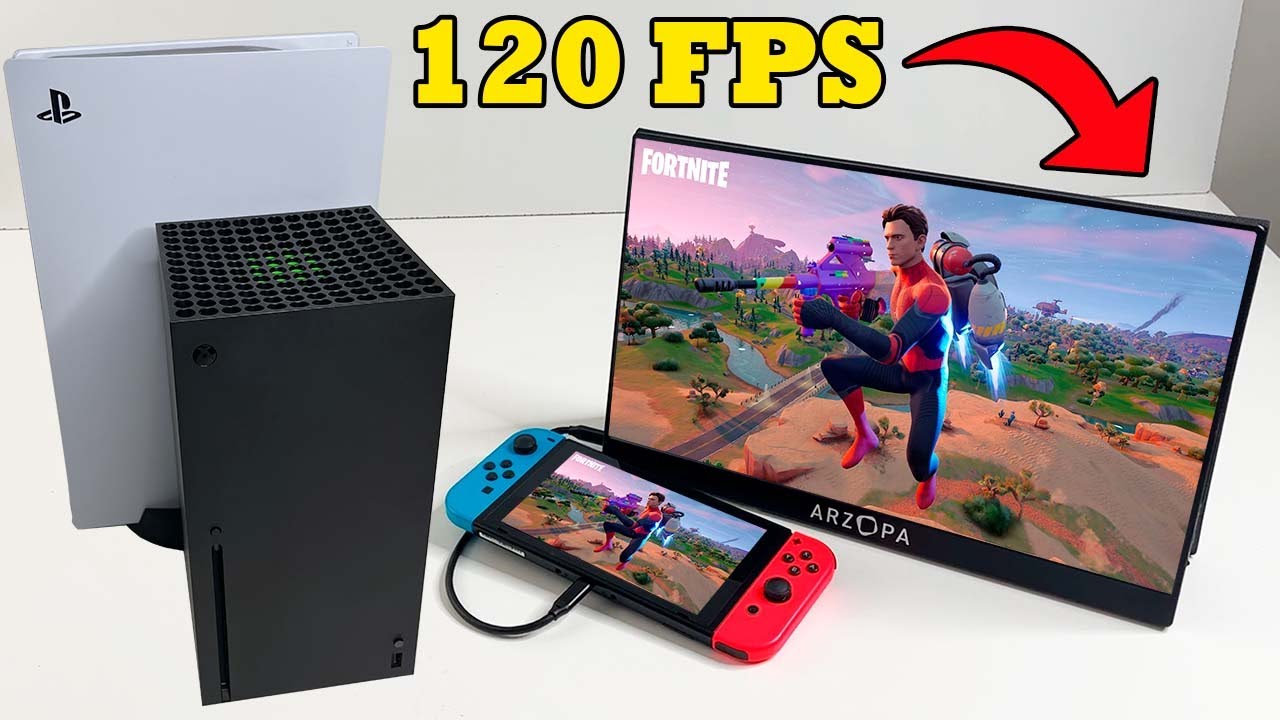
The Arzopa monitor is perfect for portable console gaming with PS5, Xbox, and Nintendo Switch using the HDMI connection method.
PlayStation 5 and Xbox Series X|S
- Connect the Mini HDMI to HDMI cable from the console to the monitor.
- Power the monitor using a 30W+ wall adapter with the USB-C to USB-A cable.
- Turn on the console and the display appears automatically.
No USB-C option: These consoles do not support video over USB-C, so HDMI is required. Adjust monitor color temperature and brightness via OSD for better contrast in dark games.
Nintendo Switch (Docked and Handheld)
Docked Mode
- Connect HDMI from Switch dock to monitor.
- Use the original Nintendo AC adapter to power the monitor.
- Monitor displays game output clearly.
Tabletop Mode
- Use HDMI cable from monitor to Switch.
- Power monitor via USB-C to USB-A cable connected to a wall adapter.
- Pro controllers pair normally for gameplay.
Avoid: Using the Switch USB port to power the monitor. It will not work.
Configure Display Settings by OS

After physical connection, configure your operating system to use the monitor properly. This ensures correct resolution, orientation, and display mode for your workflow.
Windows: Extend or Duplicate
- Right-click desktop and select Display Settings.
- Click “Detect” if the monitor is not visible.
- Choose Extend to use both screens as one large workspace.
- Set resolution to 1920×1080 and refresh rate to 60Hz.
- Change orientation to Portrait for coding or reading tasks.
Shortcut: Press Windows + P to quickly switch between display modes.
macOS: Arrange and Rotate
- Go to System Settings then Displays.
- Drag screen icons to match your physical layout.
- Uncheck Mirror Displays for extended desktop functionality.
- Click Rotation to switch to 90° for vertical use.
Tip: Use Command + F1 or Fn + F1 to toggle between display modes quickly.
Linux: Plug-and-Play Setup
Most distributions like Ubuntu and Fedora detect the monitor automatically.
- Open Settings then Displays.
- Choose Join Displays to extend or Mirror.
- Set resolution to 1920×1080.
- Rotate screen if needed for your workflow.
If undetected, try restarting with cables connected or updating graphics drivers.
Troubleshoot Common Connection Issues
Even with correct cabling, problems can occur. Most issues stem from power deficiencies or incorrect settings and are fixable in minutes.
Monitor Flickers or Restarts
Cause: Insufficient power supply from the host device.
Fix:
* Disconnect from laptop or phone USB port immediately.
* Connect the monitor to a 30W+ wall adapter using the USB-C to USB-A cable.
* Avoid using weak power banks or low-output USB hubs.
This is the number one issue users face, especially at high brightness levels.
No Signal or Black Screen
Possible causes: Loose cables, wrong input, or OS detection failure.
Solutions:
1. Re-seat both power and video cables firmly.
2. Ensure power is connected before video cable.
3. On Windows, open Display Settings and click “Detect”.
4. Restart the host device with cables plugged in.
5. Try a different HDMI or USB-C cable.
If using HDMI, confirm the monitor input source is set correctly.
Monitor Won’t Turn On
Check:
* Power adapter and outlet by testing with another device.
* USB-C to USB-A cable by trying a known-working one.
* Try connecting to a different USB power source like a laptop or power bank.
If still unresponsive, the monitor may be defective and require support contact.
Wrong Resolution or Blurry Image
Fix in OS settings:
* Set resolution to 1920×1080.
* Refresh rate to 60Hz.
* Disable scaling or set to 100 percent.
Avoid using third-party cables that do not support Full HD bandwidth.
Audio Not Playing Through Monitor
If your Arzopa model has built-in speakers, check your audio output settings.
- On Windows: Right-click speaker icon, go to Sounds, and set monitor as default.
- On Mac: Go to System Settings, Sound, Output, and select monitor.
- On Android or iPhone: Audio usually routes automatically, so check volume on both devices.
If no sound, ensure the monitor volume is up by using the Roll Key to adjust.
Optimize for Long-Term Use
Keep your Arzopa monitor running smoothly with these best practices for power, cables, and setup. Proper care extends the life of your portable display.
Use the Right Power Adapter
Always use the included 5V charger or a 30W+ USB-C PD adapter. Avoid low-power USB ports on hubs or older laptops. Cheap third-party chargers with unstable output cause flickering and reduce device life.
Maintain Cable Integrity
- Use included cables tested for 1080p at 60Hz.
- Do not yank cables from ports aggressively.
- Store cables loosely coiled to prevent wire damage.
Damaged cables cause intermittent signal loss and connection drops.
Set Up the Smart Cover Stand
- Unfold the magnetic Smart Cover.
- Attach it to the monitor back.
- Adjust the angle for comfortable viewing.
Using the stand prevents wobbling and protects the screen from scratches during use.
Clean and Store Properly
- Clean the screen with a soft, dry microfiber cloth.
- Never use alcohol or window cleaners on the panel.
- Close the Smart Cover when not in use to block dust.
- Store in a cool, dry place away from direct sunlight.
Frequently Asked Questions About Connecting Arzopa Portable Monitor
Why does my Arzopa monitor flicker constantly?
Flickering usually means insufficient power. Your host device port cannot supply the required 5V/3A. Connect the monitor to a 30W or higher wall adapter using the USB-C to USB-A cable to stabilize the power supply.
Can I connect my Arzopa monitor to an iPhone without extra adapters?
Only iPhone 15 and later models connect directly via USB-C. Older iPhones with Lightning ports require a separate Lightning to HDMI adapter and external power to function correctly.
Does the Arzopa monitor work with Nintendo Switch in handheld mode?
Yes, but you must power the monitor separately. Use the HDMI cable for video and connect the monitor to a wall adapter or the original Nintendo AC adapter for power.
How do I make my Arzopa monitor the main display?
Go to your computer Display Settings. On Windows, select the Arzopa screen and check “Make this my main display.” On Mac, drag the menu bar to the Arzopa screen in the arrangement tab.
Why is there no sound coming from the monitor?
Your computer may still be sending audio to its internal speakers. Go to Sound Settings on your device and change the output device to the Arzopa monitor or its speakers.
Can I use any USB-C cable to connect my laptop?
No. You need a cable that supports both data and power delivery. Some charging-only cables will not transmit video. Use the included USB-C to USB-C cable for best results.
Key Takeaways for Connecting Your Arzopa Portable Monitor
Connecting your Arzopa portable monitor requires matching the right cable to your device while ensuring adequate power delivery. Remember that USB-C offers a single-cable solution for modern devices, while HDMI setups always need a separate power source. The most common errors like flickering or black screens are almost always solved by using a 30W+ wall adapter instead of relying on device ports.
Always connect power before video when using HDMI to prevent handshake failures. Configure your operating system to extend your display for maximum productivity. With the correct setup and proper cable management, your Arzopa monitor serves as a reliable second screen for work or gaming anywhere you go.


