
Your Steam Deck delivers incredible handheld gaming, but sometimes you want a bigger screen. Whether you’re gaming at a desk, relaxing in the living room, or hosting a multiplayer session, learning how to connect Steam Deck to monitor setups transforms your handheld into a true console replacement. The process is straightforward once you understand the hardware options and display behaviors. This guide covers every connection method, troubleshooting tip, and optimization trick so you can enjoy your library on any external display.
The Steam Deck lacks a built-in HDMI port, so a direct cable connection is not possible. Instead, the device uses its single USB-C port for both charging and video output through DisplayPort Alt Mode. With the right adapter, dock, or wireless app, you can mirror, extend, or shift your display in minutes. Below, you’ll find step-by-step instructions, hardware recommendations, and fixes for the most common connection problems.
Use a USB-C to HDMI Adapter
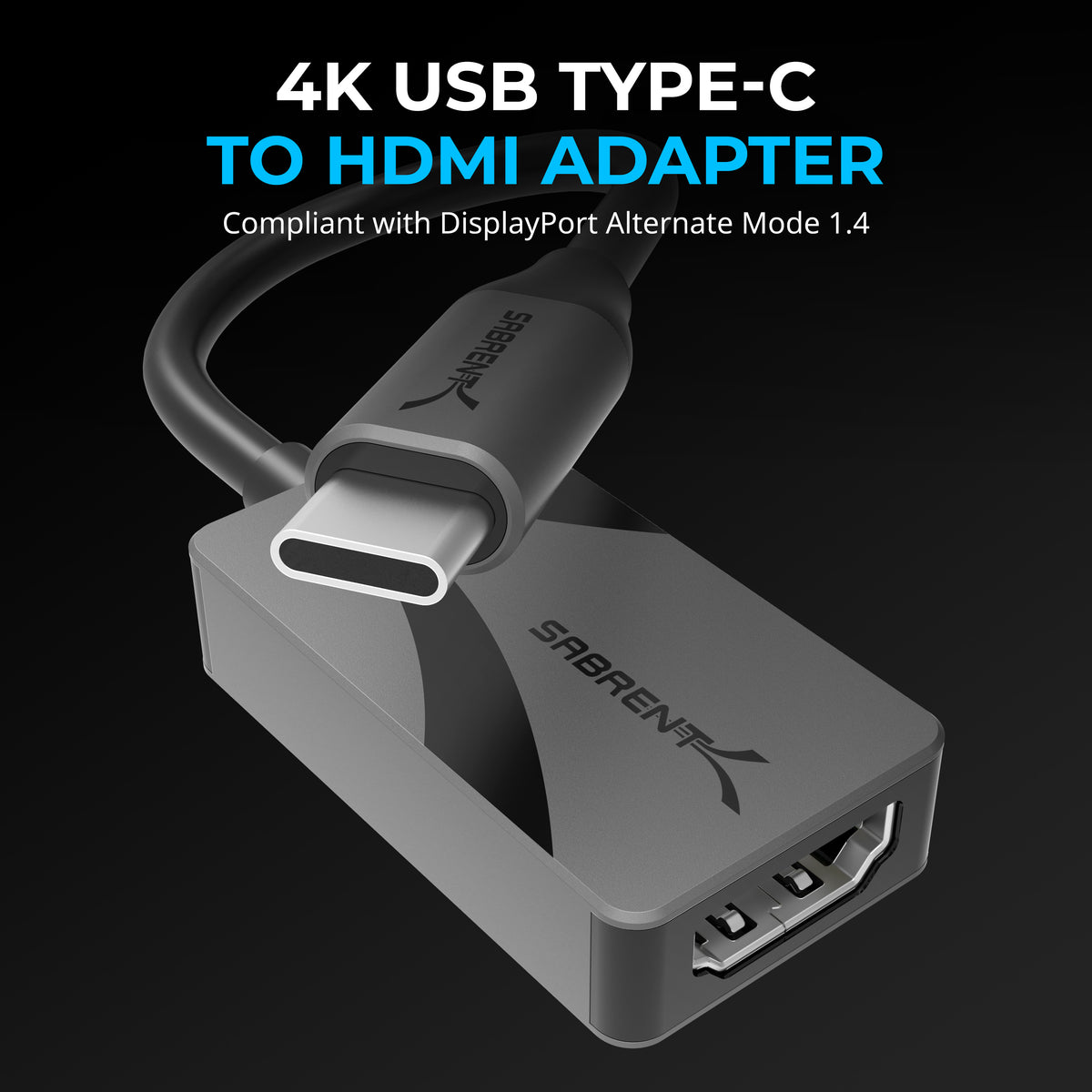
The quickest way to connect your Steam Deck to monitor or TV hardware is through a USB-C to HDMI adapter. This compact, affordable option turns your handheld into a plug-and-play console with minimal setup.
Plug in the Adapter and HDMI Cable
Follow these steps for an instant connection:
- Insert the USB-C end of the adapter into the top-mounted port on your Steam Deck.
- Connect one end of an HDMI cable to the adapter and the other to your monitor or TV.
- Switch the display input to the correct HDMI source using your TV remote.
- Power on the Steam Deck. The device should auto-detect the external screen and shift the display.
Make sure your adapter supports DisplayPort Alt Mode, since the Steam Deck uses this protocol for video output over USB-C. Adapters without this feature will not transmit any signal.
Watch Out for Charging Limitations
Most USB-C to HDMI adapters block charging while in use. Because the single USB-C port handles video output, no power reaches the device unless the adapter includes a passthrough charging port. Without it, your battery drains during long sessions.
If you need power while playing, consider these options:
- Use a powered adapter with an extra USB-C input for charging.
- Charge the Steam Deck fully before connecting if battery life is sufficient.
- Upgrade to a docking station for full charging capability.
Pick High-Quality Cables and Adapters
Signal drops, black screens, and flickering usually trace back to cheap hardware. Use cables and adapters that meet these standards:
- HDMI 2.0 or higher for 1080p at 60Hz or better performance.
- Adapters with metal shielding and strong user reviews.
- Shorter cables under 6 feet to minimize interference.
Avoid unbranded adapters from unknown sellers. Many fail to establish a stable HDMI handshake with the Steam Deck.
Connect via Steam Deck Dock

For a permanent or semi-permanent setup, a dedicated dock is the best choice. It enables charging, video output, and stable connectivity in one package.
Enable Charging While Playing
Unlike basic adapters, a Steam Deck dock lets you charge while gaming. This is essential for long sessions, 4K streaming, or overnight downloads. Simply place the Steam Deck into the dock, connect HDMI to your monitor, and plug in the power supply.
The official Valve dock and many third-party models from brands like JSAUX or Anker offer:
- 60W PD charging
- HDMI 2.0 output
- Gigabit Ethernet for faster downloads
- Additional USB ports for peripherals
Fix Dock Lag with a Sleep Reset
Some users experience lag, stuttering, or no signal when docking. If your monitor doesn’t detect the Steam Deck, perform this reset:
- Press the Power button to put the device to sleep.
- Wait 10 seconds.
- Press Power again to wake the device.
This forces a full video re-sync and resolves most handshake issues. Also confirm the Steam Deck is fully seated in the dock, since poor contact can cause intermittent signals.
Choose a Compatible Dock Model
Not every dock works reliably with the Steam Deck. While the official Valve dock guarantees compatibility, reputable third-party options often deliver equal performance at lower prices.
Top-performing brands include:
- JSAUX for compact design and reliable HDMI output
- Anker for power delivery and durability
- Sabrent for multiple ports and solid build quality
Always check recent user reviews before buying. Some models work flawlessly in Desktop Mode but fail to shift the display in Gaming Mode.
Stream Wirelessly with Steam Link
No cables available? You can still learn how to connect Steam Deck to monitor setups wirelessly using the Steam Link app on a smart TV or streaming box.
Set Up Steam Link on Your TV
- On your smart TV, download and open the Steam Link app (available on Samsung, LG, Roku, Fire TV, and others).
- Connect the app to your Wi-Fi network.
- Sign in with your Steam account.
- Confirm your Steam Deck is on the same Wi-Fi network and powered on.
The app scans for available devices. When “Steam Deck” appears, select it to begin pairing.
Confirm Pairing with a PIN
A 6-digit PIN appears on your TV screen. Enter this code on your Steam Deck to authorize the connection. Once paired, your entire Steam Deck interface streams to the TV.
Note that this method mirrors the display. The Steam Deck screen stays on, and every action appears on the TV simultaneously.
Expect Network-Dependent Latency
Wireless streaming introduces input lag, especially on congested networks. For best results:
- Use a 5GHz Wi-Fi band instead of 2.4GHz.
- Stay close to the router with minimal interference.
- Avoid running other bandwidth-heavy devices at the same time.
Wired connections always deliver better performance for fast-paced games. Reserve Steam Link for casual play, media streaming, or situations where cables are impractical.
Switch Display Output in Gaming Mode
When connected to a monitor, the Steam Deck behaves differently depending on which mode you use. In Gaming Mode, the system shifts the display rather than mirroring it.
Built-In Screen Turns Off Automatically
Once connected via dock or adapter, the Steam Deck’s built-in screen turns dark, and gameplay appears only on the external monitor. This mimics the Nintendo Switch experience and conserves battery.
If the screen stays on and the external display remains dark, try these fixes:
- Confirm the HDMI cable is securely connected at both ends.
- Try a different HDMI port on the TV.
- Perform the Sleep Mode Reset by pressing Power, waiting 10 seconds, then waking the device.
Some users report failure to shift output due to incompatible docks or firmware bugs. Updating SteamOS often resolves these issues.
Avoid HDMI Handshake Failures
Handshake failures happen when the Steam Deck and display fail to negotiate video settings. Symptoms include no signal, flickering images, or audio without video.
Try these solutions:
- Swap in a different HDMI cable.
- Use a rear HDMI port, since some side ports have lower bandwidth.
- Boot the Steam Deck after connecting it to the dock.
Configure Display Settings in Desktop Mode
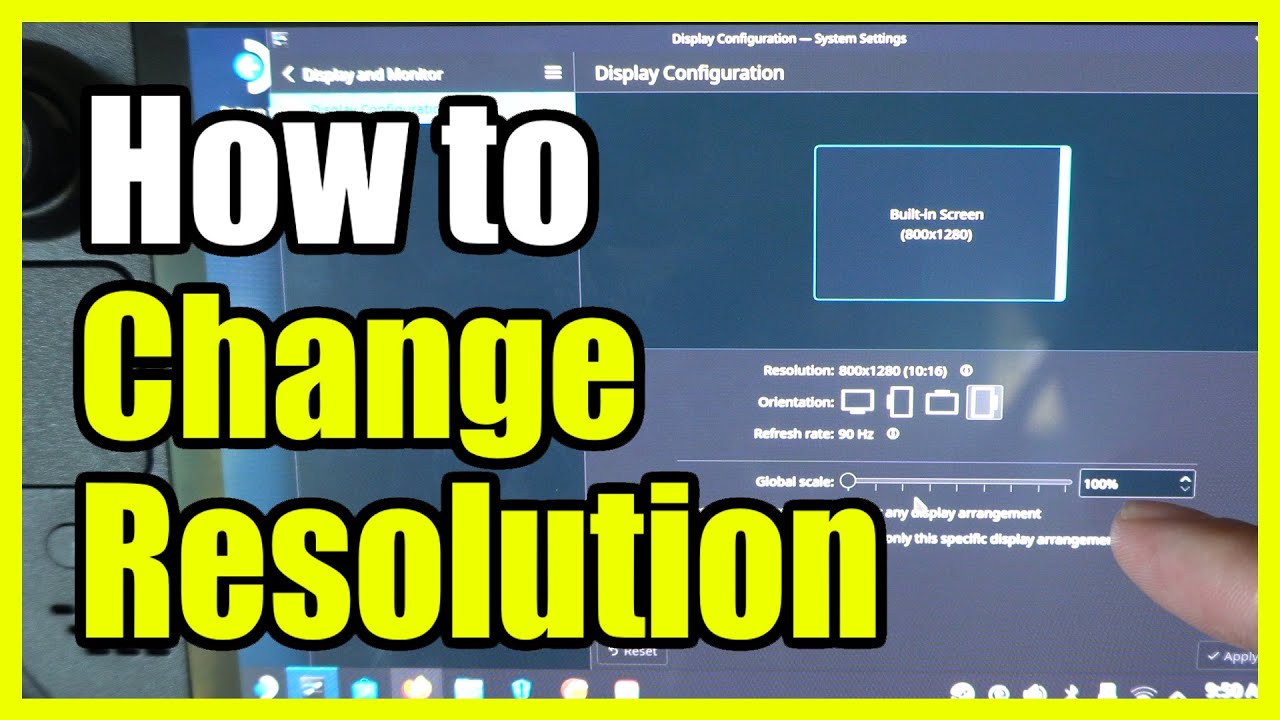
For finer control over resolution, scaling, and multi-monitor setups, switch to Desktop Mode powered by KDE Plasma.
Detect the Monitor in Settings
- Boot into Desktop Mode.
- Click the system tray and open Settings.
- Navigate to Hardware > Display and Monitor.
The external display should appear in the list. If not, click Detect Displays or reseat the HDMI connection.
Fix Resolution and Scaling
Common issues include blurry text, overscan, or misaligned cursors. To correct them:
- Select the external display in settings.
- Set the resolution to match your monitor’s native output (such as 1920×1080 or 3840×2160).
- Adjust scaling if text appears too small or too large.
- Enable underscan if edges are cut off.
Changes made in Desktop Mode often persist when you return to Gaming Mode.
Launch Big Picture Automatically
Want the console-style Big Picture interface but need Desktop Mode for display setup? Configure Steam to start in Big Picture:
- Open Steam in Desktop Mode.
- Go to Settings > Interface.
- Check “Start Steam in Big Picture Mode”.
- Restart Steam.
Now the Steam Deck launches directly into the full-screen gaming interface, even after display adjustments.
Troubleshoot Common Connection Issues
Even with the right hardware, problems can occur. Here is how to diagnose and fix the most frequent issues.
No Signal on the Monitor
If the external display shows “No Input”:
- Confirm the HDMI source selection matches the connected port.
- Try a different HDMI cable.
- Test the adapter or dock with another device.
- Reboot the Steam Deck while it remains connected.
Some TVs require HDMI-CEC to be enabled for proper detection. Check your TV’s input settings menu.
Lag or Stuttering During Games
Performance hiccups during docked play may stem from:
- A loose dock connection
- Overheating from blocked vents
- High-resolution streaming over Wi-Fi via Steam Link
For wired setups, perform the Sleep Mode Reset to refresh the video link.
Adapter Not Charging the Device
If using a passthrough adapter and the device isn’t charging:
- Verify the power adapter delivers at least 45W.
- Try a different USB-C cable.
- Check the charging port on the adapter for damage.
Low-wattage chargers cannot supply enough power under load.
Optimize for Long-Term Use
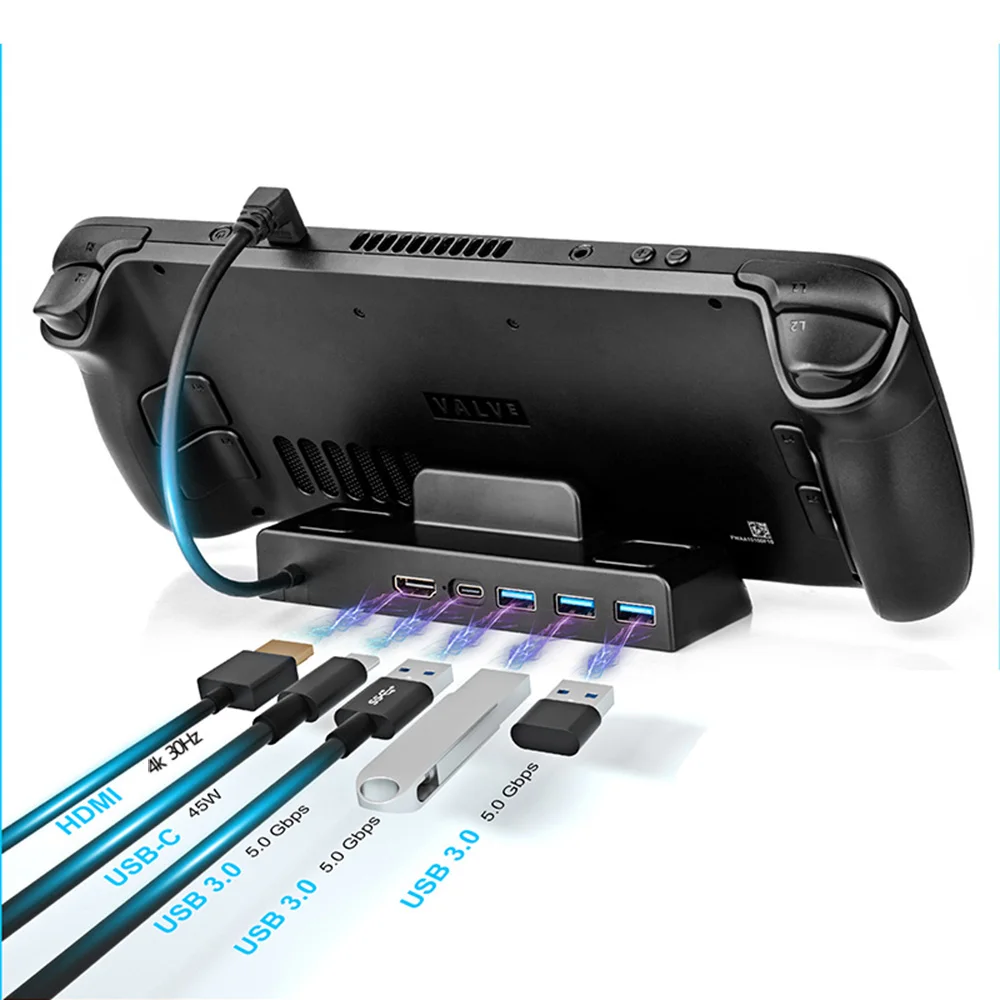
Connecting your Steam Deck regularly requires some care to protect the device and ensure reliability.
Prevent USB-C Port Wear
Frequent plugging and unplugging can damage the USB-C port over time. To reduce wear:
- Use a dock instead of adapters for daily use.
- Avoid twisting or straining the cable.
- Hold the connector, not the cable, when removing it.
A dock keeps the connection stable and minimizes mechanical stress on the port.
Update SteamOS Regularly
Valve frequently releases updates that improve HDMI compatibility, display detection, and power management. Always keep your Steam Deck updated:
- Go to Settings > System > Check for Updates.
- Install updates while docked and charging.
Many display bugs are resolved in newer firmware versions.
Test Different HDMI Ports
Not all HDMI ports on a TV perform the same. Some side ports are limited to 30Hz or lack HDCP support. If you experience issues:
- Switch to a rear HDMI port.
- Choose a port labeled “HDMI 2.0” or “4K/60Hz”.
- Avoid ports shared with ARC or eARC unless necessary.
Users have reported success simply by changing ports, even when other devices work fine on the original one.
Frequently Asked Questions About Connecting Steam Deck to a Monitor
Can I connect my Steam Deck to a monitor without a dock?
Yes. A USB-C to HDMI adapter works for basic video output. However, most adapters do not support simultaneous charging, so your battery will drain during play. For charging plus video, use a dock or a passthrough adapter with a dedicated power input.
Does the Steam Deck support 4K output to a monitor?
The Steam Deck supports video output up to 4K through its USB-C port using DisplayPort Alt Mode. Actual performance depends on your HDMI cable version, adapter, and the game’s demands. Use HDMI 2.0 or higher for stable 4K at 60Hz.
Why does my Steam Deck screen stay on when connected to a monitor?
In Gaming Mode, the built-in screen should turn off automatically once a display is detected. If it stays on, the system has not shifted output. Try the Sleep Mode Reset, reseat the dock, or update SteamOS to fix detection issues.
Is wireless streaming with Steam Link good for gaming?
Steam Link works well for casual or single-player games. For competitive or fast-paced titles, wired connections provide lower latency and more stable performance. Use a 5GHz Wi-Fi network for the best wireless results.
What is the best dock brand for the Steam Deck?
The official Valve dock guarantees compatibility. Reputable third-party brands like JSAUX, Anker, and Sabrent also perform well at lower prices. Always verify recent user reviews to confirm Gaming Mode compatibility before buying.
Can I use my Steam Deck as a PC with a monitor?
Yes. Desktop Mode turns the Steam Deck into a compact Linux PC. Connect a keyboard, mouse, and monitor for productivity tasks. Adjust resolution and scaling in Settings > Hardware > Display and Monitor for the best experience.
Key Takeaways for Connecting Your Steam Deck to a Monitor
Learning how to connect Steam Deck to monitor setups gives you the flexibility to game anywhere on any screen. Use a USB-C to HDMI adapter for quick, portable connections. Choose a dedicated dock for long sessions that require charging and stability. Reserve Steam Link for cable-free streaming when convenience matters more than performance.
Always verify hardware compatibility, update SteamOS regularly, and invest in high-quality cables to avoid handshake failures. Test different HDMI ports on your TV if you encounter signal issues. With the right setup, your Steam Deck transforms from a handheld into a versatile gaming and productivity machine ready for any display.
Next step: Pick the connection method that matches your setup, gather the required adapter or dock, and try a test connection today. If issues arise, work through the troubleshooting steps above in order to identify the cause.


