
You pull out your phone to show a video, edit a document, or play a game, and the small screen just doesn’t cut it. Connecting your phone to a computer monitor transforms that pocket-sized display into a full desktop experience. Whether you need extra screen real estate for work or want to stream content on a bigger display, multiple connection methods exist for both Android and iPhone devices.
This guide covers every reliable way to connect your phone to a computer monitor, including USB-C cables, HDMI adapters, AirPlay, Google Cast, and Miracast. You’ll find step-by-step instructions, troubleshooting tips, and recommendations for gaming, productivity, and media playback. By the end, you’ll know exactly which cable, adapter, or wireless method fits your setup.
Wired USB-C Connection for Modern Phones

USB-C delivers the fastest, most stable link between modern Android phones and iPhone 15 or later models. This method supports both screen mirroring and desktop-style extended displays.
Direct USB-C to USB-C Cable Setup
When both your phone and monitor feature USB-C ports, a single cable often handles everything. The phone must support DisplayPort Alt Mode for video output, a feature not present on every budget Android device.
- Power on the monitor.
- Connect a USB-C cable rated for video transmission to both devices.
- Unlock your phone.
- Select Mirror or Extend mode if a prompt appears.
Pro Tip: Not all USB-C cables carry video signals. Use one labeled for DisplayPort Alt Mode or Thunderbolt 3/4 to ensure compatibility.
Monitors with Power Delivery (PD) can charge your phone during use, though charging speeds may be slower than a dedicated wall charger.
HDMI Adapter Method for Universal Compatibility

Most monitors rely on HDMI input, so an adapter bridges the gap when your phone lacks a direct HDMI port.
Connect Android via USB-C to HDMI
This approach works with any HDMI-equipped monitor or TV.
- Plug a USB-C to HDMI adapter into your phone.
- Connect an HDMI cable from the adapter to the monitor.
- Switch the monitor’s input source to the correct HDMI port.
- Your phone screen appears automatically.
Best For: Presentations, media playback, or older monitors without USB-C input.
This setup typically does not charge the phone unless the adapter includes a power pass-through port.
Connect iPhone 5 Through 14 via Lightning to HDMI
Older iPhones require Apple’s official or MFi-certified Lightning to HDMI adapter.
- Plug the adapter into your iPhone.
- Connect an HDMI cable to the adapter and monitor.
- Switch the monitor to the matching HDMI input.
- Unlock your iPhone to see the mirrored display.
Warning: Cheap third-party adapters often fail. Always use MFi-certified hardware for reliable video output.
iPhone 15 and newer models use USB-C and follow the USB-C to HDMI steps outlined above.
Wireless Screen Mirroring Options
Wireless methods eliminate cable clutter but introduce variables like latency and network dependency. Performance depends heavily on Wi-Fi quality.
Google Cast for Android Devices
Google Cast streams content directly to Chromecast-enabled monitors or smart displays.
Mirror Full Screen Using Google Home
- Connect both devices to the same Wi-Fi network.
- Open the Google Home app.
- Tap Devices, then select Screen mirroring.
- Choose your monitor or Chromecast device.
- Confirm the connection prompt on screen.
App-specific casting (such as Netflix or YouTube) sends only the content stream, not your full phone interface.
AirPlay for iPhone to Monitor
AirPlay mirrors your iPhone screen to compatible displays with minimal setup.
Requirements
- Both devices on the same Wi-Fi network
- Monitor with AirPlay 2 support or an Apple TV receiver
Steps
- Swipe down to open Control Center.
- Tap the AirPlay icon (rectangle with triangle).
- Select your monitor or Apple TV.
- Enter a code if prompted.
Pro Tip: AirPlay delivers high-quality video but may lag on congested networks.
Miracast for Direct Wireless Connection
Miracast creates a peer-to-peer Wi-Fi link without needing a router.
Setup with a Miracast Dongle
- Plug the dongle into the monitor’s HDMI port and power it.
- On your phone, go to Settings, then Display, then Cast or Wireless Display.
- Enable casting and select the detected dongle.
- Wait for the screen to mirror automatically.
Note: Miracast is being phased out on newer Android versions. Google Cast or Smart View is preferred for modern devices.
Connect Phone to Windows PC as a Monitor
Sometimes the “monitor” is actually a Windows desktop. Built-in and third-party tools make this possible.
Use Windows Built-in Wireless Display
Windows 11 can act as a receiver for Android or iPhone screens.
- On Windows, go to Settings, then System, then Projecting to this PC.
- Install Wireless Display from Optional Features if missing.
- Set the projection availability to “Available everywhere” or “Secure network only.”
- On your phone, enable Cast or Screen Mirroring.
- Select your PC from the device list.
Accept the pairing prompt on your PC to complete the connection.
Use Scrcpy for Advanced Android Mirroring
Scrcpy is a free, open-source tool offering low-latency control via USB.
Requirements
- USB debugging enabled
- ADB drivers installed
Steps
- Enable Developer Options by tapping Build Number seven times.
- Turn on USB Debugging.
- Connect your phone to the PC via USB.
- Run the command:
scrcpy -m 1024 -b 2M
Best For: Developers, gamers, or anyone needing keyboard and mouse control over their phone.
Mirror iPhone to Mac with QuickTime
QuickTime provides a native, high-quality solution for Apple users.
- Connect your iPhone to the Mac via USB cable.
- Open QuickTime Player.
- Click File, then New Movie Recording.
- Click the arrow next to the record button and select your iPhone.
- Your phone screen appears in the QuickTime window.
Pro Tip: This method delivers no lag and no compression, perfect for demos and troubleshooting.
Enable Desktop Mode on Android
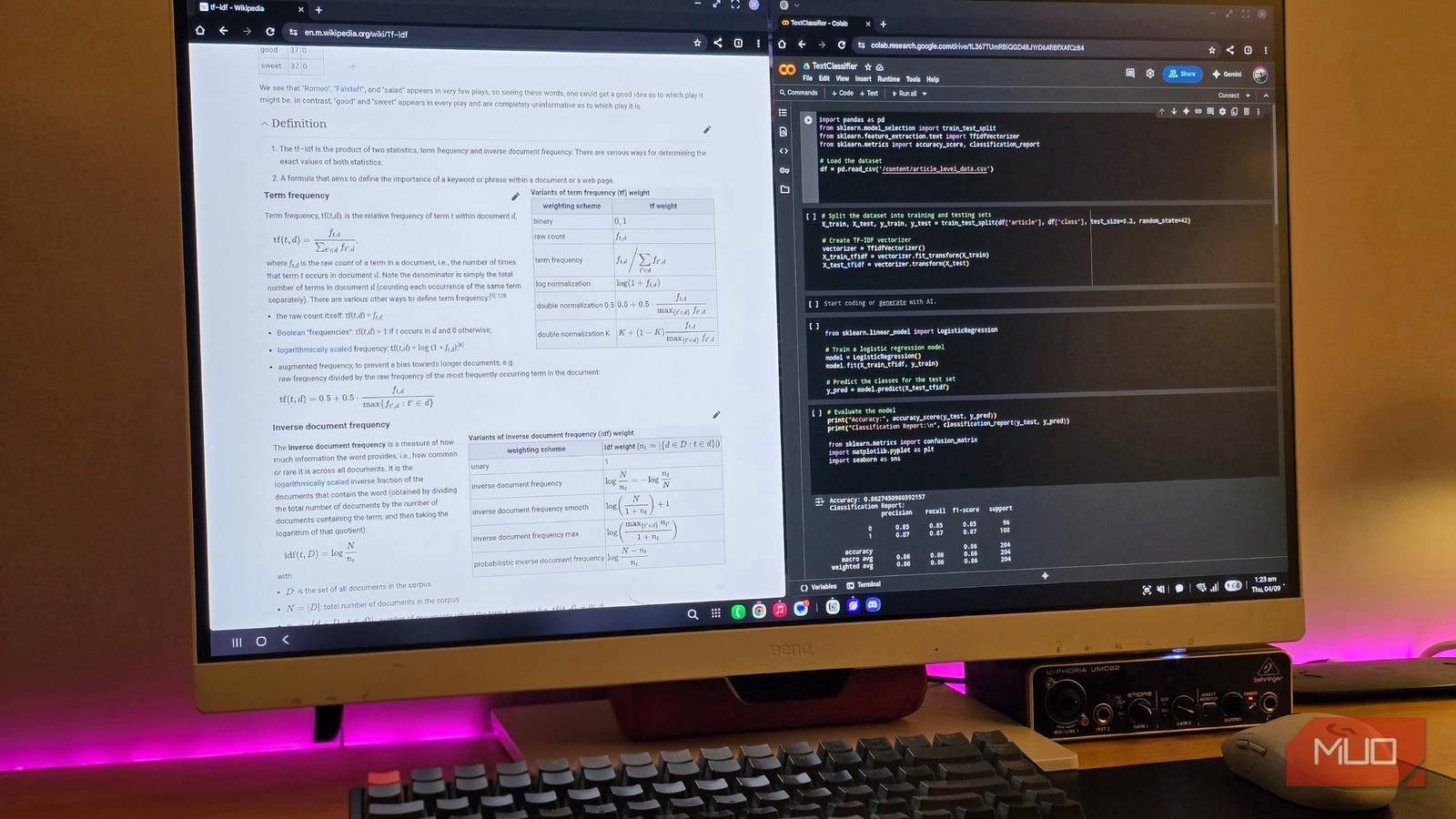
Select Android phones transform into desktop environments when connected to an external display.
Access Samsung DeX and Similar Modes
Samsung, Motorola, and other manufacturers offer desktop-style interfaces.
- Connect via USB-C to HDMI or USB-C to USB-C.
- When prompted, select DeX mode or Desktop Mode.
- Pair a Bluetooth keyboard and mouse.
- Use split windows, a taskbar, and resizable apps.
Ideal For: Remote work without carrying a laptop.
iPhones do not support desktop mode and only mirror the screen aspect ratio.
Fix Common Connection Issues
Even with the right equipment, problems occur. Here are quick fixes for the most frequent issues.
Monitor Not Detecting Phone
Common causes include incompatible cables, wrong input source, or missing video support.
- Try a different USB-C cable rated for video output.
- Manually switch the monitor input to the correct HDMI port.
- Confirm your phone supports DisplayPort Alt Mode by checking manufacturer specs.
No Video, Only Audio
This often happens with apps that restrict casting or mismatched display settings.
- Restart both devices.
- Check app permissions for casting access.
- Change resolution in Developer Options under Default USB Configuration.
Blurry or Cropped Display
Resolution mismatches between phone and monitor cause scaling issues.
- Go to Display Settings, then Cast or Connected Devices.
- Change output resolution to match the monitor (1080p or 1440p).
- Disable zoom or aspect ratio overrides.
High Latency on Wireless
Wi-Fi congestion degrades wireless performance significantly.
- Move closer to the router.
- Switch to 5GHz Wi-Fi for less interference.
- Close background apps consuming bandwidth.
- Use a wired connection for gaming or real-time tasks.
Power and Battery Management
Screen sharing drains phone battery quickly, especially during long sessions.
Prevent Battery Drain During Extended Use
- Use monitors with Power Delivery to charge while connected.
- Plug your phone into a wall charger or power bank for long sessions.
- Lower screen brightness on both phone and monitor.
- Disconnect when not actively viewing.
Pro Tip: USB-C docks let you connect a monitor, keyboard, mouse, and charger through a single hub.
Choose the Best Method for Your Needs
Match your connection method to your primary use case for the best results.
Productivity: USB-C Wired with Desktop Mode
- Why: Full multitasking, resizable apps, and peripheral support.
- Devices: Samsung Galaxy, Motorola Edge Plus, USB-C monitors.
- Setup: Plug in, enable DeX, then connect Bluetooth peripherals.
Gaming: Wired USB-C or HDMI
- Why: Minimal lag and no frame drops.
- Avoid: Wireless casting introduces latency that ruins fast-paced games.
Media Streaming: AirPlay or Google Cast
- Why: Phone acts as a remote without screen battery drain.
- Bonus: Continue using your phone for other tasks while content plays.
Presentations: HDMI Adapter
- Why: Works reliably with any projector or conference room TV.
- Pack: Carry a USB-C to HDMI adapter in your bag.
Travel: Portable USB-C Monitor
- Why: Lightweight, powers your phone, and requires no extra adapters.
- Examples: ASUS ZenScreen or SYNCO XView M4 portable displays.
Security and Privacy Considerations
Connecting your phone to external displays exposes data that needs protection.
Protect Your Data When Casting
- Never tap “Trust” on unknown or public computers.
- Only cast over private, password-protected Wi-Fi networks.
- Revoke paired device access after each session.
- Keep devices within sight when connected to shared displays.
Frequently Asked Questions About Connecting a Phone to a Computer Monitor
Does every phone support video output to a monitor?
No. Phones must support DisplayPort Alt Mode over USB-C to transmit video. Budget Android models often lack this feature. Check your phone’s specifications for “DisplayPort Alt Mode” or “Video Output” before purchasing adapters.
Can I charge my phone while connected to a monitor?
Yes, if the monitor supports Power Delivery or your adapter includes a power pass-through port. Charging speeds may be slower than a dedicated wall charger. Alternatively, plug your phone into a separate charger during long sessions.
Why is my wireless connection laggy?
Wi-Fi congestion, distance from the router, and interference from other devices cause latency. Switch to 5GHz Wi-Fi, move closer to the router, or use a wired connection for low-latency needs like gaming.
Will an iPhone show a desktop interface like Samsung DeX?
No. iPhones mirror the screen aspect ratio and do not offer a distinct desktop layout. Some apps optimize for landscape mode, but full window management and taskbars are not available on iOS.
What cable do I need for iPhone 5 through 14?
You need a Lightning to HDMI adapter, ideally Apple-certified or MFi-certified. Cheap third-party adapters frequently fail to transmit video and may damage your device.
Can I use my Windows PC as a monitor for my phone?
Yes. Windows 11 includes a built-in Wireless Display feature accessible through Settings, then System, then Projecting to this PC. Third-party tools like Scrcpy or AirDroid offer additional features such as file transfer and keyboard control.
Key Takeaways for Connecting Your Phone to a Computer Monitor
Connecting your phone to a computer monitor opens up productivity, gaming, and entertainment possibilities that go far beyond the small built-in screen. Wired USB-C connections offer the lowest latency and best quality for gaming and desktop mode. HDMI adapters provide universal compatibility for presentations and older monitors. Wireless options like AirPlay and Google Cast deliver convenience for media streaming when network conditions are stable.
Start by identifying your phone’s port type and whether it supports DisplayPort Alt Mode. Match the connection method to your primary use case, whether that’s work, gaming, or media playback. Keep a reliable adapter or cable in your bag for situations where wireless performance falls short. With the right setup, your smartphone becomes a powerful workstation or entertainment hub that fits in your pocket.


