
Is your screen looking hazy, blurry, or out of focus no matter what you do? You’re not alone. Fuzzy display problems affect countless users, especially when connecting older hardware to high-resolution screens or upgrading to a new monitor. The good news is that most cases of a fuzzy monitor can be resolved without replacing any equipment. The root cause is almost always software or configuration-related rather than hardware failure.
This guide walks you through a complete troubleshooting process to fix a fuzzy monitor quickly and effectively. You will learn how to set the correct resolution, fine-tune DPI scaling, update graphics drivers, and resolve app-specific blurriness. No guesswork, just clear, actionable solutions built around Windows best practices.
Check Physical Connections and Screen Cleanliness
Before diving into software settings, rule out physical causes that can mimic digital blurriness. Sometimes the simplest fix produces the best results.
Clean the Screen Surface
A dusty or smudged screen can make text and images appear fuzzy even when the display is technically sharp. Use a microfiber cloth and a screen-safe cleaner to wipe the display gently. Never spray liquid directly onto the monitor, as it can seep into the bezel and damage internal components.
Inspect Cable Connections
Loose or damaged cables disrupt signal integrity and lead to soft or unstable images. Video cables are the most common physical culprit behind a fuzzy monitor.
- Unplug and firmly reseat both ends of the video cable (HDMI, DisplayPort, VGA) and the power cord.
- Look for bent pins, frayed wires, or sharp kinks along the cable length.
- If you are using VGA (the blue analog connector), switch to HDMI or DisplayPort if available. Digital signals deliver sharper clarity and resist interference far better than analog connections.
Test with a Different Cable or Port
Swap in a known-working cable to eliminate cable failure as the cause. You can also try a different input port on the monitor, such as HDMI 2 instead of HDMI 1, to rule out port-specific issues.
Set the Correct Display Resolution
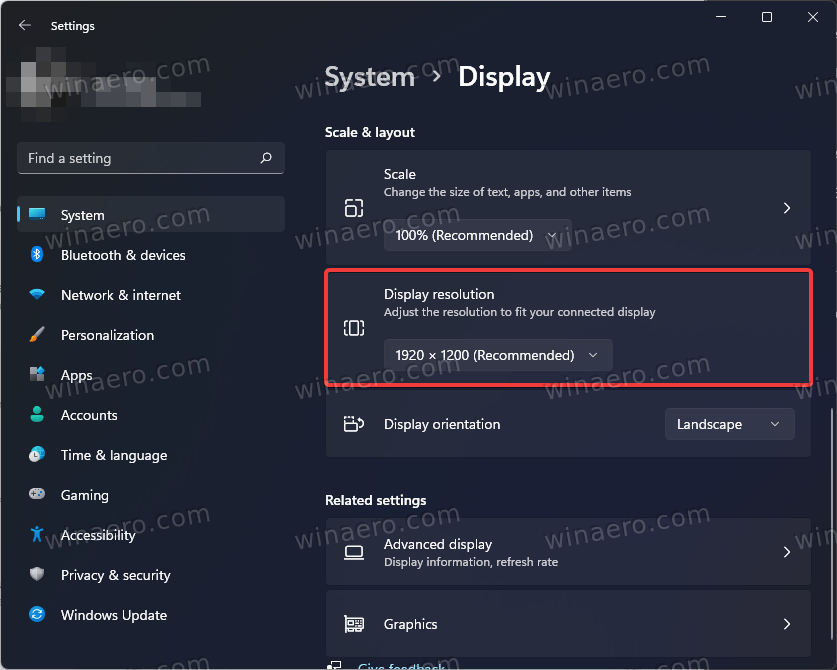
Running your monitor at anything other than its native resolution is the most common cause of a fuzzy display. Every monitor has a fixed pixel count, and deviating from it forces scaling that blurs the image.
Find and Apply the Recommended Resolution
Your monitor’s native resolution is its actual pixel count, such as 1920×1080 or 2560×1440. Using any other setting forces the GPU or monitor to interpolate pixels, which softens the entire image.
Steps:
1. Right-click the desktop and select Display settings.
2. Under Scale and layout, click the Display resolution dropdown.
3. Choose the option labeled (Recommended). This is your monitor’s native resolution.
4. Confirm the change and verify that everything looks sharp.
Warning: Avoid “Stretched” or “Scaled” modes in GPU control panels unless you fully understand how they affect clarity. These modes often introduce distortion or softness.
Adjust Display Scaling Settings
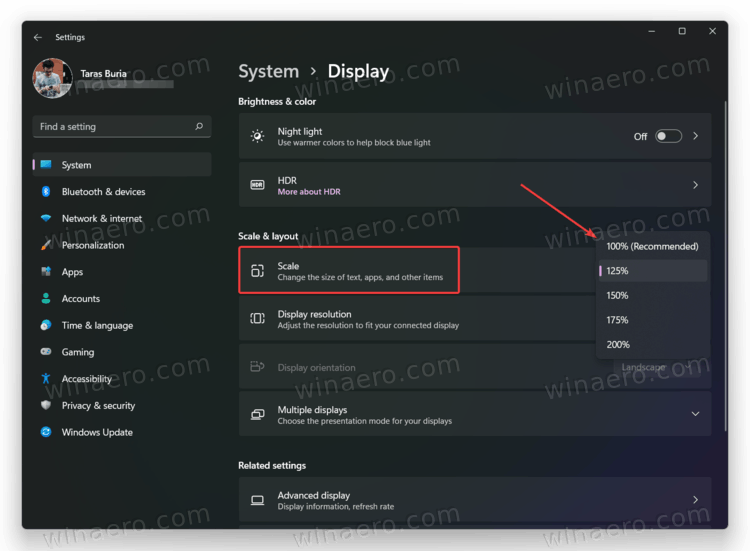
High-DPI scaling improves readability on 4K and high-resolution monitors but can cause blurriness if misconfigured. Scaling tells Windows how large to render text and UI elements.
Use the Recommended Scaling Percentage
Incorrect scaling forces Windows to upscale low-resolution UI elements, making them appear fuzzy. The correct percentage depends on your monitor’s resolution and physical size.
Steps:
1. In Display settings, go to Scale and layout.
2. Set the Scale dropdown to the option marked (Recommended).
3. Typical values include 100% for Full HD, 125% for 1440p, and 150% to 200% for 4K screens.
4. Sign out and sign back in so all apps reload with the new scaling.
Pro Tip: Some legacy apps may still look blurry after scaling changes. The next section covers how to fix those specific programs.
Enable the Built-in Blur Fix
Windows 10 includes a built-in tool that automatically corrects blurry apps. This feature is not available in all Windows 11 editions, so check your version first.
Steps:
1. Go to Settings > System > Display.
2. Scroll down and click Advanced scaling settings.
3. Toggle on: “Let Windows try to fix apps so they’re not blurry.”
If this option is missing on your system, use the manual DPI override method covered below.
Fix Blurry Apps with DPI Overrides
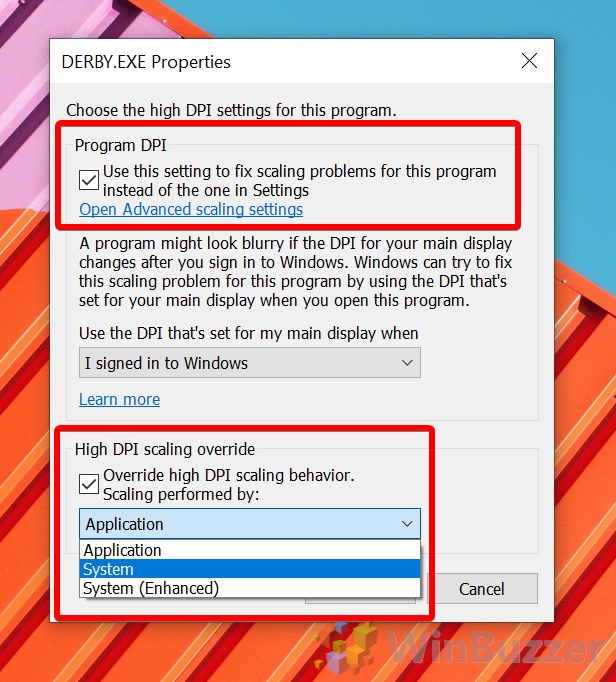
Legacy programs not optimized for high-DPI displays often appear fuzzy even when the rest of Windows is perfectly sharp. Windows provides override settings to force correct rendering for these apps.
Manually Adjust DPI for Specific Programs
Force individual apps to render correctly using compatibility settings. This is the most reliable fix for application-specific blurriness.
Steps:
1. Locate the app’s .exe file by right-clicking its Start menu entry and selecting Open file location.
2. Right-click the .exe file and choose Properties.
3. Open the Compatibility tab.
4. Click Change high DPI settings.
5. Check the box labeled Override high DPI scaling behavior.
6. Set Scaling performed by to Application.
7. Click OK, then Apply.
8. Restart the app to see the change.
Expert Note: Try System (Enhanced) if “Application” does not produce sharp results. This setting often works better for older software that does not handle modern scaling well.
Assign High-Performance GPU
Some apps render poorly when using integrated graphics instead of a dedicated GPU. Forcing high-performance mode can resolve rendering artifacts in these cases.
Steps:
1. Press Win + R, type ms-settings:display-advancedgraphics, and press Enter.
2. Click Add an app or browse under Graphics performance preference.
3. Select the target .exe file.
4. Click Options and choose High performance.
5. Save changes and restart the program.
Optimize Text Clarity with ClearType
If only text looks fuzzy, especially on LCD screens, Windows font rendering needs tuning. ClearType sharpens text by adjusting sub-pixel alignment for your specific display.
Run the ClearType Tuner
ClearType is a built-in utility that maximizes text readability by optimizing how fonts are rendered on LCD monitors.
Steps:
1. Type ClearType into the Start menu search bar.
2. Select Adjust ClearType text.
3. Check the box for Turn on ClearType.
4. Follow the wizard and choose the clearest text sample in each step.
5. Finish the setup and log out, then back in for full effect.
Pro Tip: ClearType makes a dramatic difference on laptops and high-PPI displays where text rendering is most sensitive to sub-pixel alignment.
Update or Reinstall Graphics Drivers
Outdated, generic, or corrupted drivers cause a wide range of rendering issues, including persistent fuzziness. Your graphics driver is the translator between Windows and your GPU, so keeping it current is essential.
Update via Device Manager (Basic Method)
Device Manager offers a quick update path, though it may install generic Microsoft drivers rather than the latest manufacturer-optimized versions.
Steps:
1. Right-click the Start button and select Device Manager.
2. Expand Display adapters.
3. Right-click your GPU (Intel, NVIDIA, or AMD) and choose Update driver.
4. Select Search automatically for drivers.
Install Manufacturer Drivers (Best Practice)
For optimal clarity, always download the latest driver directly from the GPU maker. These drivers include performance and stability improvements not found in generic versions.
Steps:
– NVIDIA: Download from the official GeForce Experience or driver portal.
– AMD: Download from the AMD Support website.
– Intel: Use the Intel Driver and Support Assistant.
Choose Clean Install during setup to remove old configurations and prevent conflicts.
Perform a Clean Driver Install (Advanced)
If blurriness persists after updating, corrupted driver files may be the issue. A clean install removes all traces of the previous driver before installing the new one.
Steps:
1. Download the latest driver from your GPU manufacturer.
2. Boot into Safe Mode by holding Shift while clicking Restart.
3. Open Device Manager, expand Display adapters, and uninstall the display adapter. Check Delete the driver software for this device.
4. Reboot normally.
5. Install the fresh driver package.
6. Restart again to complete the process.
Reset Monitor to Factory Settings

Internal monitor settings like sharpness, noise reduction, or auto-adjust can degrade image quality over time. A factory reset clears these settings and restores the monitor to its original configuration.
Perform a Factory Reset
Steps:
1. Press the physical buttons or joystick on your monitor bezel.
2. Open the OSD (On-Screen Display) menu.
3. Navigate to System, Setup, or Menu.
4. Select Reset, Factory Reset, or Default Settings.
5. Confirm the action and let the monitor reboot.
Pro Tip: After the reset, reapply your preferred brightness and contrast. Avoid boosting sharpness too high, as this creates halos around text and edges.
Troubleshoot Multi-Monitor Blurriness
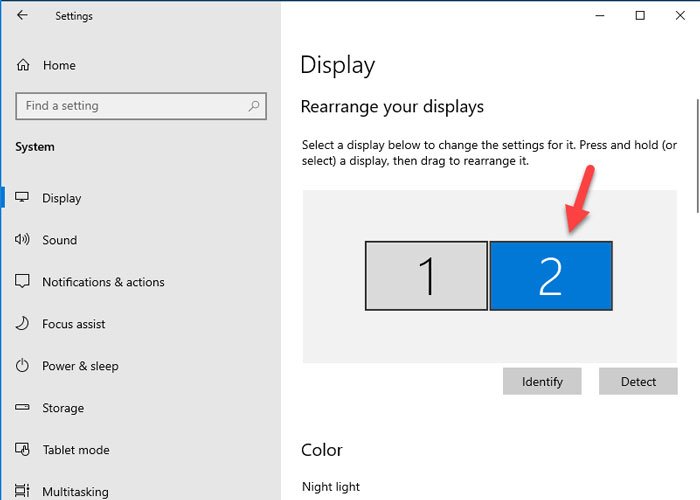
When moving windows between monitors, blurriness often occurs due to mismatched scaling across displays. This is especially common when mixing 4K and 1080p screens.
Match Scaling Across Displays
The best practice is to set all monitors to the same scaling percentage when possible. If your displays have different resolutions, configure scaling per monitor.
Best Practices:
– Set all monitors to 100% scaling if your hardware allows it.
– For mixed setups, set scaling per monitor based on resolution.
– Enable “Let Windows fix apps” to minimize cross-monitor blur.
Warning: Avoid dragging full-screen games or video editors between scaled displays. These apps may not render correctly when moved to a display with different scaling.
Identify Hardware-Related Issues
If all software fixes fail, consider hardware limitations. A fuzzy monitor can occasionally signal a failing panel or connection.
Signs of Failing Hardware
- Persistent blur even when connected to another PC or laptop.
- Uneven backlight with clouding or dark spots.
- Ghosting or motion blur in fast-moving content.
- Fuzzy image on one input only, such as HDMI but not DisplayPort.
Test with Another Monitor or PC
Connect your PC to a different monitor to see if the blur follows the source. Alternatively, connect a known-good device, like a laptop, to your monitor. If the blur follows the monitor, it may need replacement.
Expert Note: Budget or older TN panels often have softer image quality. Upgrading to an IPS panel can dramatically improve clarity and color accuracy.
Frequently Asked Questions About Fuzzy Monitors
Why does my monitor look fuzzy all of a sudden?
Sudden fuzziness usually results from a Windows update that changed your resolution or scaling settings, a driver update that misconfigured your GPU, or a loose cable connection. Start by checking the recommended resolution and reseating your video cable.
Can a fuzzy monitor be fixed without replacing it?
Yes. In most cases, a fuzzy monitor is caused by incorrect resolution, wrong scaling, outdated drivers, or font rendering issues. Software fixes resolve the problem in the vast majority of situations without any hardware replacement.
Why is only text blurry on my monitor?
Text-specific blurriness points to font rendering issues. Run the ClearType tuner to recalibrate sub-pixel alignment for your specific display. You can also try adjusting the scaling percentage in Display settings.
How do I know if my monitor resolution is correct?
Right-click the desktop, open Display settings, and check the Display resolution dropdown. The option marked (Recommended) is your monitor’s native resolution and the correct setting for sharpest image quality.
Do HDMI and DisplayPort affect monitor clarity?
Yes. Digital connections like HDMI and DisplayPort deliver sharper signals than analog VGA. Low-quality cables may also fail to sustain high-bandwidth signals, causing the display to drop to a lower, blurrier resolution. Use certified cables rated for your monitor’s resolution and refresh rate.
Why do some apps look blurry while others are sharp?
This happens when legacy apps do not support high-DPI scaling. Use the DPI override in the Compatibility tab to force those apps to render correctly, or enable “Let Windows try to fix apps so they’re not blurry” in Windows settings.
Key Takeaways for Fixing a Fuzzy Monitor
A fuzzy monitor is rarely a hardware death sentence. In the vast majority of cases, the fix lies in correct resolution, proper scaling, updated drivers, or font tuning. Always start with software adjustments before considering hardware replacement.
Start with the fastest fixes first: clean the screen, reseat your cables, and set the resolution to (Recommended). Then move on to scaling, ClearType, and driver updates if needed. Most users see a dramatic improvement within minutes of applying these changes.
If the issue persists after exhausting every software fix, test your monitor with another device to isolate the problem. You may discover that the panel itself is aging or that a hardware upgrade is the best path forward. But chances are high that you will restore crisp, clear visuals without spending a dime.


