
Closing your MacBook lid only to find your external monitor go dark is frustrating. This happens because macOS defaults to sleep mode when the lid shuts, even with a display plugged in. Whether you’re building a desktop workstation or running downloads overnight, knowing how to close Mac but keep monitor on opens up real productivity gains.
This guide walks you through native clamshell mode, third-party alternatives, thermal safety, and model-specific tips. By the end, you’ll have a reliable setup that keeps your Mac awake every time you shut the lid.
What Clamshell Mode Actually Does

Clamshell mode is Apple’s built-in feature that lets your MacBook run with the lid closed while an external display takes over. The internal screen disables, and your external monitor becomes the primary workspace. This effectively turns your laptop into a desktop replacement.
Unlike software hacks that force your Mac to stay awake, clamshell mode is officially supported by Apple. It works on both Intel and Apple Silicon Macs, but only when specific hardware conditions are satisfied simultaneously.
Four Hardware Requirements You Must Meet
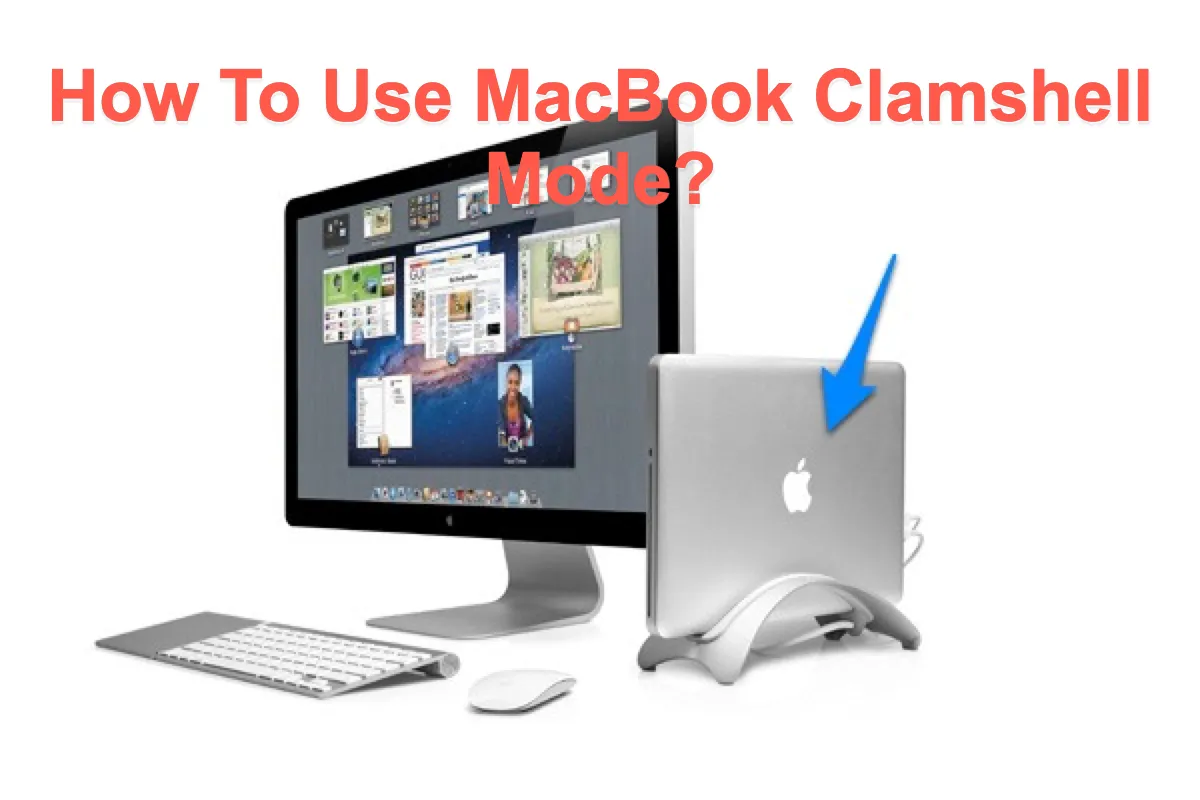
Native clamshell mode activates automatically when four conditions are present. Skip any one of them, and your Mac will sleep when the lid closes.
1. External Monitor Connection
Your Mac must detect a real display through HDMI, USB-C, Thunderbolt, or DisplayPort. Without an active video signal, the system assumes you closed the laptop to put it away and triggers sleep.
2. External Keyboard and Mouse
Both an external keyboard and an external mouse (or trackpad) must be connected. Wired or Bluetooth both work, but you need both devices present. A single input peripheral is not enough.
3. Power Adapter Plugged In
Apple officially requires the power adapter for clamshell mode. Some Apple Silicon models may stay awake briefly on battery, but the behavior is inconsistent and not guaranteed.
4. Updated macOS
Newer macOS versions have fixed bugs that affected clamshell mode on older Intel Macs. Keeping your system current ensures the most reliable lid-closed behavior.
Pro Tip: Power on your Mac with the lid open first. Wait for the desktop to appear on your external monitor before closing the lid.
Step-by-Step Activation Process
Follow this sequence to enter clamshell mode reliably.
Connect All Peripherals First
Before closing anything:
– Plug in your external monitor
– Connect external keyboard and mouse
– Attach the power adapter
Confirm the monitor displays your Mac’s desktop before moving forward.
Close the Lid Gently
Once everything is running, shut the lid. The external display may flicker or go black for a moment as the system switches video output.
Wake the External Display
Press a key on your external keyboard or move the mouse. Your external monitor should wake and show the desktop.
If the screen stays black, reopen the lid and verify:
– The power adapter is charging
– Both keyboard and mouse are connected
– The monitor is set to the correct input source
Fixing a Black External Monitor After Lid Closure
This is the most common clamshell issue. It usually means one requirement wasn’t met.
Run Through This Checklist
- Power Check: Confirm the MagSafe or USB-C charger is connected and the indicator light is on
- Monitor Source: Make sure the display is set to the right HDMI or DisplayPort input
- Input Devices: Both keyboard and mouse are mandatory. Try a wired USB pair to test
- Docking Hub: Some USB hubs don’t supply stable connections. Plug devices directly into your Mac
Expert Note: On older Intel Macs, rebooting after connecting all peripherals can help the system recognize them properly.
Running Background Tasks Without a Monitor
Want to close the lid but keep music playing or downloads running without any external display? Native clamshell mode won’t work here. Use one of these alternatives instead.
Option 1: Amphetamine (Best for Most Users)
Amphetamine is a free Mac App Store app that prevents sleep under customizable conditions.
Setup Steps:
- Download Amphetamine from the Mac App Store
- Launch it and find the pill icon in your menu bar
- Click the icon, then choose Preferences, then Quick Settings
- Uncheck “Allow system sleep when display is closed”
Now you can start a session based on your needs:
– Indefinitely (until you stop it manually)
– While a specific app is running
– While a file is downloading
Common Use Cases:
- Music Playback: Set Amphetamine to run while Music or Spotify is active
- Large Downloads: Choose “While Safari is Running” or “While File is Downloading”
- Time Machine Backups: Prevent interruption during long backup windows
Option 2: Terminal Command (Advanced Users)
For users comfortable with Terminal, disable sleep entirely with this command:
bash

sudo pmset -a disablesleep 1
Enter your admin password when prompted. Your Mac will now stay awake with the lid closed.
To restore normal sleep behavior later:
bash

sudo pmset -a disablesleep 0
Warning: This disables sleep in all scenarios. If you carry your Mac around powered on, the battery drains fast and overheating becomes a risk. Use sparingly.
Option 3: Dummy Display Adapter
A dummy HDMI plug tricks your Mac into detecting an external monitor that isn’t really there.
How to Use:
- Insert the dummy plug into your Mac’s HDMI or USB-C port
- Connect keyboard, mouse, and power
- Close the lid. Your Mac enters clamshell mode without a real display
Best For:
- Headless server setups
- Automation scripts
- Remote app access without a physical monitor
Option 4: Legacy macOS Setting
If you’re running macOS Monterey or older, this native toggle still works:
System Preferences > Battery > Power Adapter
Check the box labeled “Prevent your Mac from automatically sleeping when the display is off.”
This option was removed in macOS Ventura. If you’ve upgraded, use Amphetamine instead.
Unlocking Dual Displays on M3 MacBook Models
Here’s a hidden capability: on M3 MacBook Air and select 14-inch M3 MacBook Pro models, you can drive two external displays, but only when the lid is closed.
How It Works
With the lid open, these models support just one external display. Closing the lid disables the internal screen, which frees up hardware bandwidth to activate the second external monitor.
Steps to Enable Dual Displays
- Connect two monitors via USB-C or HDMI
- Plug in power, keyboard, and mouse
- Close the lid
- Press a key on your external keyboard to wake the system
Requirement: macOS Sonoma 14.6 or later. Update before attempting this.
Thermal Safety: Avoiding Overheating
Closing the lid blocks airflow on many MacBooks, especially Intel models that pull cool air through the keyboard.
Safe Placement Practices
Do This:
- Place the Mac flat on a hard surface like metal, glass, or wood
- Use a vertical stand with the hinge facing up
- Leave space around vents and avoid covering them with paper or fabric
Avoid This:
- Placing the Mac in a bag, drawer, or enclosed space
- Standing vertically with the hinge facing down (traps heat)
- Running heavy tasks like rendering or gaming in poorly ventilated areas
Warning Signs of Overheating:
– Fan runs constantly at high speed
– Case feels very hot to the touch
– System shuts down unexpectedly
If any of these happen, open the lid immediately to cool the system down.
Scheduled Wake and Network Access
Need your Mac to wake automatically for backups or remote access?
Set a Scheduled Wake (macOS Ventura and Later)
Use Terminal to schedule automatic wake times:
bash

sudo pmset repeat wake MTWRF 8:00:00
This command wakes your Mac every weekday at 8:00 AM. Check your current schedule with:
bash

pmset -g sched
Cancel the schedule anytime with:
bash

sudo pmset repeat cancel
The Mac must remain plugged in for scheduled wake to work reliably.
Enable Wake for Network Access
For background tasks like Time Machine or iCloud sync:
System Settings > Battery > Options
Set “Wake for network access” to either:
– Always (for portable use cases)
– Only on Power Adapter (recommended for desktop setups)
This setting supports system services but won’t keep browser downloads active. Use Amphetamine for that.
Model Compatibility at a Glance

| Feature | Intel Mac | M1/M2 MacBook | M3 MacBook Air/Pro |
|---|---|---|---|
| Clamshell Mode | Yes (all 4 requirements) | Yes | Yes |
| Dual External Displays | No (1 max) | No (1 max) | Yes (lid closed only) |
| Clamshell on Battery | No | Sometimes unreliable | Rarely |
| Safe for Long Tasks | Yes (with cooling) | Yes | Yes |
| Dummy Plug Support | Yes | Yes | Yes |
Troubleshooting Common Problems
Mac Won’t Wake with External Keyboard
- Try a wired keyboard first. Bluetooth may disconnect during sleep
- Re-pair your Bluetooth devices
- Press keys repeatedly. Your Mac may need multiple signals before waking
Dual Monitor Not Working on M3 Air
- Close the lid. The second display often activates only then
- Update to macOS Sonoma 14.6 or later
- Use compatible USB-C or Thunderbolt cables
Mac Sleeps Immediately After Lid Closure
- Verify all four requirements are met before closing the lid
- Reconnect peripherals and try again
- Restart your Mac with everything plugged in
Best Practices for Reliable Lid-Closed Operation
Follow These Rules:
- Always plug in power before closing the lid
- Use external keyboard and mouse for clamshell mode
- Keep macOS updated to the latest version
- Use Amphetamine for background tasks without a monitor
- Close the lid on M3 Air or Pro to unlock dual-display support
- Position your Mac with the hinge up if using a vertical stand
Avoid These Mistakes:
- Operating in enclosed spaces or bags
- Relying on battery power with the lid closed
- Leaving disablesleep enabled permanently
- Blocking vents or stacking items on top of the Mac
Frequently Asked Questions About Closing Mac Lid While Keeping Monitor On
Does clamshell mode work without a power adapter?
Officially, no. Apple requires the power adapter for reliable clamshell mode. Some Apple Silicon models may stay awake briefly on battery, but this behavior is inconsistent and not guaranteed across all machines or macOS versions.
Can I use clamshell mode with just one external monitor?
Yes. Clamshell mode works with a single external display as long as you also have an external keyboard, mouse, and power connection. The dual-display capability on M3 models is an additional feature, not a requirement.
Why does my external monitor go black when I close the lid?
This usually means one of the four clamshell requirements wasn’t met. Check that your power adapter is connected, both keyboard and mouse are attached, and the monitor is on the correct input source. Reopen the lid, verify all connections, and try again.
Is it safe to run my MacBook with the lid closed for long periods?
Yes, with proper ventilation. Place your Mac on a hard surface or in a vertical stand with the hinge facing up. Avoid enclosed spaces like drawers or bags. Monitor the system temperature during intensive tasks and open the lid if the case becomes excessively hot.
Will closing the lid damage my MacBook battery?
Closing the lid itself doesn’t damage the battery. However, running clamshell mode on battery power for extended periods can drain the battery completely. Apple recommends keeping the power adapter connected during lid-closed operation to prevent deep discharge cycles.
Can I wake my Mac with a Bluetooth keyboard in clamshell mode?
Sometimes. Bluetooth connections can drop during sleep, causing wake failures. A wired USB keyboard is more reliable for the initial wake. If you must use Bluetooth, press keys repeatedly or move the mouse to re-establish the connection before the wake signal registers.
Key Takeaways for Closing Your Mac Lid While Keeping the Monitor On
Closing your Mac lid while keeping the monitor on transforms your laptop into a flexible workstation or silent background processor. Native clamshell mode handles most desktop setups when you meet the four hardware requirements: external display, keyboard, mouse, and power.
For background tasks without a monitor, Amphetamine offers the safest and most controllable solution. M3 MacBook owners get a bonus feature: closing the lid unlocks dual external display support.
Remember that power, peripherals, and ventilation are the foundation of safe lid-closed operation. Meet these requirements, respect thermal limits, and choose the right tool for your specific use case.
Your next step: connect your peripherals, plug in power, and test clamshell mode today. Once you experience the freedom of a closed-lid workstation, you’ll wonder how you ever worked without it.


