
You have a spare computer monitor sitting around and want to use it for watching cable TV. Maybe you are setting up a compact media station, saving space, or repurposing old hardware. The good news: you can connect a cable box to a computer monitor, but it is not always plug-and-play. Unlike TVs, monitors do not come with built-in speakers or automatic broadcast signal handling, so a few extra steps are required.
The core challenge lies in matching your cable box output with your monitor input while managing audio separately. Most modern setups use HDMI, but older monitors may only support VGA or DVI. Adapters can bridge the gap, but they often strip audio or cause resolution mismatches. Without proper configuration, you might end up with no picture, no sound, or a stretched, blurry image.
This guide walks you through every step, from checking compatibility and choosing the right cable, to routing audio and fixing common display issues. Whether you are using HDMI, DVI, VGA, or even S-Video, we will show you how to get crisp video and clear sound. You will also learn what not to do (like plugging into your laptop HDMI port) and discover alternative solutions if direct connection fails.
By the end, you will have a fully functional cable TV setup on your computer monitor, with no TV needed.
Check Monitor Input Compatibility
Before buying cables or adapters, confirm what video inputs your monitor supports. This determines your entire connection path.
Most computer monitors feature one or more of these inputs: HDMI, DVI, VGA, or DisplayPort. Check the back or side of the monitor for labeled ports. If unsure, consult the user manual or search the model number online for the spec sheet.
- HDMI: Best option. Carries both video and audio. If your monitor has HDMI, use it.
- DVI: Common on older monitors. Supports high-resolution video but no audio.
- VGA: Found on very old monitors. Analog signal only with lower quality and no audio.
- DisplayPort: Rarely used for cable boxes. Not directly compatible without special converters.
If your monitor lacks HDMI, you will need an adapter. But remember that adapters do not add functionality. An HDMI-to-DVI cable will not carry audio, and HDMI-to-VGA requires an active converter for analog compatibility.
Also verify that your cable box has matching outputs. Nearly all do, typically including HDMI, component, composite, and sometimes S-Video or optical audio.
Match Output to Input Type
| Cable Box Output → Monitor Input | Required Cable/Adapter | Audio Solution |
|---|---|---|
| HDMI → HDMI | HDMI cable | Built into HDMI |
| HDMI → DVI | HDMI-to-DVI cable | Separate audio cable |
| HDMI → VGA | Active HDMI-to-VGA converter | Separate audio cable |
| Component → HDMI | Component-to-HDMI converter | Possible via converter |
| S-Video → VGA (rare) | S-Video-to-VGA adapter (limited support) | Separate audio cable |
Start by identifying the best possible match. Prioritize digital connections (HDMI or DVI) over analog (VGA or S-Video) for sharper image quality.
If your monitor has no compatible input and no adapter solution works, consider alternatives like streaming apps or a USB TV tuner.
Use HDMI for Direct Connection
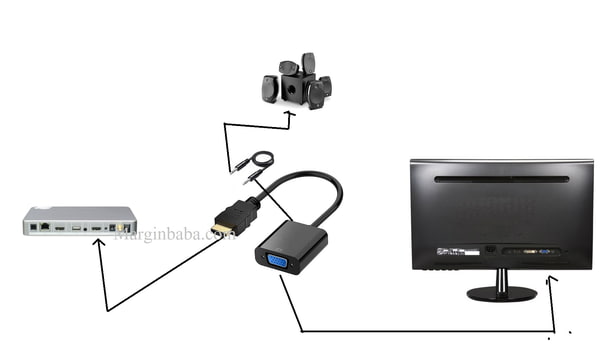
When both your cable box and monitor have HDMI ports, this is the simplest and highest-quality method.
Plug one end of an HDMI cable into the HDMI OUT port on the back of the cable box. Connect the other end to an HDMI IN port on the monitor. Power on both devices.
Next, use the monitor input/source button (usually on the front or side) to switch to the correct HDMI input (e.g., HDMI 1 or HDMI 2).
You should now see the cable box interface. If the screen remains black, check the following:
- Ensure the cable box is powered on and fully booted.
- Try a different HDMI cable, since faulty cables are a common cause of “no signal.”
- Power cycle both devices: unplug them for 30 seconds, then reconnect.
Because HDMI carries audio, your monitor must have built-in speakers or a headphone jack to hear sound. Most do not. If there is no audio, you will need to route sound externally, even with HDMI.
Fix No Audio on HDMI
If video works but there is no sound:
- Check monitor specs to see if it lists built-in speakers or audio output.
- Access the monitor on-screen menu and look for audio settings. Ensure volume is up and not muted.
- If no sound option exists, the monitor likely lacks audio processing.
In that case, connect audio directly from the cable box using:
– 3.5mm aux cable (if box has headphone jack)
– RCA to 3.5mm cable (red/white to mini-jack)
– Optical cable (if both box and speakers support it)
Route to powered speakers, a soundbar, or headphones.
Some monitors with 3.5mm audio output jacks can pass through HDMI audio. Plug in external speakers to that jack to test.
Connect via DVI or VGA with Adapter
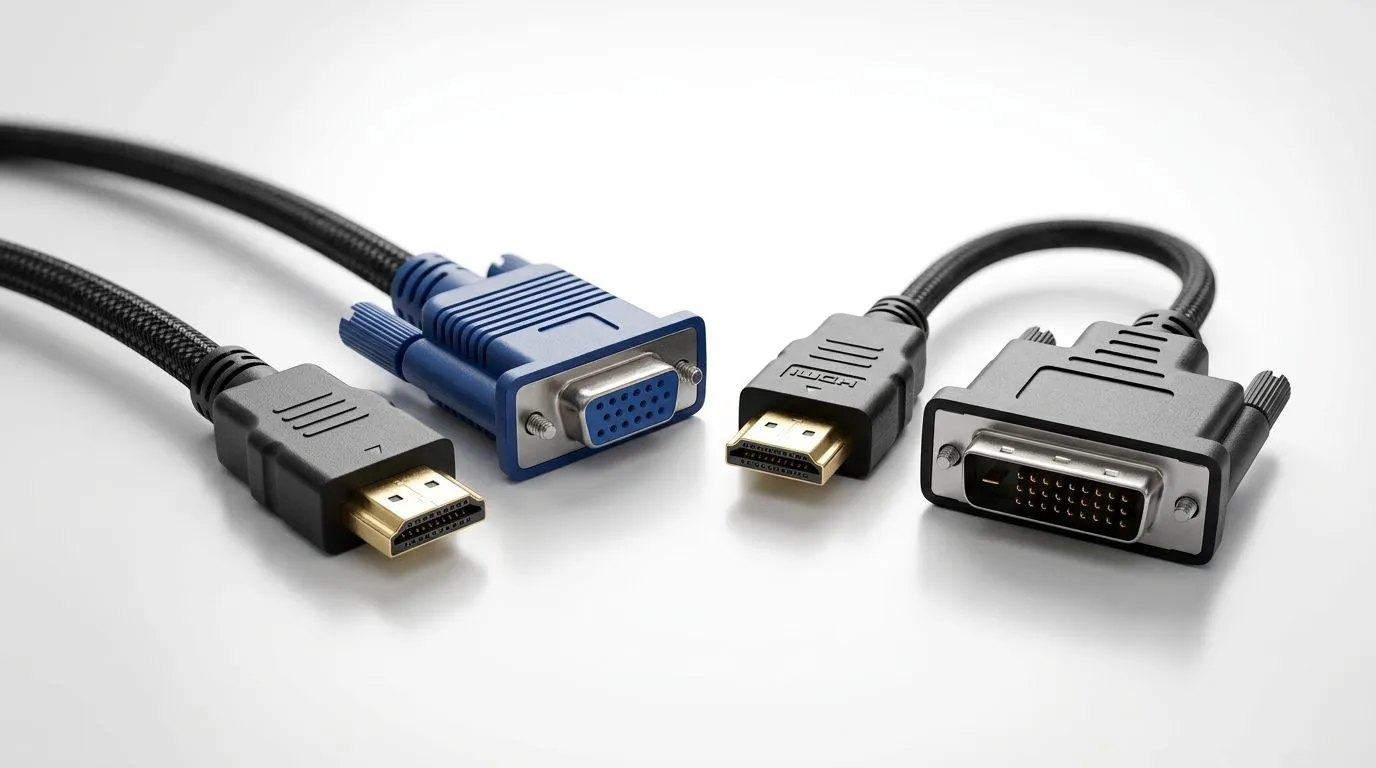
If your monitor lacks HDMI, use DVI or VGA with the correct adapter.
HDMI to DVI: Video Only
DVI transmits digital video but not audio. Use a passive HDMI-to-DVI cable or adapter. They are electrically compatible for video signals.
Steps:
1. Connect HDMI end to cable box.
2. Plug DVI end into monitor.
3. Set monitor to DVI input (may auto-detect).
4. Wait 10 to 15 seconds for signal handshake.
If no image appears:
– Confirm monitor input selection.
– Try lowering the cable box resolution (see resolution section below).
– Swap cables to rule out defects.
Once video works, connect audio separately using the cable box analog or optical output.
HDMI to VGA: Requires Active Converter
VGA is analog, so a simple cable will not work. You need an active HDMI-to-VGA converter, which is a small box that converts digital to analog signals.
Steps:
1. Plug HDMI from cable box into converter.
2. Connect VGA cable from converter to monitor.
3. Plug converter into USB power (usually included).
4. Power on all devices.
Set monitor to VGA input. The image should appear within seconds.
Like DVI, VGA carries video only. Route audio separately using:
– 3.5mm headphone jack on cable box
– RCA audio outputs
– Optical audio (if available)
Avoid passive HDMI-to-VGA adapters. They rarely work and can damage equipment.
Handle Audio Separately

Most computer monitors lack speakers or audio outputs, so you must route sound from the cable box to an external source.
Find Audio Outputs on Cable Box
Check the back for:
– 3.5mm headphone jack (common on newer boxes)
– RCA audio out (red and white ports)
– Optical audio out (Toslink, a square port with red light)
– Digital coaxial (less common)
Choose the highest-quality output available. Optical is best for surround sound. RCA or 3.5mm works fine for stereo.
Connect to External Speakers
Options:
– Powered desktop speakers: Plug RCA or 3.5mm cable directly into speaker input.
– Soundbar: Use 3.5mm or optical cable.
– Headphones: Plug into 3.5mm jack on box or monitor (if passed through).
– AV receiver: Use optical or coaxial for full surround.
Use appropriate cables:
– RCA to 3.5mm: For connecting red/white outputs to PC-style speakers.
– Optical cable: For digital audio to sound systems.
– 3.5mm extension: For headphones or nearby speakers.
If routing audio through your computer, plug the cable box audio into the PC Line In or Mic In port using a 3.5mm adapter. Then enable audio monitoring in Windows or macOS settings.
Pro Tip: Label each cable to avoid confusion during setup or troubleshooting.
Adjust Resolution and Scaling
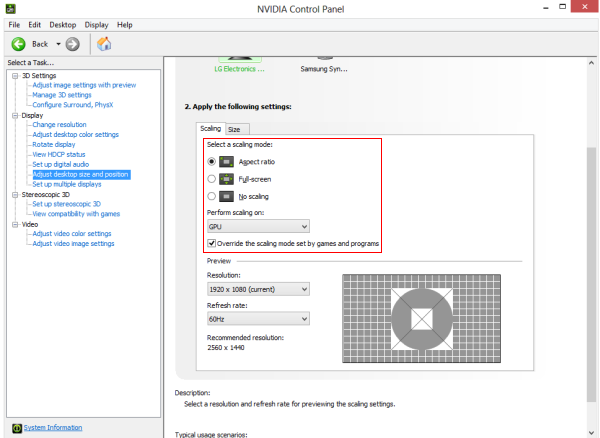
Even with a solid connection, you might see a black screen, flickering, or distorted image. This is usually due to resolution mismatch.
Monitors expect exact resolution matches, unlike TVs that auto-scale. A cable box set to 1080i may not display on a 1080p monitor if it does not support interlaced signals.
Change Cable Box Output Resolution
Using the cable box remote:
1. Press Menu or Settings.
2. Navigate to Settings > Display & Video or Video Output.
3. Select Resolution.
4. Change from 1080i or 720p to 1080p (or match your monitor native resolution).
5. Save and wait for reboot.
Common native monitor resolutions:
– 1920×1080 (Full HD)
– 2560×1440 (QHD)
– 3840×2160 (4K)
If 1080p is not available, try 720p as a fallback.
Configure Monitor Scaling Settings
If the image appears zoomed in, cropped, or has black bars:
– Press the menu button on your monitor.
– Find Aspect Ratio, Scaling, or Screen Fit.
– Change from “Wide” or “Full” to “Just Scan,” “Pixel Mapping,” or “1:1” to disable overscan.
– Some monitors have a PC Mode or TV Mode. Try switching between them.
If the monitor does not recognize the signal:
– Connect the cable box to a TV first.
– Lower resolution to 480p or 720p.
– Reconnect to monitor.
– Once image appears, raise resolution gradually.
Warning: Forcing unsupported resolutions can cause permanent display issues. Stick to listed native modes.
Avoid Laptop HDMI Input Mistakes
A frequent error: trying to plug a cable box into a laptop HDMI port.
This will not work and could damage your laptop.
Here is why: laptop HDMI ports are output-only. They send your laptop screen to a TV, not receive video from external devices.
Connecting two HDMI outputs (cable box and laptop) creates electrical conflict and risks hardware damage.
Correct Ways to View Cable on Laptop
To watch cable TV on a laptop screen:
– Use your provider streaming app (e.g., Xfinity Stream, Spectrum TV).
– Install a USB TV tuner with antenna or coaxial input.
– Use a QAM tuner plus CableCARD (limited to basic channels, no VOD).
– Stream from main cable box via built-in DLNA or Miracast (if supported).
These methods avoid physical HDMI input issues and integrate with your computer display system.
Never attempt direct HDMI-to-HDMI connection between cable box and laptop.
Troubleshoot No Signal or Black Screen

If you get no picture, follow this step-by-step diagnosis.
Verify Input Source
Ensure the monitor is set to the correct input:
– Press Source, Input, or Menu on the monitor.
– Select HDMI, DVI, or VGA, whichever you connected.
– Some monitors do not auto-switch, so manual selection is required.
Test Cables and Ports
Swap the HDMI or video cable with a known working one. Try a different port on the monitor if available.
Check for bent pins or loose connections.
Power Cycle Devices
Turn off and unplug both the cable box and monitor for 30 seconds. This resets the HDMI handshake and clears HDCP (copy protection) errors.
Replug and power on. Wait 60 seconds before judging success.
Lower Resolution on Cable Box
Connect the cable box to a TV first:
1. Lower output resolution to 720p or 480p.
2. Reconnect to monitor.
3. If image appears, gradually increase resolution to find the highest compatible setting.
Try Different Adapters
If using an HDMI-to-VGA converter:
– Confirm it is active (requires power).
– Plug its USB power into a wall adapter or powered USB hub.
– Some cheap converters fail under HD loads.
For DVI connections, ensure you are using DVI-D (digital), not DVI-A (analog).
Explore Alternative Hardware Solutions

If cabling fails or you want deeper PC integration, consider these alternatives.
Use a QAM Tuner with CableCARD
Install a QAM TV tuner card (internal PCIe or external USB) into your computer.
Requirements:
– CableCARD from your provider (e.g., Comcast, Spectrum).
– Coaxial cable from wall to tuner.
This lets your PC decode unencrypted cable channels without a set-top box.
Limitations:
– No Video on Demand (VOD).
– No Pay-Per-View.
– No interactive guide.
– Requires periodic CableCARD reauthorization.
Best for basic channel viewing only.
Stream via Provider App
Most cable companies offer free apps:
– Xfinity Stream
– Spectrum TV App
– Cox Contour
Sign in with your account, then stream live TV directly to your computer or monitor via browser or desktop app.
No extra hardware needed. Full access to VOD and cloud DVR.
Requires stable internet and account login.
Use a USB TV Tuner
Devices like the HDHomeRun or Elgato Video Capture allow you to:
– Capture video from cable box.
– Record or stream to PC.
– View full channel lineup including encrypted ones.
Some require HDCP-compliant capture settings.
Ideal for recording shows or creating a media center.
Frequently Asked Questions About Connecting a Cable Box to a Computer Monitor
Can any computer monitor work with a cable box?
Not every monitor will work. Your monitor must have a compatible video input (HDMI, DVI, or VGA) that matches your cable box output or can be bridged with an adapter. Monitors without any of these ports cannot accept a cable box signal.
Why does my monitor have no sound when connected via HDMI?
Most computer monitors lack built-in speakers or audio processing chips. Even though HDMI carries audio, the monitor cannot output it. You must route audio separately to external speakers, headphones, or a soundbar using the cable box audio outputs.
Do I need a special adapter to connect HDMI to VGA?
Yes. VGA is an analog signal, so you need an active HDMI-to-VGA converter with its own power source. Passive adapters will not work and may damage your equipment. Expect lower image quality compared to digital connections.
Will connecting a cable box to my laptop HDMI port work?
No. Laptop HDMI ports are output-only and cannot accept video input from a cable box. Attempting this connection will fail and risks hardware damage. Use a streaming app, USB TV tuner, or QAM tuner card instead.
How do I fix a black screen after connecting my cable box?
Start by verifying the monitor input source matches your connection. Power cycle both devices for 30 seconds. If still black, lower the cable box resolution to 720p or 480p using a TV first, then reconnect to the monitor. A faulty cable is also a common culprit.
Can I record cable TV on my computer through this setup?
Yes, with the right hardware. A USB TV tuner or capture card like the HDHomeRun or Elgato Video Capture can record cable content to your PC. Alternatively, a QAM tuner card with CableCARD works for unencrypted channels, though it lacks VOD support.
Key Takeaways for Setting Up Cable TV on a Computer Monitor
Connecting a cable box to a computer monitor is entirely feasible with the right cables, audio routing, and resolution settings. HDMI is the ideal starting point, but DVI and VGA work with adapters as long as you remember to handle audio separately. Avoid laptop HDMI ports entirely, troubleshoot methodically when signals fail, and consider streaming apps or QAM tuners for a cleaner, more integrated setup.
Your next step: identify the ports on your monitor and cable box, then choose the matching cable or adapter from the compatibility table above. With the right setup, you can turn any spare monitor into a TV-ready display without buying a new television.


