
You pulled out an old DVD collection, popped in a disc, and realized your modern monitor has no compatible ports. This is a common frustration for anyone trying to connect a DVD player to a monitor without a TV in the mix. Most newer displays only accept HDMI, DisplayPort, or USB-C, while older DVD players output analog signals like composite or component video.
This guide covers everything you need to know to connect a DVD player to any monitor. You’ll learn how to identify your cables, pick the right converter, handle audio separately, and troubleshoot common issues. Whether you have a vintage player or a portable unit, you’ll get clear picture and sound in under 30 minutes.
Identify DVD Player Output Ports
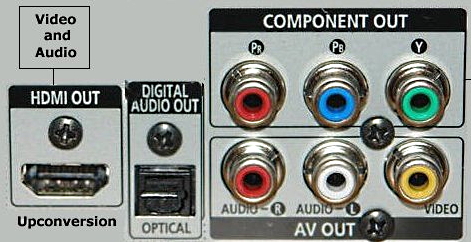
Before buying any cables, look at the back panel of your DVD player. The output ports determine which adapters or converters you’ll need. Most players include at least one of these options:
- Composite (RCA): Yellow video port paired with red and white audio jacks
- Component (YPbPr): Three video ports colored green, blue, and red
- S-Video: Round connector with multiple small pins
- HDMI: Single rectangular port found on newer players
Knowing your exact output saves time and money when shopping for converters.
Recognize Composite Video Output
Composite video uses a single yellow RCA jack, often grouped with red and white audio ports. This is the most common setup on older DVD players and delivers standard definition 480i quality. While not crisp by today’s standards, it works fine for casual viewing.
If your monitor only accepts HDMI or DisplayPort, you’ll need a composite to HDMI converter to bridge the analog to digital gap.
Spot Component or S-Video Connections
Component video uses three separate RCA jacks (green, blue, red) plus audio cables. It supports up to 1080i resolution and looks noticeably sharper than composite. S-Video is a round, multi-pin port that delivers better quality than composite but less than component.
Both require active converters since these analog signals are not natively compatible with HDMI or VGA inputs.
Check Monitor Input Options

Now examine the ports on your monitor. Common modern inputs include HDMI, DisplayPort, USB-C with DisplayPort alt mode, VGA, and DVI. Match your DVD player’s output to one of these inputs using the appropriate cable or adapter.
Use HDMI for Best Results
Most modern monitors include at least one HDMI port. If your DVD player also has HDMI, use a standard HDMI cable for a direct connection. This delivers both video and audio through a single cable with no converter needed.
If your player lacks HDMI, buy a video converter box that changes analog signals into HDMI. Common options include composite to HDMI, component to HDMI, and S-Video to HDMI converters. These small devices typically need external USB power.
Work With VGA or DVI Monitors
VGA and DVI inputs still appear on many office monitors and older displays. VGA carries analog video only, while DVI supports both analog and digital signals. Use a composite to VGA converter or component to VGA adapter to connect your DVD player.
Remember that VGA cannot transmit audio. You’ll need to route sound through a separate 3.5mm cable to external speakers or a monitor with built-in audio input.
Pick the Right Video Converter

Since most DVD players output analog video and modern monitors accept digital signals, a converter is often essential. Choosing the right one makes the difference between a smooth picture and constant frustration.
Understand How Video Converters Work
A video converter box takes analog signals from your DVD player and transforms them into HDMI or VGA output. Most models include RCA input ports, HDMI or VGA output, USB power, and audio pass-through. Popular reliable brands include Portta, Uxcell, and Kinivo.
Look for converters that support NTSC and PAL auto-detection and offer built-in upscaling to 720p or 1080p. This improves image clarity on modern high-resolution monitors.
Avoid Low-Quality Converters
Cheap, no-name converters often produce flickering, signal dropouts, or distorted audio. Invest in a reputable brand with stable firmware, an included power adapter, and audio embedding features. Read customer reviews to confirm plug-and-play reliability before buying.
Connect DVD Player to Monitor Step by Step
Once you have the right cables and converter, follow these steps to set up your connection properly.
Step 1: Power Down All Equipment
Turn off and unplug your DVD player, monitor, and converter before making any connections. This prevents electrical surges that can damage sensitive electronics.
Step 2: Hook Up Video Cables
- Plug the yellow RCA cable (or component red, green, blue cables) from your DVD player into the matching input on the converter box.
- If using S-Video, connect the cable between both devices securely.
- Run an HDMI or VGA cable from the converter’s output to your monitor.
- Power the converter using a USB cable plugged into a wall adapter or powered USB port.
Step 3: Route Audio Correctly
Audio needs special attention depending on your connection type. If your converter embeds audio into HDMI, connect the red and white RCA audio cables from your DVD player to the converter’s audio input.
For VGA connections, use an RCA to 3.5mm adapter cable to send audio to external speakers or your monitor’s audio input jack. Without this step, you’ll see video but hear nothing.
Step 4: Power On and Test the Setup
Turn on the DVD player first, then the monitor. Switch the monitor to the correct input source using its menu buttons (HDMI 1, HDMI 2, VGA, etc.). Insert a DVD and press play to confirm everything works.
Troubleshoot Common Connection Problems

Even with proper setup, issues sometimes appear. Here’s how to fix the most frequent problems when you connect a DVD player to a monitor.
Fix No Signal Issues
If your monitor shows “no signal,” check the input source selection first. Make sure the monitor is set to the port your converter is using. Verify the converter has power by checking its LED indicator. Try swapping HDMI or RCA cables to rule out faulty wires. Test with a different disc to confirm the player itself works.
Resolve Picture Without Sound
When video plays but audio is missing, confirm all audio cables are firmly connected to the converter or speakers. Some converters have volume controls or mute switches that may be turned down. Plug headphones into the 3.5mm output to test whether the converter is producing sound at all. Check the converter manual to confirm audio embedding is enabled for HDMI output.
Improve Blurry or Fuzzy Images
Composite video is inherently low resolution, so some softness is expected. To get the best possible picture, use component cables if your player supports them. Set your converter to output 720p or 1080p through its menu if available. Keep RCA cables under 6 feet long to minimize signal interference and image degradation.
Explore Alternative Connection Methods

If the standard converter setup feels complicated, simpler alternatives exist for specific situations.
Connect Through a TV as Passthrough
If you have a TV with multiple inputs, connect your DVD player to the TV first using RCA or HDMI. Then route the TV’s output to your monitor using a capture card or secondary HDMI connection. This adds extra steps but works when you lack the right converter.
Use a USB Capture Card With a Computer
A USB capture card lets you connect your DVD player to a computer, then display the video on any monitor. Plug RCA or S-Video cables into the capture card, connect it to your PC via USB, and open software like OBS or VLC to view the feed. This method adds slight delay but works well for recording or archiving DVDs.
Maintain Your Setup Long-Term
Once everything works, take a few steps to keep your connection reliable over time.
Secure All Cable Connections
Loose cables cause flickering and signal dropouts. Push RCA and HDMI connectors in firmly and avoid bending cables at sharp angles. For permanent installations, consider screw-lock HDMI cables that stay firmly attached.
Reduce Electrical Interference
Keep power cables separated from audio and video cables. Power supplies create electromagnetic interference that causes buzzing in audio or rolling lines in video. Route cables along different paths to minimize this issue.
Label Your Cables
If you have multiple devices connected, label each cable at both ends with tape or tags. This saves significant time during troubleshooting or when you need to disconnect and reconnect equipment later.
Frequently Asked Questions About Connecting a DVD Player to a Monitor
Can I connect a DVD player to a monitor without HDMI?
Yes, you can connect a DVD player to a monitor without HDMI by using a video converter. For example, a composite to HDMI converter changes analog RCA signals into digital HDMI output. Component to HDMI converters work the same way for higher-quality analog signals. Make sure the converter has external power for stable performance.
Will a VGA monitor work with a DVD player?
VGA monitors work with DVD players using a composite to VGA or component to VGA converter. VGA only carries video, so you’ll need a separate audio connection to speakers or headphones. Image quality depends on the converter’s upscaling capability and your DVD player’s output type.
Why is there no sound when I connect my DVD player to a monitor?
No sound usually means audio cables are not connected properly or the converter is not embedding audio into HDMI. Check that red and white RCA audio cables run from the DVD player to the converter. For VGA setups, connect a 3.5mm audio cable from the converter to external speakers. Some converters have mute switches or volume controls that need adjustment.
Do I need a special converter for old DVD players?
Old DVD players with composite or component outputs need analog to digital converters to work with modern monitors. Look for converters that support NTSC and PAL formats and offer 720p or 1080p upscaling. Avoid cheap converters that lack stable power supplies, as they produce flickering or signal loss.
Can I use a portable DVD player with a computer monitor?
Portable DVD players with HDMI output connect directly to most computer monitors using a standard HDMI cable. Players without HDMI require the same converters as standard DVD players. Battery-powered portable players work well for travel or temporary setups where power outlets are limited.
Is it better to upgrade my DVD player instead?
Upgrading makes sense if your current player frequently fails to read discs, lacks HDMI output, or produces poor image quality. Modern players like the Sony UPD-X1 or Samsung DVD-E360D include HDMI with 1080p upscaling, eliminating the need for external converters. This simplifies your setup and improves overall picture quality.
Key Takeaways for Connecting a DVD Player to Any Monitor
Connecting a DVD player to a monitor comes down to matching your player’s output to your monitor’s input. Identify whether your player uses composite, component, S-Video, or HDMI, then choose a compatible cable or converter. Power the converter properly, route audio through a separate path when needed, and test with a known-good disc.
Start by inspecting the ports on both your DVD player and monitor. From there, grab the right converter, follow the step-by-step connection process, and use the troubleshooting tips if anything goes wrong. With the right setup, you can enjoy your DVD collection on any modern display without needing a TV at all.


