
You’re staring at a wall of monitors online, each one promising the world with confusing specs and wildly different prices. You just want a screen that fits your needs, whether you’re editing photos, gaming, or sitting through back-to-back video calls. The good news is that learning how to choose a monitor doesn’t have to be overwhelming.
The right pick starts with matching your use case to the right balance of resolution, panel type, size, and performance. This guide cuts through the jargon using real data to help you make a confident decision without overspending. We’ll cover everything from eye strain prevention to GPU compatibility so you avoid common pitfalls.
Match Your Use Case First
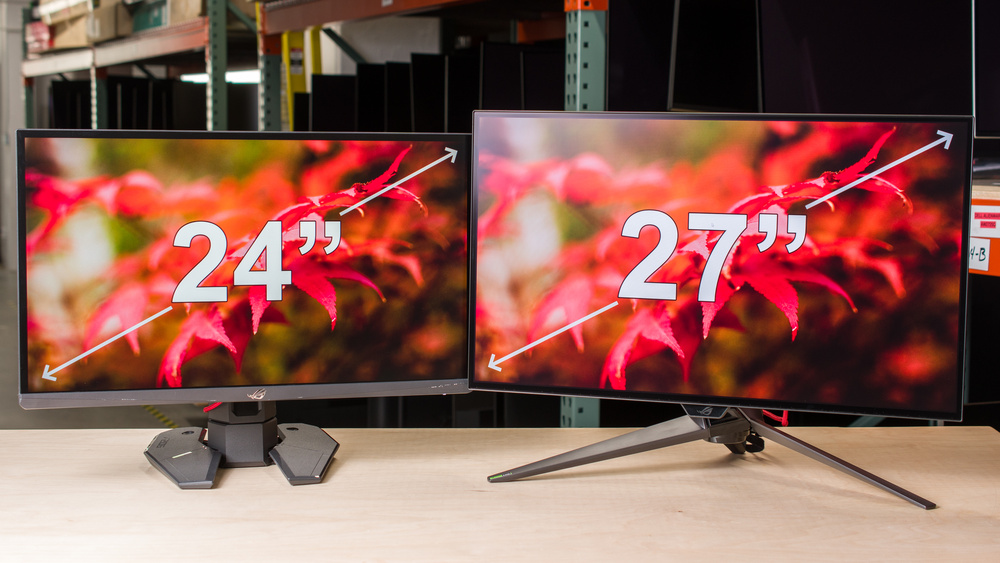
The best monitor for your setup depends entirely on how you use it. Prioritizing gaming specs for office work wastes money, just like skimping on color accuracy ruins photo editing. Start by identifying your primary scenario before looking at features.
Office Work and Everyday Tasks
If your day involves emails, spreadsheets, web browsing, or streaming video, you don’t need top-tier specs. Focus on comfort and clarity instead.
• Ideal Specs: 24-inch screen, Full HD (1920×1080), IPS panel
• Why It Works: At this size, 1080p delivers sharp text. IPS keeps colors consistent even when viewed off-center.
• Eye Comfort: Look for flicker-free backlighting and low blue light modes to reduce strain during long sessions.
• Productivity Upgrade: Want more vertical space for coding or long documents? Choose a 16:10 aspect ratio like 1920×1200 or 2560×1600. You’ll see roughly 10% more content than standard 16:9, cutting down on scrolling.
Brands like Dell, HP, and Lenovo offer reliable 24-inch IPS monitors in the $150 to $300 range, perfect for home offices or students.
Photo, Video, and Design Work
Creative professionals need accuracy, not just speed. A bad monitor distorts colors, making your final product look wrong on other devices.
• Minimum Resolution: 1440p (QHD) or 4K (3840×2160)
• Panel Type: IPS or OLED for wide viewing angles and color consistency
• Color Coverage:
• 99% sRGB for web and digital work
• 99% Adobe RGB for print and photography
• 99% DCI-P3 for video and cinema-grade editing
• Response Time: 5ms or less to avoid motion blur in video previews
Pro Tip: High-end editors should consider Mini-LED or OLED panels. These deliver superior contrast and HDR performance, which is critical for grading dark scenes.
Look for monitors with USB-C Power Delivery (65W or higher) and hardware calibration support. These features streamline your workflow and ensure color accuracy over time. Top picks include 27-inch 4K IPS models or 32-inch Mini-LED displays in the $600 to $1,200 range.
Gaming and High-Speed Action
Gamers need speed, smoothness, and immersion. But not all gaming monitors serve the same purpose. Your choice depends on whether you play competitive esports or cinematic single-player titles.
Competitive Gaming (Esports)
• Refresh Rate: 240Hz, 360Hz, or higher
• Response Time: 1ms Gray-to-Gray (GtG)
• Panel Type: Fast IPS or TN for fastest pixel transitions
• Adaptive Sync: NVIDIA G-Sync or AMD FreeSync to eliminate screen tearing
While TN panels are fastest, Fast IPS now matches their speed with better colors and viewing angles, making them the smarter all-around pick.
Immersive Gaming (AAA Titles)
• Panel Type: OLED or VA
• Why OLED: Perfect blacks, infinite contrast, and 0.5ms response time create stunning visuals in dark scenes.
• Why VA: High contrast (3000:1 or higher) at lower cost, ideal for atmospheric games.
Ultrawide (21:9) or Super Ultrawide (32:9) monitors expand your field of view, especially in racing or flight sims. A 34-inch 3440×1440 model acts like two side-by-side 16:9 screens, great for multitasking too.
Ensure your GPU can handle high refresh rates at your chosen resolution. A 4K 144Hz OLED is useless without a high-end graphics card.
Hybrid Home Office and Entertainment
Most people don’t fit neatly into one category. If you work, stream, game lightly, and join video calls, aim for balance.
• Recommended Specs:
• 27-inch screen
• QHD (1440p) or 4K resolution
• 120Hz to 144Hz refresh rate (even non-gamers benefit from smoother scrolling)
• IPS panel for color and viewing angles
Bonus Features Worth Considering:
• Built-in speakers and webcam with privacy shutter
• USB-C with 65W or higher charging to power your laptop
• USB hub for connecting peripherals
These monitors double as entertainment centers. A 120Hz panel makes video feel smoother, and 4K resolution enhances movie quality. Mid-range models in the $400 to $600 range deliver excellent value.
Know the Panel Types

The panel technology defines how your monitor looks and performs. Don’t pick based on price alone. Understand the trade-offs first.
IPS: Best All-Rounder
• Pros: Accurate colors, wide 178° viewing angles, great for creative work
• Cons: Lower contrast around 1000:1, potential IPS glow in dark scenes
• Upgrades Available:
• Nano IPS for wider color gamut
• IPS Black for improved contrast (2000:1 to 3000:1)
Best For: Office work, design, mixed use
VA: Deep Blacks, Slower Motion
• Pros: High contrast (3000:1 or higher), deep blacks, great for movies
• Cons: Slower response times (4 to 8ms), motion blur in fast games, narrower viewing angles
• Watch For: “Reverse glow” in bright scenes
Best For: Movie watchers, casual gamers, dimly lit rooms
TN: Fast but Faded
• Pros: 1ms response, 240Hz or higher refresh rates, budget-friendly
• Cons: Poor colors, narrow viewing angles, washed-out image off-center
Best For: Competitive esports only. Avoid for creative or productivity tasks.
OLED: Premium Performance
• Pros: Infinite contrast, perfect blacks, 0.5ms response, excellent HDR
• Cons: Risk of burn-in from static elements like taskbars and logos
• 2025 Improvements: Pixel shifting, automatic refresh cycles, 3-year burn-in warranties
Tip: Use dark mode and disable always-on taskbars to extend lifespan.
Best For: High-end gaming, HDR video editing, immersive media
Mini-LED: OLED Alternative
• How It Works: Thousands of tiny LEDs with local dimming zones (more zones means less blooming)
• Pros: No burn-in risk, peak brightness up to 2000 nits, great for bright rooms
• Cons: Slightly lower contrast than OLED, higher price
Best For: 4K HDR content, bright environments, professionals avoiding OLED risk
Size, Resolution, and Sharpness

Bigger isn’t always better. Sharpness depends on pixels per inch (PPI). A 27-inch 1080p screen looks blurry, while the same resolution on a 24-inch panel is fine.
Resolution Guide by Screen Size
| Screen Size | Best Resolution | PPI (Sharpness) | Notes |
|---|---|---|---|
| 20 to 24 inches | 1080p (1920×1080) | ~90 to 100 PPI | Acceptable sharpness |
| 24 to 25 inches | 1440p (2560×1440) | ~115 to 120 PPI | Crisp text, no scaling needed |
| 27 inches | 1440p or 4K | 109 PPI (1440p), 163 PPI (4K) | 4K needs 125 to 150% scaling in Windows |
| 32 inches and up | 4K or higher | 138+ PPI | Ideal for multitasking |
Avoid: 27-inch 1080p monitors. They look pixelated and strain your eyes.
Ultrawide and Super Ultrawide
• 34-inch 21:9 (3440×1440): Feels like two monitors. Great for multitasking and immersive gaming.
• 49-inch 32:9 (5120×1440): Replaces dual 27-inch screens. Curved for immersion.
• Curvature Options:
• 1800R: Moderate curve, good for productivity
• 1000R: Aggressive curve, best for gaming
Warning: Curved screens can distort straight lines. Avoid for CAD or precise design work.
Refresh Rate and Motion Clarity
Smooth visuals matter even if you’re not a gamer. Understanding refresh rate is essential when learning how to choose a monitor for daily comfort.
What Refresh Rate You Need
• 60Hz: Basic use only. Feels choppy during scrolling.
• 75 to 100Hz: Noticeably smoother than 60Hz. Good for general use.
• 120 to 144Hz: The new standard. Makes everything feel fluid, including windows, cursor, and videos.
• 240Hz or higher: Only beneficial if your GPU pushes high frame rates consistently.
Reality Check: You don’t need 360Hz unless you’re a pro esports player. For most users, 144Hz is the sweet spot.
Response Time vs. Input Lag
• Response Time: How fast pixels change color (1ms means less ghosting)
• Input Lag: Time from click to on-screen action (affected by GPU, cable, and monitor processing)
Gaming Tip: Use adaptive sync (FreeSync or G-Sync) to prevent screen tearing. Most quality monitors now support both standards.
Connectivity: Ports That Matter
Don’t buy a monitor that your devices can’t connect to. Checking ports is a crucial step in knowing how to choose a monitor that works with your setup.
Essential Ports to Look For
• HDMI 2.1: Required for 4K at 120Hz on PS5, Xbox Series X, or high-end PCs
• DisplayPort 1.4 or 2.0: Best for PC gaming at high refresh rates
• USB-C with Power Delivery: One cable for video, data, and charging (ideal for laptops)
• USB Hub (Type-A): Connect keyboard, mouse, and webcam directly to the monitor
Pro Feature: A KVM switch lets you control two computers with one keyboard, mouse, and monitor.
HDR and Color: Don’t Trust the Label

“HDR” is overused. Many monitors fake it with marketing claims that don’t deliver real visual improvement.
Real HDR Requirements
• Peak Brightness: At least 600 nits (HDR600) for visible improvement
• Local Dimming: Hundreds of zones (Mini-LED) or per-pixel control (OLED)
• Certification: Look for VESA DisplayHDR 600 or 1000, not just “HDR Ready”
Avoid: Monitors with “HDR” but no certification. They offer little real benefit.
Color Gamut by Use Case
• sRGB: Web content and general computing. Aim for 99 to 100% coverage.
• Adobe RGB: Photography and print design. Professionals should seek 99% or higher.
• DCI-P3: Video and film production. 99% or higher is preferred.
Check area coverage, not just volume. Marketing claims can be misleading.
Ergonomics and Long-Term Comfort
A monitor that hurts your neck isn’t worth any amount of pixels. Comfort features protect your health during long sessions.
Must-Have Adjustments
• Height adjustment (most important)
• Tilt (–5° to +20°)
• Swivel (left and right)
• Pivot (portrait mode for coding or reading)
Pro Tip: Mount your monitor on a VESA-compatible arm for full flexibility and cleaner desk space.
Budget: What to Spend

Knowing how to choose a monitor also means setting a realistic budget. Here’s how pricing tiers break down in 2025.
$100 to $300: Entry Level
• 24-inch 1080p IPS
• 60Hz to 144Hz
• Basic stand, few ports
• Best For: Students and secondary displays
$300 to $600: Sweet Spot
• 27-inch 4K IPS or 1440p 144Hz
• USB-C, adaptive sync, good ergonomics
• Best For: Most users, including gamers, professionals, and hybrid workers
$600 to $1,200: High-End
• 27-inch OLED, 32-inch 4K Mini-LED, or 34-inch ultrawide
• Premium build, advanced features
• Best For: Enthusiasts, creators, and competitive gamers
$1,200 and Up: Flagship
• 49-inch super ultrawide OLED or Apple Pro Display XDR
• Reference-grade performance
• Best For: No-compromise setups
Avoid These Common Mistakes
Many buyers fall into predictable traps. Steer clear of these errors to make a smart purchase.
- Ignoring PPI: A 27-inch 1080p screen looks blurry. Stick to 1440p or 4K at that size.
- Overbuying for your GPU: A 4K 144Hz monitor is useless without a high-end GPU.
- Falling for “HDR Ready”: Only trust VESA-certified HDR600 or higher.
- Skipping port checks: Ensure HDMI 2.1 for consoles and USB-C for laptops.
- Forgetting scaling: 4K needs 125 to 150% scaling. Older apps may not support it.
Frequently Asked Questions About Choosing a Monitor
What size monitor should I buy for a home office?
A 24-inch monitor works well for basic tasks, while 27 inches gives you more screen space for multitasking. If you want extra vertical room for documents or coding, look for 16:10 aspect ratio models.
Is 4K worth it on a 27-inch monitor?
Yes, if your GPU can handle it. A 27-inch 4K display delivers 163 PPI, producing very sharp text and detailed images. Just remember you’ll need to enable 125 to 150% scaling in Windows for comfortable viewing.
What’s the difference between IPS and OLED?
IPS panels offer excellent colors and wide viewing angles at lower prices. OLED panels deliver perfect blacks, infinite contrast, and faster response times, but cost more and carry a small burn-in risk with static content.
Do I need a high refresh rate for office work?
Not strictly, but 120Hz or higher makes scrolling, cursor movement, and window dragging noticeably smoother. Many users find it reduces eye strain even during everyday tasks.
How do I know if my GPU can handle a 4K 144Hz monitor?
Check your graphics card specs for supported resolutions and refresh rates. Mid-range GPUs from the last few generations typically handle 1440p at 144Hz, while 4K at 144Hz requires high-end cards like an RTX 4080 or better.
Should I get a curved monitor?
Curved monitors work well for ultrawide screens and immersive gaming. However, they can distort straight lines, so avoid them for CAD work, precise design, or reading long documents.
Key Takeaways for Choosing the Right Monitor
Learning how to choose a monitor comes down to matching specs to your actual needs rather than chasing the highest numbers. Start with your primary use case, then select a panel type and resolution that fits your screen size and budget.
Most users find their sweet spot in the $300 to $600 range with a 27-inch 1440p or 4K IPS display running at 120Hz or higher. This combination delivers sharp text, smooth motion, and accurate colors without requiring a flagship GPU.
Before clicking “buy,” verify that your computer has the right ports and that your GPU can drive the resolution and refresh rate you want. With these checks complete, you’ll end up with a monitor that works smarter, looks better, and lasts longer.


