
You’re juggling a research paper, an email thread, and a streaming tutorial, all demanding attention at once. Constant window switching wastes time and breaks your focus. The solution is learning how to split screen on computer monitor, a simple technique that lets you view multiple apps side by side on one display.
This guide covers every method available, from built-in Windows tools to advanced third-party software. You will learn how to create two-window layouts, four-zone quadrants, and fully independent virtual workspaces. Whether you use Windows 10, Windows 11, or an ultra-wide panel, you will find the perfect approach for your setup.
Use Windows Snap to Split Screen

Windows includes a built-in feature called Snap that divides your screen into multiple sections without any extra software. This is the fastest and most accessible way to multitask on a single monitor.
Split Screen into Two Halves
To create a basic left-right split on your computer monitor:
- Drag Method: Click and hold any window’s title bar, then drag it to the left or right edge of your screen. When a semi-transparent outline appears, release the mouse. Windows shows available apps on the other side. Click one to fill the remaining half.
- Keyboard Shortcut: Press
Windows + Left Arrowto snap the active window to the left side. PressWindows + Right Arrowto snap it to the right side. Repeat for your second app.
This method works instantly and adapts to any window size. Once snapped, you can resize each half by dragging the divider between them.
Create Four-Window Layouts
On larger or high-resolution monitors, you can split the screen into four equal quadrants:
- Snap a window to a corner using
Windows + Up ArrowandWindows + Left Arrowfor the top-left position. - Snap a second window to the top-right using
Windows + Up ArrowandWindows + Right Arrow. - Fill the bottom-left corner the same way.
- The final window automatically fills the bottom-right space.
Windows displays layout previews as you drag, making it easy to visualize arrangements before committing. This setup works well for comparing spreadsheets, coding with documentation, or monitoring multiple dashboards at once.
Create Three-Window Layouts
For a three-window split on your monitor:
- Drag a window to a top corner until a layout preview appears.
- Drag a second window to the bottom half of the same side.
- The remaining space on the opposite side automatically becomes available for your third window.
This layout is ideal when you need one large reference window alongside two smaller task windows.
Move and Resize Snapped Windows
After snapping, use these shortcuts to manage your layout efficiently:
Windows + Arrow Keys: Shift a window between snap zones instantly.Windows + Shift + Left/Right Arrow: Move a snapped window to another physical monitor.- Hover near screen edges: View layout previews before dragging.
These controls let you reorganize your workspace without lifting your hands from the keyboard.
Enable Monitor-Level Splitting with PbP and PiP
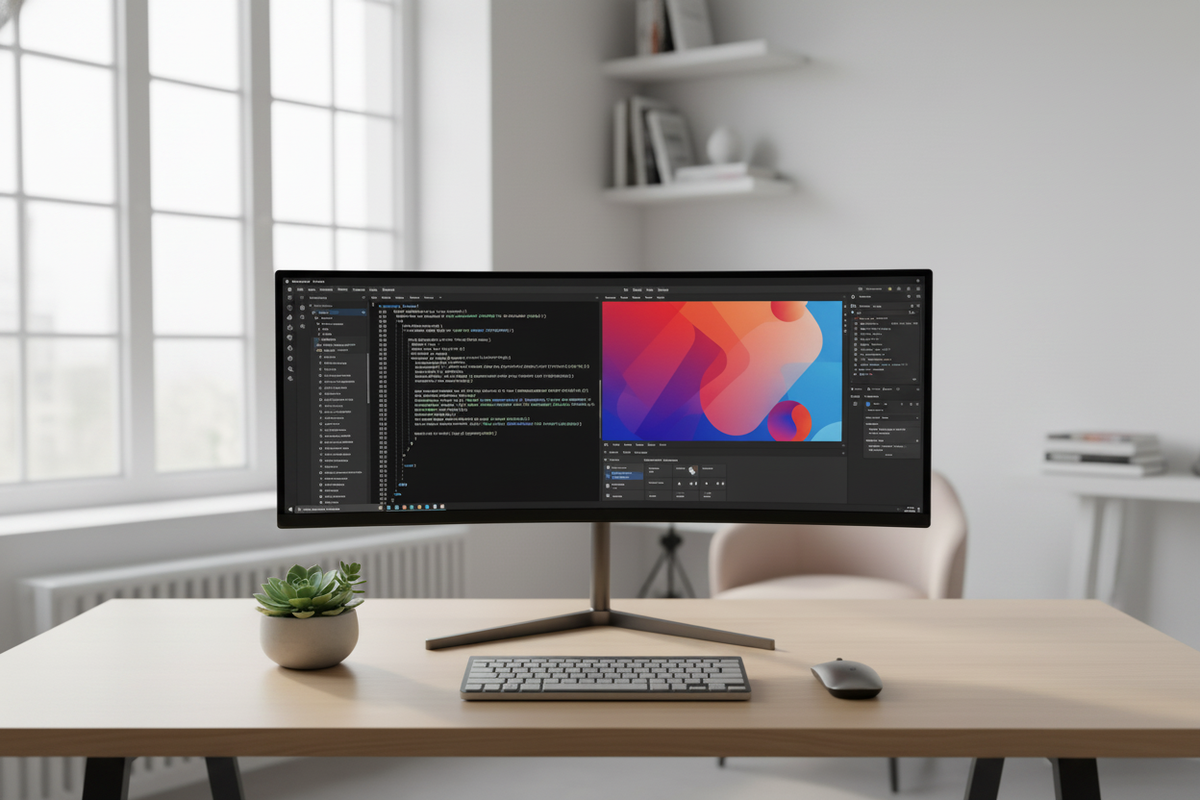
If your monitor supports Picture-by-Picture (PbP) or Picture-in-Picture (PiP), you can split the screen at the hardware level. This approach is ideal for users running two separate computers on one display.
Use Picture-by-Picture Mode
PbP displays input from two different devices side by side on one monitor. For example, you can connect a laptop and desktop to the same screen using HDMI and DisplayPort cables. Both systems run independently, each occupying half the display.
How to enable PbP:
- Press the physical menu button on your monitor.
- Navigate to the On-Screen Display menu, then find Input or Multi-View settings.
- Select two input sources (such as HDMI plus DisplayPort).
- Confirm your selection. The screen splits automatically.
Note: Not all monitors support PbP. Check your user manual or manufacturer specifications before attempting this setup.
Try Picture-in-Picture Mode
PiP shows one source in full screen while overlaying a smaller floating window from a second source. This is perfect for watching a tutorial while working on your main task. The small window usually appears in a corner and cannot be resized freely.
Enable PiP through the same On-Screen Display menu under PiP settings. Select your secondary input, then adjust position if your monitor supports it.
Unlike software methods, PbP and PiP treat each input as completely independent, making them perfect for users managing two computers simultaneously.
Set Up Virtual Displays via GPU Tools
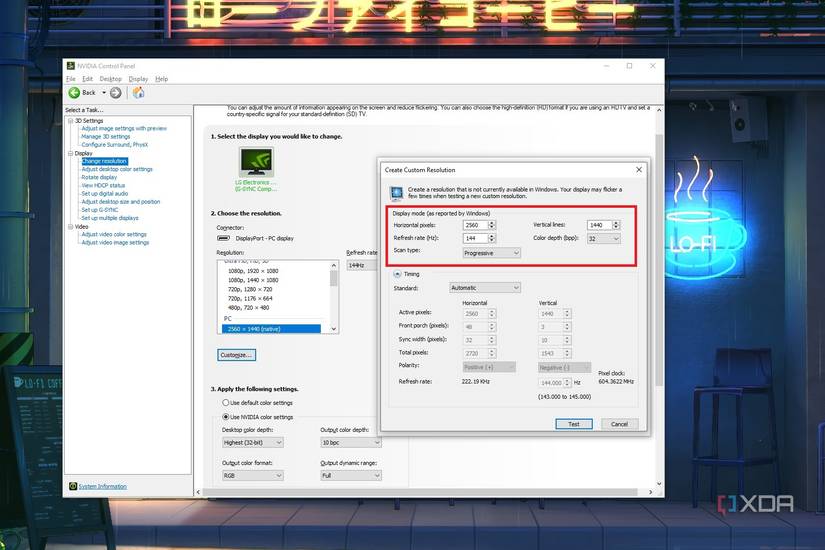
Graphics card software can simulate multiple monitors on a single screen. This approach is useful for gamers and power users who want advanced control.
Configure NVIDIA Display Zones
NVIDIA users can create virtual displays using the NVIDIA Control Panel:
- Right-click your desktop and select NVIDIA Control Panel.
- Navigate to Display, then Set up multiple displays.
- Click the option to create a new virtual display (where supported).
- Define the resolution and position for your virtual monitor.
- Apply the settings.
Windows now treats the virtual display as a second screen. You can drag apps between zones and snap them independently.
Limitation: Virtual displays may not support HDR, variable refresh rates, or audio passthrough.
Use AMD Eyefinity for Multi-Zone Setup
AMD Radeon owners can use Eyefinity to group screen areas as virtual monitors:
- Open AMD Radeon Software.
- Navigate to Display, then Eyefinity.
- Choose Create Group and select your monitor.
- Define your layout, such as a 2×1 split for left and right sections.
- Confirm and apply the changes.
Each zone behaves like a separate monitor, allowing true window independence. However, full-screen apps may still span all zones unless configured otherwise.
These GPU tools work best for users who want advanced control without installing third-party software.
Install DisplayFusion for Advanced Splitting
For maximum flexibility, DisplayFusion transforms a single monitor into multiple virtual workspaces. Each workspace gets its own taskbar, wallpaper, and window management rules.
Install and Launch DisplayFusion
- Download the installer from the official DisplayFusion website.
- Run the installer and choose “Install for me only.”
- Enable “Launch at startup” and “Add to right-click menu.”
- On first launch, disable Windows’ built-in multi-monitor taskbar when prompted.
This step ensures DisplayFusion manages each virtual section correctly.
Create Custom Screen Splits
To divide your monitor into multiple zones:
- Right-click the DisplayFusion tray icon and select Monitor Configuration.
- Select your physical monitor from the list.
- Navigate to the Splits & Padding tab.
- Choose Horizontal Split or Vertical Split to divide your screen.
- Add multiple splits. For example, two vertical splits plus one horizontal split creates four sections.
- Click Apply.
Each section now acts like a standalone monitor with its own taskbar, desktop background, and window snapping behavior. On a 1440p screen, a 2×2 split creates four zones roughly equivalent to 1080p displays, perfect for coding, streaming, or trading.
Customize Workspaces and Profiles
DisplayFusion offers extensive customization options:
- Independent Wallpapers: Assign different images to each zone or stretch one across all sections.
- Per-Monitor Screensavers: Set unique screensavers for each virtual display.
- Window Position Profiles: Save layouts such as “Work Mode” with browser and email snapped in place.
- Hotkeys: Switch profiles instantly using keyboard shortcuts.
Double-clicking a window opens it full-screen within its virtual zone rather than the entire monitor. This makes DisplayFusion ideal for gaming and video editing workflows.
Ideal Use Cases for DisplayFusion
- Streamers: Run OBS, chat, and your game in separate zones.
- Developers: Code, debug, and test in adjacent panels.
- Traders: Monitor multiple markets and news feeds side by side.
- Writers: Research, draft, and reference materials in one view.
With DisplayFusion, your single monitor becomes as functional as a multi-monitor setup.
Compare Split Screen Methods

Choosing the right method depends on your needs, hardware, and budget. The table below summarizes the key differences:
| Feature | Native Windows Snap | Monitor PbP/PiP | GPU Software | DisplayFusion |
|---|---|---|---|---|
| Cost | Free | Free (if supported) | Free (with GPU) | Freemium / Paid |
| Taskbar Independence | Single taskbar | Yes (PbP only) | No | Full per-zone |
| Setup Time | Seconds | Minutes | Moderate | Moderate |
| Customization | Basic | None | Limited | Extensive |
| Best For | Quick multitasking | Dual-PC users | Gamers | Power users |
For most people, Windows Snap provides everything needed for basic multitasking. If you need true workspace separation, DisplayFusion or PbP delivers the best results.
Know the Limitations and Requirements
Before relying on any split screen method, consider these technical constraints.
Resolution Matters
Splitting works best on high-resolution displays:
- 1440p (2560×1440) or higher
- 4K (3840×2160)
- Ultra-wide (3440×1440 or 5120×1440)
Lower resolutions like 1080p become cramped when split into more than two windows.
Hardware and OS Limits
- Windows does not natively support independent taskbars on a single monitor.
- PbP requires two video inputs and compatible monitor hardware.
- Virtual displays may not support HDR, G-Sync, or FreeSync per zone.
Always check your monitor’s specifications and update your graphics drivers to ensure compatibility.
Frequently Asked Questions About Split Screen on Computer Monitor
What is the fastest way to split screen on a Windows computer?
The fastest method is using keyboard shortcuts. Press Windows + Left Arrow to snap the active window to the left side, then select a second window and press Windows + Right Arrow. This creates a two-window split in seconds without any software installation.
Can I split my monitor into four sections?
Yes. Windows Snap supports up to four windows arranged in quadrants. Snap each window to a corner using Windows + Arrow Keys combinations, and Windows automatically arranges them into a 2×2 grid. High-resolution monitors make this layout practical for everyday use.
Do all monitors support Picture-by-Picture mode?
No. PbP is a hardware feature available only on specific monitors, typically ultra-wide or professional models. Check your monitor’s user manual or manufacturer website to confirm PbP support before attempting to use it.
Is DisplayFusion free to use?
DisplayFusion offers a free trial and a free version with core features. Paid tiers unlock advanced tools for streamers and power users, including support for Sunshine, Moonlight, and Apollo. The free version handles basic virtual monitor splits effectively.
Will split screen affect my gaming performance?
Native Windows Snap has no performance impact since it only manages window positioning. However, GPU-based virtual displays and PbP mode may affect HDR, variable refresh rates, or G-Sync functionality. Test your specific setup before relying on it for competitive gaming.
Can I save my split screen layout for later use?
Windows Snap layouts are temporary and reset when you close windows. DisplayFusion solves this by letting you save Window Position Profiles. You can restore your exact layout with a keyboard shortcut, making it ideal for recurring workflows.
Key Takeaways for Splitting Your Computer Monitor Screen
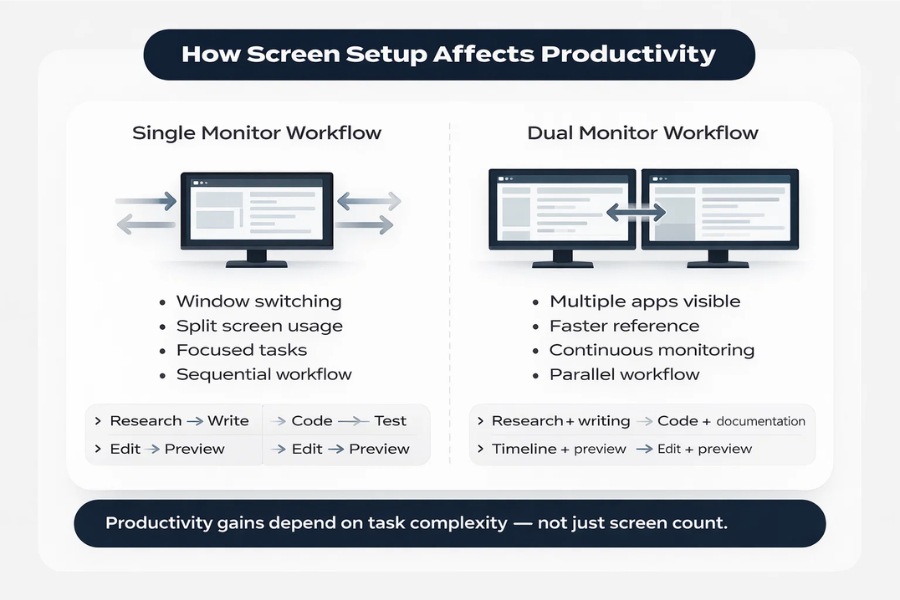
Learning how to split screen on computer monitor transforms how you work and play. Start with Windows Snap for quick, no-cost multitasking across two or four windows. Upgrade to PbP if you run multiple computers on one display. Choose DisplayFusion when you need true workspace separation with independent taskbars and saved profiles.
Your next step is simple. Pick the method that matches your hardware and workflow, then spend ten minutes setting it up. Once configured, you will wonder how you ever worked without it.


