
If you’ve ever struggled with a glaring screen in a dark room, you’re not alone. Even at the lowest hardware setting, many monitors remain too bright, causing eye strain and disrupting sleep. The good news is there are multiple effective ways to dim your monitor beyond factory limits using built-in settings, software tools, or physical filters. This guide covers every method, from simple OS adjustments to advanced techniques that achieve near-zero brightness.
We’ll break down native controls, software solutions that go below hardware minimums, hybrid approaches, and physical modifications. You’ll also discover which methods avoid harmful PWM flicker and maintain contrast. By the end, you’ll know exactly how to dim your monitor to the perfect level no matter your setup.
Adjust Brightness Through Windows Display Settings
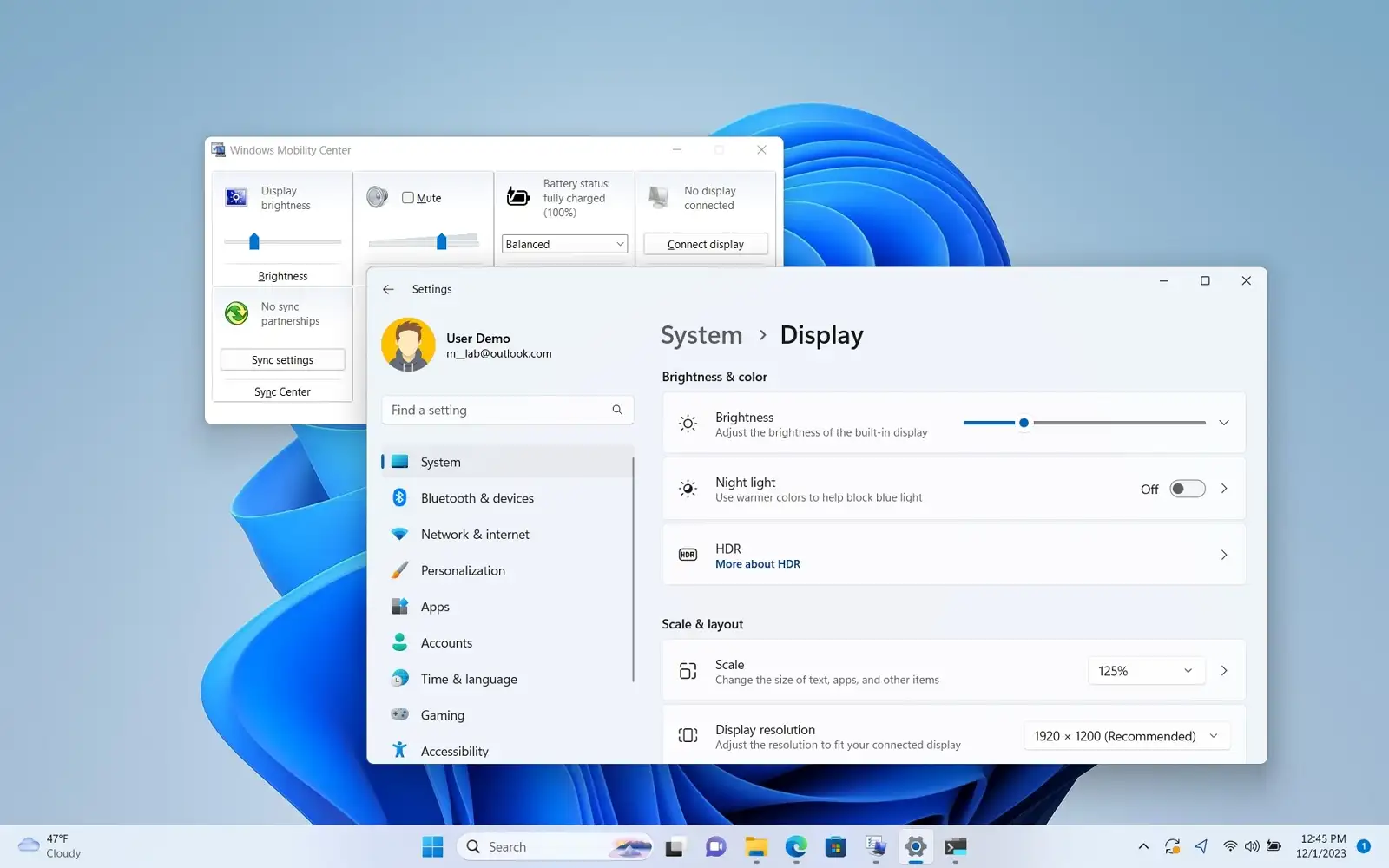
Adjusting brightness through Windows is the fastest way to dim your monitor within its hardware range.
Access the Built-In Brightness Slider
- Click the Start button and open Settings.
- Go to System then Display.
- Find the Brightness level slider under “Customize your display.”
- Drag it left to dim or right to brighten; changes apply instantly.
This method adjusts the actual backlight intensity via OS communication with your display. It’s ideal for daily use but limited by your monitor’s minimum hardware brightness.
Limitations of Native Dimming
Most monitors can’t go below 20–30% brightness, which may still be harsh at night. Some laptops only show the slider when unplugged. If your screen remains too bright, software or physical solutions are needed to go further.
Install Software to Dim Below Hardware Minimum
When hardware can’t go dark enough, software tools reduce perceived brightness beyond physical limits.
Flux for Night-Friendly Dimming
Flux isn’t just for warm colors; it can dim your screen to near-black levels.
- Shortcut to Dim: Press Alt + Page Down to reach 0–2% effective brightness.
- Avoids PWM Flicker: Adjusts pixel output instead of backlight, reducing eye strain.
- Auto-Schedules: Dims at sunset and brightens at sunrise.
- Multi-Monitor Ready: Works across all displays without extra setup.
Flux is ideal if you want automatic, health-conscious dimming with minimal effort.
Iris for Best Visual Quality
Iris offers superior control by adjusting the white point rather than overlaying darkness.
- Dim Down to 10%: Enable “Extended values” for ultra-low brightness.
- Boost to 150%: Useful in daylight or HDR workflows.
- Preserves Contrast: Unlike overlays, it maintains image depth.
- Reduces Eye Strain: Designed specifically for long-term comfort.
Use Iris if you work at night and need clear, low-luminance visuals without losing detail.
DimScreen as a Lightweight Overlay Tool
This portable app dims via a black translucent layer.
- No Installation: Run the
.exedirectly. - Keyboard Controls: Ctrl + to brighten, Ctrl – to dim.
- Tray Icon: Adjust anytime from the system tray.
Caution: May disappear in fullscreen games or videos. Best for desktop work, not media-heavy use.
Dimmer for Simple LCD Dimming
Like DimScreen, Dimmer applies a black filter to reduce screen luminance.
- Purpose-Built: Designed for nighttime LCD, TFT, and LED use.
- Low Resource Use: Minimal CPU and memory impact.
- Single Display: Typically only affects the primary monitor.
Good for basic dimming but lacks multi-screen support and advanced features.
PangoBright for Multi-Monitor Control
For dual or triple setups, PangoBright gives per-display brightness control.
- Individual Settings: Adjust each monitor separately.
- User-Friendly UI: No command-line knowledge needed.
- Stable Performance: No conflicts with fullscreen apps.
Choose PangoBright if you need independent dimming across multiple screens.
Hybrid Setup Using ClickMonitorDDC and Flux
Combine hardware and software for maximum flexibility.
- ClickMonitorDDC: Controls monitor backlight via DDC/CI without pressing buttons.
- Scroll the mouse wheel to adjust brightness.
- Flux: Adds software dimming below the hardware floor.
- Total Footprint: Under 10 MB RAM.
This combo lets you dim in two stages. First reduce backlight, then apply digital dimming. Ideal for sensitive users who need ultra-low light.
Command Line and Driver Tweaks
Advanced users can tweak brightness at the driver level.
NirCmd from Nirsoft
A lightweight command-line tool to adjust brightness:
bash

nircmd.exe monitor setbrightness 20
- Works only if your GPU supports software brightness control.
- Can be scripted for automation, such as dimming at night.
Intel Graphics Control Panel
Users with Intel integrated graphics can go below zero.
- Open Intel Graphics Properties.
- Navigate to Display then Color Settings.
- Set Brightness to a negative value like -60.
- Combine with Flux or DimScreen for deeper dimming.
This method stacks with software tools for extreme low-light use.
Apply Physical Filters to Your Screen

When software isn’t enough or you want zero system dependency, physical filters reduce brightness permanently.
Use Tinted Privacy Window Film
A cheap, reusable solution from hardware stores.
- How to Apply:
1. Buy static-cling privacy film from a store like Home Depot.
2. Cut to match your screen size.
3. Wipe the screen clean and apply the film directly. - Reusability: Removes cleanly and can be repositioned.
- Effect: Blocks up to 50–70% of emitted light.
- Bonus: Also reduces glare and prevents shoulder surfing.
Ideal for office or bedroom monitors where constant dimming is needed.
Try CRT Glare Filters
Old anti-glare filters for CRTs may fit modern screens.
- Check Fit: Measure your monitor; some 17–19″ CRT filters work on smaller LEDs.
- Effect: Reduces brightness and reflections.
- Availability: Found on eBay or thrift stores.
Not a perfect fit for all, but a viable stopgap if you already own one.
Wear Blue Light or Tinted Glasses
Sunglasses or amber-tinted blue-light glasses can reduce screen intensity.
- Blue Light Glasses: Cut harsh blue spectrum, softening perceived brightness.
- Tinted Lenses: Amber or gray tints act like sunglasses for screens.
- Limitations: May interfere with color accuracy or typing visibility.
Best as a supplement rather than a replacement for screen dimming.
Avoid PWM Flicker with Software Dimming
Many LED monitors use Pulse-Width Modulation (PWM) to dim the backlight.
What Is PWM?
- The backlight rapidly turns on and off to simulate lower brightness.
- At low levels, the flicker can cause eye strain, headaches, or fatigue, especially in dark rooms.
Why Software Is Safer
Tools like Iris and Flux bypass the backlight entirely.
- They adjust color output or apply digital dimming.
- Result: A steady, flicker-free image even at ultra-low brightness.
- Better for long sessions or light-sensitive users.
Pro Tip: If your eyes hurt at low brightness, PWM is likely the culprit. Switch to software-based dimming immediately.
Choose the Right Method for Your Setup

Not all solutions work equally well for every user. Here’s how to pick the best one.
Single Monitor for Night Use
- Best Choice: Flux
- Why: Auto-dims, avoids flicker, easy setup.
- Shortcut: Alt + Page Down for instant darkness.
Multi-Monitor Workstation
- Best Choice: PangoBright or ClickMonitorDDC + Flux
- Why: Independent control per screen with no lag.
- Bonus: Mouse-wheel brightness via ClickMonitorDDC.
Gaming or Fullscreen Apps
- Best Choice: ClickMonitorDDC or Intel Negative Brightness
- Why: Overlay tools like DimScreen often fail in fullscreen mode.
- Alternative: Use hardware buttons or DDC control.
Zero Software, Permanent Fix
- Best Choice: Tinted privacy film
- Why: No drivers, no conflicts, always on.
- Cost: Under $10 and lasts for years.
Developer or Scripted Environment
- Best Choice: NirCmd or Intel Graphics Panel
- Why: Automate brightness based on time, battery, or app usage.
- Example: Dim at 9 PM and restore at 7 AM via Task Scheduler.
Maintain Eye Comfort Long-Term
Dimming your monitor is just one part of eye health.
Follow the 20-20-20 Rule
Every 20 minutes, look at something 20 feet away for 20 seconds. This reduces fatigue significantly.
Position Your Monitor Correctly
- Top of screen at or slightly below eye level.
- 20–30 inches from your face.
- Avoid glare from windows or overhead lights.
Use Dark Themes
Pair low brightness with dark mode in apps like VS Code, Chrome, and Office to reduce contrast stress.
Schedule Dimming Automatically
Use Flux, Iris, or Windows Night Light to dim at sunset.
- Reduces blue light exposure.
- Helps regulate sleep cycles.
Frequently Asked Questions About Dimming Your Monitor
Can you dim a monitor below its minimum brightness?
Yes. Software tools like Flux and Iris can dim your monitor well below the hardware minimum. Flux can reach as low as 0–2% effective brightness using the Alt + Page Down shortcut, while Iris with extended values can go down to 10% while preserving contrast.
Does dimming a monitor reduce eye strain?
It can, especially when combined with PWM-free dimming methods. Software solutions that adjust color output rather than backlight intensity provide a steady, flicker-free image. This is generally safer for prolonged use and reduces headaches in sensitive users.
What is PWM and why does it matter when dimming a monitor?
PWM stands for Pulse-Width Modulation. Many LED monitors use it to lower brightness by rapidly flickering the backlight on and off. At low brightness levels, this flicker can cause eye strain and fatigue. Software dimming tools like Iris and Flux bypass this issue entirely.
How do I dim my monitor in a multi-monitor setup?
For multiple displays, use PangoBright for per-screen control or combine ClickMonitorDDC with Flux for hybrid hardware and software dimming. Standard tools like DimScreen and Dimmer typically only affect the primary monitor.
Is tinted privacy film a good way to dim a monitor?
Yes. Tinted privacy film applied directly to the screen blocks 50–70% of emitted light without any software dependency. It’s affordable, reusable, and works permanently without consuming system resources.
Can I dim my monitor using the command line?
Yes. NirCmd allows you to adjust brightness through terminal commands, though effectiveness depends on your GPU. Intel users can also set negative brightness values in the Intel Graphics Control Panel for extreme dimming.
Key Takeaways for Dimming Your Monitor Effectively

Start with Windows settings for quick adjustments, then move to software for deeper dimming. Flux offers the easiest setup with automatic scheduling, while Iris delivers the best visual quality through white-point adjustment. For multi-monitor users, PangoBright or the ClickMonitorDDC plus Flux combo provides independent control across screens.
If you prefer zero software, tinted privacy film offers a permanent, low-cost solution. Combine hardware brightness at 30% with Flux software dimming to avoid PWM flicker and achieve true low-light comfort. Your eyes will thank you during late-night work sessions.
Next Step: Download Flux today and press Alt + Page Down to experience instant, flicker-free dimming. If you need better contrast preservation, try Iris with extended values enabled.


