
Picking the right gaming monitor can feel like decoding a spec sheet written in another language. With hundreds of models touting 4K, 240Hz, HDR, and OLED, it’s easy to overspend on features you’ll never use or underbuy and regret it later. The smartest approach to how to choose a gaming monitor starts with your games, your hardware, and your actual setup, not the flashiest marketing claim.
This guide breaks down every decision point into clear, actionable steps. You’ll learn which specs actually matter for your favorite genres, how to avoid GPU bottlenecks, and which “premium” features are worth the price. By the end, you’ll have a confident framework for choosing a monitor that delivers real performance without the guesswork.
Identify Your Primary Gaming Genre
Your favorite games should drive every other decision. A monitor optimized for competitive shooters will look dull in a horror game, and a cinematic 4K display will feel sluggish in esports.
Competitive Shooters Demand Speed
If you spend most of your time in Valorant, Counter-Strike, or Apex Legends, responsiveness matters more than pixel count. Every millisecond of delay affects your aim and reaction time.
• Target a refresh rate of 240Hz or higher
• Look for response times of 1ms or less
• Choose 1080p resolution to maximize frame rates
• Prioritize TN or fast IPS panels for minimal lag
High frame rates give you smoother tracking and clearer motion when flicking between targets. At 240Hz, enemies feel more responsive, and visual information reaches your brain faster.
Story-Driven Games Reward Visual Quality

RPGs, open-world adventures, and horror titles like The Witcher 3 or Resident Evil thrive on atmosphere. You want deep blacks, rich colors, and sharp detail to appreciate art direction.
• Choose 1440p or 4K resolution for crisp environments
• Select OLED or VA panels for superior contrast
• Look for wide color gamut support (90%+ DCI-P3)
• Consider HDR certification for brighter highlights
High contrast makes dark scenes readable and colors feel lifelike. In horror games, deep blacks reveal details in shadows that would otherwise wash out.
Racing and Flight Sims Love Ultrawide
Simulation games benefit from a wider field of view. Ultrawide monitors expand your peripheral vision, mimicking a real cockpit or trackside perspective.
• Pick 21:9 or 32:9 aspect ratios
• Choose curved panels (1000R to 1800R) for edge clarity
• Maintain at least 144Hz refresh rate for smooth motion
• Target 3440×1440 or 5120×1440 resolution
Unlike triple-monitor setups, ultrawides eliminate bezel gaps and work natively with most sim titles.
Match Your Monitor to Your GPU Power
Your graphics card sets the ceiling for what your monitor can actually display. Buying a 4K 240Hz screen for a mid-tier GPU wastes money because you’ll never hit those frame rates.
Entry-Level GPUs Pair With 1080p
Cards like the RTX 3050 or RX 6600 handle 1080p gaming comfortably but struggle at higher resolutions.
• Best match: 1080p at 144Hz
• Avoid 1440p or 4K monitors
• IPS or TN panels work well here
This setup keeps frame rates high so you can actually use that high refresh rate.
Mid-Range GPUs Hit the 1440p Sweet Spot
The RTX 4060 Ti, RTX 4070, and RX 7800 XT excel at 1440p gaming with high frame rates.
• Ideal setup: 27-inch 1440p at 144Hz to 165Hz
• IPS panels offer the best balance
• Entry-level HDR (DisplayHDR 600) is achievable
This combination delivers sharp visuals without forcing you to sacrifice performance.
High-End GPUs Unlock 4K and Ultrawide
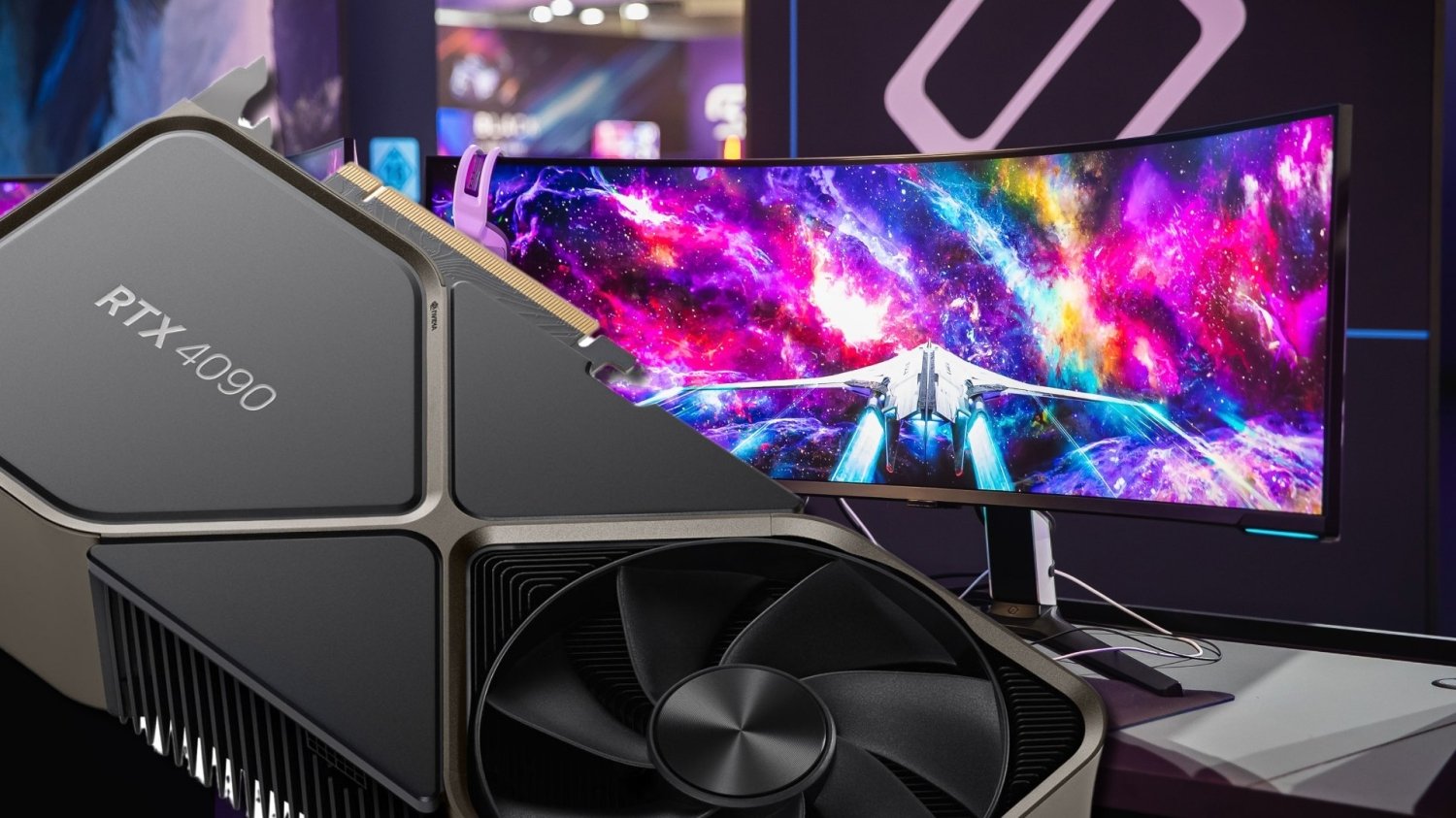
The RTX 4080, RTX 4090, and RX 7900 XTX can drive 4K at 120Hz or higher, plus ultrawide resolutions.
• Target 32-inch 4K or 49-inch DQHD
• Look for HDMI 2.1 or DisplayPort 2.0 bandwidth
• OLED or FALD LCD panels maximize HDR impact
These setups deliver the most immersive experience possible today.
Console Gamers Need HDMI 2.1
PS5 and Xbox Series X support 4K at 120Hz, but only through HDMI 2.1 connections.
• Verify at least one HDMI 2.1 port
• Enable VRR and ALLM in console settings
• Choose 4K for fidelity or 1440p for performance
Without HDMI 2.1, you’re locked to 60Hz at 4K, which wastes your console’s potential.
Find the Right Resolution and Screen Size
Resolution and screen size must work together. Wrong pairings create blurry images or wasted pixels.
24 to 25 Inches Works Best at 1080p
At this size, 1080p delivers crisp pixel density without requiring a powerful GPU.
• Pixel density stays sharp at normal viewing distances
• Larger than 25 inches shows visible pixelation
• Perfect for competitive gaming and small desks
A 24-inch 1080p monitor remains the esports standard for good reason.
27 Inches Is the 1440p Sweet Spot
This pairing offers the best balance of sharpness and GPU efficiency.
• Pixel density around 109 PPI looks crisp
• No scaling issues for text or UI elements
• IPS, VA, and OLED options all available
Most gamers find 27-inch 1440p hits the ideal middle ground.
32 Inches and Up Demands 4K
Larger screens need more pixels to maintain image quality.
• 32-inch 4K delivers high pixel density
• Ultrawide 34 to 49 inches replaces dual monitors
• Avoid 32-inch 1080p at all costs (blurry results)
Bigger screens also require more desk depth for comfortable viewing.
Always Run at Native Resolution
LCD and OLED monitors have fixed pixel grids. Running below native resolution causes blurriness from upscaling.
• Never downscale from native resolution
• Lower resolutions waste sharpness and desktop space
• Some OLEDs use pixel shifting, but native is still best
Set your games and desktop to your monitor’s exact native resolution for optimal clarity.
Focus on Refresh Rate and Response Time
Motion performance determines how smooth and responsive your games feel. These two specs work together to define your experience.
144Hz Is the Modern Gaming Baseline
Higher refresh rates reduce motion blur and improve target tracking.
• 60Hz feels choppy in fast games
• 120Hz to 144Hz provides smooth, responsive gameplay
• 240Hz and above delivers a competitive edge
Remember, you need matching FPS from your GPU to actually benefit from high refresh rates.
Response Time Affects Ghosting
Measured in milliseconds, response time determines how quickly pixels change color.
• 1ms (GtG) is the gaming standard
• OLED achieves 0.03ms with virtually no motion blur
• Avoid slow VA panels in dark scenes (causes black smearing)
Overdrive settings can reduce response time but may cause overshoot or inverse ghosting. Check independent reviews for real-world performance.
Backlight Strobing Reduces Motion Blur
Technologies like ULMB or DyAc flash the backlight between frames to mimic CRT clarity.
• Eliminates perceived motion blur
• Reduces overall brightness
• Often incompatible with VRR
Use strobing only for competitive play in bright rooms where you don’t need HDR.
Lower Input Lag for Faster Reactions
Input lag is the delay between your click and the on-screen action.
• Under 10ms is excellent
• Enable Game Mode to minimize processing delay
• Disable VSync unless using adaptive sync
Even small input lag differences matter in competitive titles.
Compare Panel Types for Your Needs
Each panel technology has trade-offs. Choose based on what matters most to your gaming style.
TN Panels Prioritize Speed
Twisted Nematic panels offer the fastest response times at the lowest cost.
• Pros: 240Hz+ refresh rates, 1ms response, low price
• Cons: Poor colors, narrow viewing angles, grayish blacks
• Best for: Competitive players on a budget
Skip TN if color accuracy matters to you.
IPS Panels Balance Everything
In-Plane Switching panels deliver the best all-around performance.
• Pros: Accurate colors, wide viewing angles, modern 1ms response
• Cons: Lower contrast (around 1000:1), possible IPS glow
• Best for: Mixed use, content creation, most gamers
Modern Nano IPS panels offer near-VA contrast with fast response times.
VA Panels Excel at Contrast
Vertical Alignment panels produce the deepest blacks on LCD monitors.
• Pros: 3000:1 to 4000:1 contrast, rich colors
• Cons: Slower black-to-gray transitions cause smearing
• Best for: Single-player games, horror, movie watching
Great for dark rooms but may show ghosting in fast-paced scenes.
OLED Panels Deliver the Best Image
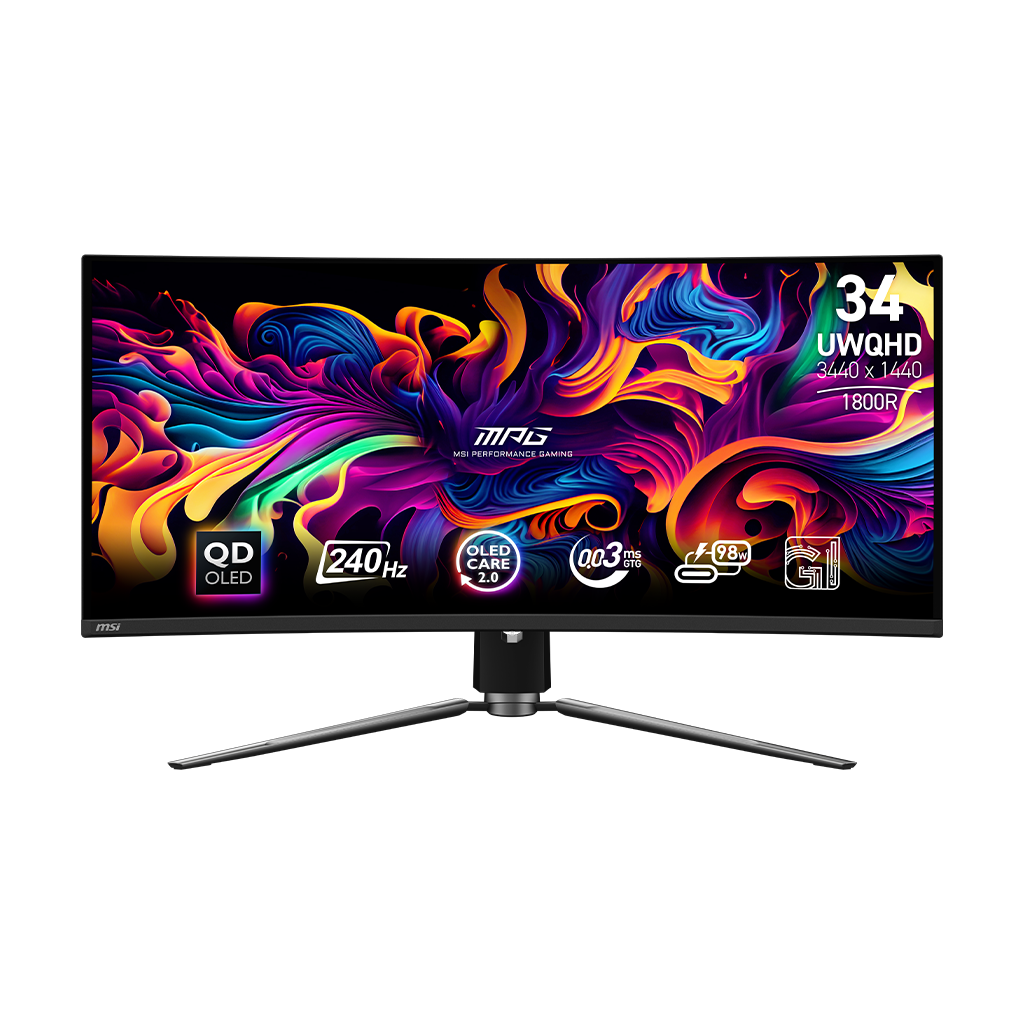
Organic Light-Emitting Diode technology represents the current peak in monitor quality.
• Pros: Infinite contrast, 0.03ms response, perfect blacks
• Cons: Burn-in risk, lower peak brightness, higher cost
• Best for: Premium immersive gaming, dark rooms
OLED eliminates backlight bleed entirely. Use pixel refresh and screensavers to prevent burn-in.
Evaluate HDR and Color Performance
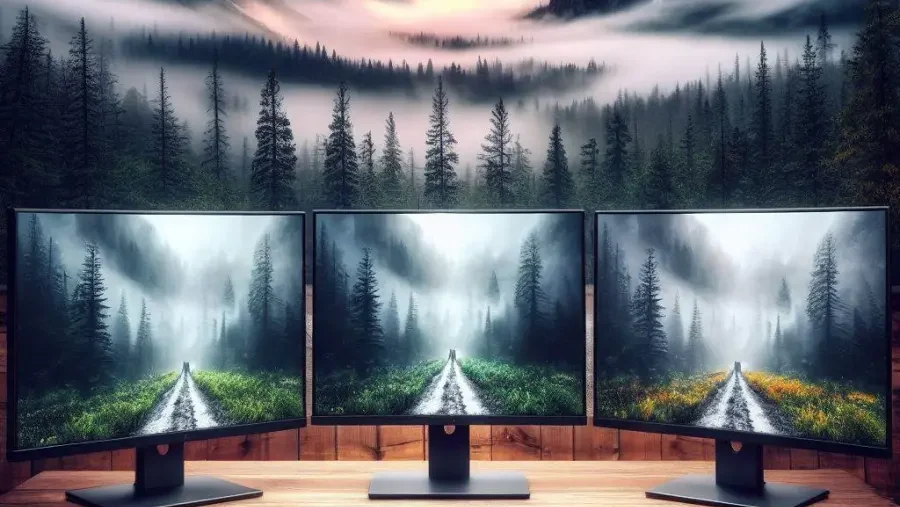
HDR can transform your gaming experience, but only when monitors meet real standards. Many budget displays claim HDR support without delivering meaningful improvements.
Identify Real HDR Standards
VESA DisplayHDR certifications indicate actual HDR capability.
• DisplayHDR 400: Minimal impact, avoid if possible
• DisplayHDR 600: Noticeable improvement with local dimming
• DisplayHDR True Black: OLED-specific, best HDR experience
Look for peak brightness of 600+ nits and local dimming for true HDR impact.
Color Gamut Affects Vibrancy
Wider gamuts produce more lifelike colors.
• sRGB covers standard web and gaming content
• DCI-P3 is wider and standard for HDR content
• Target 90%+ DCI-P3 coverage for HDR impact
Monitors with narrow gamuts can’t display the full HDR color range.
Color Depth Reduces Banding
More bits mean smoother gradients and fewer visible color steps.
• 8-bit displays 16.7 million colors (standard)
• 10-bit displays 1.07 billion colors (reduces banding)
• FRC simulates 10-bit on 8-bit panels (effective but not perfect)
True 10-bit panels are rare and expensive, but FRC works well for most users.
Contrast Ratio Matters Most
Higher contrast makes dark scenes clearer and colors more vibrant.
• IPS and VA LCDs: 1000:1 to 4000:1
• OLED: Infinite (pixels turn off completely)
• Ignore dynamic contrast claims (they’re misleading)
Static contrast ratios tell you what you’ll actually see.
Enable Adaptive Sync for Smooth Gameplay
Screen tearing and stuttering break immersion. Adaptive sync eliminates both without the input lag of traditional VSync.
FreeSync vs G-Sync Explained
Both technologies synchronize your monitor’s refresh rate with your GPU’s frame output.
• FreeSync: AMD’s open standard, works over DisplayPort and HDMI
• G-Sync Compatible: NVIDIA-certified FreeSync monitors
• G-Sync Ultimate: Proprietary module with strict performance standards
Most modern gaming monitors support both standards through Adaptive Sync.
How to Enable VRR
Setting up variable refresh rate takes just a few clicks.
• AMD users: Enable FreeSync in Radeon Software
• NVIDIA users: Turn on G-Sync in NVIDIA Control Panel
• Console users: Enable VRR in system settings
VRR eliminates tearing without the input lag penalty of VSync.
Check the Refresh Rate Range
VRR only works within specific frame rate windows.
• FreeSync Premium: 48Hz to 144Hz range
• Wider ranges (40Hz to 240Hz) handle variable frame rates better
Ensure your monitor’s VRR range covers your typical in-game FPS.
Check Ports and Connectivity Options
Your monitor must physically connect to your devices with the right cables and bandwidth.
DisplayPort for PC Gaming
DisplayPort offers the highest bandwidth for PC connections.
• DP 1.4 supports 4K at 120Hz and 1440p at 240Hz
• DP 2.0 and 2.1 enable 4K at 240Hz and beyond
• Use DisplayPort to unlock full refresh rates on PC
HDMI often caps refresh rates at higher resolutions on PC.
HDMI 2.1 for Console Gaming
Next-gen consoles require HDMI 2.1 for 4K at 120Hz.
• Required for PS5 and Xbox Series X high-refresh gaming
• Supports VRR, ALLM, and 48Gbps bandwidth
• Verify port count (some monitors have only one HDMI 2.1)
Without HDMI 2.1, consoles max out at 60Hz in 4K.
USB-C for Laptop Users
USB-C with DisplayPort Alt Mode carries video, data, and power through one cable.
• Ideal for laptop docking setups
• Supports up to 100W power delivery
• Thunderbolt 3 and 4 offer full bandwidth
Perfect for reducing cable clutter in minimalist setups.
Built-In USB Hub and Audio
Extra ports improve convenience.
• USB ports connect peripherals directly to your monitor
• 3.5mm jacks let you plug headphones without reaching your PC
• Reduces cable clutter on your desk
These features save time and improve your daily workflow.
Consider Ergonomics and Physical Design
Comfort during long gaming sessions depends on proper monitor positioning and adjustability.
Curved vs Flat Screens
Each form factor suits different use cases.
• Curved (1000R to 1800R): Better immersion, reduces edge distortion on large screens
• Flat: Preferred for competitive gaming and multi-monitor setups
Choose curved for 32-inch and ultrawide displays, flat for precision-focused competitive play.
Adjustability Prevents Strain
A good stand or mount protects your posture.
• Height adjustment prevents neck strain
• Tilt and swivel optimize viewing angles
• Pivot enables portrait orientation for coding or reading
VESA compatibility (100x100mm) lets you use monitor arms for maximum flexibility.
Ultrawide Works for Productivity Too
Ultrawide monitors excel beyond gaming.
• Replace dual monitor setups with one screen
• Multitask with multiple windows side by side
• Downside: Less vertical space and awkward video call framing
Use aspect ratio masking software to manage games that don’t support ultrawide natively.
Avoid Common Buying Mistakes
Even experienced buyers fall into these traps. Knowing them upfront saves money and frustration.
Mismatched Size and Resolution
Wrong pairings ruin image quality.
• 32-inch 1080p looks blurry due to low pixel density
• 24-inch 4K creates text scaling headaches
• Stick to proven combinations: 27-inch 1440p or 32-inch 4K
Use PPI calculators to verify sharpness before buying.
Ignoring GPU Limitations
Your GPU determines what your monitor can actually display.
• A 4K 144Hz monitor with an RTX 3060 wastes potential
• Check benchmarks for your GPU at target resolutions
• Match monitor specs to GPU capability, not wishful thinking
A balanced system delivers better experiences than mismatched extremes.
Falling for Fake HDR
Many monitors claim HDR without meeting real requirements.
• HDR400 with 300 nits and no local dimming looks worse than SDR
• Look for DisplayHDR 600 or True Black certification
• Read professional reviews for real HDR performance
True HDR should make highlights pop without washing out the image.
Overlooking Port Requirements
Connectivity issues limit functionality.
• No HDMI 2.1 means no 120Hz console gaming
• Older DisplayPort versions cap refresh rates
• Check all inputs before purchasing
Verify your cables and devices match the monitor’s capabilities.
Final Decision Checklist
Use this framework to choose your gaming monitor confidently.
- Define your primary gaming genre (competitive, immersive, or mixed)
- Check your GPU’s maximum sustainable resolution and FPS
- Select a proven size and resolution pair (24-inch 1080p, 27-inch 1440p, or 32-inch 4K)
- Choose a panel type based on priorities (TN for speed, IPS for balance, VA for contrast, OLED for premium)
- Verify key specs (144Hz+, 1ms response, VRR support, real HDR)
- Confirm port compatibility (DisplayPort 1.4+, HDMI 2.1, USB-C if needed)
- Test ergonomics (adjustable stand or VESA mount support)
Frequently Asked Questions About Gaming Monitors
What refresh rate do I need for gaming?
For most gamers, 144Hz provides a noticeable improvement over 60Hz and works well with mid-range hardware. Competitive players benefit from 240Hz or higher, while casual gamers find 120Hz to 144Hz perfectly smooth. Your GPU must deliver matching frame rates to actually benefit from high refresh displays.
Is 4K worth it for gaming?
4K delivers sharper images and more detail, but requires a powerful GPU to maintain smooth frame rates. It’s


