
You’re ready to start working, but your Dell monitor won’t power on. The screen stays black, and you’re not sure where to begin. Learning how to turn on a Dell monitor isn’t always as simple as pressing a button, especially when the power switch is hidden, the input source is wrong, or a cable issue tricks you into thinking the monitor is off. Whether you’re using a Dell U2422H or another model, this guide walks you through the exact steps to power on your monitor and troubleshoot common activation failures.
From locating recessed power buttons to verifying input sources and testing cables, we’ll cover every possible reason your Dell monitor isn’t responding. You’ll also learn how to distinguish between a true power failure and a signal issue, which saves you time and unnecessary troubleshooting. By the end, you’ll know not only how to turn on your Dell monitor, but also how to fix it when it doesn’t cooperate.
Locate the Power Button on Your Dell Monitor

Check the Back Panel for a Recessed Switch
On many Dell monitors like the U2422H, the power button isn’t on the front or side. It’s on the back of the monitor, near the bottom or center. The button is often recessed, meaning it sits inside a small hole or indentation to prevent accidental presses. This design can make the button hard to find at first. Reach behind the monitor and feel for a small, clickable button. Once located, press it firmly but gently. You should hear a soft click, and the power LED will light up, usually in white, blue, or amber.
Pro Tip: If you’re unsure, shine a flashlight behind the monitor. Look for a small icon of a circle with a vertical line, which is the universal power symbol, next to the button.
Confirm Button Feedback
After pressing, wait 3 to 5 seconds. Some Dell monitors take a moment to initialize. If nothing happens, check for these signs:
– Listen for a faint beep (some models emit one on power-up).
– Check if the LED lights up or changes color.
– If there’s no response, move on to power source testing.
Select the Correct Input Source
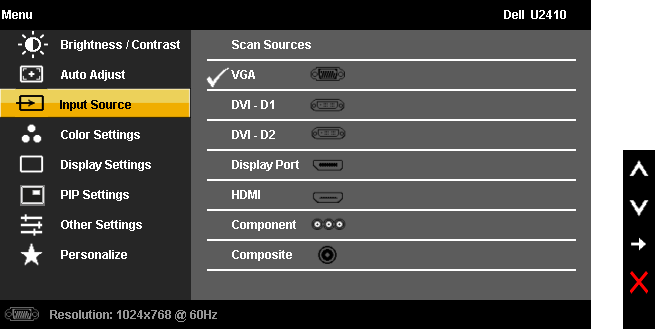
Use the Input Button to Cycle Sources
Even if the monitor is powered on, it may appear “off” because it’s set to the wrong input source. For example, if your PC is connected via HDMI but the monitor is on DisplayPort, the screen stays black. To fix this:
- Press the Input button (usually on the front or side edge).
- A menu appears showing available inputs: HDMI, DisplayPort, VGA, or DVI.
- Press the button repeatedly to cycle through options.
- After each selection, wait 5 seconds for the system to detect a signal.
✅ Visual Cue: The input menu will show which port is active. If the correct one is selected but still no image, the issue is likely with cabling or the source device.
Match Cable to Input Setting
Ensure the video cable from your computer matches the selected input. For example:
– HDMI cable? Set input to HDMI.
– DisplayPort? Switch to DisplayPort.
– Using an adapter? Some adapters (like HDMI to VGA) require external power and may not work reliably.
Test the Power Source and Outlet

Plug Into a Working Outlet
A dead outlet is one of the most overlooked causes of a monitor not turning on. To rule this out:
- Unplug the monitor’s power cord from the current outlet.
- Plug it into a different outlet, ideally one powering another working device like a lamp or phone charger.
- Press the power button again.
If the monitor turns on, the original outlet is faulty or the power strip is switched off.
Check Power Strip or Surge Protector
If you’re using a power strip, take these steps:
– Ensure it’s turned on (some have a visible LED).
– Try plugging another device into the same strip to confirm it’s delivering power.
– Bypass the strip entirely by plugging directly into the wall.
Inspect and Secure All Cables
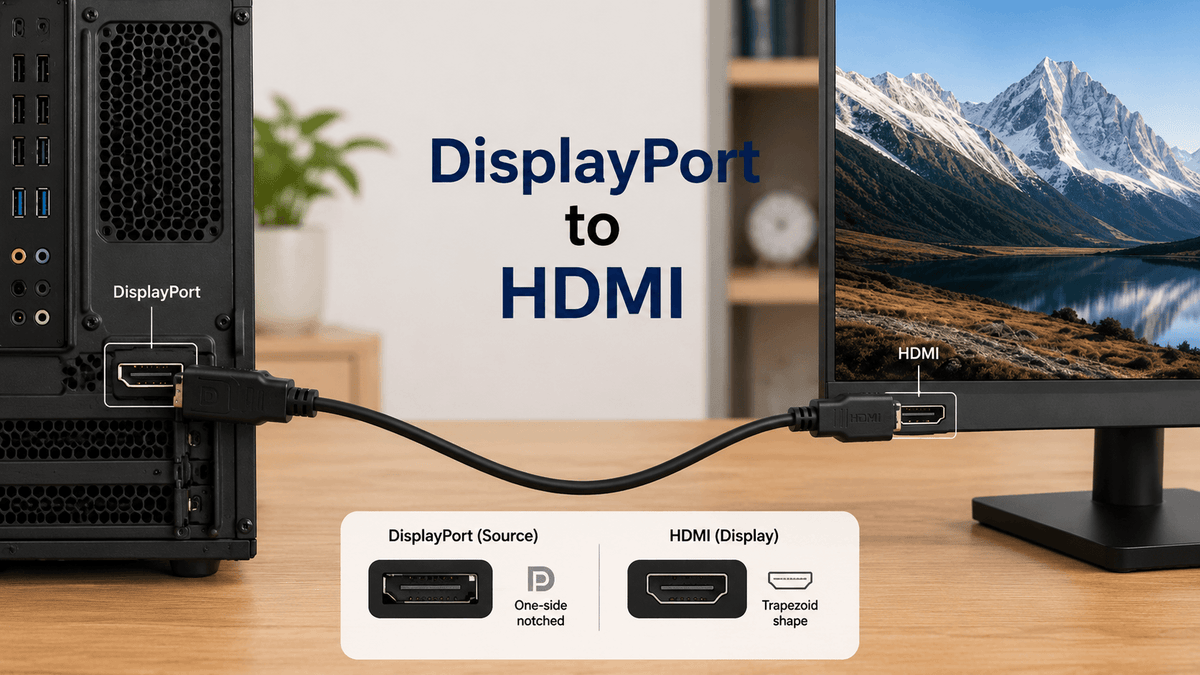
Verify Power Cable Connections
Loose power cables are a common cause of failure. Follow these steps:
- At the monitor, unplug and reseat the power cable to ensure a snug fit.
- At the outlet, confirm the plug is fully inserted.
- Check for damage by looking for frayed wires, bent prongs, or kinks.
⚠️ Warning: Never use a damaged power cable. Replace it immediately to avoid electrical hazards.
Test Video Cable and Ports
Even if the monitor powers on, a faulty video cable can leave you with a blank screen.
- Reseat both ends of the video cable (monitor and computer).
- Inspect for damage, especially near the connectors.
- Try a different cable if possible.
- Test different ports on your computer or monitor (e.g., switch from HDMI 1 to HDMI 2).
If the monitor’s LED turns on but shows “No Signal,” the video cable is likely the culprit.
Perform a Hard Power Cycle
Reset Monitor and Computer
A hard reset clears temporary power glitches in both devices.
- Shut down your computer completely.
- Turn off the monitor using the power button.
- Unplug both devices from the wall.
- Wait 2 to 3 minutes to discharge residual power.
- Plug both back in.
- Turn on the monitor first, then the computer.
✅ This often resolves issues where the monitor fails to wake from sleep or loses sync.
Test with Another Device
Isolate the Problem
To determine if the issue is with the monitor or the computer, connect the Dell monitor to a different device:
- Use a laptop, game console, or streaming device with a compatible video cable.
- Connect and power on the device.
- Press the monitor’s Input button to select the correct source.
Results to look for:
– ✅ Monitor works: The original computer has a graphics or driver issue.
– ❌ Monitor still black: The problem is with the monitor or cable.
🛠️ This test saves time and prevents unnecessary driver reinstallation.
Update or Reinstall Monitor Drivers
Use Device Manager in Windows
If the monitor powers on but flickers, shows wrong resolution, or intermittently disconnects, the issue may be software-related.
- Right-click the Start menu on the Windows taskbar.
- Select Device Manager from the context menu.
- Expand the Monitors category.
- Right-click your monitor (e.g., “Generic PnP Monitor” or “Dell U2422H”).
- Select Properties and navigate to the Driver tab.
- Choose one of the following:
– Update driver to search automatically for newer versions.
– Uninstall device, then restart your PC to trigger auto-reinstall.
✅ Do this after confirming the monitor works with another device to ensure the driver isn’t masking a hardware issue.
Inspect for Physical Damage
Check Screen and Ports
Before concluding the monitor is dead, inspect for visible damage:
- Screen: Look for cracks, dark spots, or water damage.
- Ports: On the monitor and computer, check for bent pins (especially in DisplayPort or VGA), debris, or broken plastic tabs.
- Power brick (if applicable): Some Dell monitors use external power adapters. Ensure they aren’t warm, cracked, or making noise.
🔍 Use a flashlight and magnifier if needed. Even a small bent pin can block connection.
Diagnose Using LED Indicators
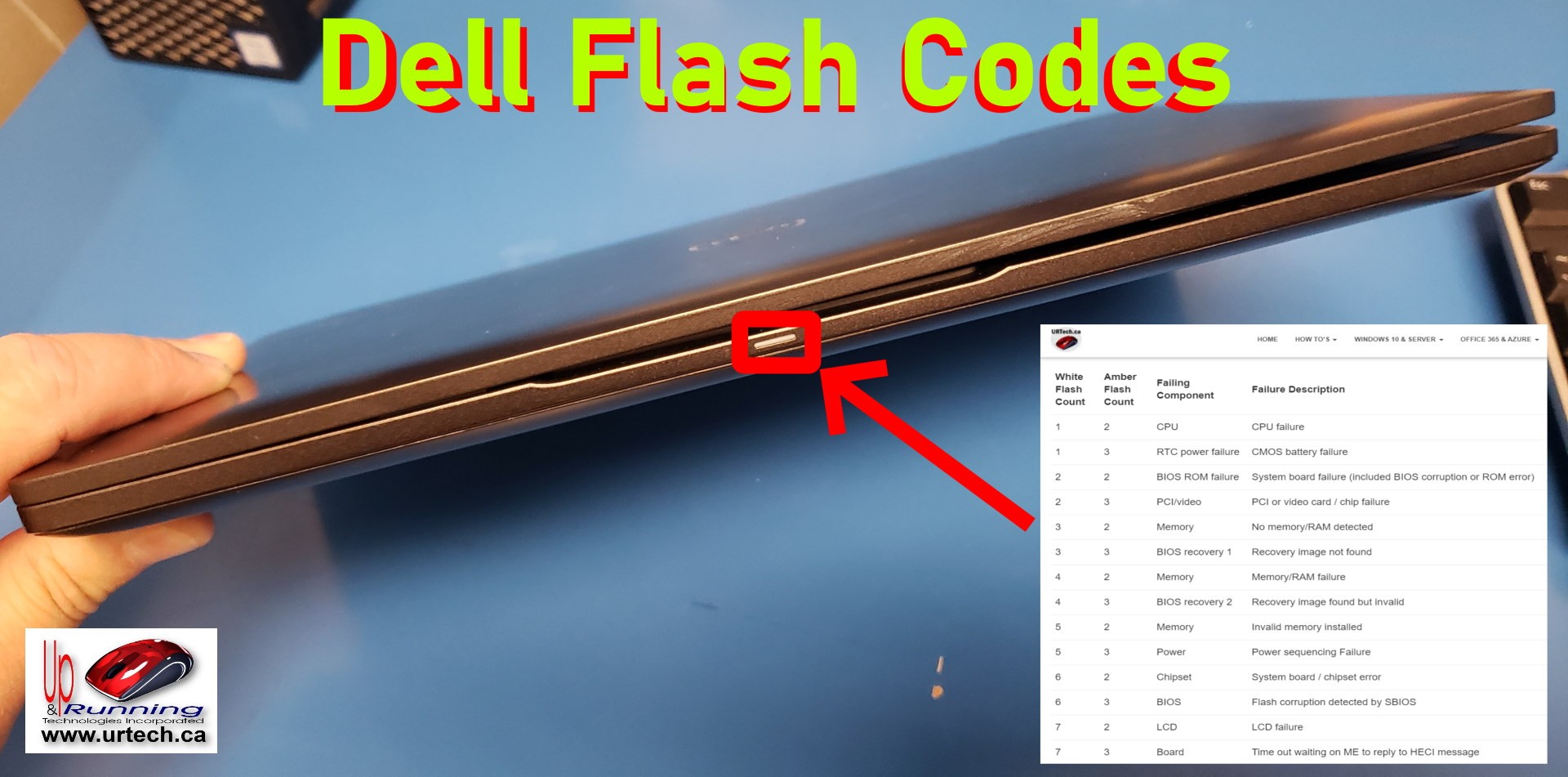
Interpret Power Light Behavior
Dell monitors use LED colors to signal status:
| LED State | Meaning | Action |
|---|---|---|
| Off | No power | Check outlet, cable, button press |
| Amber/Orange | Standby or no signal | Power is on, but no video input |
| White/Blue | Normal operation | Monitor is on and receiving signal |
| Blinking | Signal issue or sleep mode | Check cables, restart computer |
💡 On some models, amber means the monitor is on but in sleep mode due to no signal.
When to Contact Dell Support
Confirm Warranty and Replacement
If all troubleshooting fails and you notice these signs, contact Dell:
– The power button is unresponsive.
– No LED lights up, even with a known good outlet and cable.
– Screen remains black with multiple devices and cables.
The monitor likely has an internal hardware failure, such as a power supply board issue.
Next Steps:
1. Visit Dell Support and enter your monitor’s service tag (found on the back).
2. Check warranty status.
3. Request replacement or repair if covered.
📅 Dell typically offers 3-year warranties on monitors. Keep purchase proof if out of warranty.
Frequently Asked Questions About Turning On a Dell Monitor
Where Is the Power Button on a Dell Monitor?
On many Dell monitors like the U2422H, the power button is on the back of the monitor, near the bottom or center. It’s often recessed inside a small hole or indentation. Reach behind the display and feel for a small, clickable button. Look for the universal power symbol (a circle with a vertical line) next to it.
Why Is My Dell Monitor Not Turning On?
Common causes include a loose power cable, a faulty outlet, a missed recessed power button, or an incorrect input source. Start by testing a different outlet, reseating all cables, and locating the power button on the back panel. If the LED lights up but no image appears, check the input source setting.
How Do I Change the Input Source on My Dell Monitor?
Press the Input button on the front or side edge of the monitor. A menu appears showing available inputs like HDMI, DisplayPort, VGA, or DVI. Press the button repeatedly to cycle through options. Wait 5 seconds after each selection for the system to detect a signal.
What Does the Amber Light on My Dell Monitor Mean?
An amber or orange LED typically means the monitor is powered on but in standby mode or receiving no signal. Check your video cable connections and ensure the correct input source is selected. If the issue persists, perform a hard power cycle by unplugging both the monitor and computer for 2 to 3 minutes.
How Do I Reset My Dell Monitor?
To perform a hard reset, turn off both the monitor and computer, then unplug both from the wall. Wait 2 to 3 minutes to discharge residual power. Plug both back in and turn on the monitor first, then the computer. This clears temporary glitches and often resolves activation issues.
Why Does My Dell Monitor Say No Signal?
A “No Signal” message means the monitor is on but not receiving video from your computer. Check that the video cable is firmly connected at both ends. Verify the correct input source is selected using the Input button. Try a different cable or port, and test the monitor with another device to isolate the problem.
Key Takeaways for Turning On Your Dell Monitor
Knowing how to turn on a Dell monitor goes beyond pressing a button. It involves verifying power, input sources, cables, and device compatibility. Most “off” monitors are actually on but not receiving a signal. Start with the simplest fixes, like locating the recessed power button and checking the input source, before moving to cable tests and hard resets.
For future prevention, label your cables, use surge protectors, and perform monthly connection checks. If problems persist after all troubleshooting steps, leverage Dell’s support. Your monitor may still be under warranty and eligible for repair or replacement.


