
Your screen might feel sluggish because it is not running at its full potential speed. Learning how to change frequency of monitor settings can instantly make scrolling, gaming, and cursor movement feel twice as smooth and responsive.
This guide shows you exactly how to access hidden display settings on Windows 10 and 11 to unlock higher refresh rates. You will also learn how to fix missing options caused by old cables or outdated drivers.
Verify Your Monitor’s Maximum Refresh Rate Capability
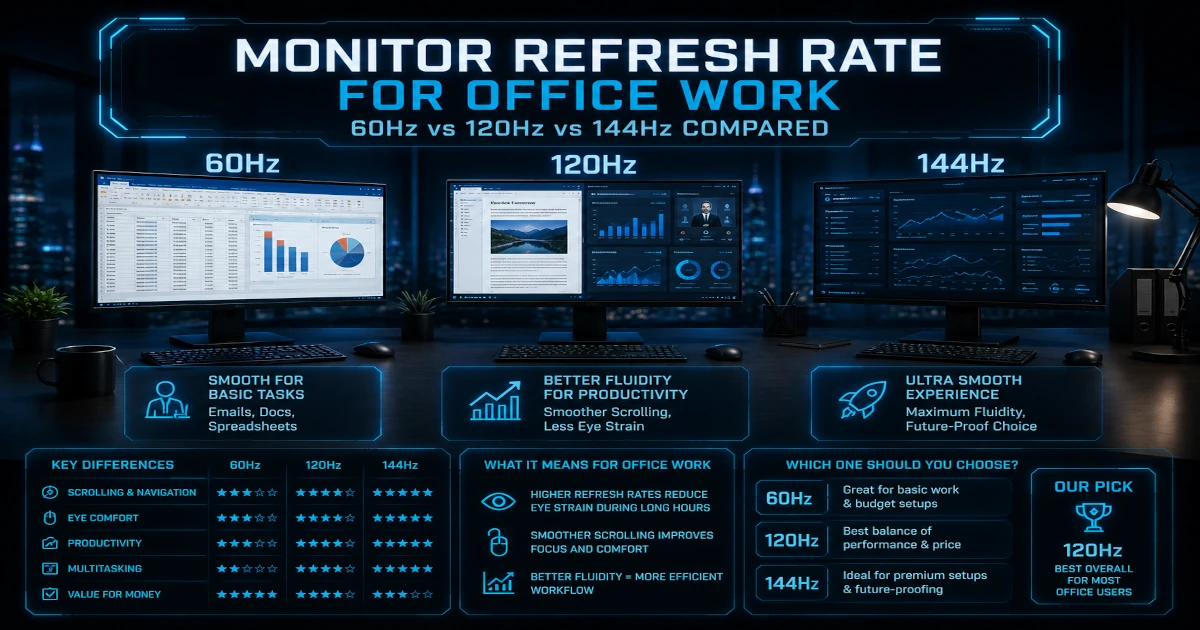
You must confirm your hardware limits before attempting any configuration changes. Attempting to force a rate your screen cannot handle may result in a black screen or temporary signal loss.
Check Manufacturer Specifications
Every display has a native maximum frequency, such as 60 Hz, 120 Hz, or 144 Hz. Consult your user manual or search your model number online to find the official limit. Look for terms like “gaming monitor” or “VRR support” to ensure high-speed capability.
Inspect Current Windows Settings
- Right-click your desktop background and choose Display settings.
- Scroll down and select Advanced display.
- Read the Refresh rate value listed under your display information.
If you see a value like 59.985 Hz on a 60 Hz monitor, this is normal. It represents a technical variation that indicates your system is synchronized correctly.
Adjust Refresh Rate Settings in Windows 11
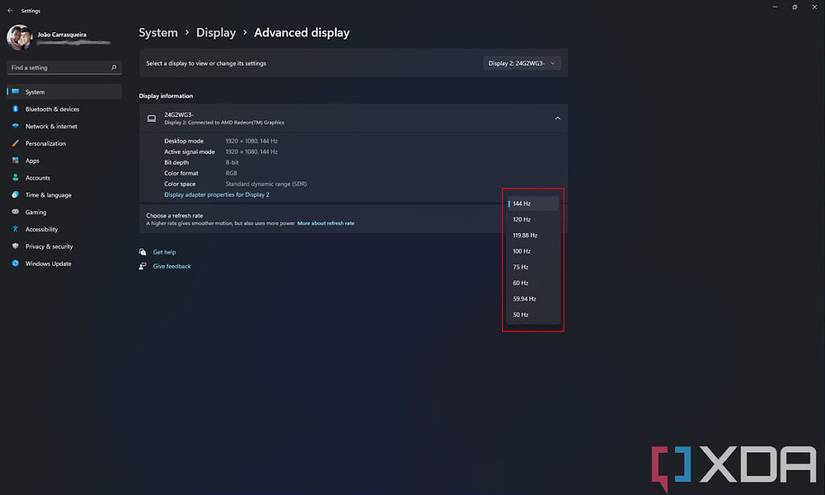
Windows 11 provides a modern interface for managing display performance and includes dynamic features for laptops.
Navigate to Advanced Display Options
- Click Start and open Settings.
- Go to System and select Display.
- Click Advanced display near the bottom of the window.
- Use the Choose display dropdown if you have multiple monitors connected.
- Select your desired speed from the Refresh rate dropdown menu.
⚠️ Warning: An asterisk (*) next to a rate means it does not support your current resolution. Selecting it will automatically change your screen resolution.
Manage Dynamic Refresh Rate Features
Dynamic Refresh Rate (DRR) adjusts speed based on activity to save power on supported devices.
- Open Advanced display in your Settings menu.
- Find the Dynamic refresh rate toggle switch.
- Turn it On to let Windows manage speed or Off for a fixed rate.
✅ Note: This option only appears if your hardware supports DRR, requires Windows 11, and needs a display with at least 120 Hz capability.
Configure Display Frequency in Windows 10
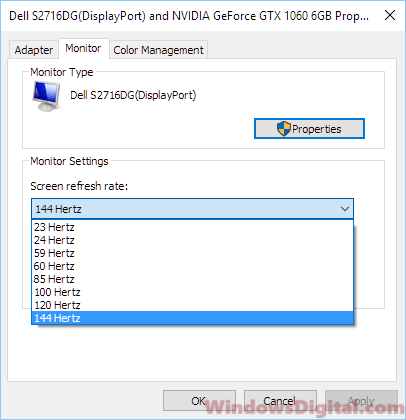
Windows 10 uses a legacy control panel path that offers deep access to adapter properties.
Access Display Adapter Properties
- Right-click an empty space on your desktop.
- Select Display settings from the context menu.
- Scroll down and click Advanced display settings.
- Click the link labeled Display adapter properties for your specific monitor.
Select Frequency via Monitor Tab
- Click the Monitor tab in the small popup window.
- Locate the Screen refresh rate dropdown under Monitor Settings.
- Choose your preferred Hertz value from the list.
- Click OK to apply the new setting immediately.
Windows will keep the change if your display accepts it. If the hardware rejects the setting, the screen will revert to the previous value after 15 seconds.
Utilize GPU Software for Advanced Control

Dedicated graphics software often provides more granular control than standard Windows settings, especially for gaming monitors.
Configure NVIDIA Control Panel
- Right-click your desktop and open NVIDIA Control Panel.
- Navigate to Display and select Change resolution.
- Choose your preferred resolution and Refresh rate from the lists.
- Click Apply to lock in the changes.
You can also create specific profiles for individual games within this menu.
Configure AMD Radeon Software
- Right-click your desktop and open AMD Radeon Software.
- Click the gear icon for Settings and go to Display.
- Enable Custom Resolutions if you need to create a new profile.
- Select your target resolution and pick the desired refresh rate.
💡 Pro Tip: Use these manufacturer tools if Windows fails to show 120 Hz or 144 Hz options even though your monitor supports them.
Resolve Missing High Refresh Rate Options

If your desired frequency is missing, the issue usually lies with your cable, drivers, or resolution settings rather than the monitor itself.
Evaluate Video Cable Bandwidth
Low-quality cables often cap your maximum speed, particularly at high resolutions like 4K.
| Resolution Target | Required Cable Type |
|---|---|
| 1080p @ 120 Hz | High-Speed HDMI |
| 4K @ 60 Hz | High-Speed HDMI |
| 4K @ 120 Hz | Ultra High Speed HDMI or DisplayPort 1.4 |
| 1440p @ 144 Hz | DisplayPort 1.4 or HDMI 2.1 |
🔌 Action Step: Replace old cables with certified Ultra High Speed HDMI or switch to DisplayPort for the best gaming performance.
Update Graphics Drivers
Outdated drivers frequently hide high-frequency options from your settings menu.
- Press Win + X and select Device Manager.
- Expand the Display adapters section.
- Right-click your GPU and choose Update driver.
- Select Search automatically or download the latest version from the NVIDIA or AMD website.
Match Native Resolution Settings
High refresh rates often require your display to run at its native resolution. Running at a lower resolution like 1600×900 may limit you to 60 Hz.
- Go to Display settings in Windows.
- Ensure the resolution is set to the Recommended value.
- Check the refresh rate dropdown again to see if higher options appear.
Troubleshoot Display Flickering and Tearing
Visual artifacts like flickering or tearing can persist even after you change your settings correctly.
Address Screen Flickering
Flicker is rare on modern LCDs but can occur if the rate falls outside the stable range of your display. Loose cable connections can also cause this issue.
✅ Solution: Revert to 60 Hz or 75 Hz temporarily and test with a different cable to isolate the problem.
Eliminate Screen Tearing
Tearing appears as a horizontal split in the image during fast motion. A fixed refresh rate alone cannot fix this issue.
Enable Variable Refresh Rate Technology
Variable Refresh Rate (VRR) syncs your monitor output with your graphics card frame rate.
- AMD FreeSync: Works over HDMI or DisplayPort on compatible screens.
- NVIDIA G-Sync: Requires a G-Sync compatible display, usually via DisplayPort.
To enable these features, open your GPU control panel and look for Set up G-SYNC or FreeSync under the display menu.
⚡ Note: VRR requires support from both your graphics card and your monitor to function.
Optimize Gaming Performance and Battery Life
Gamers need maximum speed while laptop users often need to conserve power when unplugged.
Maximize Frame Consistency
- Set the in-game refresh rate to match your monitor exactly.
- Disable V-Sync inside games if you are using G-Sync or FreeSync.
- Cap your frame rate slightly below the maximum refresh rate to reduce tearing.
Disable DRR for Gaming
Dynamic Refresh Rate can sometimes interfere with non-VRR games by locking them to 60 Hz.
❌ Problem: Your game runs at 60 Hz despite having a 144 Hz monitor.
✅ Fix: Turn off Dynamic refresh rate in your Windows 11 display settings before launching the game.
Reduce Rate to Save Battery
Lowering your refresh rate significantly reduces power consumption on laptops.
- Go to Settings > System > Display > Advanced display.
- Change the rate from 120 Hz or higher down to 60 Hz.
- Notice the improvement in battery life during your next usage session.
🔋 Benefit: This simple switch can extend laptop battery life by 1 to 2 hours on high-end devices.
Avoid Common Configuration Mistakes
Prevent display errors by understanding the limitations of your hardware setup.
Do Not Force Unsupported Rates
Manually creating custom refresh rates using third-party tools can cause your screen to go black or enter a permanent sleep mode.
🛑 Warning: Only use rates that appear in the official dropdown lists provided by Windows or your GPU manufacturer.
Avoid Non-Native Resolutions
Running a 1080p signal on a 1440p monitor forces the display to scale the image. This process reduces available bandwidth and often caps your maximum refresh rate.
✅ Best Practice: Always use the native resolution listed as “Recommended” for maximum performance.
Future-Proof Your Display Setup
Ensure your system remains compatible with emerging standards and security updates.
Upgrade to Windows 11 for DRR
Dynamic Refresh Rate is exclusive to Windows 11 and will not work on older operating systems. As of October 14, 2025, Windows 10 will no longer receive security updates.
🔄 Next Step: Upgrade to Windows 11 if you own a 120 Hz laptop and want adaptive refresh features for better battery life.
Invest in High-Speed Cables
Do not let an inexpensive cable limit the performance of an expensive monitor.
✅ Buy: Certified Ultra High Speed HDMI or DisplayPort 1.4/2.1 cables to support 4K at 120 Hz or 1440p at 165 Hz.
Frequently Asked Questions About Changing Monitor Frequency
Why is my 144 Hz monitor stuck at 60 Hz?
This usually happens due to a bandwidth bottleneck. Check that you are using a high-speed cable like DisplayPort 1.4 or Ultra High Speed HDMI. You should also verify that your graphics drivers are up to date and that you are running at the native resolution.
Is it safe to change my monitor refresh rate?
Yes, it is completely safe. Windows will automatically revert to the previous setting within 15 seconds if your monitor cannot support the selected rate. This prevents any permanent damage to your hardware.
What is the difference between 60 Hz and 120 Hz?
A 60 Hz screen updates the image 60 times per second, while a 120 Hz screen updates 120 times. The higher rate results in significantly smoother motion, reduced input lag, and less motion blur, which is crucial for gaming and fast scrolling.
Can I lower my refresh rate to save laptop battery?
Absolutely. Lowering your refresh rate from 120 Hz to 60 Hz reduces the energy your display consumes. This is an effective way to extend battery life when you are not gaming or doing high-motion work.
Why don’t I see the Dynamic Refresh Rate option?
Dynamic Refresh Rate (DRR) is only available on Windows 11. Additionally, your hardware must support Variable Refresh Rate (VRR) and your monitor must have a minimum capability of 120 Hz for this option to appear.
Key Takeaways for Changing Monitor Frequency
Mastering how to change frequency of monitor settings unlocks smoother visuals and better responsiveness for all your tasks. Always ensure your cable, drivers, and resolution match your monitor’s native capabilities to access the highest available refresh rates.
Remember to disable Dynamic Refresh Rate when gaming if you encounter performance issues, and lower your refresh rate on battery power to extend your laptop usage. Check your settings today to ensure you are getting the full performance you paid for.


