
Does your screen feel choppy even with a powerful PC? You might wonder how to make monitor smoother to fix this frustrating lag. High specs mean nothing if your settings create bottlenecks that ruin your experience.
This guide reveals exact steps to sync frame rates, disable laggy features, and optimize cables. You will learn to eliminate stutter and unlock the full speed of your hardware today.
Sync Refresh Rates and Frame Counts
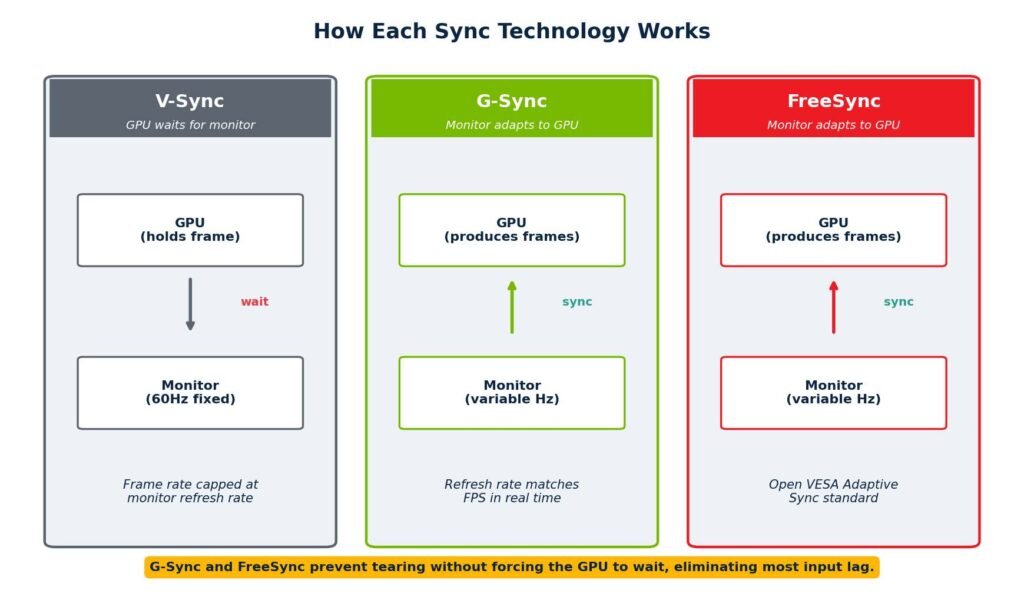
Smooth visuals require your GPU output to match your display capability perfectly. A mismatch causes tearing, stuttering, or wasted performance potential.
Match FPS to Monitor Hz
Your monitor can only show as many frames as its refresh rate allows. If you have a 144 Hz screen but run games at 60 FPS, you miss out on significant smoothness. Aim to run games at or near your monitor’s maximum refresh rate for the best results. Higher frame rates reduce the time between updates from 16.6ms to 8.3ms or less.
Enable Variable Refresh Rate Technologies
Variable Refresh Rate (VRR) technologies like G-Sync and FreeSync dynamically match your screen to your GPU. This eliminates screen tearing when your frame rate fluctuates during gameplay. Enable this feature in both your monitor menu and graphics driver settings for single-player games. Competitive players may prefer disabling it to save 1 to 5 ms of input lag.
Cap Frame Rates Below Maximum Limits
Cap your frame rate slightly below your monitor’s maximum refresh rate to prevent micro-stutters. For a 240 Hz display, set your limit to 237 FPS using in-game tools or driver software. This buffer ensures your GPU never briefly exceeds the panel capability and breaks synchronization.
Optimize Monitor On-Screen Display Settings
Your monitor processes images before showing them, which adds delay. Disabling unnecessary features creates a faster path from your computer to your eyes.
Disable HDR and Image Enhancements
High Dynamic Range (HDR) often adds input lag due to complex tone mapping. Switch to Standard Dynamic Range (SDR) if you feel any delay in your controls. Turn off features like Dynamic Contrast, Noise Reduction, and AI Picture Cleanup immediately. These filters add processing layers that slow down pixel rendering.
Turn Off sRGB and Blue Light Filters
The sRGB mode on monitors forces a limited color range and adds processing overhead. Disable this setting unless you perform color-critical work that requires it. Low Blue Light modes also reduce input responsiveness significantly. Use operating system features like Windows Night Light instead to save your eyes without the lag.
Enable Overdrive for Faster Pixel Response
Overdrive accelerates how fast pixels change color to reduce motion blur. Set this option to Extreme or Maximum in your monitor menu for the sharpest image. Watch for inverse ghosting, which appears as bright trails behind moving objects. Reduce the setting by one level if you see these visual artifacts.
Verify Cables and Connection Types
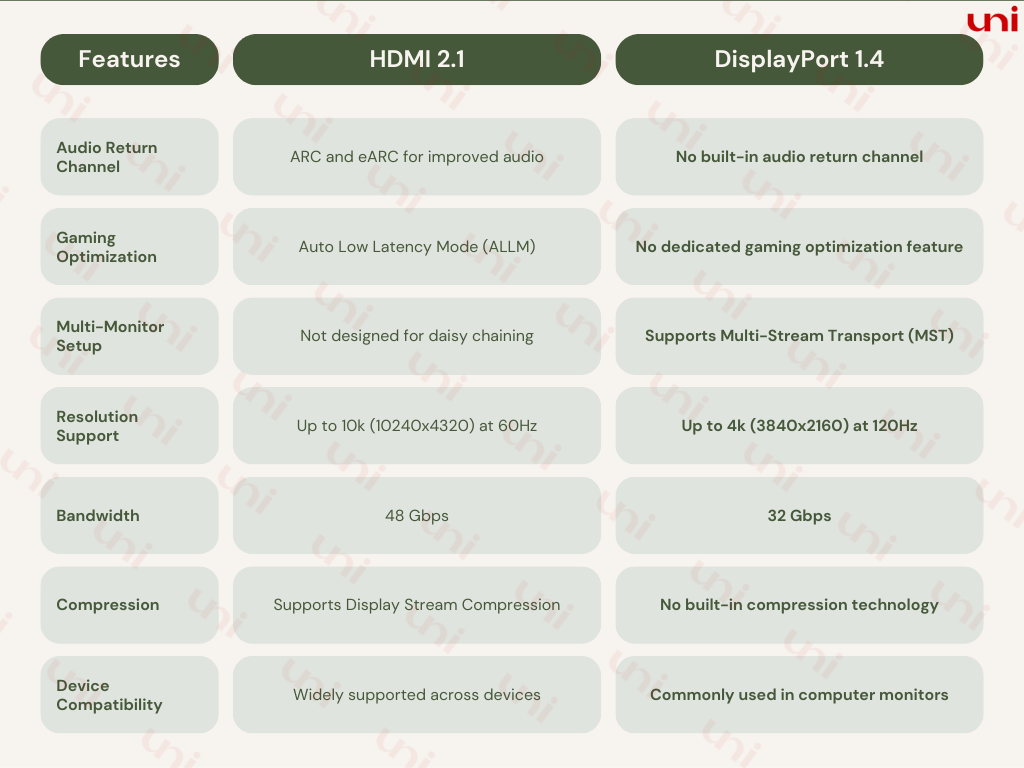
Poor cables act as bottlenecks that force your system to lower its performance. Using the wrong connection type can cap your refresh rate at 60 Hz.
Choose DisplayPort for PC Gaming
DisplayPort 1.4 or higher is the best choice for PC gaming setups. It offers more consistent bandwidth for high refresh rates and full VRR support compared to HDMI. Always plug your cable directly into your graphics card, not the motherboard. Avoid using adapters unless they explicitly support your target resolution and refresh rate.
Verify HDMI Version for Consoles
Consoles like PlayStation 5 and Xbox Series X need Ultra High Speed HDMI 2.1 cables for 4K at 120 Hz. Older HDMI 2.0 cables cannot handle this bandwidth and will limit you to 60 Hz. Check your console video settings to ensure it detects the correct signal. Disable any soundbars or capture cards while troubleshooting connection issues.
Avoid Multi-Monitor Refresh Conflicts
Running multiple displays with different refresh rates can force Windows to downgrade your main screen. Your 144 Hz gaming monitor might drop to 60 Hz because of a secondary office display. Disconnect extra monitors during competitive sessions to prevent this issue. Alternatively, use a KVM switch to isolate your gaming display completely.
Fix Refresh Rate and Timing Errors
Windows does not always select the best settings automatically. You must verify and sometimes manually correct these values for perfect performance.
Set Native Resolution and Refresh Rate
Always run your monitor at its native resolution to avoid blurry scaling. Go to Display Settings in Windows and select the highest available refresh rate. If the option is missing, check your cable quality or try a different port. Right-click the desktop and select Display Settings to verify your current configuration.
Correct Floating-Point Refresh Rates with CRU
Some monitors report refresh rates as odd numbers like 143.999 Hz instead of 144 Hz. This can cause micro-stutter that ruins the smooth feeling. Use Custom Resolution Utility (CRU) to force exact integer values.
* Run the tool as an administrator.
* Select your monitor and edit the extension blocks.
* Change the timing to Exact and enter 144 or 240.
* Save changes and run the restart utility.
Optimize NVIDIA Timing for Lower Lag
NVIDIA users can manually adjust display timing to reduce input lag further. Open the NVIDIA Control Panel and create a custom resolution with manual timing. Reduce the Horizontal and Vertical Front Porch values in small steps. Increase Vertical Total Pixels gradually to find the maximum stable value. This process shortens blanking intervals and speeds up screen scanout.
Leverage Frame Generation Technologies

Frame generation creates artificial frames to make gameplay look smoother when your hardware struggles. This is a powerful tool for specific scenarios.
Use NVIDIA Smooth Motion or AMD AFMF
NVIDIA Smooth Motion and AMD Fluid Motion Frames use AI to double your frame rate. These technologies work best when your native frame rate is stable above 50 FPS. Enable them in your graphics driver control panel for supported games. Be aware that they add 5 to 15 ms of latency to the system.
Try Lossless Scaling for Any Game
Lossless Scaling is a third-party tool that injects frame generation into any application. It works on older games, emulators, and videos that lack native support. You can scale 60 FPS up to 240 FPS for incredibly smooth motion. Do not use this for competitive multiplayer due to the added input delay.
Know When Frame Gen Works Best
Use frame generation for story-driven single-player games where visual fluidity matters most. It transforms choppy experiences into smooth journeys without needing a new GPU. Avoid using it in competitive shooters where reaction time is critical. The trade-off of smoothness for latency is not worth it in fast-paced matches.
Console-Specific Smoothing Tips
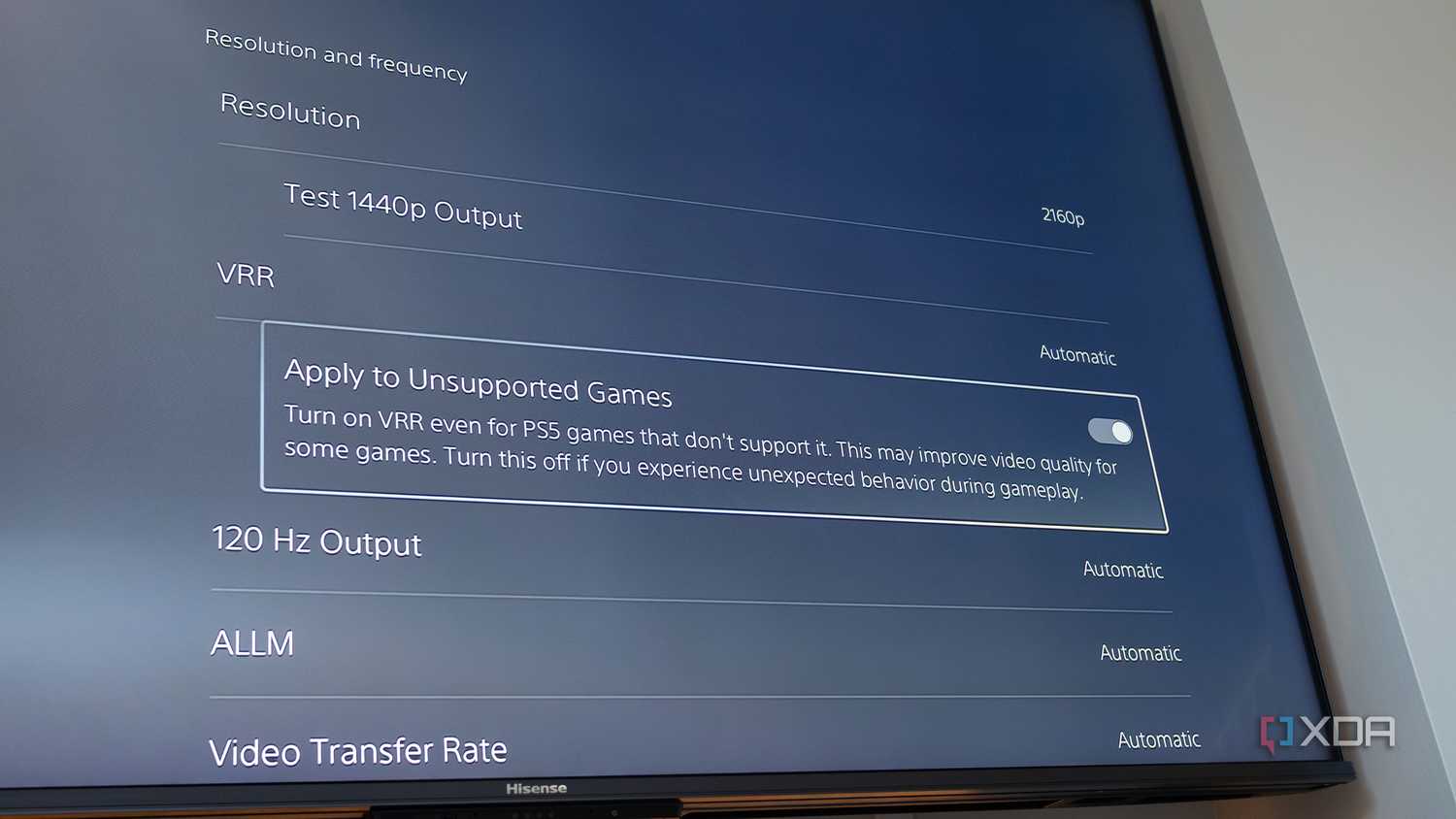
Consoles have unique settings that can impact smoothness significantly. Optimizing these ensures you get the best experience from your hardware.
Enable Game Mode and VRR
Enable Game Mode on your TV or monitor to bypass unnecessary image processing. This setting reduces input lag drastically for a more responsive feel. Pair this with VRR to smooth out frame rate fluctuations in Quality Mode. Many games unlock a smoother 40 FPS mode only when a 120 Hz display is detected.
Disable Motion Interpolation on Console
Motion smoothing features add fake frames to video content but ruin gaming responsiveness. Labels like MotionFlow or Auto Motion Plus indicate this feature is active. Turn these off immediately as they can add over 50 ms of delay. Keep them disabled even when playing in high-fidelity modes.
Match Resolution and Refresh Output
Set your console to output at your monitor’s native resolution. If you have a 1440p monitor, select 1440p in your console settings instead of 4K. Forcing the console to scale the image adds unnecessary delay. Ensure your output is set to 120 Hz if your display supports it.
Troubleshoot Common Smoothness Issues
Specific problems often have simple solutions if you know where to look. Follow these steps to resolve persistent stutter or lag.
Fix Stutter on 60 FPS Games
Games locked at 60 FPS can feel uneven on high-refresh monitors. Cap the frame rate to 57–59 FPS to avoid conflicts with VRR ranges. Try running the game in exclusive Full Screen mode rather than Borderless Windowed. You can also use frame generation tools to convert 60 FPS to 120 FPS.
Recover from Black Screen After Timing Changes
Custom timing changes might cause a black screen if the monitor cannot handle them. Wait 15 seconds for Windows to automatically revert the settings. If that fails, reboot and press F8 to enter safe mode if supported. Reapply your changes with smaller increments to find a stable configuration.
Stop Monitor Dropping to 60 Hz
If your refresh rate keeps resetting, check your cable certification first. Ensure you use a certified Ultra High Speed HDMI or DisplayPort 1.4 cable. Update your graphics drivers through the Device Manager. Use the List All Modes option in Advanced Display Settings to manually force the high refresh rate.
Frequently Asked Questions About Monitor Smoothness
Why does my 144 Hz monitor feel like 60 Hz?
Your computer might be outputting only 60 FPS or the cable might limit the signal. Check Windows Display Settings to ensure the refresh rate is set to 144 Hz. Also, verify your game settings are not capped at 60 FPS.
Does turning off HDR make games smoother?
Yes, disabling HDR often reduces input lag because the monitor performs less image processing. While HDR looks better, it can make controls feel sluggish. Switch to SDR if you notice any delay in your gameplay.
Can frame generation reduce input lag?
No, frame generation typically adds 5 to 15 ms of input lag. It creates smooth visuals by inserting artificial frames, which increases the time between your input and the result. Avoid it for competitive gaming where reaction speed is vital.
What cable do I need for 4K 120 Hz on consoles?
You need an Ultra High Speed HDMI 2.1 cable to achieve 4K at 120 Hz. Older HDMI 2.0 cables cannot carry enough data for this resolution and refresh rate combination. Ensure both your console and monitor support HDMI 2.1 features.
How do I stop inverse ghosting on my screen?
Inverse ghosting happens when Overdrive is set too high. Lower the Overdrive or Response Time setting in your monitor menu by one level. Test with fast-moving text until the bright trails disappear.
Key Takeaways for Making Your Monitor Smoother
Achieving a smoother monitor requires matching your frame rate to your refresh rate and removing processing delays. Start by verifying your cable quality and ensuring Windows uses the correct refresh rate. Disable all image enhancements like HDR and motion smoothing to cut input lag immediately.
Use tools like CRU to fix floating-point refresh rates and consider frame generation for single-player games only. Take action today by checking your current settings and applying these fixes to transform your gaming experience.


