
You just unboxed a new display or planned a desk upgrade, but you need to know how to measure monitor size correctly. Getting this wrong leads to poor ergonomics, wasted desk space, and buyer remorse.
This guide shows you the exact steps to measure your screen diagonal, explains standard sizes, and helps you match resolution to your workflow. You will learn to avoid common pitfalls regarding bezels and aspect ratios.
Measure the Diagonal Viewable Area Only
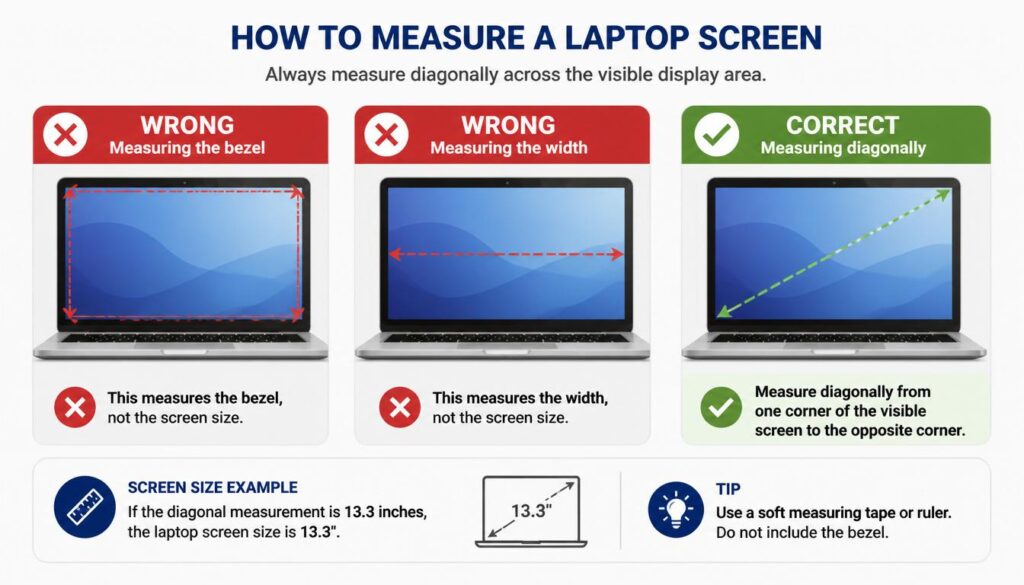
The industry defines monitor size by the diagonal length of the lit screen area. This measurement strictly excludes the plastic bezel, the stand, and any external casing.
Select the Correct Measuring Tool
Choose a rigid ruler for screens under 24 inches to ensure a straight edge. Use a flexible tape measure for larger displays or curved monitors to span the distance easily.
Ensure your tool displays inches since manufacturers universally list sizes in this unit. A flexible tape conforms better to large diagonals without slipping.
Position Tool at Bottom-Left Corner
Power off your monitor to eliminate glare and see the panel edges clearly. Place the zero mark of your tool at the extreme bottom-left corner of the visible glass.
Do not include any part of the black plastic border or frame in your starting point. Accuracy depends on starting exactly where the lighted area begins.
Extend Tape to Top-Right Corner
Stretch the tape in a straight line to the opposite top-right corner of the viewable area. Keep the tape taut and ignore any curvature of the screen surface.
Read the number where the tape meets the top-right edge. A measurement of 23.6 inches typically means you have a marketed 24-inch monitor.
Pro Tip: Measure from bottom-right to top-left as well. Both diagonal readings should match closely to confirm accuracy.
Identify Standard Monitor Size Categories
Monitors fall into specific size classes that dictate their best use cases. Knowing these ranges helps you compare models effectively.
Compact Screens: 19 to 21 Inches
These small displays suit tight spaces or secondary roles. They offer high pixel density for sharp text at close range.
- Ideal for dorm rooms or point-of-sale systems
- Excellent as vertical coding companions
- Low power consumption and high portability
Standard Entry: 22 to 24 Inches
This range remains the most common choice for general office work. It balances screen real estate with a small physical footprint.
- Perfect match for 1080p resolution clarity
- Fits most desk depths comfortably
- Affordable replacement options widely available
Mid-Range Premium: 27 to 32 Inches
Larger panels in this category support higher resolutions like 1440p and 4K. They provide ample room for multitasking without excessive head movement.
- New standard for home and creative offices
- Enables effective split-screen workflows
- Immersive experience for media and gaming
Ultrawide and Massive Panels: 34 Inches and Up
Ultrawide monitors use wider aspect ratios to replace dual-monitor setups. Massive screens approach television sizes for specialized immersion.
- Panoramic views for video editing timelines
- Replaces bezel gaps found in dual setups
- Requires deep desks and powerful graphics cards
Match Resolution to Screen Dimensions

Screen size alone does not determine image quality. You must pair the diagonal measurement with the appropriate resolution to avoid pixelation.
Resolution Guidelines by Size
| Monitor Size | Ideal Resolution | Reason |
|---|---|---|
| 22–24″ | 1920×1080 | Maintains sharpness without scaling |
| 27–32″ | 2560×1440 or 4K | Prevents visible pixels at normal distance |
| 34″+ Ultrawide | 3440×1440 | Supports wide workspace clarity |
| 43″+ | 4K or higher | Essential for giant screen fidelity |
Warning: Running 1080p on a 32-inch screen makes individual pixels visible. Avoid this combination for text-heavy work.
Understand Pixel Density Impact
Larger screens stretch the same number of pixels over more area. This reduces Pixels Per Inch (PPI) and results in a softer image.
A 24-inch 1080p screen looks sharper than a 27-inch 1080p screen. Always increase resolution as you increase screen size to maintain crispness.
Evaluate Aspect Ratio Differences

Two monitors with the same diagonal size can have vastly different shapes. The aspect ratio determines the width and height proportions.
Standard 16:9 Widescreen
This is the default format for most users. It works well for general computing and watching standard video content.
- Balanced for office applications
- Compatible with most media formats
- Predictable physical dimensions
Ultrawide 21:9 Format
These screens offer 33 percent more horizontal space than standard models. They feel significantly wider despite similar diagonal measurements.
- Great for spreading out code editors
- Ideal for viewing full video timelines
- Enhances peripheral vision in games
Super Ultrawide 32:9 Format
This ratio equals two 16:9 monitors side by side without a gap. It creates an expansive canvas for specialized professional use.
- Common in financial trading floors
- Used for high-end flight simulators
- Demands significant desk depth
Choose Size Based on Your Activity
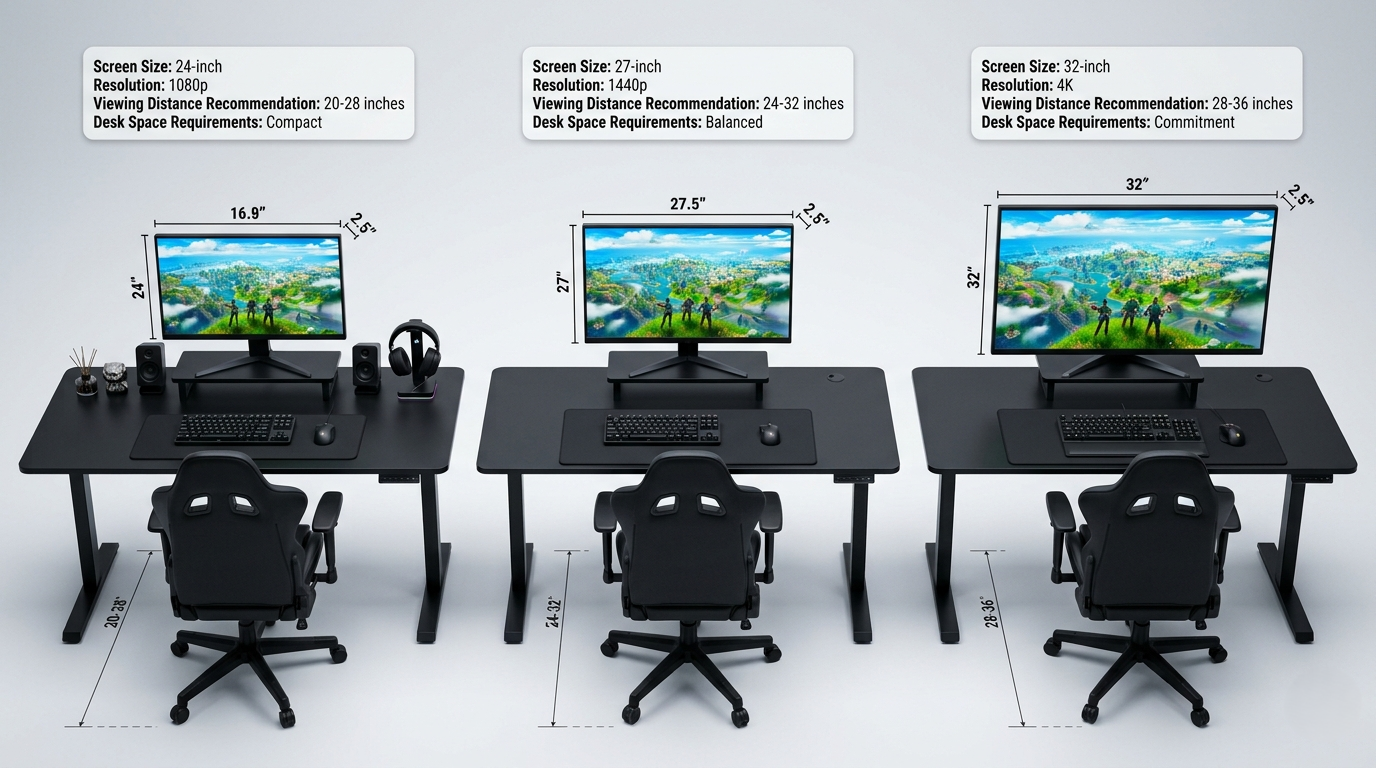
Your primary tasks should drive your size decision more than trends do. Different activities benefit from specific screen dimensions.
Competitive Gaming Needs
Fast-paced games require you to see the entire battlefield instantly. Smaller screens reduce the need for excessive eye movement.
- Recommended size is 24 to 27 inches
- Prioritize high refresh rates over size
- Prevents missing action at screen edges
Immersive Gaming and Simulations
Role-playing games and racing sims benefit from wrapping around your field of view. Larger or curved screens enhance this sensation.
- Opt for 32-inch or ultrawide displays
- Curved panels reduce eye strain
- Requires strong GPU for high resolutions
Creative and Productivity Work
Designers and editors need space for tools and previews. Larger screens allow you to keep multiple windows open simultaneously.
- Minimum 27 inches for design work
- Ultrawide helps organize complex timelines
- High resolution ensures detail accuracy
Verify Desk Space and Viewing Distance
Physical constraints often limit your options more than budget does. You must measure your available area before buying.
Calculate Total Footprint
Measure the width and depth of your desk including the monitor stand. Bezels and bases add inches to the total space required.
- Account for cable clearance behind the unit
- Use painter’s tape to outline the footprint
- Check if the stand fits your desk depth
Optimize Viewing Distance
Sitting too close to a large screen causes eye strain. Sitting too far from a small screen reduces detail visibility.
| Screen Size | Recommended Distance |
|---|---|
| 24″ | 20 to 30 inches |
| 27″ | 24 to 36 inches |
| 32″+ | 36 inches or more |
Use the arm’s length rule as a quick check. You should be able to touch the screen with your fingertips when seated.
Ensure Graphics Card Compatibility
Larger monitors often come with higher resolutions that demand more processing power. Your computer must handle the pixel count.
Assess GPU Requirements
A 24-inch 1080p display runs easily on basic hardware. A 32-inch 4K screen requires a dedicated mid-range or high-end graphics card.
- High refresh rates increase GPU load
- 4K gaming needs significant power
- Check specs before upgrading size
Avoid Performance Bottlenecks
Pairing a weak graphics card with a massive high-resolution monitor leads to stuttering. Verify your system can drive the display smoothly.
- Test performance at target resolution
- Consider lowering settings if needed
- Upgrade GPU if frame rates drop
Compare Ultrawide to Dual Monitors

Expanding your workspace involves choosing between one large panel or two smaller ones. Each approach has distinct advantages.
Benefits of Ultrawide Monitors
Single large panels offer a seamless visual experience. There is no bezel interrupting your workflow across the screen.
- Clean cable management with one cord
- Unified desktop space for dragging windows
- Superior immersion for simulations
Benefits of Dual Monitor Setups
Two separate screens allow for distinct task isolation. You can dedicate one screen to communication and the other to deep work.
- Flexible orientation options available
- Cost-effective if reusing old hardware
- Clear visual separation of duties
Recognize Value in Smaller Displays
Do not dismiss smaller monitors as obsolete. They offer specific benefits that large screens cannot match.
Advantages of Compact Sizes
Smaller screens fit easily on cramped desks. They are also more portable for travelers or temporary setups.
- Higher pixel density at 1080p
- Lower energy consumption overall
- Reduced head turning for focus
Adjust Virtual Display Scaling
You can change how content appears without buying new hardware. Software settings help optimize readability on any size.
Use Operating System Scaling
Increase the scale of text and icons in your system settings. This makes elements larger on high-resolution screens.
- Improves readability on 4K displays
- Mimics a smaller effective workspace
- Maintains sharpness of original resolution
Utilize Virtual Desktops
Organize your workflow into multiple virtual spaces. This helps manage clutter on smaller physical screens.
- Separate work and personal apps
- Reduce window switching fatigue
- Maximize limited screen real estate
Maintain and Mount Your Display Properly
Larger screens require specific care to ensure longevity. Proper mounting also improves ergonomics and saves space.
Clean Screen Safely
Use a microfiber cloth to wipe dust gently. Spray cleaner on the cloth rather than directly on the panel.
- Avoid ammonia-based cleaning products
- Clean weekly to remove fingerprints
- Prevents coating damage over time
Install Monitor Arms
Large monitors often have bulky stands. A VESA-compatible arm frees up desk space and improves positioning.
- Allows height and tilt adjustments
- Reduces neck strain significantly
- Check weight limits before installing
Frequently Asked Questions About Monitor Size Measurement
Does monitor size include the bezel?
No, monitor size refers only to the diagonal measurement of the viewable screen area. The plastic frame or bezel is explicitly excluded from this standard industry measurement.
How do I measure a curved monitor accurately?
Ignore the curve and measure a straight line from the bottom-left corner to the top-right corner of the lit panel. Do not follow the contour of the screen with your tape measure.
Why does my 23.6-inch monitor say 24 inches?
Manufacturers round diagonal measurements to the nearest whole number for marketing purposes. A screen measuring 23.6 inches is standardly sold as a 24-inch monitor.
Can I use a metric tape measure for this?
Yes, but you must convert the result to inches since monitor sizes are universally listed in inches. Multiply your centimeter measurement by 0.39 to get the approximate inch size.
Does aspect ratio change the diagonal size?
No, the diagonal measurement remains the same regardless of aspect ratio. However, a wider aspect ratio changes the width and height proportions of the screen.
What if my measurement differs slightly from the label?
Small variations are normal due to manufacturing tolerances. As long as your measurement is close to the marketed size, the display is likely standard.
Key Takeaways for Measuring Monitor Size
Accurately measuring your monitor involves focusing strictly on the diagonal viewable area in inches. Ignoring the bezel and stand ensures you get the true industry-standard size for your setup.
Always pair your screen size with the correct resolution and verify your desk space before purchasing. This approach guarantees optimal ergonomics and performance for your specific workflow needs.
Measure your current setup today using these steps to confirm your specifications. Then use this data to make informed decisions about future upgrades or adjustments.


