
You press the button, but nothing happens. Your MSI monitor stays dark, and frustration sets in fast. The good news is that most power-on problems come down to simple fixes that take only minutes once you know where to look. This guide covers how to turn on an MSI monitor across popular models like Optix, G series, and MPG displays.
By the end, you will know exactly where the power button sits, how to connect cables correctly, and how to solve common issues like “No Signal” errors before they ruin your next gaming session or workday.
Find the Power Button on Your MSI Monitor
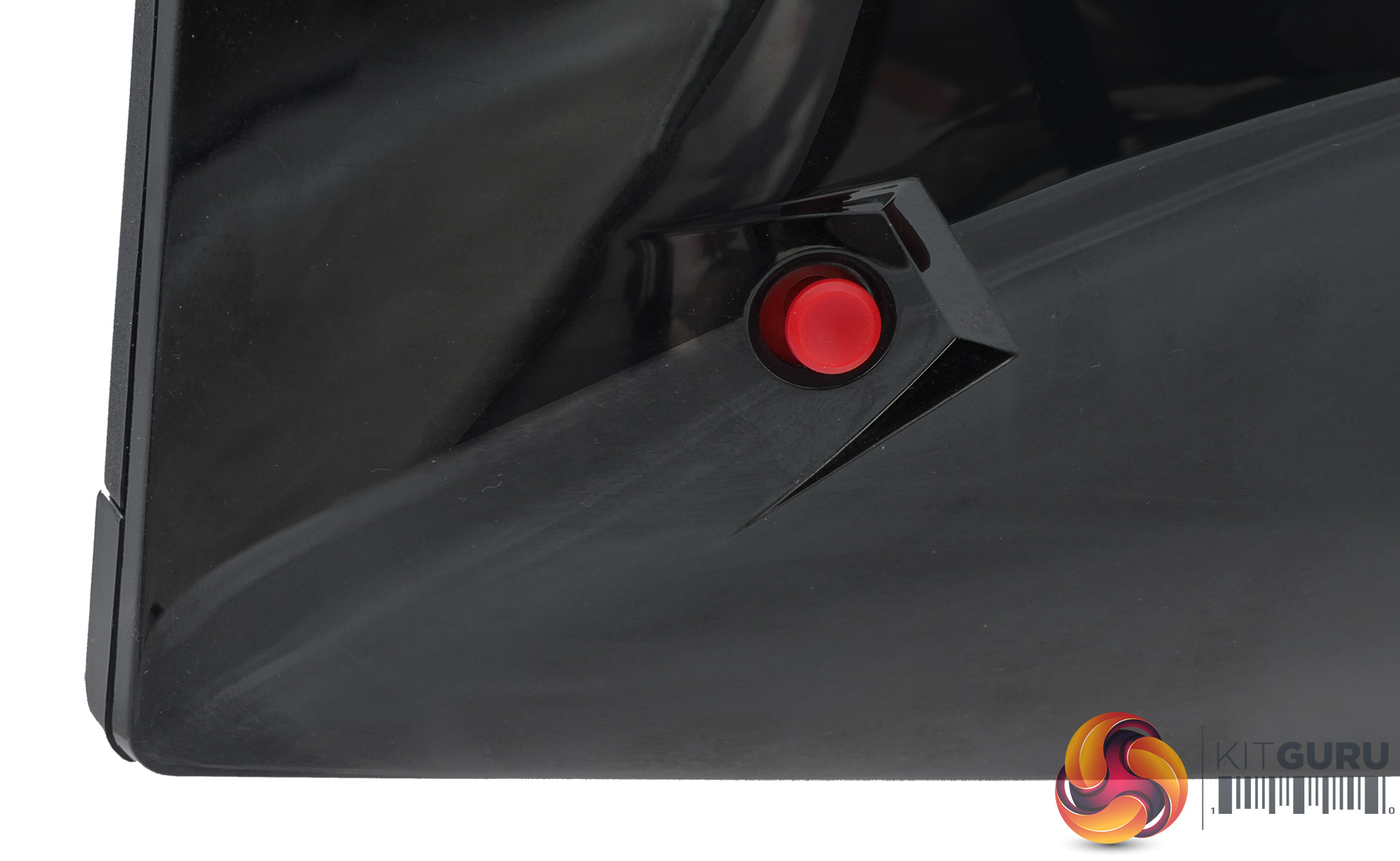
Common Button Locations Across Models
MSI does not standardize the power button position across its lineup. Depending on your specific model, the button may sit in one of several spots:
- On the back right side near the input ports
- Along the bottom edge beneath the bezel
- Built into the Navi Key joystick on the rear panel
- Tucked behind the screen or recessed into the casing
Many Optix monitors place the button on the back right, while MPG series displays often use the center press of the Navi Key to control power.
Joystick vs Physical Button Differences
If your monitor uses a Navi Key joystick, pressing it inward activates the power function. Hold for one to two seconds to turn the display on or off. Models with physical buttons typically include a dedicated power key among a cluster of controls on the bottom or back.
Visual Tip: Look for the standard power symbol, a small circle with a vertical line, etched near the button. The icon is usually white or red.
Connect the Power and Video Cables

Plug In the Power Supply
Before pressing any button, confirm the electrical setup is solid:
- Insert the power cable firmly into the DC input port on the back of the monitor
- Plug the other end into a working wall outlet or surge protector
- Use the original power adapter that shipped with your monitor
Third-party adapters can deliver the wrong voltage and prevent startup entirely.
Test the outlet: Plug in a lamp or phone charger to confirm the outlet is live.
Secure Your Video Cable
Your monitor needs both power and a video signal to display anything. Choose the right cable type for your setup:
- HDMI: Most common for PCs and consoles
- DisplayPort: Best for high refresh rates like 144Hz or 165Hz
- USB-C: Used on some modern laptops and portable devices
- VGA or DVI: Older connections found on legacy systems
After selecting the right cable, connect one end to your PC’s GPU port and the other to the matching input on the monitor. Ensure both ends are fully seated, since loose cables are a leading cause of “No Signal” errors.
Pro Tip: When using HDMI, plug into the GPU directly, not the motherboard, unless you rely on integrated graphics.
Press the Power Button
Activate the Monitor
Once cables are secure, follow these steps:
- Locate the power button based on your model
- Press once, or press and hold the Navi Key for one second
- Watch for the LED indicator to light up
The LED typically glows blue, white, or green when the display is active. A blinking light signals standby, while no light means power is not reaching the monitor.
Recognize Power Indicator States
| LED Behavior | Meaning |
|---|---|
| Solid color | Monitor is on and active |
| Blinking slowly | In sleep or standby mode |
| No light | No power, check cables and outlet |
| Red or amber | Standby or low-power mode |
If the LED never lights up, return to the previous section and verify every power connection.
Select the Correct Input Source

Use the OSD to Choose Input
Even with power and video cables connected, your monitor may show “No Signal” if it is set to the wrong input. To fix this:
- Press any button on the monitor, such as Menu or Input, to wake the OSD
- Use the joystick or arrow buttons to navigate to Input Source
- Select the port you are using, such as HDMI 1, HDMI 2, or DisplayPort
Some monitors auto-detect active signals, but manual selection is often needed after a power loss.
Auto-Detect vs Manual Selection
- Auto-detect: The monitor scans for active signals automatically
- Manual selection: You choose the source, which is more reliable
Shortcut: Many MSI models include a dedicated Source or Input button for quick switching.
Fix Common Power-On Issues
No Power at All
If the monitor refuses to turn on, work through these checks:
Verify Power Cable and Outlet
Reseat the cable at both ends and try a different outlet. If possible, test with another compatible power brick that matches the original voltage.
Inspect the Power Brick
Some MSI monitors rely on external power adapters. Check for burn marks, swelling, loose DC plugs, or signs of overheating. Replace any damaged unit immediately.
No Display or “No Signal” Error
The monitor powers on but shows a blank screen or error message.
Confirm the Computer Is Sending a Signal
Check that your PC or laptop is powered on, fans are spinning, and lights are blinking. Try pressing Windows + P to cycle through display modes.
Swap Cables to Rule Out Faults
A broken HDMI or DisplayPort cable is a top cause of no display. Borrow a known-good cable and try connecting to another monitor or TV.
Match Resolution and Refresh Rate
Sending an unsupported signal, such as 4K at 144Hz to a 1080p at 75Hz monitor, can block the display entirely. Boot into Safe Mode for a low resolution, then lower settings in Display Settings under Advanced Display. Updating GPU drivers often resolves this issue as well.
Update Graphics Drivers
Outdated drivers frequently cause signal problems. Open MSI Center and run System Diagnosis to update drivers, or download the latest versions directly from NVIDIA or AMD support pages.
Monitor Won’t Turn On After a Power Outage
Sometimes the monitor fails to restart after a blackout. Try this reset method:
- Unplug the monitor
- Wait 30 seconds
- Plug it back in
- Hold the power button for 10 seconds
- Release and try turning it on normally
This resets the internal circuitry and often restores normal function.
Use OSD for Power Management
Enable Auto Power On
Want your monitor to wake automatically when your PC sends a signal? Open the OSD menu via the Navi Key, navigate to System Settings, then Power Management, and set Auto Power On to On. The display will now power up the moment your PC wakes from sleep.
Schedule Auto Power Off
Reduce energy use and extend monitor life by setting Auto Power Off in the same Power Management menu. Choose a delay of 15, 30, or 60 minutes of inactivity, and the monitor will sleep automatically.
Ideal for office or study setups where you might forget to power down.
Prevent Future Power Issues
Perform Routine Maintenance
Build these habits into your routine:
- Inspect cables every six months for frays or bent pins
- Clean dust from ports and vents using compressed air
- Unplug during storms to avoid surge damage
- Use a surge protector instead of a basic power strip
Calibrate Input Settings Proactively
In the OSD, navigate to Input Settings and set the default input to your primary source, such as DisplayPort. Disabling unused inputs reduces confusion and ensures your monitor defaults to the right signal every time.
When to Contact MSI Support
Hardware Failures You Can’t Fix
Some issues require professional repair:
- Internal power supply failure
- Damaged TCON board, which causes flickering, lines, or a half-lit screen
- No LED light even with verified power
Warning: Do not open the monitor. This voids the warranty and risks electric shock.
Leverage Warranty and Support Tools
MSI offers strong support options. Warranty coverage extends up to three years on most models. Visit the MSI Support website to download manuals, firmware, and submit tickets. The MSI Community Forum connects you with real users and moderators, while MSI Center or Dragon Center apps enable remote diagnostics over Wi-Fi or Bluetooth on supported models.
Quick Power-On Checklist

Run through these steps every time you set up or troubleshoot:
| Step | Done? |
|---|---|
| Power cable securely connected | ☐ |
| Video cable plugged in (HDMI or DP) | ☐ |
| Outlet tested with another device | ☐ |
| Power button located and pressed | ☐ |
| LED indicator lights up | ☐ |
| Correct input source selected | ☐ |
| PC or laptop sending video signal | ☐ |
| Resolution and refresh rate compatible | ☐ |
| Graphics drivers updated | ☐ |
Following this checklist in order solves the majority of startup issues.
Frequently Asked Questions About Turning On an MSI Monitor
Where is the power button on an MSI monitor?
The power button location varies by model. Most MSI monitors place it on the back right side, the bottom edge, or integrated into the Navi Key joystick on the rear panel. Look for the standard power symbol etched near the button to confirm.
Why won’t my MSI monitor turn on even though the LED is on?
If the LED lights up but the screen stays dark, the monitor is receiving power but no video signal. Check that the video cable is secure, the correct input source is selected in the OSD, and your PC is powered on and outputting a signal.
How do I reset my MSI monitor when it won’t respond?
Unplug the monitor from the wall outlet, wait 30 seconds, then plug it back in. Hold the power button for 10 seconds before releasing. This resets the internal circuitry and often restores normal function.
What does a blinking LED on my MSI monitor mean?
A slow blinking LED indicates the monitor is in standby or sleep mode. A solid color means the display is active. No light at all suggests a power issue, so check the cable, outlet, and power adapter.
Can I make my MSI monitor turn on automatically with my PC?
Yes. Open the OSD menu using the Navi Key, go to System Settings, then Power Management, and enable Auto Power On. The monitor will power up automatically when your PC sends a signal.
Is the power button on every MSI monitor the same?
No. Some models use a dedicated physical power button, while others combine power with the Navi Key joystick. Always check your specific model’s manual if the button location is unclear.
Key Takeaways for Turning On Your MSI Monitor
Learning how to turn on an MSI monitor comes down to three essentials: locate the correct power button for your model, secure both the power and video cables, and select the right input source in the OSD. Most startup failures trace back to a loose cable, a wrong input, or an outdated graphics driver.
Start by confirming every connection is tight and the outlet is live. If the screen stays dark, walk through the troubleshooting checklist in this guide before contacting MSI Support. With the right setup and a quick annual cable inspection, your MSI monitor will deliver reliable performance for years to come.


