
You just unboxed a shiny new monitor, but the cables, buttons, and settings feel overwhelming. Whether you need it for work, gaming, or creative projects, learning how to use a monitor correctly transforms your entire experience. A proper setup improves image quality, boosts comfort, and unlocks performance you paid for.
This guide walks you through every step of using a monitor, from choosing the right cable to fine-tuning display settings. You’ll learn connection methods, ergonomic positioning, resolution setup, multi-display configuration, and quick fixes for common issues.
Choose the Right Connection Type for Your Monitor

Match Ports Between Monitor and Computer
The first decision when learning how to use a monitor is picking the correct video port. Your monitor and computer must share a compatible connection. Most modern displays support several options:
- DisplayPort 1.2 or higher delivers high refresh rates and supports 1440p or 4K resolution
- HDMI 2.0 or higher carries both audio and video and works well with most laptops and TVs
- USB-C or Thunderbolt sends video, data, and power through a single cable for laptops
- DVI and VGA are older standards limited to 1080p or lower resolutions
Check both devices for available ports before buying any cable.
Pick High-Performance Cables
Cable quality directly affects performance. To run 1440p at 75Hz or 4K at 60Hz, you need HDMI 2.0 or DisplayPort 1.2 at minimum. Older versions like HDMI 1.4 or DisplayPort 1.1 cap out at 1080p.
Stick with manufacturer-recommended cables to avoid compatibility headaches.
Connect to Your Graphics Card, Not the Motherboard
Desktop users with a dedicated GPU should plug the monitor into the graphics card ports. The motherboard outputs use integrated graphics, which limits gaming and creative performance.
Assemble the Monitor Stand and Position the Screen
Attach the Stand Without Tools
Most modern monitors use tool-free assembly. Place the base on a flat, stable surface, then slide the stand neck into the monitor until it clicks. Lock any securing mechanism if your model includes one.
Avoid carpet or uneven surfaces, which cause instability and static buildup.
Lift and Move Safely
Always carry your monitor by its frame, never the stand. The panel is fragile and easily damaged by pressure or impact. For large displays, ask someone to help during setup.
Route Cables Through the Stand
Most stands include a built-in cable management slot. Bundle power, video, and USB cables through this channel to keep your desk tidy.
Power Up and Connect the Display
Follow the Correct Startup Sequence
- Plug the power cable into the monitor and a wall outlet.
- Connect your video cable firmly until it clicks into place.
- Attach the other end to your computer’s GPU or laptop port.
- Power on the monitor using the button (usually bottom right).
- Turn on your computer and let the monitor detect the signal.
For DisplayPort cables, press the latch before unplugging to prevent damage.
Use USB-C for Single-Cable Laptop Docking
If your laptop supports USB-C with DisplayPort Alt Mode, one cable handles everything. It delivers video, data, and up to 65W of charging power simultaneously. This setup works perfectly for MacBook and Ultrabook users.
Set Up USB Ports and Peripheral Features
Enable the Built-In USB Hub
Many monitors include USB ports that turn the display into a docking station:
- Upstream USB-C or USB-B connects to your computer for data and video
- Downstream USB-A ports let you plug in a keyboard, mouse, or flash drive
Once connected, your monitor acts as a hub for all peripherals.
Activate KVM Switching for Multiple Computers
If you use two computers, KVM mode lets you share one keyboard, mouse, and monitor. Connect both devices to the monitor, enable KVM in the OSD menu, and switch between systems with a button press.
Use Adapters When Ports Don’t Match
Older computers may lack modern ports. These adapters bridge the gap:
| Adapter Type | Best Use Case |
|---|---|
| USB-C to HDMI | New laptops to older monitors |
| HDMI to DisplayPort | Mismatched port connections |
| USB-A to HDMI | Legacy PCs needing extra displays |
| USB-C Dock | Multiple ports plus dual monitor support |
Install drivers when prompted, especially for DisplayLink adapters.
Configure Audio Output Through Your Monitor
Audio Travels Through the Video Cable
When using HDMI, DisplayPort, or USB-C, audio transmits automatically through the same cable. No extra audio jack is required. The monitor routes sound to built-in speakers, a 3.5mm headphone port, or external USB audio devices.
Select the Monitor as Your Audio Source
On Windows:
1. Right-click the speaker icon in the taskbar.
2. Choose Open Sound settings.
3. Select your monitor under Output (for example, “HDMI Audio”).
On Mac:
1. Click the Apple menu and open System Settings.
2. Go to Sound and pick your monitor under Output.
If audio still doesn’t play, restart your computer or inspect the cable.
Plug Headphones Into the Monitor
The 3.5mm jack on your monitor offers private listening. Some models include noise cancellation, which you can enable in the OSD audio menu.
Position Your Monitor for Ergonomic Comfort
Align the Screen With Your Eyes
Poor monitor placement causes neck pain and eye strain. Follow these positioning guidelines:
- Top of screen sits at or slightly below eye level
- Viewing distance is approximately arm’s length (20 to 30 inches)
- Tilt angle leans back 10 to 20 degrees to reduce glare
- Swivel and pivot adjust to your seating position
A monitor riser helps if your desk sits too low.
Adjust Height, Tilt, and Rotation
Most monitors offer four-way adjustment: height, tilt, swivel, and pivot. Pivot mode rotates the screen vertically for coding, reading, or document review. Make these adjustments while seated in your normal working posture.
Why Ergonomics Matter Long-Term
A misaligned monitor forces you to crane your neck or squint throughout the day. Over months, this causes chronic discomfort. Correct positioning improves focus, reduces fatigue, and protects your posture.
Set the Correct Resolution and Refresh Rate

Choose Native Resolution for Sharp Images
Your monitor looks sharpest at its native resolution. Common options include 1920×1080 (Full HD), 2560×1440 (QHD), and 3840×2160 (4K UHD).
On Windows:
1. Right-click the desktop and select Display Settings.
2. Click Advanced Display Settings.
3. Pick the recommended (native) resolution.
On Mac:
1. Open System Settings and choose Displays.
2. Select Default for display or a scaled resolution.
If native resolution doesn’t appear, update your graphics drivers.
Maximize the Refresh Rate
Higher refresh rates (75Hz, 120Hz, 144Hz) create smoother motion, especially in games.
On Windows:
1. Open Display Settings and click Advanced Display.
2. Choose the highest refresh rate available (such as 75 Hz or 144 Hz).
NVIDIA and AMD users can confirm output settings through NVIDIA Control Panel or AMD Radeon Software. Verify your cable supports the chosen refresh rate.
Extend or Duplicate Multiple Monitors

Pick the Right Display Mode
Press Windows + P to access projection options:
- Extend treats both screens as one large desktop, ideal for multitasking
- Duplicate mirrors content across both displays, perfect for presentations
- Second screen only disables the laptop display
Arrange Monitors in Display Settings
- Click Identify to label each screen with a number.
- Drag the monitor icons to match your physical desk layout.
- Click Apply to save the arrangement.
The mouse cursor should move naturally between screens after setup.
Configure Multiple Displays on Mac
- Open System Settings and go to Displays.
- Click the Arrangement tab.
- Drag the white menu bar to your primary monitor.
- Uncheck Mirror Displays for an extended desktop.
- Click Done to confirm.
Mission Control helps manage windows across multiple screens.
Customize On-Screen Display Settings

Open the OSD Menu
Use the buttons or joystick on the back or bottom of your monitor to access the OSD. Navigate with directional controls.
Optimize Picture Quality
Start with these recommended settings:
- Brightness matches ambient lighting (typically 50 to 80 percent)
- Contrast sits at 70 to 80 percent for vibrant but balanced images
- Sharpness stays at the default 50 to 60 percent
- Smart Response enables for lower input lag during gaming
Extreme settings distort color and clarity, so avoid maxing everything out.
Reduce Eye Strain With Built-In Features
Modern monitors include eye comfort options:
- Low Blue Light Mode warms the screen for evening use
- Flicker-Free Backlight prevents eye fatigue during long sessions
- Ambient Light Sensor adjusts brightness based on room conditions
Schedule blue light reduction after sunset for better sleep quality.
Fine-Tune Colors for Creative Work
For photo editing or design tasks, enable sRGB mode for accurate colors. Set color temperature to 6500K (Daylight) for natural tones. Manual RGB adjustment lets you calibrate red, green, and blue levels for custom profiles.
Try Advanced Display Modes
- PIP (Picture-in-Picture) shows a second source in a small window
- PBP (Picture-by-Picture) splits the screen between two devices
- DP Out (Multi-Stream Transport) daisy-chains a second monitor through DisplayPort
These modes help with multitasking and content comparison.
Troubleshoot Common Monitor Problems
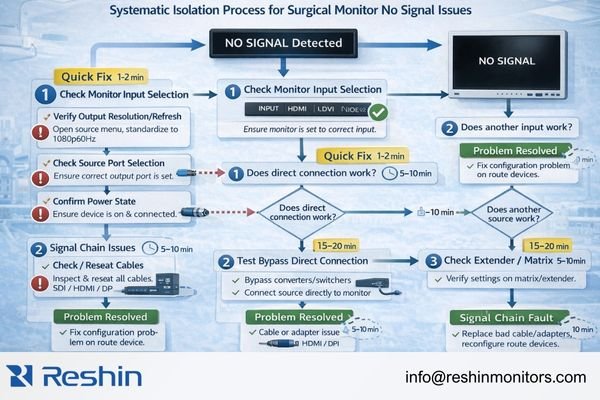
Fix a “No Signal” Error
- Confirm the monitor input matches your cable (HDMI, DisplayPort, USB-C).
- Re-seat both ends of the video cable firmly.
- Try a different cable or port.
- Restart your computer.
Laptop users should press Windows + P to enable the external display.
Correct Wrong Resolution
Open display settings and select the native resolution. If the option is missing, update your graphics drivers from NVIDIA, AMD, or Intel. Reconnect the monitor after installing new drivers.
Restore Missing Audio
Verify the monitor is selected as the audio output on Windows or Mac. Test with headphones plugged into the monitor’s 3.5mm jack. Check whether HDMI audio is disabled in BIOS or Device Manager.
Diagnose a Monitor That Won’t Power On
Confirm the power cable is fully inserted at both ends. Test the wall outlet with another device. Check whether the power LED lights up in standby mode. Try a different power cable if available.
Maintain Your Monitor for Long-Term Performance
Clean the Screen Safely
Use a microfiber cloth with a screen-safe cleaner. Never spray liquid directly onto the panel. Wipe gently in circular motions. Avoid paper towels and ammonia-based products that damage coatings.
Organize Cables Regularly
Velcro ties or cable sleeves prevent tangling. Recheck cable management every few months to keep your workspace clean.
Update Firmware and Drivers
Visit the manufacturer’s website for:
– Monitor firmware updates
– Latest graphics drivers
– USB-C hub or KVM firmware
Updates improve compatibility and unlock new features.
Calibrate Every Few Months
Re-calibrate color and brightness every 3 to 6 months, especially for creative work. Built-in OSD tools handle basic adjustments, while a colorimeter delivers professional accuracy.
Frequently Asked Questions About How to Use a Monitor
Can I use old cables with a new monitor?
Sometimes, but not always. Different monitors require different cable standards. Check your monitor’s manual for supported connections before reusing old cables.
What if my computer doesn’t have the right ports?
Use adapters to bridge mismatched connections. USB-C to HDMI, HDMI to DisplayPort, and USB-C docking stations all solve common compatibility problems.
How do I use built-in monitor speakers?
Audio plays automatically through HDMI, DisplayPort, or USB-C connections. Just select the monitor as your audio output in Windows or Mac sound settings.
How do I know which cable to use?
Check the ports on both your monitor and computer. Pick a connection both devices share, such as HDMI, DisplayPort, or USB-C. Match the cable version to your desired resolution and refresh rate.
Can I connect a monitor through USB?
Yes, if both your monitor and PC support USB display connections. You may need a USB-C to HDMI or DisplayPort adapter, a docking station, or DisplayLink drivers for USB-A connections.
How do I extend my display across two monitors?
Open your computer’s display settings and choose Extend. This creates one large workspace across both screens, perfect for multitasking and productivity.
What should I do if my monitor’s resolution looks wrong?
Adjust the resolution in display settings to match your monitor’s native pixel count. If the native option is missing, update your graphics drivers and reconnect the display.
Key Takeaways for Mastering Monitor Setup
Learning how to use a monitor properly transforms your daily computing experience. Start with the right cable and connection, position the screen ergonomically, then fine-tune resolution and refresh rate for sharp visuals. Enable eye comfort features and configure audio output to complete the core setup.
For advanced workflows, explore multi-display configurations, KVM switching, and color calibration. These features unlock productivity gains worth far more than the time spent configuring them.
Your next step is simple: pick one section of this guide you haven’t optimized yet and apply it today. Whether it’s adjusting your monitor height or enabling low blue light mode, small changes create noticeable improvements in comfort and performance.


