
Is your Logitech webcam sitting unused on your desk, delivering awkward angles during video calls? You are not alone, since millions struggle with improper placement that leads to unflattering views and poor engagement. The good news: learning how to attach a Logitech webcam to a monitor is quick, tool-free, and instantly upgrades your video presence. Whether you work from home, stream content, or attend virtual meetings, positioning the camera at eye level makes a dramatic difference in professionalism and connection.
This guide walks you through exactly how to attach a Logitech webcam to a monitor using its built-in clip, alternative mounting options, and best practices for optimal performance. You will learn step-by-step installation, model-specific tips, troubleshooting techniques, and software setup, all based on official Logitech design standards. By the end, you will have a secure, clean setup that keeps your camera ready and your video looking sharp.
Secure Your Webcam with the Monitor Clip
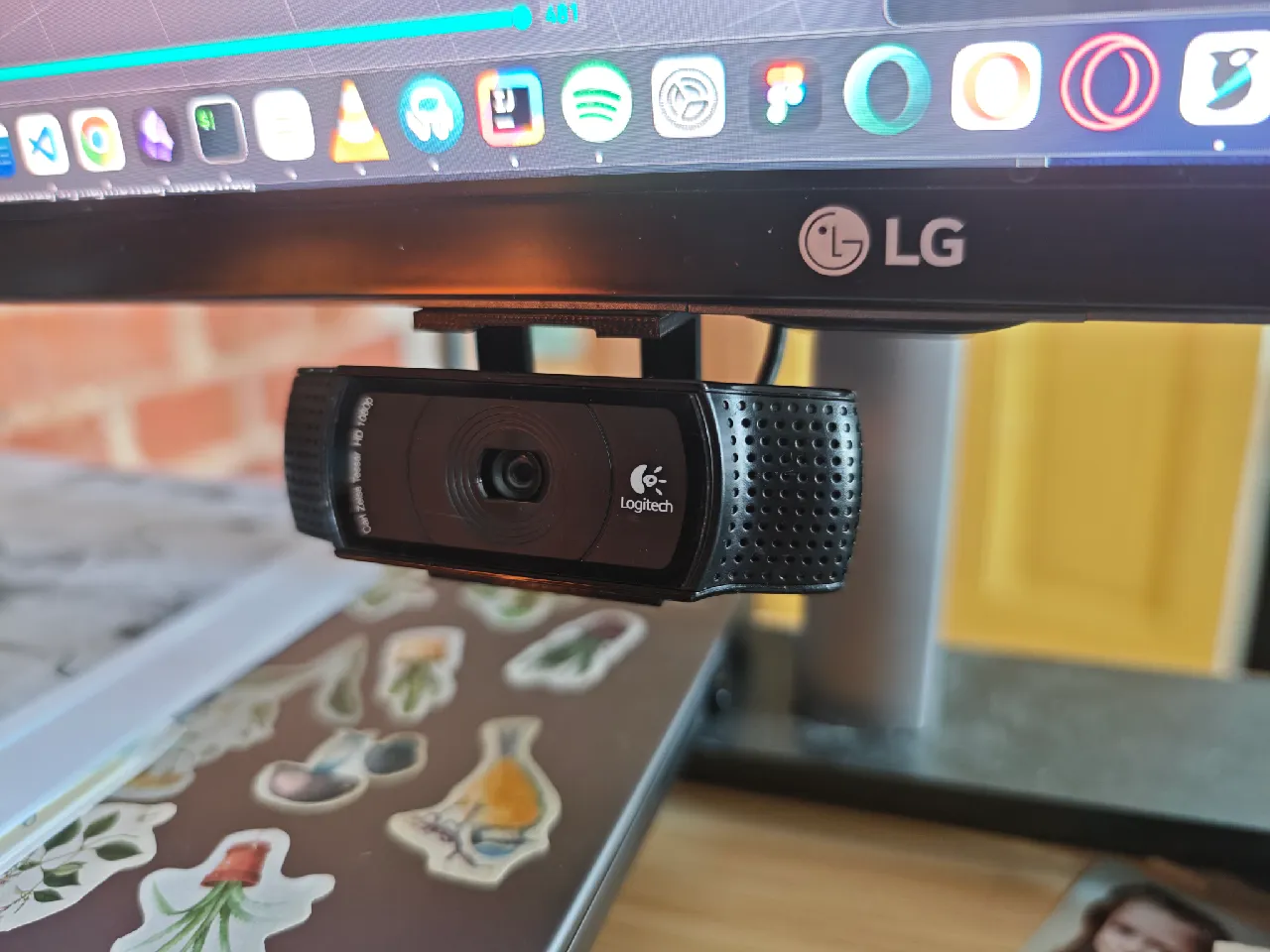
Most Logitech webcams, including the C920, C922, Brio, and StreamCam, ship with a flexible clip designed to grip your monitor’s bezel firmly. This method keeps your desk clutter-free and positions the camera perfectly for eye-level video during every meeting.
Position the Webcam Correctly
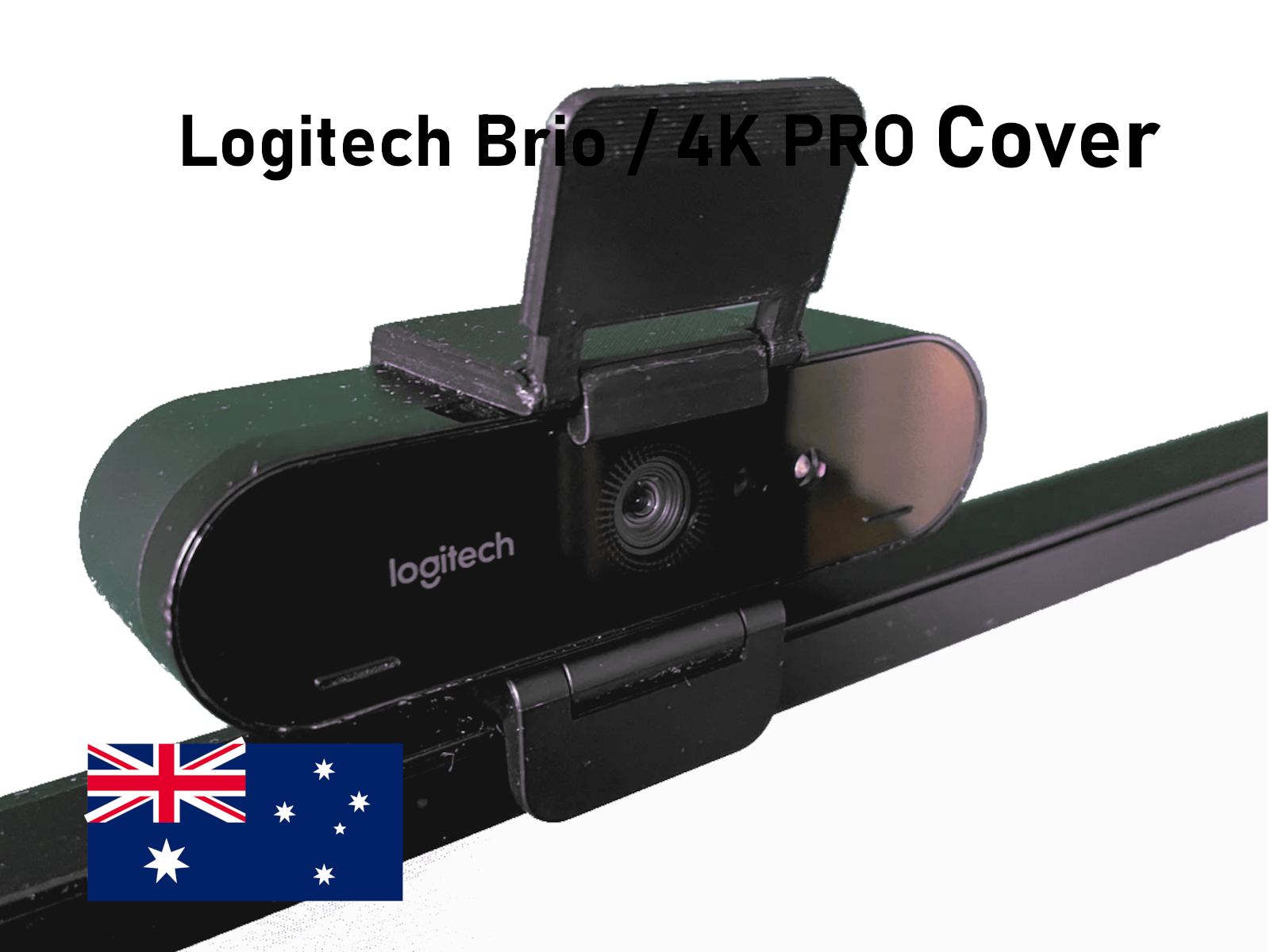
Start by aligning the webcam so the front lip of the clip rests against the front edge of your monitor bezel. The rubberized padding on the clip protects your screen from scratches and improves grip. Ensure the monitor’s top edge fits comfortably within the clip’s opening, since most models support standard bezel thicknesses with ease.
Hook the Clip Over the Monitor
Bend the flexible arm downward and hook the back of the clip over the rear edge of the monitor. Apply gentle pressure until both front and back segments grip the monitor securely. You should feel slight resistance, which indicates the rubber pads are making solid contact. If your monitor is very thin or curved, adjust the clip angle slightly to maintain stability.
Test Stability and Adjust the Angle
Gently nudge the camera to ensure it does not wobble or slip. Once secure, pivot the first segment of the arm up or down to fine-tune the viewing angle. For natural eye contact, aim the lens at your eye level when seated. Avoid tilting the camera too far upward,


