
Capturing your screen is one of the quickest ways to save, share, and explain visual information. Whether you’re documenting an error, showing a colleague how to complete a task, or saving a memorable conversation, learning how to take a screenshot on a monitor is an essential digital skill. This guide covers every built-in method, keyboard shortcut, and advanced tool available across Windows, Mac, and mobile devices.
By the end of this article, you’ll know exactly how to capture full screens, specific windows, custom regions, and even scrolling content that extends beyond what’s visible. You’ll also learn where your files save, how to fix common issues, and how to edit screenshots like a professional.
Capture Your Full Screen with the Print Screen Key on Windows

The PrtScn (Print Screen) key is the most fundamental way to take a screenshot on a monitor using Windows. This key is usually located on the upper-right side of most keyboards, though on some models it sits next to the Space Bar. It may appear as “PrtScn,” “PrtSc,” or similar variations.
Copy the Entire Screen to Clipboard
Press PrtScn once. Your screen is copied to the clipboard without any visible notification. Open Paint, Word, Photoshop, or any image editor and press Ctrl + V to paste the capture. From there, you can edit and save the file as needed.
⚠️ Note: This method copies to the clipboard only and does not save a file automatically.
On laptops with compact keyboards, the key may require pressing Fn + PrtScn, or it might be labeled PrtSc, SysRq, or hidden under another function key.
Paste Screenshots Directly Into Documents
After pressing PrtScn, you can paste your capture directly into:
- Microsoft Word for reports and documentation
- Email clients to share issues with support teams
- Image editors to crop or annotate before sharing
This method works across all Windows versions and works well for quick captures when saving files isn’t necessary.
Capture Only the Active Window on Windows
Need just one window and not the whole desktop? The Alt + PrtScn shortcut captures only the active window.
Select and Screenshot a Single Window
- Click on the window you want to capture (such as Chrome or File Explorer)
- Press Alt + PrtScn
- Paste the capture using Ctrl + V into Paint, Word, or your email
This shortcut is especially useful for multi-monitor setups, where you want to isolate a single app without background clutter. Like the standard PrtScn method, it copies to the clipboard only and does not save a file automatically.
Auto-Save Full Screen Captures on Windows 10 and 11
Skip the clipboard entirely and save screenshots directly as files using the Windows + PrtScn shortcut.
One-Step Screenshot Saving
- Press Windows Key + PrtScn
- The screen dims briefly, confirming the capture
- The file saves automatically to:
This PC > Pictures > Screenshots
Each capture is named sequentially (such as Screenshot (1).png), making organization effortless.
✅ Best for: Users who take many screenshots and want them saved automatically.
Use Snip & Sketch for Custom Screen Regions
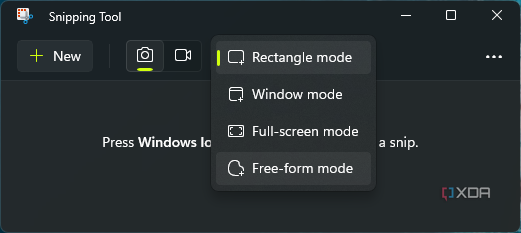
Windows 10 and 11 include Snip & Sketch, a flexible tool for capturing exact screen regions.
Open Snip & Sketch with a Shortcut
Press Windows + Shift + S and the screen grays out while a toolbar appears at the top. Choose from four capture modes:
- Rectangular snip: Drag to select a box area
- Freeform snip: Draw any custom shape around content
- Window snip: Click any open window to capture it
- Full-screen snip: Capture all monitors at once
Once captured, the snip appears in a pop-up notification. Click it to open and edit in Snip & Sketch.
Edit and Share Your Snip Instantly
Inside Snip & Sketch, you can:
- Annotate with pen or highlighter tools
- Crop further for precision
- Save, copy, or share directly via email or messaging apps
💡 Pro Tip: Enable auto-launch after capture in Settings > System > Clipboard > Screen snip for faster access.
Use the Classic Snipping Tool on Older Windows
Though replaced by Snip & Sketch, the classic Snipping Tool still exists in older Windows versions like Windows 7.
Capture Any Area Manually
- Open the Start Menu and search “Snipping Tool”
- Click New to activate the crosshair cursor
- Drag to select any portion of your monitor
- Release the mouse to capture
- Save as PNG, GIF, JPEG, or HTML
This tool is useful for scheduled or delayed captures in some versions, though it lacks real-time overlay and modern editing features.
Take Screenshots on Mac Using Keyboard Shortcuts
Mac users can capture their monitor quickly using simple key combinations. All captures save to the Desktop by default.
Capture the Full Screen on Mac
Press Command (⌘) + Shift + 3. The screen flashes briefly, and a file named “Screenshot [date] at [time].png” appears on your desktop.
Select a Custom Area on Mac
Press Command (⌘) + Shift + 4. Your cursor turns into a crosshair:
- Drag to highlight the region you want
- Release the mouse to capture
- The file saves automatically to your desktop
Press Esc before releasing to cancel the capture at any time.
Capture a Specific Window on Mac
- Press Command (⌘) + Shift + 4
- Press the Spacebar so the cursor changes to a camera icon
- Hover over any window (it highlights in blue)
- Click to capture that window with a shadow effect
This method produces clean, professional-looking app screenshots ready for documentation or sharing.
Capture Screenshots on iPhone and iPad
Mobile devices also support screen capture with simple button combinations.
Take a Screenshot on iOS
- Hold down the Side button while simultaneously holding the Volume Up button
- The screen flashes white
- Release both buttons
- The device automatically saves the screenshot to your Photos app
Capture Screenshots on Android Devices
Android phones use a similar button combination for screen capture.
Take a Screenshot on Android
- Hold down the Power button while simultaneously holding the Volume Down button
- The screen flashes white
- Release both buttons
- The device automatically saves the screenshot to your Gallery or Photos app
Use Snagit for Scrolling Capture and Advanced Editing
Built-in tools can only capture what’s visible on your monitor. Snagit goes further with scrolling capture and professional editing features.
Capture Long Webpages, Menus, and Documents
Snagit’s scrolling capture feature records content that extends off-screen:
- Entire webpages
- Long documents
- Dropdown menus
- Infinite scroll feeds
This capability is impossible with native OS tools, which only capture what’s currently visible.
How to Use Scrolling Capture in Snagit
- Open Snagit
- Select Scrolling Window mode
- Click on the target window (such as a Chrome tab)
- Snagit scrolls and stitches the image automatically
- Export as a single, seamless image
✅ Use case: Creating user guides, documenting full forms, or saving long conversations.
Edit and Redact Screenshots Like a Pro
Snagit includes powerful editing tools:
- Blur sensitive data such as passwords or personal information
- Add arrows, text boxes, and callouts
- Apply shadows, borders, or magnify effects
- Organize captures in the Snagit Library for future reuse
Unlike basic editors, Snagit combines capture, edit, and share in one seamless workflow, ideal for teams, trainers, and support staff.
Record Your Screen with Xbox Game Bar
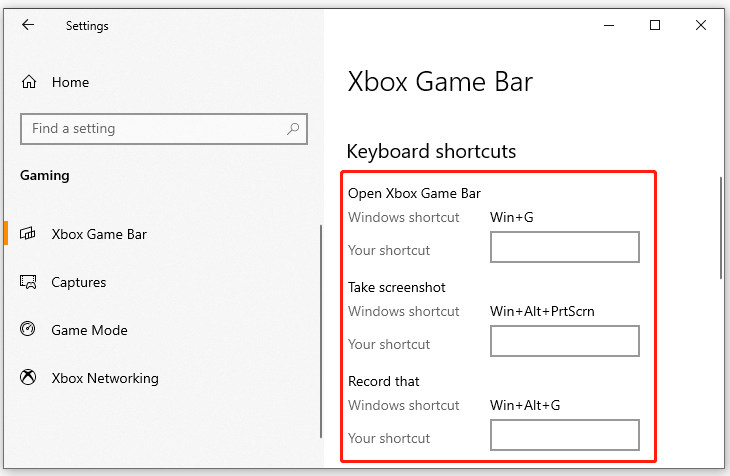
Need video instead of a still image? Windows includes Xbox Game Bar for recording screen activity.
Record App Screens (Not the Desktop)
- Press Windows + Alt + R to start recording
- A small widget appears in the corner
- Stop recording with the same shortcut
- The video saves to
Videos > Captures
❌ Limitation: Xbox Game Bar cannot record File Explorer or desktop icons.
For full-screen recording, use third-party tools like OBS Studio, Camtasia, or Snagit, which supports screen video as well.
Know Where Your Screenshots Are Saved
Understanding default save locations prevents frustration when you can’t find your captures.
Default Save Locations by Operating System
| OS | Method | Save Location |
|---|---|---|
| Windows 10/11 | Win + PrtScn | Pictures > Screenshots |
| Windows (All) | PrtScn (clipboard) | Not saved (must paste manually) |
| Mac | Cmd + Shift + 3/4 | Desktop |
| iOS | Side + Volume Up | Photos app |
| Android | Power + Volume Down | Gallery or Photos app |
Change the Windows Screenshot Folder
You can change the default Windows screenshot folder:
- Open This PC > Pictures > Screenshots
- Right-click the folder and select Properties > Location
- Click Move and select your new preferred path
Fix Common Screenshot Problems
Sometimes nothing happens when you press the keys. Here are proven fixes.
Screenshot Not Working? Try These Solutions
Check the Function (Fn) Key:
On laptops, PrtScn may require Fn + PrtScn. Some models even need Fn + Windows + PrtScn.
Test Clipboard Access:
Copy text first (Ctrl + C), then try pasting (Ctrl + V) after pressing PrtScn. If nothing pastes, the clipboard isn’t receiving data.
Restart Snip & Sketch:
If Windows + Shift + S fails:
1. Press Ctrl + Shift + Esc to open Task Manager
2. Find Snipping Tool or Snip & Sketch
3. End the task and retry the shortcut
Update Graphics Drivers:
Outdated drivers can block screen capture:
1. Press Windows + X and select Device Manager
2. Expand Display adapters
3. Right-click your GPU and select Update driver
Apply Best Practices for Professional Screenshots
Taking a screenshot is easy, but making it effective takes strategy.
Choose the Right Capture Type
- Full screen: Show context, such as error messages with open apps
- Window only: Focus on one program cleanly
- Region: Highlight specific buttons, text, or UI elements
- Scrolling: Document long pages without manual stitching
Annotate for Clarity
After capture, add visual cues:
- Circle important areas
- Arrow to where action is needed
- Text labels to explain steps
- Blur out passwords, emails, or private data
These touches transform raw screenshots into clear communication tools.
Organize Your Screenshot Files
Create dedicated folders for different purposes:
Project ScreenshotsSupport TicketsTraining Materials
Or use the Snagit Library to tag and search captures later.
Quick Reference: Monitor Screenshot Shortcuts
| Action | Shortcut | Output |
|---|---|---|
| Copy full screen | PrtScn | Clipboard |
| Capture active window | Alt + PrtScn | Clipboard |
| Save full screen | Windows + PrtScn | Screenshots folder |
| Select area | Windows + Shift + S | Clipboard + Snip & Sketch |
| Mac full screen | Cmd + Shift + 3 | Desktop |
| Mac selected area | Cmd + Shift + 4 | Desktop |
| Mac window capture | Cmd + Shift + 4 + Spacebar | Desktop |
Frequently Asked Questions About Taking Screenshots on a Monitor
Can I capture an entire webpage on a single monitor?
Yes, an entire webpage can be captured on a single monitor using Snagit’s scrolling capture feature. Built-in operating system tools cannot perform scrolling captures because they only record what’s currently visible on the screen.
How do I add annotations to my screenshot?
With the screen capture open in the Snagit Editor, select an annotation tool from the top toolbar. Available options include arrows, text, shapes, callouts, stamps, and more for highlighting key elements.
Can I edit and share screenshots directly after capturing them?
Snagit is designed for capturing, editing, and sharing screenshots in one streamlined workflow. After capturing, edits can be made quickly and shared to multiple destinations including email, cloud storage, or Slack.
What should I do if none of these screenshot methods work on my device?
Open a search engine and search for “How do I take a screenshot with [device type or model].” Additionally, screen capture apps can be downloaded from Google Play or the App Store by searching “screen capture” or “screen recorder.”
Where are screenshots saved by default on Windows and Mac?
Windows saves screenshots to the Pictures folder (or specifically This PC > Pictures > Screenshots when using Win + PrtScn). Mac saves all screenshots to the Desktop by default.
How do I screenshot on a dual-monitor setup?
For dual-monitor setups, use Alt + PrtScn to capture only the active window on one monitor. For full dual-screen capture, use the full-screen snip option in Snip & Sketch or the full-screen capture in Snagit.
Key Takeaways for Mastering Monitor Screenshots
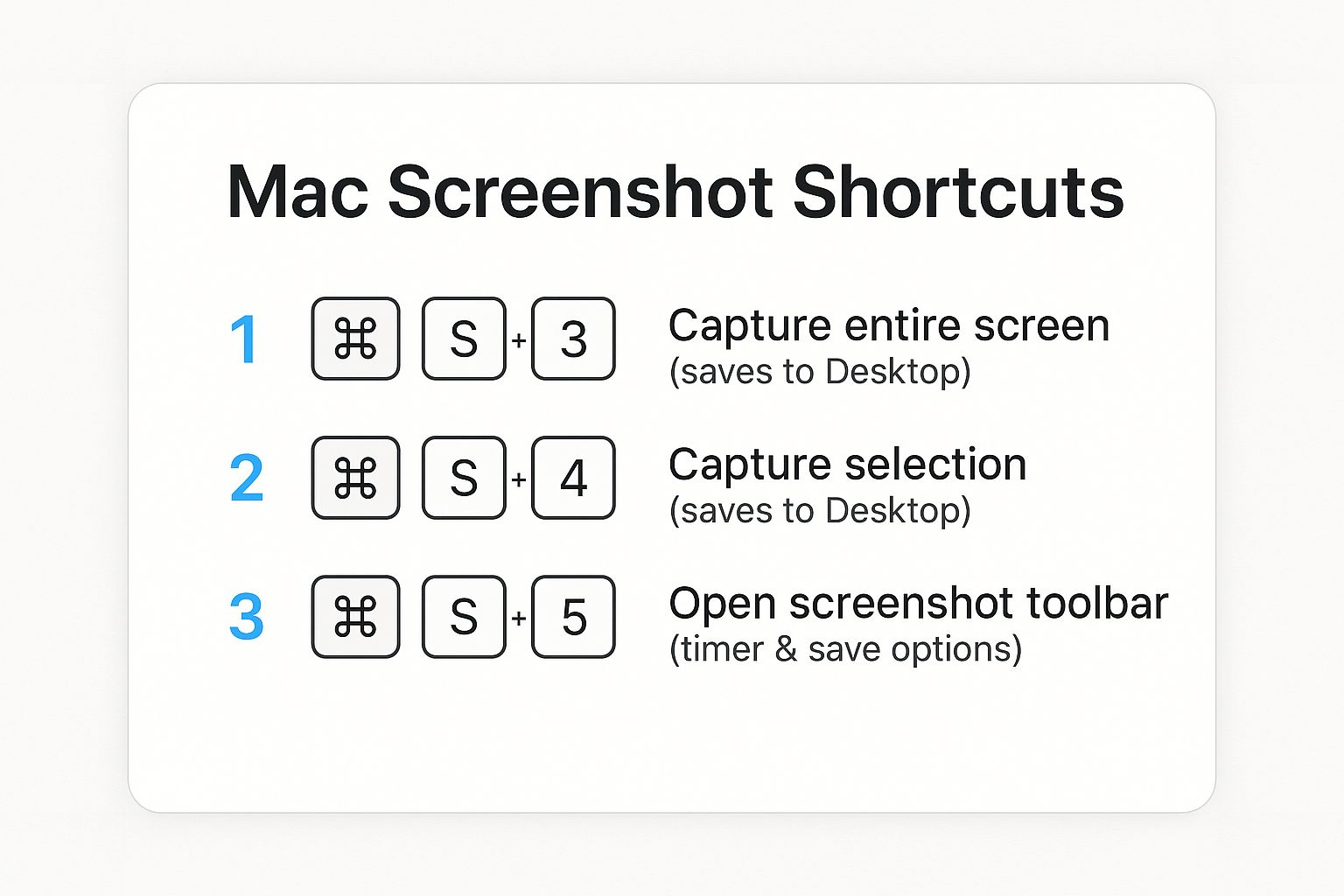
Learning how to take a screenshot on a monitor empowers you to communicate faster, solve problems quicker, and document processes clearly. The most important methods to remember are PrtScn for clipboard capture, Windows + PrtScn for automatic saving, and Windows + Shift + S for custom regions. Mac users should rely on Cmd + Shift + 3 or Cmd + Shift + 4 for quick captures.
For advanced needs like scrolling capture, professional annotations, and team sharing, Snagit provides a complete solution that built-in tools cannot match. Choose the right method based on your goal, annotate for clarity, and organize your files for future reference. Start applying these techniques today to streamline your workflow and create polished, professional visuals in seconds.


