
Is your screen looking too dark, washed out, or off in color? The problem might not be your eyes but your monitor’s gamma. This setting controls how midtones and shadows appear on screen, shaping the overall feel of images and text.
In this guide, you will learn exactly how to adjust gamma on monitor using built-in tools and hardware settings. You will discover how to choose the right value for gaming or editing and fix common display issues quickly.
Understand What Monitor Gamma Controls
Gamma is not the same as brightness or contrast. It specifically defines the relationship between input signals and the luminance of midtones on your display.
The Mathematical Relationship
Gamma follows the equation y = xγ, where input color information is adjusted to match human vision.
* Human eyes are more sensitive to dark tones than bright ones.
* Raw image data often looks washed out without this correction.
* Gamma correction balances the input to ensure true-to-life color reproduction.
Without proper adjustment, your monitor may display “S-shaped” curves. These irregularities cause tone jumps and color breakdown in gradients.
Why Standards Matter Today
Historically, Windows used gamma 2.2 while older Mac systems used 1.8.
* Gamma 2.2 is now the universal standard for sRGB and Adobe RGB.
* Gamma 1.8 was designed for legacy desktop publishing workflows.
* Modern macOS versions now default to 2.2 to align with digital content standards.
Mismatched gamma values cause images to look too dark or too bright across different devices.
Choose the Right Gamma Value for Your Task
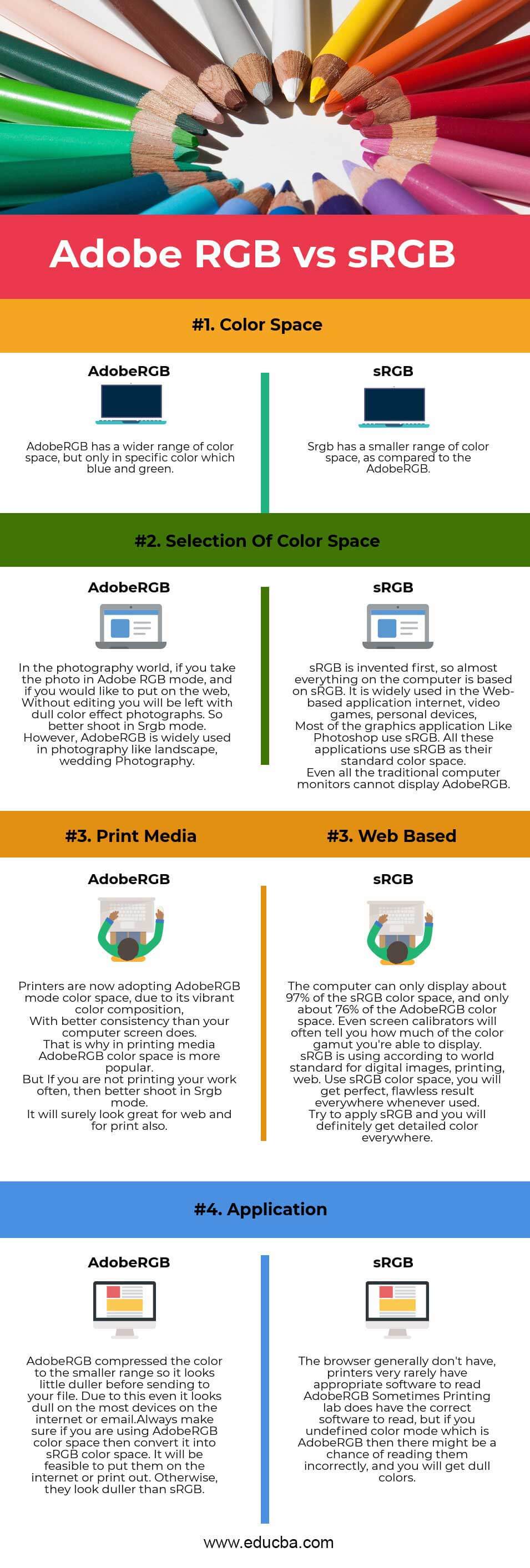
Selecting the correct gamma depends entirely on your specific workflow. One size does not fit all scenarios.
Recommended Gamma Settings by Use Case
| Use Case | Recommended Gamma | Reason |
|---|---|---|
| General Use / Web | 2.2 | Matches sRGB standard for accurate colors. |
| Photo Editing | 2.2 | Ensures consistency for print and digital sharing. |
| Video Editing | 2.4 | Better contrast for Rec. 709 in dark rooms. |
| Cinema Production | 2.6 | Optimized for DCI standards and theatrical viewing. |
| Gaming (Dark Scenes) | 2.0 – 2.4 | Temporarily boosts visibility in shadows. |
| Legacy Mac Files | 1.8 | Restores original look of pre-2009 content. |
For most users, gamma 2.2 is ideal. Only deviate if your specific professional workflow demands it.
Gaming and Dark Scene Visibility
Gamers often adjust gamma to see enemies in dark corners.
* Increase gamma temporarily to brighten midtones.
* Avoid washing out the image completely.
* Revert to 2.2 for normal desktop use to maintain color accuracy.
Adjust Gamma Using Monitor OSD Menus
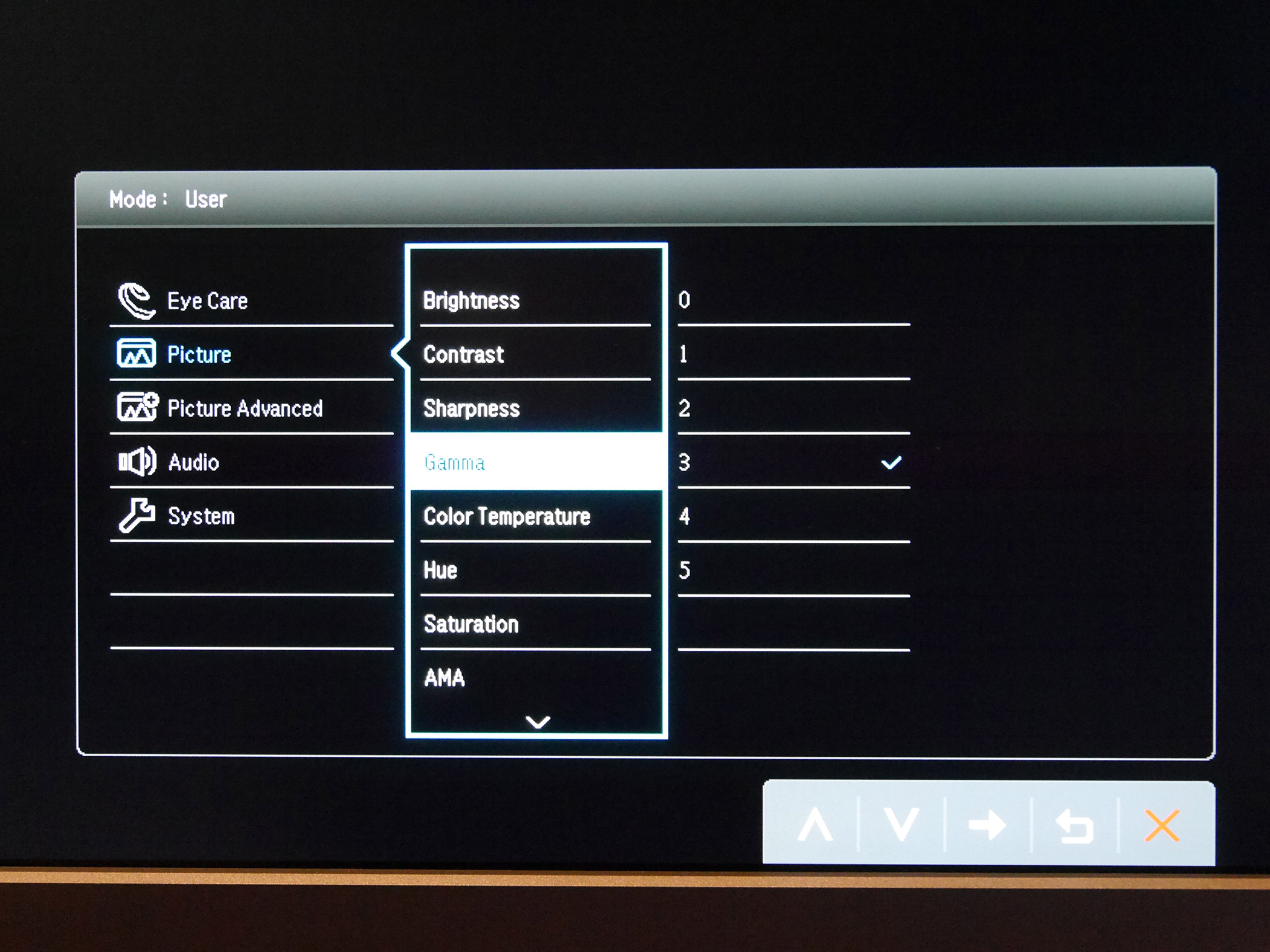
The most direct method to adjust gamma on monitor is through the physical On-Screen Display (OSD) controls.
Accessing Hardware Presets
- Press the menu button on your monitor bezel.
- Navigate to Color Settings or Picture Mode.
- Look for a Gamma option.
- Select a preset value like 1.8, 2.0, 2.2, 2.4, or 2.6.
Not all monitors offer this feature. High-end models from brands like EIZO, Dell UltraSharp, and BenQ often include these hardware presets.
Utilizing Hardware Calibration
Professional monitors support hardware calibration via internal Look-Up Tables (LUTs).
* Tools like EIZO ColorNavigator or Datacolor SpyderX are required.
* These tools set gamma directly in the monitor’s internal processor.
* This method preserves full color depth and avoids software banding.
Pro Tip: Hardware adjustments are superior because they do not reduce the effective bit depth of your signal.
Calibrate Gamma in Windows Manually
Windows includes a built-in tool that allows you to adjust gamma on monitor without third-party software.
Launching the Calibration Tool
- Press Windows + S and type “Calibrate display color”.
- Click the result to open the wizard.
- Alternatively, go to Settings > System > Display > Advanced display settings.
- Select Display adapter properties, then the Color Management tab.
- Click Advanced and choose Calibrate display.
Adjusting the Gamma Slider
- Drag the calibration window to your target monitor if using multiple screens.
- Click Next until you reach the gamma adjustment screen.
- Observe the grid of gray squares with a central dot.
- Move the slider until the dot is barely visible.
- If the dot stands out sharply, gamma is too low.
- If the dot disappears, gamma is too high.
- Click Next and save your new calibration profile.
You can reset this profile anytime by running the tool again and selecting default settings.
Set Gamma on macOS Systems
Modern Macs default to gamma 2.2, but you can fine-tune settings for specific needs.
Using Display Calibrator Assistant
- Go to System Settings > Displays > Color.
- Click Calibrate to open the assistant.
- Follow the on-screen prompts to adjust the gamma curve.
- Choose Standard (2.2) for general use.
- Select Legacy (1.8) only if viewing old Mac files.
- Save the new profile.
You can also enable Native mode to bypass calibration if you prefer factory settings. This ensures your display matches the intended output of the operating system.
Use Graphics Driver Controls for Precision

If your monitor lacks OSD options, your GPU control panel offers another way to adjust gamma on monitor.
NVIDIA Control Panel Steps
- Right-click the desktop and select NVIDIA Control Panel.
- Go to Display > Adjust desktop color settings.
- Find the Gamma slider under digital vibrance settings.
- Slide to adjust (default is usually 1.00).
- Click Apply to save changes.
AMD and Intel Settings
- AMD Radeon Software: Open the app, go to Display > Color, and adjust the Gamma slider.
- Intel Graphics Command Center: Navigate to Display > Color and modify gamma under color settings.
Warning: Driver-level gamma affects all connected displays. Use caution if running a multi-monitor setup with different requirements.
Diagnose Gamma Issues Visually
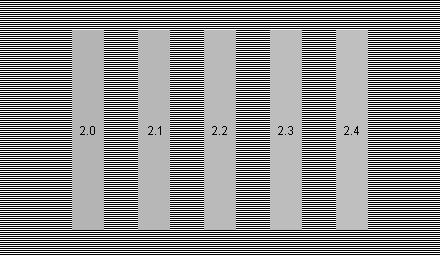
You can identify gamma problems without specialized tools by using simple test patterns.
The Gray Frame Test
- Search online for a gamma test pattern image.
- Display it full screen on your monitor.
- Squint slightly or step back 3 to 5 feet.
- Observe the relationship between the square and surrounding stripes.
- If they blend, gamma is correct (~2.2).
- If the square looks darker, gamma is too low.
- If the square looks brighter, gamma is too high.
This test works because squinting reduces eye sensitivity, revealing true luminance differences in midtones.
Fixing Common Visual Problems
- Screen too dark: Lower gamma to 2.2 and adjust brightness separately.
- Washed out colors: Increase gamma to 2.2 to restore contrast.
- Color banding: This indicates poor gamma curve linearity or low bit depth.
- Mac content looks dark: Temporarily switch PC gamma to 1.8 to match legacy files.
Never use brightness controls to fix gamma issues. Brightness controls black levels while gamma controls midtones.
Optimize Full Display Settings Routine
Gamma is just one part of a complete calibration workflow for best results.
Seven-Step Calibration Process
- Warm Up: Let the monitor run for 30 minutes to stabilize.
- Set Environment: Ensure consistent room lighting without glare.
- Disable Night Light: Turn off automatic blue light filters.
- Factory Reset: Clear old settings via the monitor OSD.
- Adjust Gamma: Use the Windows tool or OSD presets.
- Set Brightness: Use a black “X” test pattern where the “X” is just visible.
- Tune Contrast: Adjust until fine details are clear without losing shadow detail.
Enhancing Text Clarity
After adjusting gamma, run the ClearType Text Tuner on Windows.
* Search “Adjust ClearType text” in the start menu.
* Enable the feature and select the sharpest text samples.
* This optimizes sub-pixel rendering for crisper fonts on LCD screens.
Maintain Accurate Gamma Over Time
Monitors drift over time due to age and environmental factors. Regular maintenance ensures consistent color.
When to Recalibrate
- Every 2 to 3 months for general usage.
- After changing room lighting conditions significantly.
- When switching between different professional workflows.
- If colors suddenly look off or inconsistent.
Preventing Gamma Drift
- Use hardware calibration for critical professional work.
- Keep monitor firmware updated via the manufacturer website.
- Avoid extreme temperature or humidity changes near the display.
- Clean the screen gently, as dust can affect visual perception.
Sticking to a schedule ensures your gamma on monitor remains accurate for years.
Frequently Asked Questions About Monitor Gamma
What is the best gamma setting for general use?
Gamma 2.2 is the universal standard for Windows, modern macOS, and web content. It provides the best balance for photos, videos, and everyday tasks.
Why does my screen look different on Mac and Windows?
Legacy Mac systems used gamma 1.8 while Windows used 2.2. Modern Macs now use 2.2, but old files may still appear darker on Windows due to this historical mismatch.
Can I adjust gamma for gaming without affecting colors?
Yes, but it is temporary. You can increase gamma to see dark areas better, but you should revert to 2.2 for normal use to avoid washing out colors in other applications.
How do I know if my gamma is wrong?
Use a gray test pattern. If a central gray dot blends perfectly with surrounding stripes, your gamma is correct. If it stands out or disappears, adjustment is needed.
Does HDR change how gamma works?
Yes. HDR uses dynamic tone mapping rather than static gamma curves. For manual SDR calibration, you should typically disable HDR to set a accurate baseline.
Will adjusting gamma damage my monitor?
No. Adjusting gamma is a safe software or firmware change. It alters how the monitor processes signals and will not cause physical harm to the panel.
Key Takeaways for Adjusting Gamma on Monitor
Getting your display right starts with understanding that gamma controls midtones, not just brightness. By setting the correct value, usually 2.2, you ensure accurate colors and smooth gradients for all your content.
Use your monitor’s OSD for the most precise hardware-level changes. If that is unavailable, the Windows calibration tool or GPU drivers offer effective software alternatives.
Take action today by running a quick visual test on your screen. Adjusting gamma takes only minutes but dramatically improves clarity and comfort for your eyes.


