
Your neck aches and your desk feels cluttered because your screen sits too low on a bulky stand. You likely wonder how do monitor arms work to fix this posture nightmare with such apparent ease. These devices replace your fixed base with a dynamic suspension system that counterbalances weight using internal springs.
This guide reveals the physics behind gas and mechanical springs while explaining VESA standards and mounting options. You will learn to select the right tension system and install your arm without damaging your desk or dropping your screen.
The Physics of Counterbalance and Suspension

Monitor arms function by offsetting gravity through precise internal tension systems. This counterbalance allows you to lift or tilt heavy screens with a single finger rather than brute force. Without this mechanism, adjusting height would require loosening screws or lifting the entire weight manually.
Gas Spring vs. Mechanical Spring Mechanisms
Two primary systems provide the lifting force required for smooth movement. Both rely on a Tension Adjustment Screw (TAS) to match the specific weight of your display.
- Gas Spring Systems: These use a pressurized cylinder similar to an office chair lift. They offer fluid, one-touch vertical movement and require less frequent tuning once set correctly.
- Mechanical Spring Systems: These utilize coiled metal springs to generate lift. They are durable and cost-effective but often need manual readjustment when swapping monitors of different weights.
Why Spring Joints Outperform Friction Joints
High-quality arms employ spring-assisted tilt joints instead of relying solely on friction. Friction joints depend on tight screws to hold position, which wear down over time and cause the screen to sag forward.
Spring joints use internal coils to actively resist movement. This design maintains consistent holding power for years and supports heavier curved screens without drooping.
Mounting Architectures and Stability Factors

The attachment method determines the stability and flexibility of your entire setup. Different mounts interact with your desk surface in unique ways that affect vibration and space usage.
Desk Clamp Installation Dynamics
C-clamp mounts grip the desk edge using a screw-driven jaw system. An upper plate presses down while a lower jaw pulls up to secure the arm.
- Best Use: Temporary setups or desks you cannot modify permanently.
- Requirements: A flat edge with at least 2 inches of clearance behind the desk.
- Risks: Can dent soft woods or crush hollow-core furniture without protection.
- Pro Tip: Place a metal spreader plate or rubber washer under the clamp to distribute pressure evenly.
Avoid using C-clamps on beveled edges thicker than 1 inch as they cannot grip securely.
Grommet Mounts for Permanent Stability
Grommet mounts pass through a hole in your desk surface and secure with a plate underneath. This method distributes load across the desk surface rather than concentrating it on the edge.
- Best Use: Permanent installations desiring a minimalist look.
- Benefits: Reduces wobble and allows cables to route directly through the desk.
- Downside: Requires drilling a hole if one does not already exist.
Wall and Free-Standing Options
Wall mounts bolt directly into studs to eliminate desk interaction entirely. This provides zero bounce and is ideal for glass desks or vibration-prone environments. Free-standing bases sit on the desk surface using weight for stability. These are useful for rental spaces where drilling is forbidden but they consume valuable desk real estate.
VESA Standards and Weight Capacity Limits
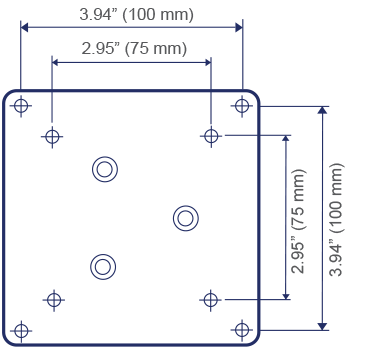
Compatibility relies on two critical factors: the VESA pattern and the weight capacity of the arm. Ignoring these specifications leads to instability or potential equipment failure.
Understanding VESA Patterns
VESA defines the standard screw pattern on the back of monitors. Most arms attach via these universal holes to ensure interoperability.
- Common Patterns: 75×75 mm or 100×100 mm squares are standard for most screens.
- Large Screens: May require 200×200 mm patterns or adapter plates.
- Hidden Holes: Check behind the original stand bracket as manufacturers often hide these holes.
Non-VESA monitors like some Apple iMacs require third-party adapter brackets. Never use glue-based solutions as they can degrade plastic and cause drops.
Matching Weight to Arm Capacity
Every arm lists a specific weight range it can support safely. Staying within the middle of this range ensures optimal performance.
- Too Heavy: The arm will sag or fail catastrophically under the load.
- Too Light: The gas spring may push the monitor upward uncontrollably.
- Accessory Weight: Include the weight of monitor lights and webcams in your total calculation.
Curved monitors shift the center of gravity forward. Add a buffer of 4.4 to 6.6 lbs to your weight estimate when selecting an arm for curved screens.
Degrees of Freedom and Adjustability
Degrees of freedom refer to the number of ways your monitor can move. More articulation points provide better ergonomic positioning and viewing angles.
Tilt, Swivel, and Rotation Ranges
- Tilt: Adjusts vertically ±30° to ±45° to reduce glare or angle toward drawing tablets.
- Swivel: Rotates the screen left or right ±90° without moving the base.
- Rotation: Enables switching between landscape and portrait modes instantly.
Advanced arms include stop screws to limit rotation. This prevents the monitor from colliding with walls during swivel movements.
Articulation System Types
Fixed pole stands offer rigid height extension with no dynamic movement. Pole arms with articulating joints allow you to pull the screen forward or push it back. Fully articulated arms provide the maximum range of motion for height, depth, tilt, and swivel.
Ergonomic Benefits and Health Impact
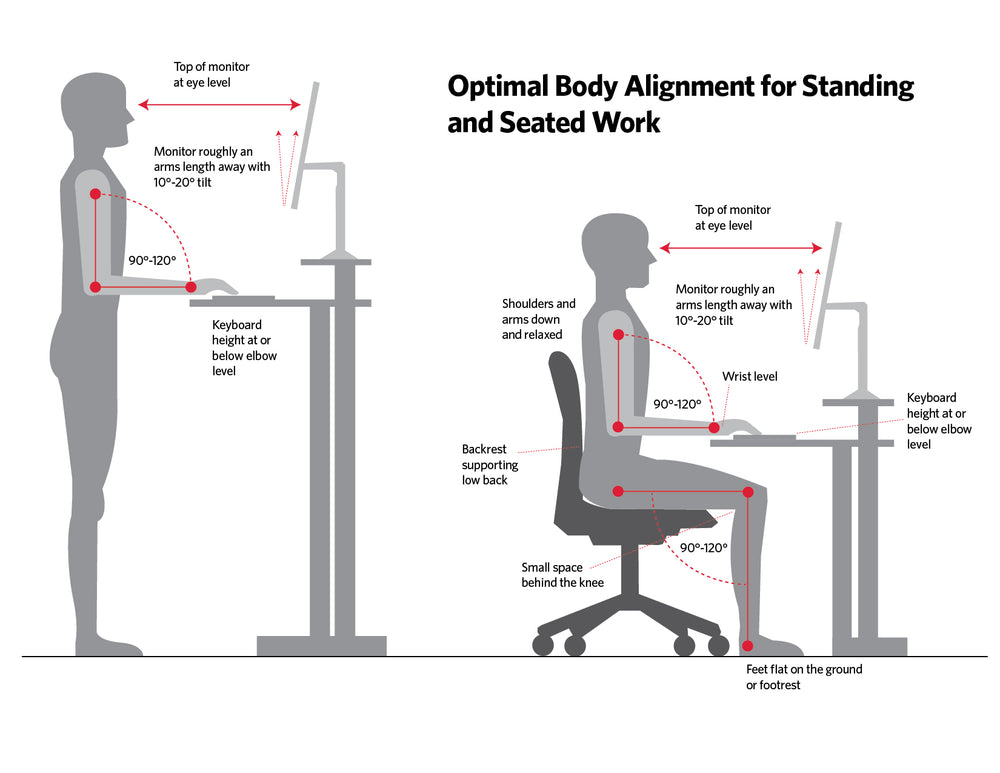
Proper screen positioning is critical for long-term spinal health and visual comfort. Monitor arms facilitate the neutral posture required to prevent chronic pain.
Fixing Posture and Spinal Alignment
Poor monitor height causes forward head posture and slouching. Arms allow you to set the top of the screen at or slightly below eye level.
- Maintain an arm’s length distance of 20 to 30 inches.
- Raise the monitor when standing and lower it when sitting.
- This alignment preserves the natural curve of your spine.
Reducing Eye Strain and Glare
Computer Vision Syndrome causes dry eyes and headaches due to poor viewing conditions. Monitor arms help by tilting the screen to eliminate overhead light reflections. Precise positioning reduces squinting and allows curved monitors to follow eye movement naturally.
Installation Challenges and Clearance Issues
Physical constraints often cause installation failures if not addressed beforehand. Measuring your space prevents collisions and surface damage.
Avoiding Wall Collisions
Articulating arms swing backward as they extend forward. This movement often protrudes 4 to 6 inches beyond the desk edge.
- Problem: Center-mounted arms frequently hit walls behind the desk.
- Solution: Mount arms at the far left or right edge of the desk.
- Alternative: Use separate single arms instead of shared dual bases to reduce interference.
Measure the space behind your desk before purchasing any arm system.
Preventing Desk Surface Damage
C-clamps exert intense pressure on small areas of your desk. Soft woods like bamboo or hollow-core particleboard are at high risk of indentation.
- Use metal spreader plates to distribute the load.
- Add felt pads or rubber washers under the clamp jaws.
- Never clamp directly onto decorative or fragile desk edges.
Cable Management and Power Requirements
Poor cable routing ruins the clean aesthetic of a monitor arm setup. It can also cause disconnections during movement.
Why Stock Cables Are Too Short
Standard cables provided with monitors are often too short for arm installations. Routing through joints and vertical rises adds significant length requirements.
- Extra Length: Add 2 to 3 feet to your standard cable length needs.
- Standing Desks: Cables must accommodate full vertical travel without becoming taut.
- Solution: Purchase high-quality 6 to 10 foot cables to ensure slack.
Integrated vs. External Routing
Most arms include internal channels or external clips for cable management. However, these often cannot fit thick power bricks or multiple cables simultaneously.
- Bundle cables using spiral wrap or Velcro straps.
- Route cables before final tightening of the arm.
- Test the full range of motion to ensure no strain occurs.
Avoid sharp bends that can damage wire insulation over time.
Choosing the Right Arm Features and Price
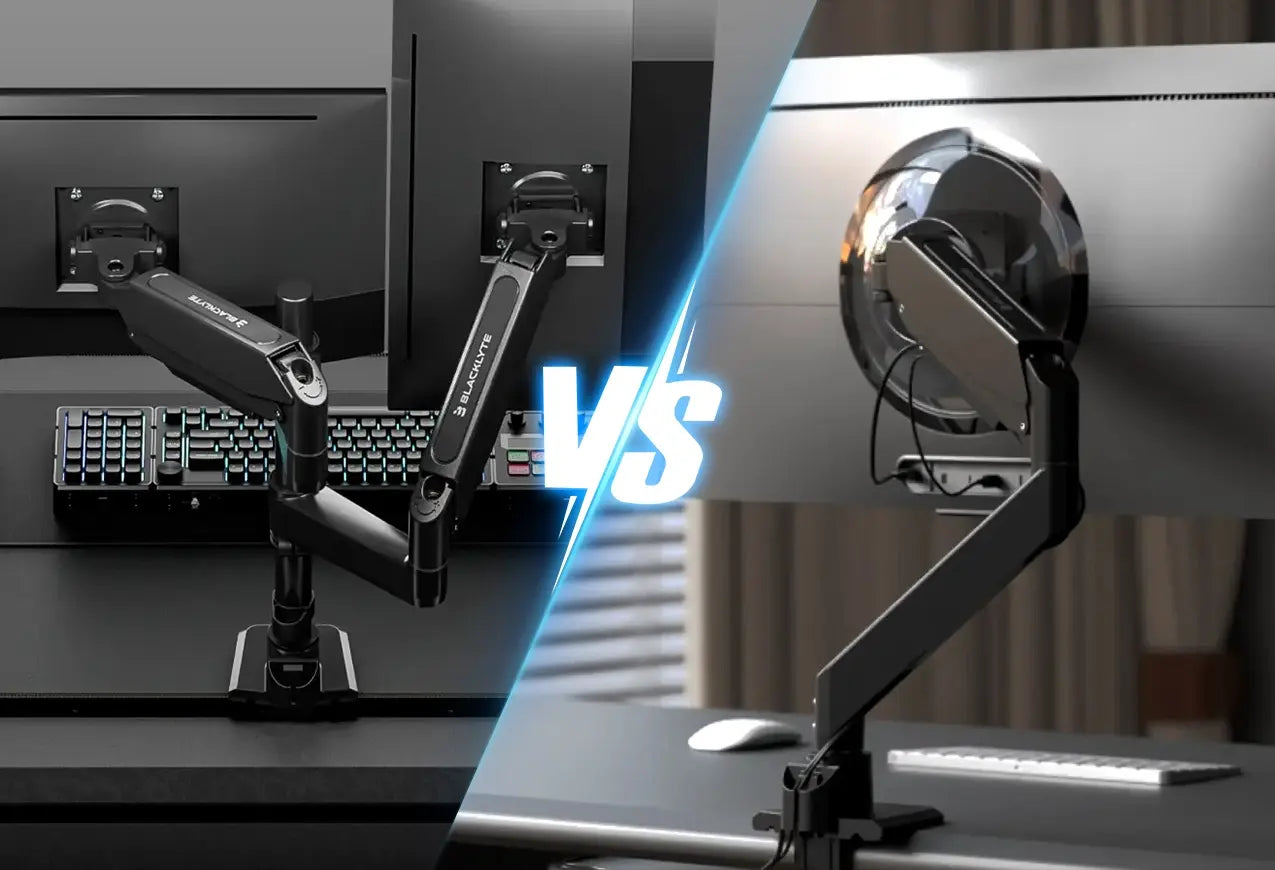
Your specific needs dictate the balance between price and performance. Not all arms offer the same level of build quality or adjustability.
Single vs. Dual Monitor Configurations
Single arms are affordable and easy to install for most users. Dual configurations come in two main types. Single-post dual arms look clean but may have alignment issues. Independent arms offer full flexibility and easier alignment but cost more.
Price Tiers and Long-Term Value
- $40–$80: Basic mechanical arms with limited smoothness.
- $100–$200: Quality gas-spring arms with durable joints.
- $200+: Heavy-duty arms for ultrawides or integrated tech.
A well-maintained arm can last 15 to 20 years. Investing in a mid-range model pays off faster than replacing cheap units repeatedly.
Troubleshooting Common Setup Problems
Even expert setups develop issues over time. Knowing how to fix them quickly restores functionality.
Fixing Sagging Monitors Immediately
Sagging occurs when the screen slowly sinks or tilts forward. This usually indicates incorrect tension settings or an overloaded arm.
- Locate the Tension Adjustment Screw on the joint.
- Tighten it gradually, checking the balance after each turn.
- Replace the arm if sagging continues after maxing out tension.
Aligning Dual Monitors Perfectly
Screens often fail to sit level in dual setups. Use Velcro straps to hold one monitor while adjusting the other. Independent arms provide the most control for perfect alignment.
Frequently Asked Questions About Monitor Arms
How do monitor arms stay in place without falling?
Monitor arms use internal gas or mechanical springs to counterbalance the weight of your screen. A tension adjustment screw allows you to fine-tune this balance so the arm holds the monitor securely at any height.
Will a monitor arm fit my specific desk type?
Most arms work on desks between 0.5 and 3.5 inches thick with flat edges. Glass, hollow-core, or beveled desks may require special adapters or grommet mounts to prevent damage.
Can I use a monitor arm if my screen has no VESA holes?
Yes, you can use third-party adapter brackets that clip onto your monitor bezel. Never use glue-based adapters as they can fail and damage your screen.
Why does my monitor arm wobble when I type?
Wobble often results from a flimsy desk, thin arm tubing, or overextending the arm. Using a grommet mount or wall mount typically eliminates this vibration issue.
How much weight can a standard monitor arm hold?
Standard arms typically support monitors weighing between 8.8 and 22 lbs. Always check the specific weight range of the arm and include accessories like lights in your calculation.
Key Takeaways for Understanding How Monitor Arms Work
Monitor arms transform your workspace by balancing screen weight through precision spring systems. Proper installation requires matching VESA patterns, weight limits, and desk types to ensure stability.
Select a gas spring arm for frequent adjustments or a mechanical one for fixed positions. Verify your cable length and desk clearance before buying to avoid common setup pitfalls. Invest in quality hardware to protect your health and equipment for decades of use.


