
You just unpacked your new Dell display and now wonder how to connect keyboard to Dell monitor ports for a cleaner desk setup. Many users assume the screen processes input alone, but these monitors act as USB hubs that pass data to your computer.
This guide explains the exact steps to link wired, wireless, and Bluetooth keyboards through your monitor or directly to your PC. You will learn proper cable connections, pairing methods, and how to fix common recognition errors quickly.
Activate Monitor USB Hub for Keyboard Connection

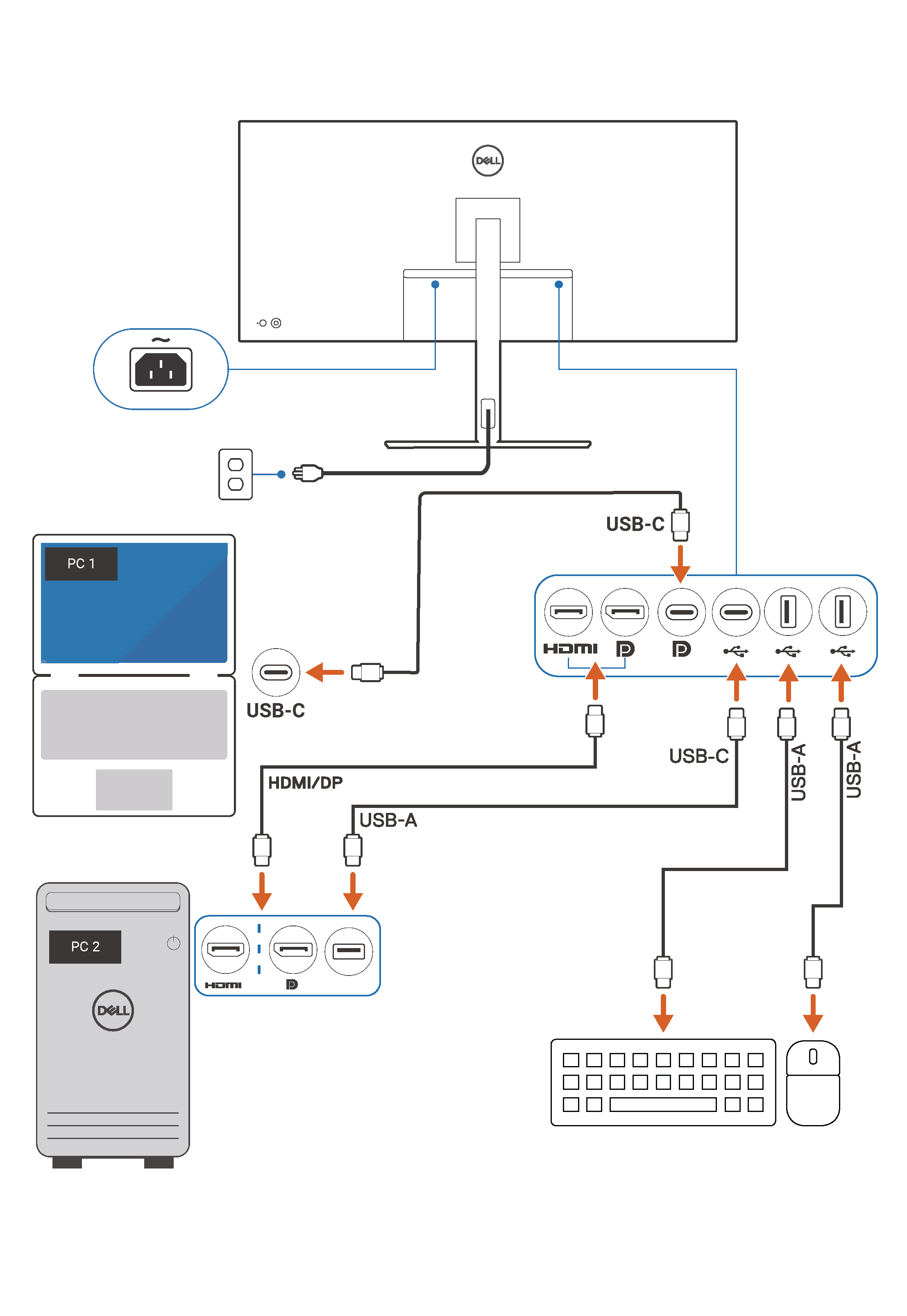
Your Dell monitor can serve as a central connection point for peripherals if you configure the upstream link correctly. The screen itself does not process keystrokes, so it must relay signals to your host computer through a specific data cable.
Install the USB Upstream Cable Correctly
You must connect the monitor to your computer with a data-capable cable before any keyboard will work.
* USB-C Models: Use the provided USB-C cable that supports both power and data transfer.
* USB-B Models: Connect the square USB-B port on the monitor to a standard USB-A port on your PC.
Without this upstream link, the downstream ports on the monitor remain inactive and cannot detect devices.
Plug Keyboard Into Downstream Ports
Once the upstream cable is secure, locate the rectangular USB ports on the side or bottom of your monitor. Insert your keyboard USB plug firmly into one of these downstream ports. Wait roughly ten seconds for Windows to recognize the new hardware and install basic drivers. Test the connection by typing in a text document to ensure input registers correctly.
Note: If the keyboard fails to respond, verify the upstream cable is tightly connected at both ends.
Set Up Wired USB Keyboards Directly
Wired keyboards offer the most reliable connection method with zero latency for typing or gaming. You can plug these directly into your computer or use the monitor hub if configured properly.
Connect to Computer USB Ports
Find an available USB 2.0 or USB 3.0 port on your desktop tower or laptop chassis. Push the keyboard connector into the port until it clicks into place. Your operating system will automatically identify the device as a Human Interface Device and install necessary drivers. You can begin typing immediately without additional software installation.
Choose the Right USB Port Type
Selecting the correct port ensures optimal performance and stability for your specific keyboard model.
* USB 3.0 (Blue): Best for high-performance gaming keyboards requiring fast data polling.
* USB 2.0 (Black): Perfectly sufficient for standard office typing and general use.
* USB-C: Use an adapter if your keyboard has a traditional USB-A plug.
Some users experience interference on USB 3.0 ports, so switch to a USB 2.0 port if you notice input lag.
Pair Wireless Keyboards With USB Dongles
Many Dell wireless models use a small 2.4GHz USB receiver to create a secure, low-latency connection without Bluetooth. This method is ideal for desktops where cable clutter is a concern.
Install Batteries and Power On Device
Open the battery compartment on the underside of your keyboard to begin the setup process. Insert two AAA batteries ensuring the positive and negative ends match the diagram inside the tray. Slide the physical power switch to the On position to activate the internal radio.
Insert Receiver and Confirm Pairing
Locate the tiny USB dongle, which is often stored inside the mouse or keyboard battery tray for safety. Plug this receiver directly into a USB port on your computer rather than a hub for the initial setup. Watch for the connection LED on the keyboard to glow for about 30 seconds, indicating a successful link.
Warning: Avoid using unpowered USB hubs during initial pairing as they may not supply enough power for detection.
Pair Bluetooth Keyboards to Your System
Bluetooth connectivity eliminates the need for a physical receiver and allows you to connect keyboards to laptops with limited ports. Dell offers multiple ways to establish this wireless link depending on your system configuration.
Use Dell Pair for Automatic Detection
Dell computers running Windows 10 or 11 often include a feature called Dell Pair for streamlined setup. Press and hold the connection button on your keyboard for three seconds until the LED blinks. A pop-up window titled “Let’s set up your Dell Device” should appear on your screen automatically. Click the Pair button to complete the process without navigating complex menus.
Manually Add Device in Windows Settings
Use this universal method if the automatic prompt does not appear on your screen.
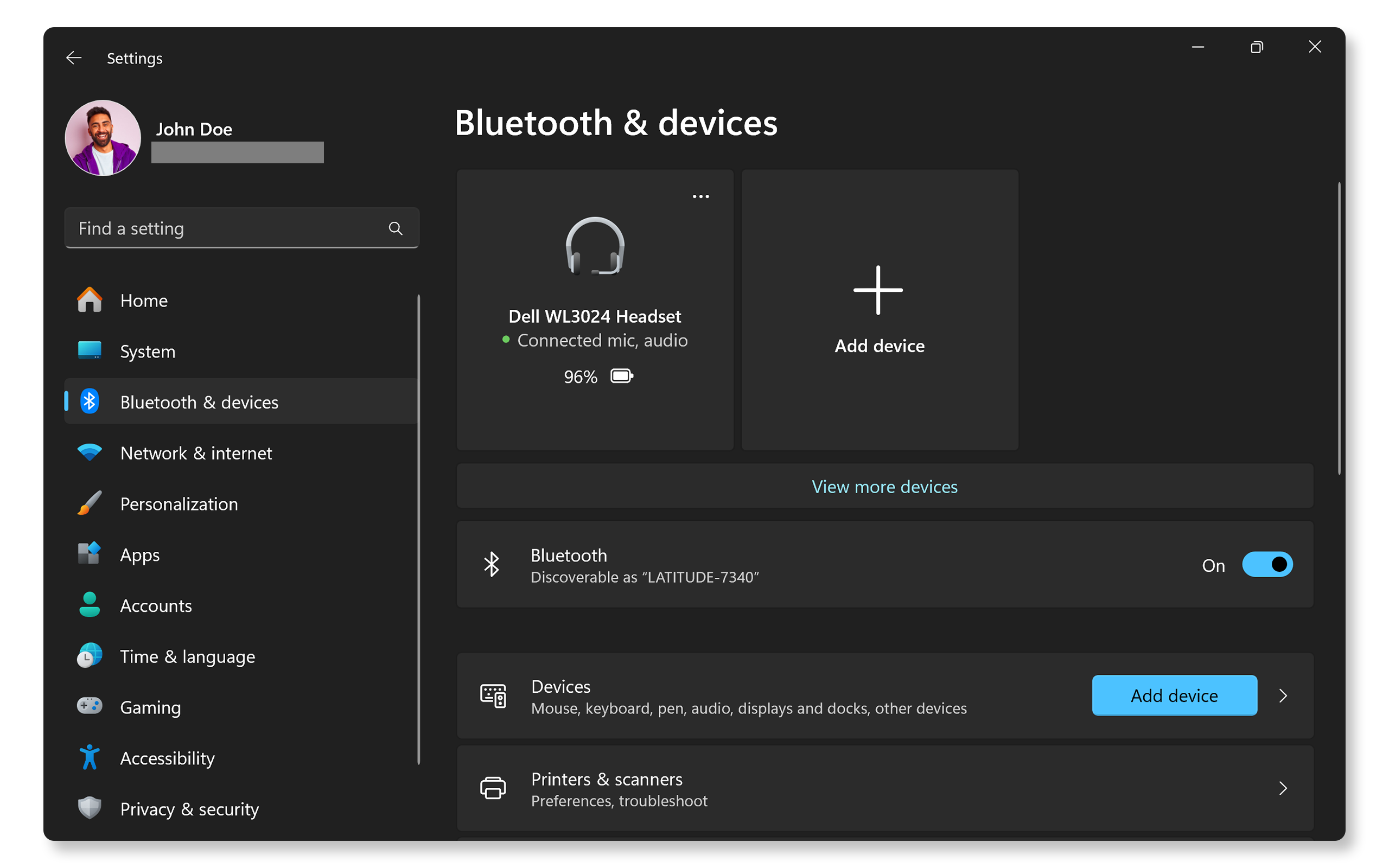
1. Open Settings and select Bluetooth & devices.
2. Toggle Bluetooth to On and click Add device.
3. Hold the pairing button on your keyboard until the light flashes rapidly.
4. Select your keyboard model from the list of available devices.
5. Confirm any matching passcodes if prompted by the screen.
The LED will turn solid white briefly before turning off, signaling a successful connection.
Switch Between Two Paired Computers
Advanced models like the KM7321W allow you to pair with two different computers simultaneously. Press the connection button twice quickly to switch the keyboard to the second Bluetooth channel. Pair the second computer using the standard Windows Bluetooth settings while the LED blinks for channel two. You can now toggle between your work laptop and personal desktop instantly by pressing the connection button once.
Customize Settings With Dell Software
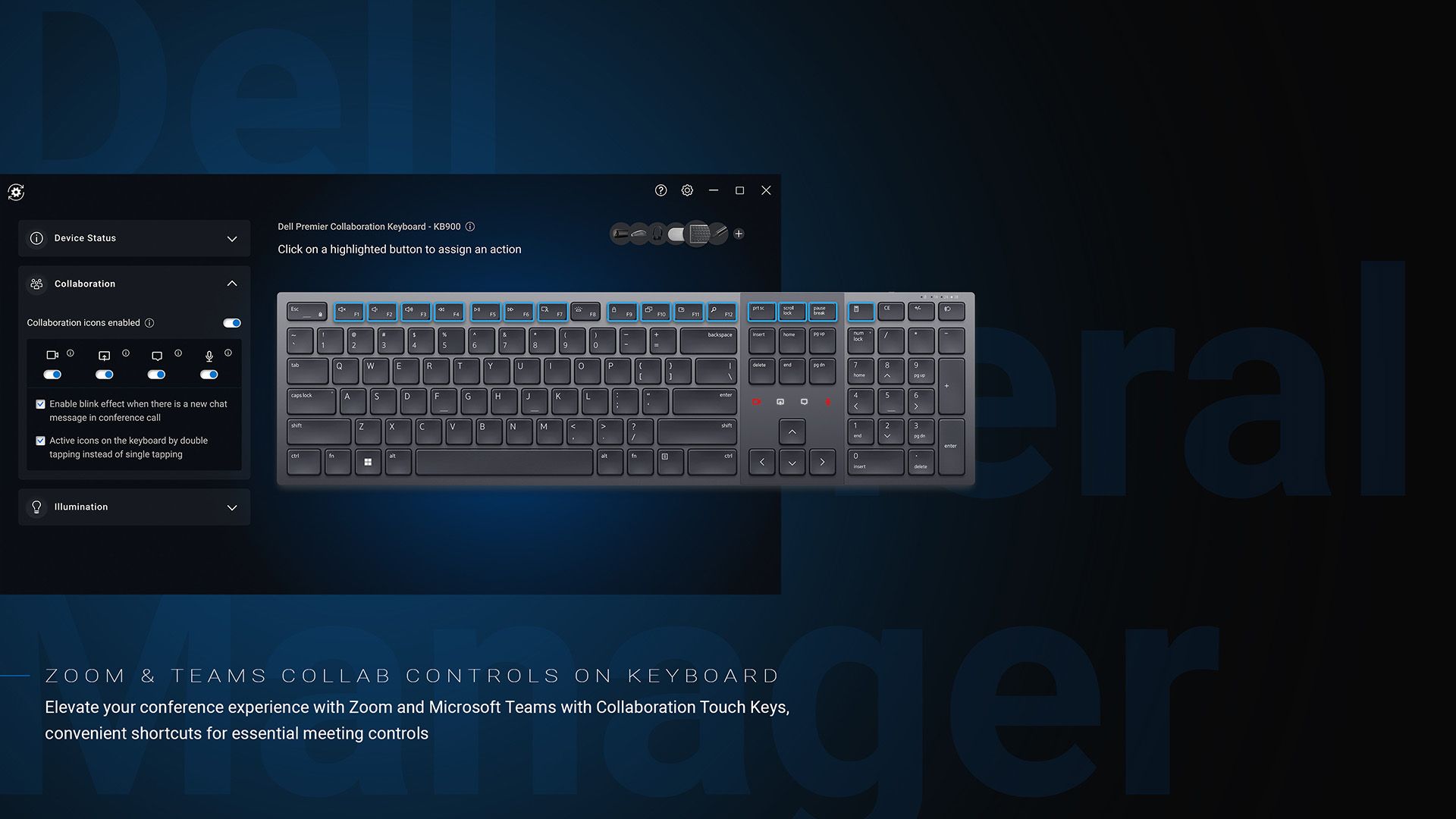
While basic typing works immediately, installing dedicated software unlocks advanced features and firmware updates. This step ensures your keyboard remains secure and fully functional over time.
Install Dell Peripheral Manager
Download the Dell Peripheral Manager from the official support website for most Pro and Silent series keyboards. This application allows you to update firmware, customize function keys, and monitor battery levels in real time. It also provides tools to re-pair devices or manage multiple connections efficiently.
Configure Alienware Command Center
Gamers using Alienware keyboards should open the Alienware Command Center pre-installed on their systems. Navigate to the keyboard section to customize RGB lighting effects and create complex macros for gaming. You can save specific profiles for different games and adjust the polling rate for faster response times.
Troubleshoot Connection and Input Issues
Even with correct setup, you might encounter situations where the keyboard stops responding or fails to pair. Use these diagnostic steps to resolve common problems quickly.
Resolve Non-Responsive Keys
Check your battery levels first, as low power often causes intermittent input or total failure. Replace old batteries with fresh ones and ensure the power switch is set to On. Try moving the USB receiver to a different port, preferably one directly on the computer rather than a hub.
Fix Bluetooth Pairing Failures
Ensure your computer is within 10 meters of the keyboard during the pairing process. Remove old or unused device listings from your Bluetooth settings to clear the connection queue. Restart the Bluetooth Support Service in Windows or reboot your computer to refresh the driver stack.
Pro Tip: Disable USB selective suspend in your power options to prevent Windows from cutting power to the USB port.
Maintain Keyboard Performance and Battery Life
Regular maintenance extends the life of your peripheral and ensures consistent typing performance. Simple cleaning habits and smart battery management prevent most long-term issues.
Clean Keys and Surfaces Regularly
Turn off the keyboard and tilt it sideways to shake out loose crumbs and debris. Use compressed air to blow dust out from under the keys without damaging the internal switches. Wipe the surface with a slightly damp microfiber cloth, avoiding direct sprays of liquid.
Manage Batteries Effectively
Replace disposable batteries immediately when the status light flashes amber ten times. For rechargeable models, charge the device before the battery drains completely to preserve cell health. Remove batteries entirely if you plan to store the keyboard for several months to prevent leakage damage.
Frequently Asked Questions About Connecting Keyboards
Can I plug a keyboard directly into a Dell monitor USB port?
Yes, but only if the monitor is connected to a computer via a USB upstream cable. The monitor acts as a pass-through hub and cannot process keyboard input independently without this data link to a host PC.
Do Dell wireless keyboards work with Mac or Linux systems?
Basic typing functions work on macOS and Linux since they are plug-and-play devices. However, advanced customization features and dedicated software like Dell Peripheral Manager are typically only available for Windows operating systems.
Why is my wireless keyboard not pairing with my computer?
Most pairing failures result from dead batteries, the USB receiver being plugged into an unpowered hub, or the keyboard not being in pairing mode. Ensure you hold the connection button for three seconds until the LED blinks.
How do I switch a Dell keyboard between two computers?
Supported models allow dual Bluetooth pairing. Press the connection button twice quickly to activate the second channel, pair the second device, and then press the button once to toggle between the two saved connections.
What does it mean when the keyboard LED flashes amber?
A flashing amber light that repeats ten times indicates a low battery condition. You should replace the AAA batteries or recharge the device immediately to restore full functionality.
Key Takeaways for Connecting Your Keyboard
Connecting your keyboard through a Dell monitor requires a proper USB upstream cable to enable the hub functionality. Whether you choose wired, wireless dongle, or Bluetooth methods, ensuring your drivers are updated and batteries are fresh guarantees reliable performance.
Start by verifying your upstream cable connection, then proceed with the specific pairing steps for your keyboard type. Install the Dell Peripheral Manager or Alienware Command Center to unlock full customization potential and keep your firmware current for the best experience.


