
You cannot plug a game controller directly into a monitor because screens lack the processing power to recognize input devices. Instead, you must connect your controller to a host device like a PC or console that sends video to your display.
This guide shows you exactly how to link your controller to a host system for seamless gameplay on any monitor. You will learn wired and wireless setup steps for PlayStation and Xbox gear while fixing common audio or lag issues quickly.
Identify Your Host Device for Controller Input
Monitors act only as visual displays and cannot process game data on their own. You need a central host device to bridge the gap between your physical inputs and the image on your screen.
PC Connection Architecture
A computer offers the most flexibility for various controller types including PlayStation and Xbox models. You link the controller to the PC via USB or Bluetooth while the PC sends video to the monitor.
* Best for: Steam libraries, emulators, and cross-platform titles.
* Requirements: A USB port or built-in Bluetooth adapter.
* Signal Path: Controller sends data to PC which renders video to the monitor.
Gaming Console Workflow
Consoles like the PS5 or Xbox Series X provide instant compatibility with their specific controllers. The console processes all game logic and outputs the signal through an HDMI cable.
* Best for: Exclusive titles and local multiplayer sessions.
* Setup: Pair the controller to the console directly rather than the screen.
* Signal Path: Controller talks to console which drives the monitor display.
Mobile Device Output
Smartphones can serve as powerful hosts when connected to a larger screen via adapters. This method works well for cloud gaming services or mobile-specific titles.
* Best for: Cloud gaming platforms and retro emulation.
* Requirements: USB-C to HDMI adapter and Bluetooth pairing.
* Signal Path: Phone receives controller input and mirrors display to monitor.
Pair PlayStation Controllers via Bluetooth or USB
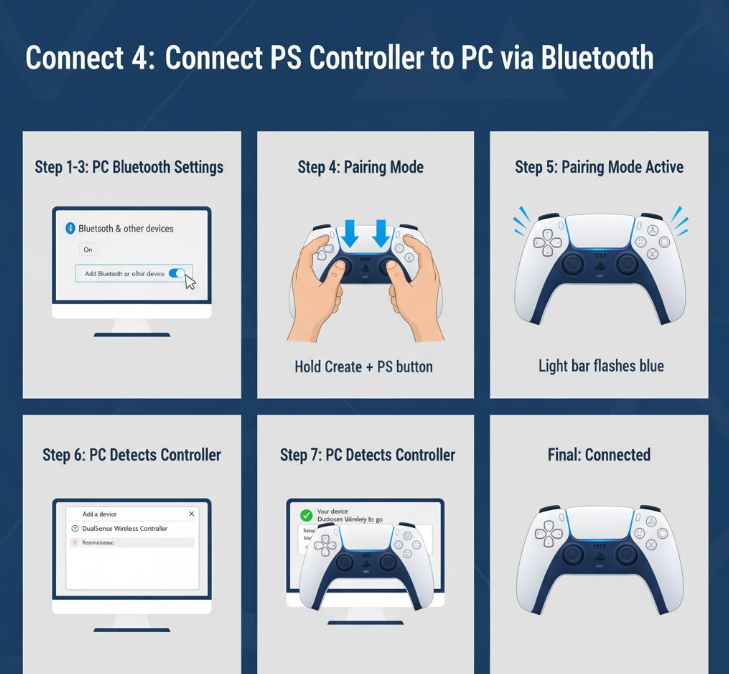
PlayStation controllers work excellently with PCs when you follow the correct pairing or cabling procedures. You can choose between a wireless setup for freedom or a wired connection for zero latency.
Enter Wireless Pairing Mode
You must put your controller into discovery mode before your computer can find it. The button combination differs slightly between the DualShock 4 and DualSense models.
* DualShock 4: Hold the PS Button and Share Button together until lights flash.
* DualSense: Hold the PS Button and Create Button for three to five seconds.
* Visual Cue: The light bar will strobe rapidly to indicate it is discoverable.
Complete Windows Bluetooth Pairing
Once the controller is flashing you can add it through your system settings menu. This process establishes a stable wireless link for gaming.
1. Open Settings and select Bluetooth & devices.
2. Toggle Bluetooth on and click Add device.
3. Choose Bluetooth from the options list.
4. Select Wireless Controller when it appears.
5. Wait for the light bar to turn solid indicating success.
Utilize Multi-Device Slots
The DualSense controller allows you to store pairing information for up to four different devices. This feature lets you switch between a PC and console without reparings.
* Slot 1: Hold PS Button plus Triangle button.
* Slot 2: Hold PS Button plus Circle button.
* Slot 3: Hold PS Button plus X button.
* Slot 4: Hold PS Button plus Square button.
Establish Wired USB Connections
A physical cable provides the most reliable connection with no battery drain concerns. Simply plug a data-capable USB-C or Micro-USB cable into your computer.
* Action: Connect the cable to the controller and then to a USB port.
* Result: Windows recognizes the device instantly without pairing steps.
* Warning: Avoid charge-only cables as they will not transmit input data.
Configure Xbox Controllers for Monitor Gaming

Xbox controllers offer native support for Windows systems making them the easiest option for most users. You can connect wirelessly or use a cable for competitive play.
Execute Bluetooth Pairing Steps
Newer Xbox controllers support direct Bluetooth connections to PCs and laptops. This method removes cable clutter while maintaining a strong signal range.
1. Press the Xbox button to power on the device.
2. Hold the small Pair button on the top edge for three seconds.
3. Open Bluetooth settings on your computer.
4. Select Xbox Wireless Controller from the available list.
5. Confirm connection when the Xbox logo stops flashing.
Connect via USB Cable
Wired connections eliminate latency and ensure your controller never runs out of power. This is the preferred method for competitive gaming where every millisecond counts.
* Cable Type: Use USB-C for newer models or Micro-USB for older ones.
* Recognition: The system identifies it as an XInput device immediately.
* Benefit: No drivers are required for basic functionality.
Customize with Xbox Accessories App
You can fine-tune button mapping and trigger sensitivity using the official Microsoft application. This tool allows deep customization for specific game genres.
* Remapping: Change button functions to suit your play style.
* Sensitivity: Adjust trigger travel distance for faster response.
* Profiles: Save custom settings directly to the controller memory.
Optimize Controller Performance with Software

Native support is good but specialized software can unlock advanced features and better compatibility. These tools help translate inputs for games that do not recognize your specific controller.
Enable Steam Input Configuration
Steam provides robust tools to make any controller work with any game in your library. This feature translates inputs so games think you are using an Xbox controller.
* Activation: Go to Settings then Controller and enable PlayStation support.
* Customization: Adjust rumble strength and light bar colors.
* Non-Steam Games: Add external games to Steam to apply these configurations.
Install DS4Windows for Emulation
This third-party tool emulates an Xbox 360 controller using your PlayStation hardware. It is essential for older games that lack native DualShock or DualSense support.
* Function: Converts PlayStation inputs to XInput standards.
* Features: Enables gyro aiming and custom macro creation.
* Note: Some anti-cheat systems may flag this software during online play.
Update Firmware Regularly
Manufacturers release updates to fix bugs and improve battery life. Keeping your device current ensures the best possible performance and connectivity.
* PlayStation: Use the console or PlayStation Accessories app on PC.
* Xbox: Check for updates in the Xbox Accessories application.
* Frequency: Check for updates monthly or when issues arise.
Solve Audio Output Problems on Monitors
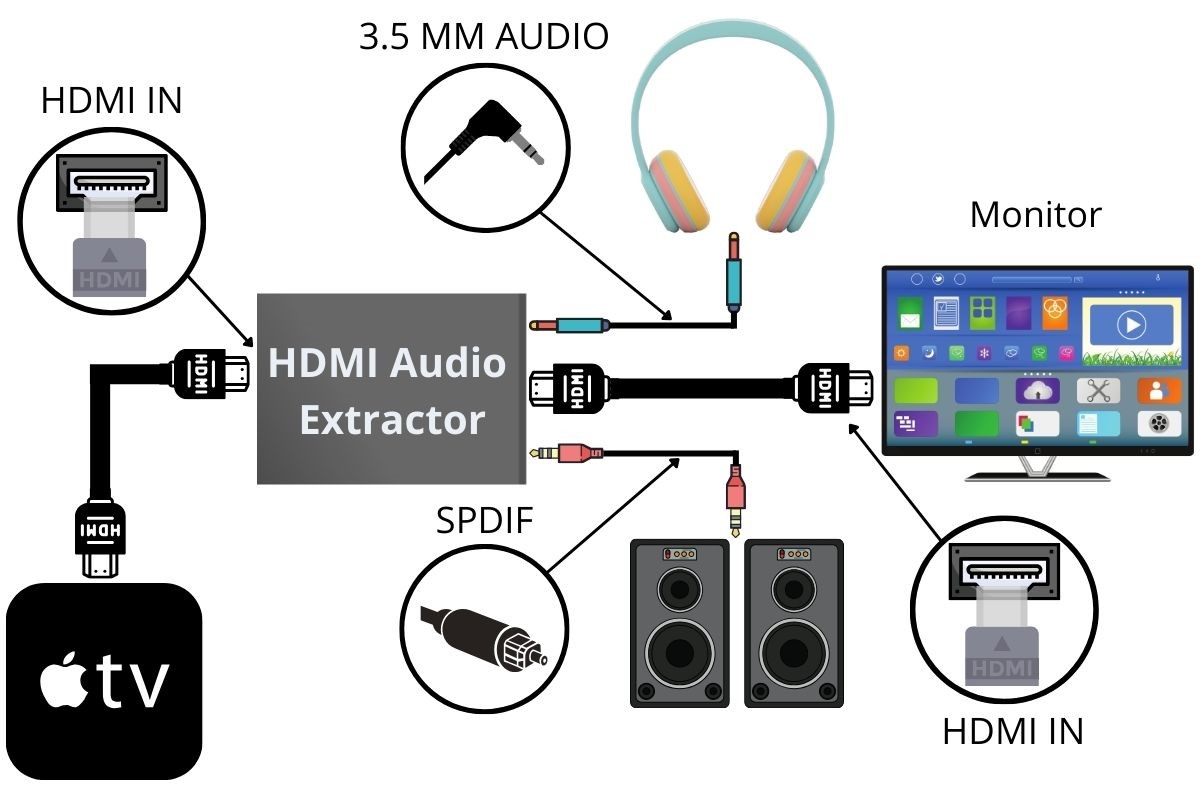
Monitors often lack speakers or audio jacks which creates silence even when your video works. You must route audio through your controller or an external device to hear game sound.
Use Controller Headphone Jacks
Both PlayStation and many third-party controllers feature a 3.5mm audio port. Plugging headphones here bypasses the monitor entirely for private listening.
* Setup: Insert wired headphones into the bottom of the controller.
* Configuration: Set audio output to headset in your system settings.
* Advantage: Zero latency audio directly from the source.
Deploy HDMI Audio Extractors
An extractor splits the video and audio signals from your console or PC. This device sends video to the monitor and audio to your speakers or soundbar.
* Connection: Place the extractor between the host device and monitor.
* Output: Connect speakers to the 3.5mm or optical audio port.
* Use Case: Ideal for monitors without built-in audio outputs.
Connect via USB Wireless Dongles
Wireless headsets often use a USB dongle rather than Bluetooth for lower latency. Plug this dongle directly into your host device not the monitor.
* Compatibility: Works with most PC and console wireless headsets.
* Limitation: PlayStation consoles do not support standard Bluetooth audio.
* Setup: Insert dongle into a USB port on the PC or console.
Troubleshoot Common Connection Failures
Even with correct setup you might encounter detection errors or input lag. These proven fixes resolve the most frequent connectivity headaches quickly.
Fix Undetected Controllers
If your system does not recognize the device the issue is often the cable or battery. A simple swap of components usually solves the problem immediately.
* Check Cable: Ensure you are using a data-capable USB cable.
* Replace Battery: Install fresh batteries or charge the device fully.
* Update Drivers: Check Device Manager for driver updates.
Reduce Input Lag and Latency
Delays between button presses and on-screen action can ruin gameplay experience. Interference from other devices is a common cause of wireless lag.
* Distance: Move closer to the host device or receiver.
* Interference: Remove USB 3.0 devices from near the receiver.
* Solution: Switch to a wired connection for competitive play.
Correct Wrong Button Prompts
Games may show Xbox symbols when you are using a PlayStation controller. This confusion happens when the game expects a specific input standard.
* Steam Fix: Enable configuration support in Steam settings.
* Emulation: Use DS4Windows to force Xbox emulation mode.
* Restart: Close and reopen the game after connecting the controller.
Frequently Asked Questions About Connecting Controllers to Monitors
Can I plug my controller directly into the monitor USB port?
No, monitor USB ports are typically passive hubs that cannot process game input data. You must connect the controller to a host device like a PC or console that sends video to the monitor.
Why does my controller charge but not work on my PC?
You are likely using a charge-only USB cable that lacks data wires. Replace it with a high-quality data-capable cable to transmit input signals to your computer.
How do I fix input lag when playing wirelessly?
Move closer to your host device and remove USB 3.0 peripherals that cause interference. Switching to a wired USB connection eliminates latency completely for competitive gaming.
Can I use a PS5 controller on a Windows PC monitor setup?
Yes, you can connect via Bluetooth or USB cable and use Steam Input for full compatibility. Windows 11 offers native battery status and improved connection stability for DualSense controllers.
Why are my button prompts showing Xbox icons on my PS controller?
The game expects an XInput device so you need to enable PlayStation Configuration Support in Steam. Alternatively, use DS4Windows to emulate an Xbox controller for older titles.
How do I get sound if my monitor has no speakers?
Plug headphones directly into your controller or use an HDMI audio extractor to split the signal. You can also connect a soundbar via eARC if your monitor supports it.
Key Takeaways for Connecting Your Controller to a Monitor
You now understand that a host device is essential because monitors cannot process controller input directly. By linking your gamepad to a PC, console, or mobile device you create a functional gaming station on any screen.
Remember to use data-capable cables for wired play and keep your firmware updated for the best performance. Start by identifying your host device and follow the specific pairing steps for your controller model today.


