
You just installed your new ASUS monitor, but the screen remains silent because you missed the specific steps required to route audio correctly. Many users assume video cables automatically carry sound, yet VGA and DVI connections need extra wires while HDMI setups often require manual software changes.
This guide explains exactly how to connect speakers to ASUS monitor systems using any video interface without confusion. You will learn to identify the correct green and black ports, choose between TRS and TRRS cables to avoid static, and configure Windows settings for immediate sound.
Identify Green Audio-In and Black Headphone Ports
Locating the correct jacks on the rear panel is your first step toward fixing silent speakers. ASUS places these ports near the video inputs, but their similar sizes often lead to plugging cables into the wrong slots.
Locate the Green Audio-In Port
The green 3.5mm port accepts audio signals from your computer when your video cable cannot carry sound. You must use a male-to-male cable here if you are using VGA or DVI connections. Without this specific link, your monitor displays video but produces zero audio output.
Find the Black Headphone Output Jack
The black 3.5mm jack serves as an output for headphones or external speaker systems. Plugging a device here automatically disables the internal monitor speakers to route sound externally. Note that this port is output-only and cannot accept microphone input for recording.
Verify Port Labels and Symbols
Check for the headphone icon or “HP” text near the black jack on the right side of the panel. Inserting a speaker cable into the green Audio-In port instead of the black output jack results in total silence. Always match your cable destination to the color-coded function.
Match Connection Method to Your Video Cable Type
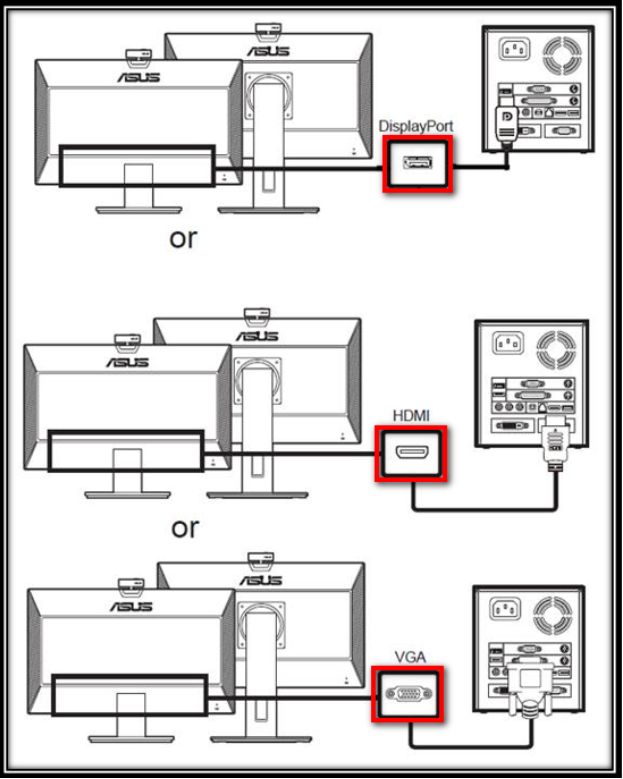
Your video interface dictates whether you need an extra audio cable or if sound travels with the picture. HDMI and DisplayPort handle both signals, while older standards like VGA require a separate wire.
Use HDMI for Integrated Audio Transmission
HDMI cables carry high-definition video and audio simultaneously without extra wires.
* Connect the HDMI cable from your PC graphics card to the monitor.
* Allow Windows to detect the monitor as an audio device automatically.
* Select the monitor as your default playback device in system settings.
Pro Tip: Some budget ASUS models lack internal speakers. Even with HDMI, you may need to plug external speakers into the black headphone jack.
Connect via DisplayPort for Dual Signal
DisplayPort functions similarly to HDMI by transmitting both data types over one cable.
* Use a certified DisplayPort-to-DisplayPort cable for best results.
* Update your graphics driver to ensure audio detection works properly.
* Navigate to Sound settings to verify the monitor appears in the playback list.
Add Audio for VGA Connections
VGA transmits video only, so you must add a 3.5mm auxiliary cable for sound.
1. Plug one end into the green audio output on your PC or laptop headphone jack.
2. Connect the other end to the green Audio-In port on the monitor.
3. Open the monitor menu and switch the audio source to Line In.
Ignoring the final step leaves the monitor listening to the wrong source, resulting in no sound despite correct cabling.
Route Audio with DVI Setups
DVI also lacks audio capability and requires the same auxiliary cable approach as VGA.
* Connect a 3.5mm TRS cable from your PC audio out to the monitor Audio-In.
* Access the On-Screen Display (OSD) to select Line In as the source.
* Confirm Windows recognizes the correct output device for playback.
Choose the Right 3.5mm Cable to Prevent Static
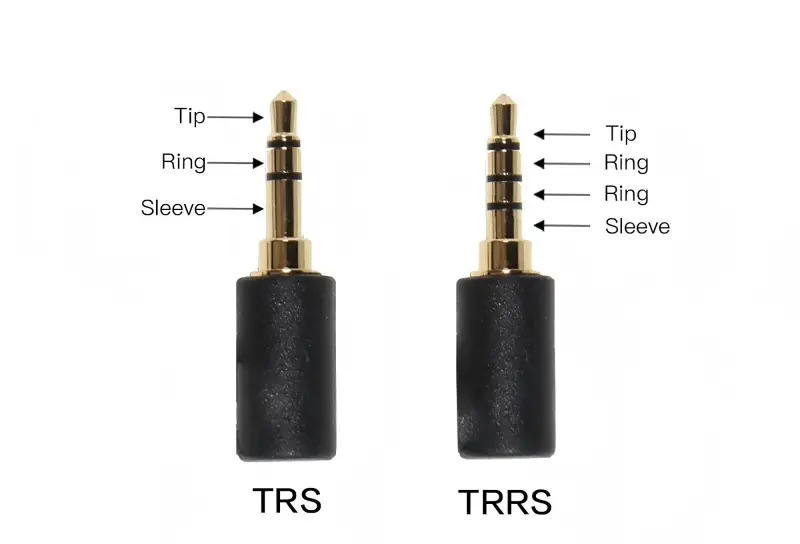
Using the wrong cable type is the leading cause of buzzing, white noise, or distorted audio on ASUS displays. You must distinguish between TRS and TRRS connectors before plugging anything in.
Use TRS Cables for Clean Sound
TRS cables feature two black rings on the plug and are designed for stereo audio. These are the standard connectors for PC audio systems and are fully compatible with ASUS monitor jacks. They provide clear left and right channel separation without interference.
Avoid TRRS iPhone and Mobile Cables
TRRS cables have three black rings and include a fourth channel for microphones. Plugging these into an ASUS monitor causes the system to misread the microphone channel as audio input. This mismatch creates loud electrical static or constant white noise.
Test Your Cable Compatibility
Inspect your cable plug immediately if you hear strange noises during playback.
* Count the black rings on the connector tip.
* Replace any three-ring cable with a dedicated two-ring TRS cable.
* Avoid using smartphone headsets unless you have a specific adapter that removes the mic channel.
Direct TRS cabling is far more reliable than using adapters to convert mobile headsets for desktop use.
Configure Windows Audio Settings Correctly
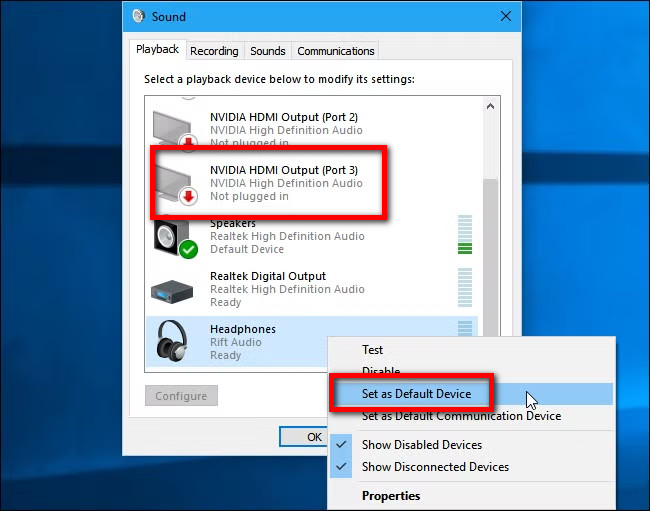
Physical connections mean nothing if Windows sends sound to the wrong device. You must manually set the monitor as the default output to hear audio through your display.
Set Monitor as Default Playback Device
Follow these steps to route audio correctly:
1. Right-click the speaker icon in your taskbar.
2. Select Sounds or open Sound settings then Sound Control Panel.
3. Click the Playback tab to view available devices.
4. Find your monitor listed as “Digital Audio,” “ASUS,” or “HDMI Output.”
5. Right-click the entry and choose Set as Default Device.
A green checkmark will appear next to the selected device to confirm it is active.
Fix Missing Monitor in Playback List
If the monitor does not appear in your device list, your drivers may need attention.
* Update your GPU drivers from NVIDIA, AMD, or Intel websites.
* Open Device Manager and uninstall the audio device under sound controllers.
* Restart your computer to force Windows to reinstall the driver automatically.
Sometimes simply unplugging and replugging the video cable triggers the necessary hardware detection scan.
Adjust Monitor OSD Audio Settings
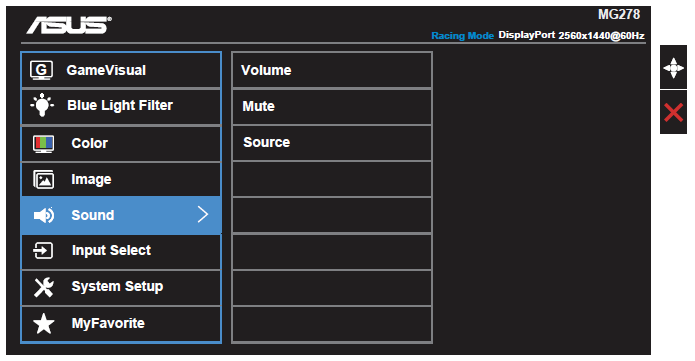
Your monitor has internal logic that must match your physical setup to produce sound. The On-Screen Display (OSD) menu controls where the monitor looks for audio signals.
Access the On-Screen Display Menu
Press the physical buttons located on the bottom or side bezel of your monitor. Use the arrow keys to navigate through the main menu options until you find the sound settings.
Select Correct Audio Source
Navigate to Menu > Sound > Audio Source to choose your input type.
* Select HDMI for HDMI connections.
* Select DisplayPort for DP connections.
* Select Line In for VGA or DVI setups using a 3.5mm cable.
Leaving this setting on HDMI while using a VGA cable ensures you will hear nothing but silence.
Disable Mute and Adjust Volume Levels
Stay in the Sound menu to verify that Mute is set to Off. Increase the volume slider manually if the default level is too low for your environment. These controls affect both internal speakers and any device plugged into the headphone jack.
Connect External Speakers to Monitor
You can bypass built-in speakers entirely by connecting higher-quality external systems to the monitor output. This method often provides better bass and clarity than standard display audio.
Plug Speakers into Headphone Jack
- Connect your external speakers to the black headphone jack using a 3.5mm TRS cable.
- Watch as the monitor automatically disables its internal speakers.
- Control volume using the external speaker knobs or the monitor OSD.
Important: The headphone jack supports analog audio only. It cannot power USB speakers or digital audio devices.
Connect USB or Bluetooth Speakers Directly to PC
USB speakers must plug directly into a USB port on your computer, not the monitor. Bluetooth speakers pair through your PC wireless settings and act as independent devices. Once connected, select them as the default device in Windows Sound settings.
Troubleshoot Common Audio Problems
Even perfect setups can encounter glitches. Use these diagnostic steps to resolve silence, noise, or volume issues quickly.
No Sound at All
Verify that your specific ASUS model actually includes built-in speakers by checking the manual. Ensure the Audio Source in the OSD matches your cable type and that Windows has the monitor set as default. Reboot your PC with the cable connected to refresh the handshake process.
Static, Buzzing, or White Noise
This issue almost always stems from using a TRRS cable instead of TRS. Swap your current cable for a dedicated two-ring audio cable immediately. Move wireless routers or phones away from the audio path to reduce electromagnetic interference.
Volume Won’t Change or Is Stuck
Check if Windows is controlling a different device while sound plays through the monitor. Ensure the monitor internal volume is not muted via OSD. Verify that external speakers have their own physical volume turned up if connected.
Frequently Asked Questions About Connecting Speakers to ASUS Monitor
Do all ASUS monitors have built-in speakers?
No, many budget and gaming models do not include internal speakers. You must check your specific model specifications online or in the user manual to confirm speaker availability before troubleshooting.
Why is there loud static noise when I play audio?
You are likely using a TRRS cable with three black rings instead of a TRS cable with two. The extra microphone channel causes electrical interference that manifests as white noise or buzzing.
Can I plug USB speakers into the monitor USB port?
No, the USB ports on ASUS monitors generally do not support audio pass-through for speakers. You must connect USB audio devices directly to your computer’s USB ports.
How do I switch between Line In and HDMI audio?
Press the monitor menu buttons, navigate to Sound settings, and change the Audio Source to match your current connection type. You must manually select Line In for VGA and HDMI for digital connections.
What cable do I need for VGA audio connection?
You need a standard 3.5mm male-to-male TRS audio cable. Connect one end to your PC green audio port and the other to the monitor green Audio-In port, then select Line In.
Key Takeaways for Connecting Speakers to ASUS Monitor
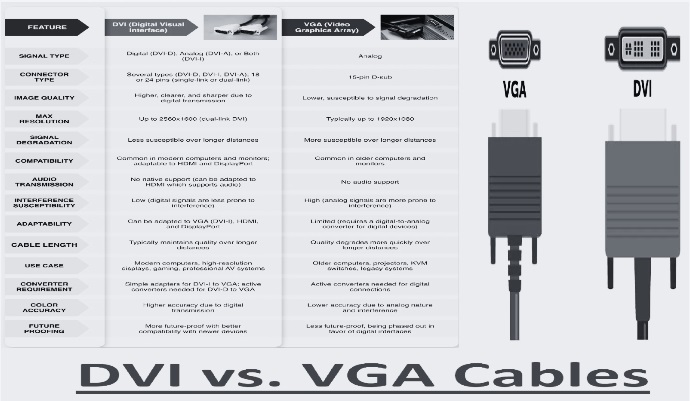
Successfully connecting speakers requires matching your cable type to your video interface and selecting the correct source in the monitor menu. Remember that HDMI and DisplayPort carry audio automatically, while VGA and DVI demand a separate 3.5mm TRS cable.
Always use TRS cables with two black rings to avoid static noise caused by incompatible TRRS mobile cables. Once physically connected, verify that Windows lists your monitor as the default playback device to ensure sound routes correctly.
Start by inspecting your current cable for three black rings and swap it if necessary. Then access your monitor OSD to confirm the audio source matches your setup for instant sound restoration.


