
You bought a sleek new monitor but realized it lacks a TV tuner, leaving you unable to play your Nintendo Switch on the big screen. Most users face this exact hurdle because standard computer displays often lack the specific input settings required for console gaming.
This guide explains exactly how to connect Switch to PC monitor setups using either a direct HDMI link or a USB capture card for laptops. You will learn the specific hardware needed, step-by-step connection procedures, and how to troubleshoot common signal issues without frustration.
Verify Console Compatibility Before Connecting
Not every Nintendo console works with external displays, so checking your model is the critical first step. Attempting to connect an incompatible unit will result in a black screen regardless of your cable quality or software settings.
Identify Supported Switch Models
Only specific versions of the console contain the hardware necessary for video output.
* Nintendo Switch (Original): Fully supports TV Mode and external monitors.
* Nintendo Switch OLED: Fully supports TV Mode with enhanced colors.
* Nintendo Switch Lite: Strictly handheld only and cannot output video to any external screen.
If you own a Switch Lite, no cable or adapter will enable monitor connectivity. You must use one of the dockable models to proceed.
Confirm Game Support for TV Mode
Even with the right console, some software titles restrict gameplay to handheld mode only. Look at the game icon on your home screen for a small television symbol.
* Solid TV Icon: The game supports external display output.
* Greyed or Slashed TV Icon: The game requires handheld mode and will not show video on a monitor.
Titles relying heavily on touch screens or specific motion sensors often fall into the unsupported category. Always verify this symbol before purchasing cables or capture devices.
Use a Capture Card to Display Switch on Laptop

Using a laptop screen requires a video capture card because most laptops only have HDMI output ports. This device converts the console video signal into USB data your computer can process and display.
Gather Required Hardware Components
You need specific equipment to bridge the gap between the console and the computer interface.
* Nintendo Switch or Switch OLED console
* Official Nintendo Switch Dock
* HDMI cable (standard high-definition)
* USB 3.0 Video Capture Card (e.g., Elgato, AverMedia, or budget USB dongles)
* PC or laptop with an available USB 3.0 port (usually blue inside)
* Capture software like OBS Studio or VLC Media Player
Ensure your computer has a USB 3.0 port available. Using an older USB 2.0 port often causes significant input lag and poor video quality.
Configure Capture Software Settings
Install your chosen software and create a new video source to receive the signal. In OBS Studio, click the plus icon in the Sources box and select Video Capture Device.
1. Name the source “Switch” for easy identification.
2. Select your specific capture card from the device dropdown menu.
3. Set the resolution to 1920×1080 and the frame rate to 60 FPS.
4. Click OK to finalize the source configuration.
If you prefer VLC Media Player, go to Media, select Open Capture Device, choose your card, and click Play. The Switch interface should now appear in the software window.
Connect and Test the Signal Path
Plug the HDMI cable into the bottom of the Switch dock and the other end into the capture card input. Insert the capture card USB connector into your computer port.
* Place the Switch console into the dock carefully.
* Ensure the AC adapter is connected to the top of the dock.
* Wait for the software to detect the video feed.
Your laptop screen now acts as the primary display. You can maximize the software window or use fullscreen projector mode for an immersive experience. Detach your Joy-Cons to control the game since the handheld screen will go dark.
Connect Switch Directly to Standalone Monitor
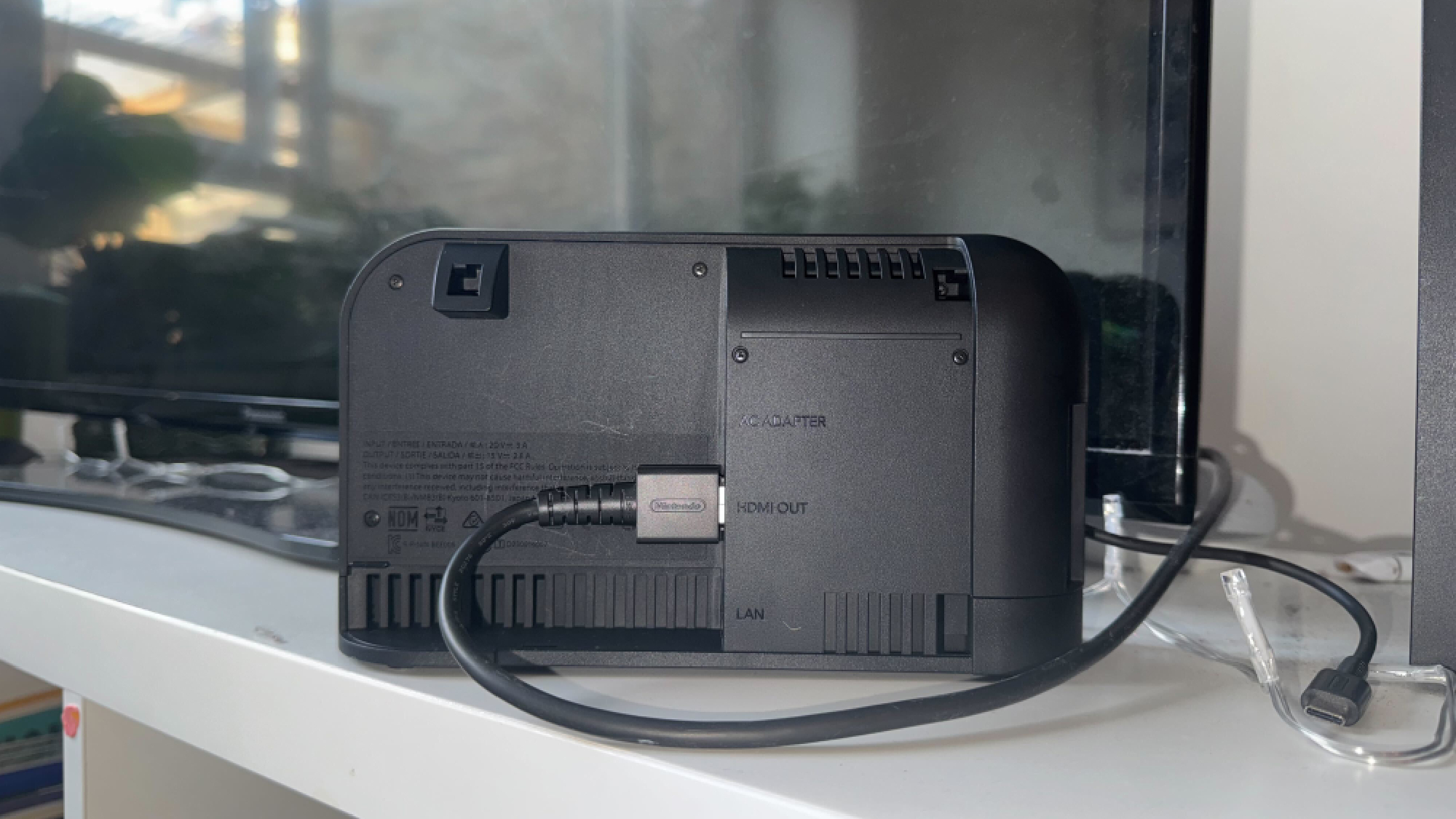
Standalone monitors with HDMI input ports offer the simplest connection method without needing computer software. This approach turns your monitor into a dedicated television for your console.
Check Monitor HDMI Input Availability
Inspect the back or side of your monitor for an HDMI port labeled “IN” or “HDMI.” Many office monitors only include DisplayPort or DVI, which require active adapters that often fail with consoles.
* Locate the physical input buttons on the monitor bezel.
* Press the input source button to see available options.
* Confirm HDMI is listed as a selectable source.
If your monitor lacks HDMI input, you must use a capture card method or upgrade your display hardware.
Execute Direct HDMI Connection
Follow this sequence to establish a stable video link between the dock and the screen.
1. Connect the AC adapter to the top USB-C port on the Switch dock.
2. Plug one end of the HDMI cable into the bottom HDMI port on the dock.
3. Insert the other HDMI end into the monitor HDMI input port.
4. Power on the monitor and press the Input or Source button.
5. Select the correct HDMI channel matching your cable connection.
6. Slide the Switch console into the dock until it clicks.
The screen should instantly switch from the handheld display to the monitor. If the screen remains black, double-check that the monitor is set to the correct HDMI source channel.
Utilize Tablet Devices as External Screens
Tablets offer a portable alternative for viewing gameplay, though they require specific adapters or apps to function as monitors. Most standard tablets do not accept direct HDMI input without assistance.
Select Appropriate Tablet Adapters
You generally need a capture card similar to the laptop method or a specialized USB-C video capture adapter.
* Standard Tablets: Require an HDMI to USB-A/C capture card and a compatible app like AirDroid or Splashtop.
* High-End Android Tablets: Some Samsung models support USB-C Alt Mode, allowing direct HDMI to USB-C adapters.
Verify your specific tablet model supports video input before purchasing adapters. Most iPads and basic Android tablets cannot process video input natively.
Configure Mobile Capture Applications
Install the recommended app for your capture device on the tablet. Connect the HDMI cable from the dock to the capture card, then plug the card into the tablet.
* Open the application and select the video source.
* Adjust scaling settings to fit the tablet screen ratio.
* Ensure the tablet battery is charged or plugged in during use.
This setup provides a portable large-screen experience but may introduce slight latency compared to direct monitor connections.
Transfer Media Files from Switch to PC

Moving screenshots and videos to your computer requires a different connection method than displaying gameplay. You cannot transfer files while the console is inside the dock.
Access Data Management Settings
Power on the Switch in handheld mode and navigate to the system menu.
1. Go to System Settings on the home screen.
2. Scroll down and select Data Management.
3. Choose Manage Screenshots and Videos.
4. Select Copy to a Computer via USB Connection.
The screen will change to indicate the console is ready for a USB connection. This mode disables normal gameplay to prioritize file transfer stability.
Execute USB File Transfer
Connect a USB-C to USB-A cable between the bottom of the Switch and your PC.
* Wait for the computer to recognize the Switch as an external drive.
* Open File Explorer on Windows or Finder on Mac.
* Locate the Switch drive and open the DCIM folder.
* Drag and drop desired media files to your computer desktop.
Remember that the USB ports on the dock itself do not support file transfers. You must use the port on the bottom of the console directly.
Troubleshoot Common Connection Failures

Signal loss or lag often stems from simple configuration errors or hardware limitations. Diagnosing these issues quickly restores your gaming session.
Resolve No Signal Errors
If the monitor shows no signal, the input source is likely incorrect. Press the Source button on your monitor and cycle through every HDMI option.
* Ensure the HDMI cable connects to an Input port, not an Output.
* Verify the Switch is fully seated in the dock with the AC adapter plugged in.
* Try a different HDMI cable to rule out physical damage.
A loose connection at the dock or monitor end frequently causes intermittent signal loss.
Fix Laggy or Choppy Video
Latency usually occurs when using USB 2.0 ports or insufficient computer processing power.
* Move the capture card to a blue USB 3.0 port.
* Close background applications like web browsers or Discord.
* Lower the capture resolution to 720p in your software settings.
Wireless USB hubs can also introduce lag, so plug the capture device directly into the computer.
Address Black Screens on Capture Software
If your software opens but shows only a black box, the device selection may be wrong.
* Recheck the Video Capture Device source settings in OBS.
* Unplug and replug the capture card to refresh the driver connection.
* Restart the software completely after checking cable seating.
Optimize Performance and Thermal Management

Maintaining smooth framerates and preventing overheating ensures long-term hardware health. Proper setup reduces the risk of performance drops during extended sessions.
Configure Optimal Display Settings
Set your capture software or monitor to match the native output of the console.
* Resolution: 1920×1080 (Full HD)
* Frame Rate: 60 FPS
* Aspect Ratio: 16:9
Matching these settings prevents upscaling artifacts and ensures responsive controls.
Manage Console Heat Generation
The Switch generates significant heat when docked and running in TV Mode.
* Place the dock in an open area with ample airflow.
* Avoid stacking books or papers on top of the dock.
* Ensure the top fan vent remains unobstructed.
Enclosing the dock in a tight cabinet can lead to overheating and potential performance throttling.
Frequently Asked Questions About Connecting Switch to Monitors
Can I connect my Nintendo Switch Lite directly to a monitor?
No, the Switch Lite lacks the internal hardware required for video output. It is designed strictly as a handheld device and cannot connect to monitors or TVs via HDMI.
Why is there no picture when I plug my Switch into the monitor?
Your monitor might be set to the wrong input source. Press the Input or Source button on your monitor and cycle through the available HDMI channels until the Switch interface appears.
Do I need a capture card to play on a standard PC monitor?
No, you only need a capture card for laptops or monitors without HDMI input. If your standalone monitor has an HDMI port, you can connect the Switch dock directly using an HDMI cable.
Why is my gameplay lagging when using a capture card?
Lag often results from using a USB 2.0 port instead of USB 3.0. Ensure your capture card is plugged into a blue USB 3.0 port and close other heavy applications on your computer.
Can I transfer screenshots while the Switch is in the dock?
No, file transfer only works via the USB-C port on the bottom of the console itself. You must remove the Switch from the dock to copy media files to your PC.
Key Takeaways for Connecting Switch to PC Monitor
Successfully connecting your console depends on identifying whether you need a direct HDMI link or a USB capture card solution. Standalone monitors with HDMI input work instantly with the official dock, while laptops require a capture card to process the video signal.
Always verify your game supports TV Mode and ensure you are using a compatible Switch model before purchasing accessories. Proper thermal management and USB 3.0 connectivity will guarantee the smoothest possible gaming experience on your new setup.


