
You unboxed your sleek Apple display, but staring at the back reveals no power button, leaving you confused about how to turn on Apple monitor units like the Studio Display or Pro Display XDR. This lack of a visible switch is intentional design, yet it often stops users from enjoying their new hardware immediately.
The solution is simpler than you think because these screens wake automatically when connected correctly to power and your Mac. This guide details the exact steps to activate your display, locate the hidden button on iMacs, and troubleshoot any black screen issues you might encounter.
Why Modern Apple Displays Lack a Power Button
Apple Studio Display, Studio Display XDR, and Pro Display XDR models feature a minimalist design with no physical power switch on the chassis. These units rely entirely on a smart wake system triggered by your data connection rather than a manual toggle.
How the Automatic Wake System Functions
The display remains in a low-power standby state until it detects a valid video signal from a host device. Once both power and data links are active, the screen illuminates instantly without user intervention.
- AC Power First: You must plug the display into a wall outlet using the provided cord.
- Data Connection Second: Connect the Thunderbolt cable to a powered-on Mac or iPad.
- Instant Activation: The screen wakes up the moment the data handshake completes.
Key Insight: The display cannot operate on Thunderbolt power alone. You must connect the AC power cord to a wall outlet for the unit to function.
Connect AC Power Before Data Cables
Start your setup by securing the primary power source to ensure the display is ready to receive signals.
Plug Into a Grounded Outlet
- Use the included power cord attached to the Studio Display or the detachable cable for Pro Display XDR.
- Insert the plug firmly into a grounded wall outlet or a high-quality surge protector.
- Do not expect any lights or sounds yet, as the unit waits for a data signal to fully activate.
✅ What to expect: The screen will remain dark until you connect the Thunderbolt cable to a computer.
Establish the Thunderbolt Data Link
Activate the display by creating a video and data bridge between the screen and your computer.
Select the Correct Cable
- Studio Display (2026): Requires a Thunderbolt 5 (USB-C) cable.
- Other Models: Use Thunderbolt 3 or 4 cables with sufficient bandwidth.
- Always use Apple’s included cable or a certified Thunderbolt cable to guarantee performance.
Execute the Connection
- Locate the upstream Thunderbolt port on the back of the display, marked with a small dot.
- Plug one end of the cable into this specific port on the display.
- Connect the other end to a Thunderbolt or USB-C port on your Mac or iPad.
- Push firmly until you hear a distinct click to lock the connection.
💡 Pro Tip: If the screen stays black, restart your Mac while the cable remains connected to force a hardware detection refresh.
What to Do If Your Apple Monitor Stays Black
A dark screen usually indicates a connection issue rather than a hardware failure. Follow this checklist to diagnose why your attempt to turn on Apple monitor units is failing.
Quick Diagnostic Checklist
- ✅ Verify the power cord is securely plugged into a live wall outlet.
- ✅ Ensure the Thunderbolt cable is fully inserted until it clicks.
- ✅ Confirm your Mac is powered on and not in deep sleep mode.
- ✅ Try a different Thunderbolt port on your computer.
- ✅ Test the display with another Mac to isolate the issue.
⚠️ Warning: Many USB-C cables look identical but lack video capabilities. Only Thunderbolt-certified cables will transmit the image.
Powering On Legacy Thunderbolt Displays
Older Apple Thunderbolt Displays from 2011 also lack a manual power button and rely on automatic activation.
Setup Steps for Legacy Units
- Plug the power cable into the back of the display and a wall outlet.
- Connect the Thunderbolt cable from your Mac to the display input.
- Power on your Mac, and the display should wake instantly.
Utilize MagSafe Charging
If you are using a compatible MacBook, plug the MagSafe cable found on the display into your laptop. This feature allows the display to charge your laptop directly, reducing cable clutter on your desk.
Locating the Power Button on iMac Models
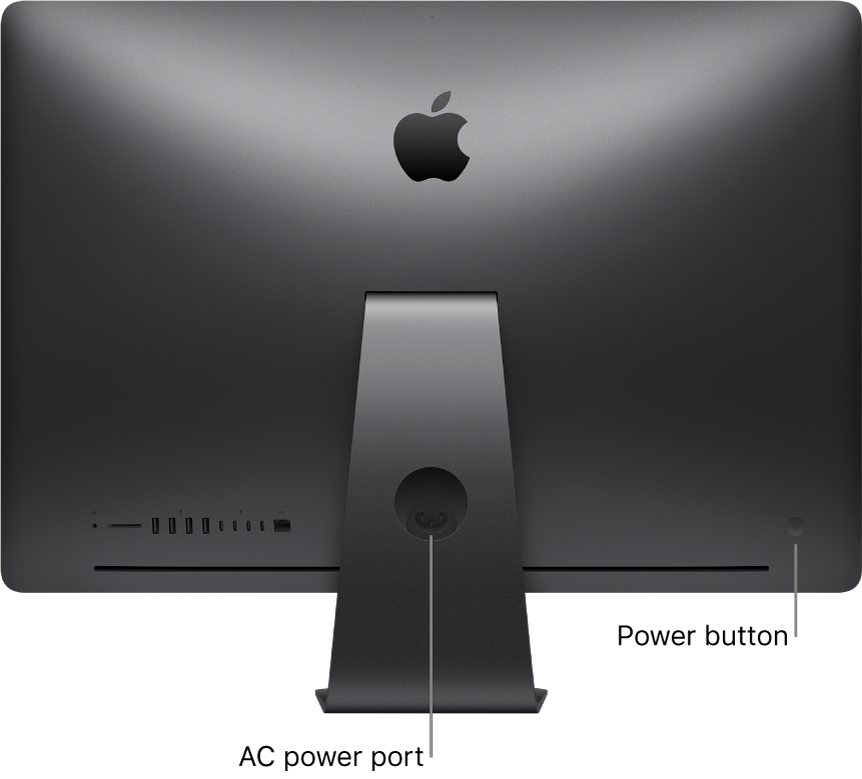
Many users searching how to turn on Apple monitor actually own an iMac, which is a complete computer with a physical power button located on the rear chassis.
Find the Recessed Button
- Location: Look on the back of the iMac near the bottom-left corner.
- Design: It is a small, recessed dot that blends into the aluminum casing.
- Technique: Run your finger along the back edge to feel the indentation before pressing.
How to Activate the iMac
- Reach behind the unit with your non-dominant hand to stabilize it.
- Press the recessed button firmly until you feel resistance.
- Listen for the startup chime or watch for the screen to illuminate.
❗ Common Mistake: Users often look for a button on the front bezel or sides. The button exists only on the back of iMac units.
Step-by-Step Setup in Four Phases
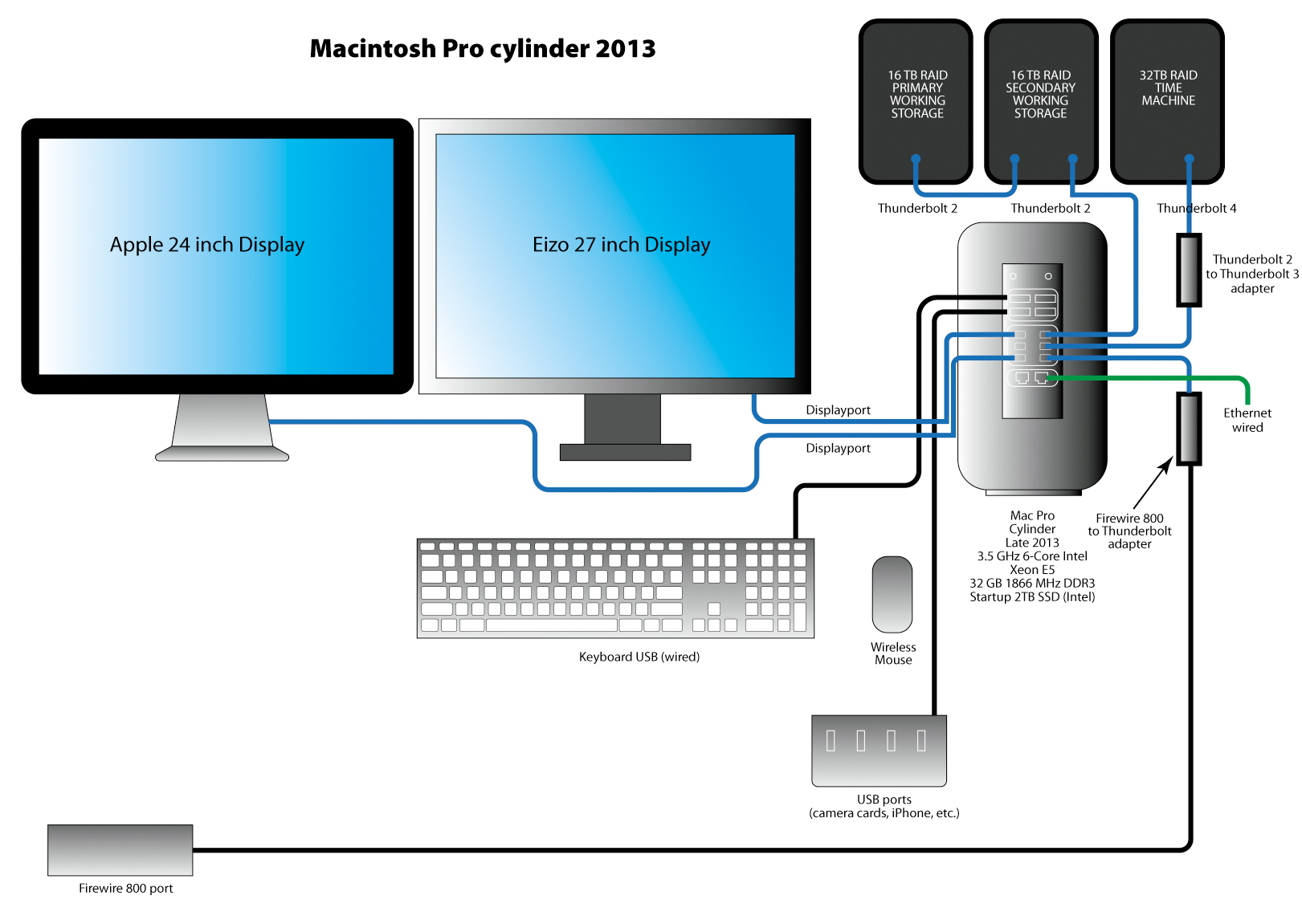
Follow this precise sequence to guarantee a successful setup and avoid common configuration errors.
Phase 1: Prepare Your Workspace
Select a hard, flat surface for your display to ensure stability and proper airflow. Avoid placing lamps directly in front of or behind the screen, as bright lights can confuse the True Tone sensors that adjust color temperature.
Phase 2: Connect Power Sources
Plug the power cord into the display and then into a working wall outlet. Wait five seconds to ensure the unit is receiving electricity before proceeding to data connections.
Phase 3: Connect to Your Mac
Take the Thunderbolt cable and plug it into the upstream port on the display. Connect the other end to your Mac and push until it clicks. Your desktop should appear instantly if the Mac is on.
Phase 4: Configure Display Settings
Open System Settings via the Apple menu and select Displays to customize your experience. You can change resolution, arrange multiple screens, or rotate to portrait mode if using a VESA mount.
💡 Pro Tip: macOS automatically detects orientation changes when you rotate a VESA-mounted display.
Managing Power and Shutdown Procedures
Since modern displays lack a power button, you manage energy usage through your host computer or cable management.
Automatic Sleep and Wake
When your Mac sleeps or shuts down, the display follows suit immediately. There is no need to unplug the device, as energy use drops to near zero during sleep modes.
Manual Power-Down Methods
- Best Method: Put your Mac to sleep via the Apple menu.
- Quick Cut: Unplug the Thunderbolt cable from the Mac or display.
- Full Stop: Unplug the power cord, though this is not recommended for daily use.
🔄 Wake Anytime: Simply power on or wake your Mac, and the display will wake instantly.
Using Reference Modes for Professional Work
Video editors and photographers can utilize Reference Modes to match industry color standards directly from macOS.
Activate Industry Presets
- Go to System Settings > Displays on your Mac.
- Click the Preset dropdown menu.
- Choose options like HDR Video, HD Video, or Photography.
Create Custom Color Profiles
Select Customize Presets to define specific color gamuts, white points, and luminance levels. Enable Show in Menu to access these custom modes quickly via the Control Center.
Adjusting Stands and Cleaning Your Display
Proper physical setup and maintenance ensure longevity and ergonomic comfort for your viewing experience.
Ergonomic Stand Adjustments
Position the top third of the screen at or slightly below eye level to reduce neck strain. If you purchase a VESA adapter, you can mount the display on a wall or arm for maximum flexibility.
Cleaning Nano-Texture Glass
- Nano-Texture Models: Use only the included polishing cloth. Never use liquid cleaners or standard microfiber cloths.
- Standard Glass: Use a soft, lint-free cloth slightly dampened with water if needed.
Always power off the display before cleaning to avoid damaging the panel or missing spots.
Troubleshooting Common Connection Issues
Even with perfect setup, you may encounter flickering or resolution problems that require specific fixes.
Fix Flickering or Low Resolution
- Wrong Cable: Replace non-Thunderbolt USB-C cables with certified options.
- Adapter Issues: Ensure third-party adapters support high-resolution video output.
- Daisy Chain Limits: Connect high-resolution displays directly to the Mac rather than daisy-chaining.
Verify Model Identification
Double-check your device model if you cannot find a power button. Standalone displays like Studio Display have no button, while iMacs have a hidden rear button. Confusing these models is a frequent source of user frustration.
Frequently Asked Questions About Turning On Apple Monitors
Does the Apple Studio Display have a power button?
No, the Studio Display does not have a physical power button. It turns on automatically when connected to AC power and a Thunderbolt-equipped Mac or iPad.
Why is my Apple monitor black even when plugged in?
The screen likely lacks a data signal. Ensure the Thunderbolt cable is clicked firmly into both the display and a powered-on Mac. Also, verify the AC power cord is plugged into a live outlet.
Can I turn on an Apple monitor without a Mac?
No, modern Apple displays require a host device like a Mac or iPad to send a video signal. The display will remain in standby mode without a connected and powered-on host.
Where is the power button on an iMac?
The power button is located on the back of the iMac chassis near the bottom-left corner. It is a small, recessed button that requires a firm press to activate.
How do I force my Apple display to turn on?
If the display does not wake automatically, try restarting your Mac while the Thunderbolt cable remains connected. This forces the system to re-detect the external display.
Key Takeaways for Turning On Your Apple Monitor
Successfully activating your display depends on understanding that modern Apple monitors turn on automatically via Thunderbolt connection rather than a manual switch. You simply need to connect the AC power cord and then attach the Thunderbolt cable to a powered-on Mac.
Remember that iMac users must locate the hidden button on the back left corner, while Studio Display and Pro Display XDR owners should focus on secure cable connections. If your screen remains dark, check your cable certification and ensure your host device is awake.
Now that you know the correct sequence, connect your cables confidently to enjoy your high-resolution display.


