
Your Meta Quest headset can replace your desk monitor to create a massive wireless workspace anywhere. Whether you travel often or simply want more screen space, learning how to use Meta Quest as a monitor opens up new possibilities for productivity.
This guide covers every connection method from official Windows tools to universal HDMI hacks. You will learn specific setup steps, performance tips, and how to fix common issues quickly.
Compare Connection Methods for Your Setup

Choosing the right method depends on your computer type and what you plan to do. Each approach offers different benefits for latency, cost, and device compatibility.
Evaluate Your Specific Needs
- Windows 11 Users: Mixed Reality Link offers the best native integration.
- Mac Owners: Meta Remote Desktop provides reliable screen mirroring.
- Gamers: Virtual Desktop delivers the lowest latency for games.
- Console Players: HDMI Link works with any device possessing an HDMI output.
Review Performance Metrics
- Mixed Reality Link: Free, supports up to three virtual displays, requires Wi-Fi.
- Meta Remote Desktop: Free, single mirrored display, works on older OS versions.
- Virtual Desktop: Costs around $25, supports 120Hz streaming, highly customizable.
- HDMI Link: Requires a $50 capture card, works offline, supports any HDMI source.
Select the option that matches your hardware to ensure the smoothest experience possible.
Set Up Mixed Reality Link on Windows 11

Windows 11 users can access an official multi-screen workspace using Mixed Reality Link. This tool creates up to three resizable virtual monitors within your mixed reality environment.
Install Required Software
- Open the Microsoft Store on your PC and search for Mixed Reality Link.
- Install the application and ensure your Quest headset is updated to Horizon OS 7.2 or later.
- Follow the on-screen prompts to install the Windows App on your headset.
- Grant Nearby Device Permissions in the app settings to allow discovery.
Connect and Reconnect Quickly
Ensure both your PC and headset share the same Wi-Fi network. Unlock your computer and look at your physical keyboard to see a Connect button appear in passthrough view. You can also access the connection via Quick Settings in the headset menu.
Mirror Your Screen with Meta Remote Desktop
Mac users and those on older Windows versions should utilize Meta Remote Desktop. This built-in feature mirrors your entire computer screen wirelessly to the headset.
Download and Configure Settings
Visit oculus.com/desktop on your computer to download the installer. Open the Settings app on your Quest and navigate to System then Remote Desktop. Toggle the Enable Remote Desktop switch to activate the feature.
Grant Necessary Permissions
Windows users must allow screen capture and audio access when prompted. Mac users on Sequoia may need to re-grant screen recording permissions monthly. If the screen appears black, briefly remove your headset to confirm the access prompt on your computer.
Stream Games Using Virtual Desktop
Virtual Desktop is a paid third-party application designed for gamers who need low latency. It offers advanced controls for frame rates and bitrates that official tools lack.
Purchase and Install the Streamer
Buy Virtual Desktop from the Quest Store for approximately $25. Download the companion Virtual Desktop Streamer from the official website on your PC. Launch the streamer application to prepare your computer for connection.
Optimize Streaming Performance
Open the app in your headset and pull down on an empty space to refresh the device list. Select your PC and adjust the frame rate up to 120Hz if your network allows. Use a 5GHz or 6GHz Wi-Fi connection to minimize compression artifacts during gameplay.
Connect Any Device via HDMI Link
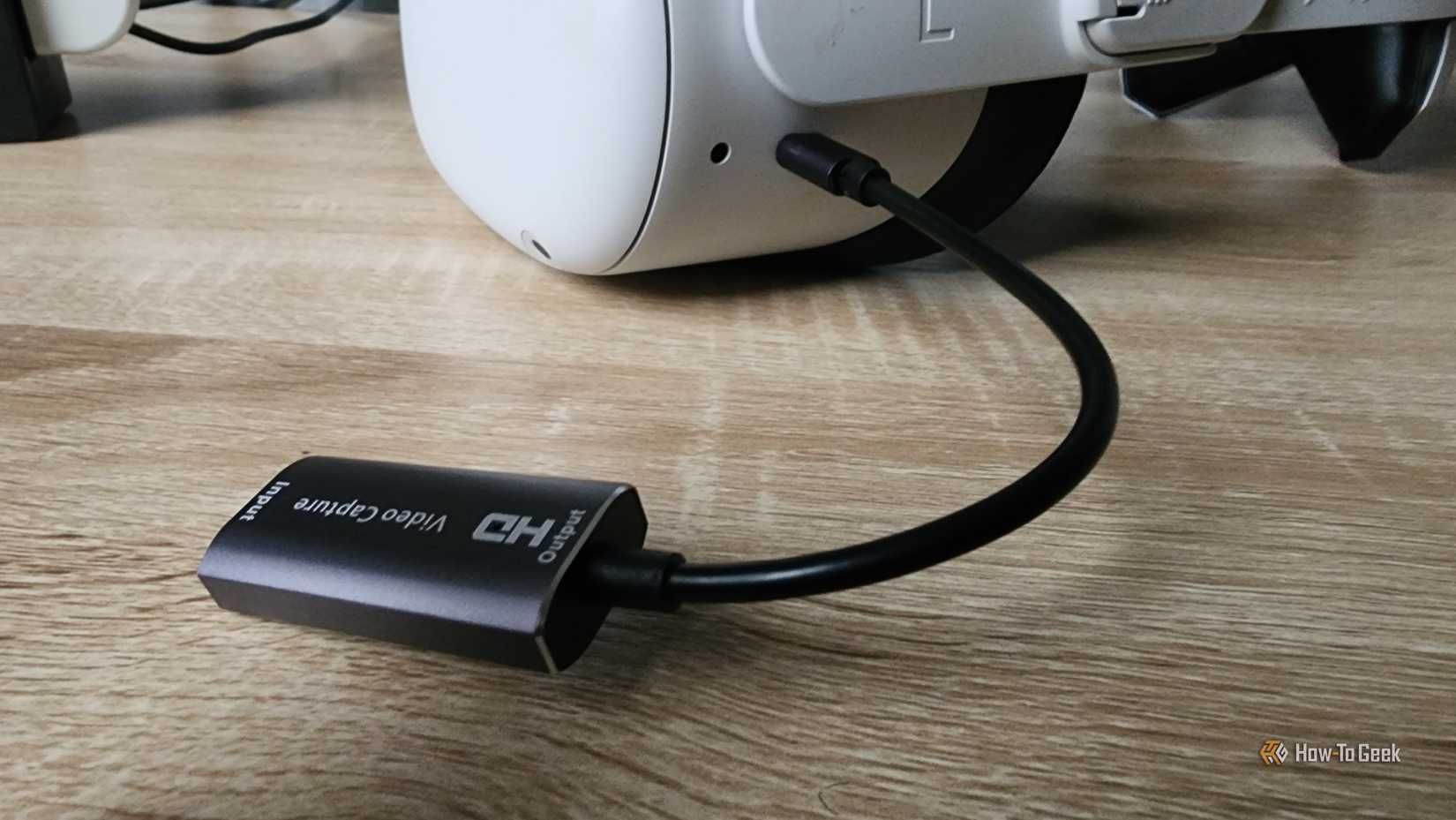
You can turn any HDMI source into a VR monitor using a capture card. This method works completely offline and supports consoles, Steam Decks, and Linux laptops.
Acquire Compatible Hardware
Purchase a capture card that supports UVC and UAC protocols like the Genki Shadow Cast 2. Avoid cheap unbranded cards as they often cap resolution at 720p or introduce significant lag. The recommended hardware supports 1080p at 60Hz for smooth visuals.
Establish the Hardware Connection
Plug the capture card into your Quest USB-C port using a USB 3.0 cable. Open the free HDMI Link app on your headset and grant camera permissions. Connect your external device to the capture card using a standard HDMI cable.
Configure Your Virtual Display Workspace

Once connected, you can build a custom multi-monitor setup tailored to your workflow. The interface allows you to arrange screens in 3D space for maximum efficiency.
Arrange and Resize Monitors
Open the Virtual Display panel from the top menu in Horizon OS. Tap Add Display to create a new virtual monitor and drag it to your desired position. Grab the corners of any screen to resize it according to your preference.
Select Aspect Ratios
- Portrait (3:4): Ideal for coding or reading documents.
- Compact (16:9): Standard format for general use.
- Wide (21:9): Excellent for spreadsheets and timelines.
- Ultrawide (32:9): Available exclusively in Focus View mode.
Note that resolution scales automatically based on your PC output settings.
Interact With Your Physical Keyboard
One major advantage of this setup is the ability to type without removing the headset. The Quest 3 cameras track your physical peripherals in real time.
Utilize Passthrough Tracking
The front-facing cameras detect your keyboard and mouse instantly. You can type and click naturally with near-zero latency while viewing your virtual screens. Keep your keyboard within your direct line of sight to maintain consistent tracking.
Understand Current Limitations
You cannot use Touch controllers to click or drag windows yet. Meta plans to add hand tracking and controller interaction in future software updates. If the camera feed drops, wait 10 to 15 seconds for the system to re-detect your inputs.
Optimize Your Headset for Productivity
Transforming your Quest into a workstation requires attention to comfort and visual clarity. Proper setup ensures you can work for extended periods without fatigue.
Enhance Text Clarity
Use high-resolution fonts and zoom in on text-heavy applications to reduce strain. Ensure you have a strong Wi-Fi 6 connection or use wired Ethernet on your PC to minimize compression. Avoid working in dark rooms as bright screens can increase eye strain.
Improve Mobility and Workflow
Work from your couch, bed, or a hotel room with the same multi-monitor setup. You no longer need to carry multiple physical monitors for remote work. Simply bring your laptop and headset to establish your office anywhere.
Play Games on a Virtual Big Screen
You can enjoy PC games on a massive virtual screen equivalent to a 100-inch display. This setup provides an immersive experience for single-player adventures.
Assess Gaming Performance
Most titles run smoothly at 1080p and 90Hz with no noticeable lag. Use the curved display mode in Virtual Desktop for a cinematic feel. You can even watch guides on a second screen while playing your favorite game.
Recognize Competitive Limitations
Wireless streaming adds 10 to 20ms of input lag which affects competitive play. Text and UI elements may appear slightly blurry due to compression. Stick to RPGs and simulators rather than fast-paced shooters like Valorant.
Watch Movies Without DRM Issues
Streaming protected content often causes black screens when mirroring due to copyright protection. You must use specific apps to bypass these restrictions.
Bypass HDCP Protection
Do not mirror your browser when watching Netflix or Disney Plus. Instead, use native Quest apps like Meta Browser, Bigscreen, or Plex. These applications access streaming services directly within the headset environment.
Enjoy Local and Online Media
YouTube works fully supported with picture-in-picture capabilities. Upload local files to Bigscreen or Plex for high-quality playback without compression issues. This ensures a seamless movie-watching experience in your virtual theater.
Improve Comfort for Extended Use
Wearing a headset for hours requires ergonomic upgrades to prevent discomfort. The stock accessories are often insufficient for all-day work sessions.
Upgrade Your Strap
The default elastic band presses on your face and causes pain after two hours. Invest in a halo strap like the BOBO VR S3 Pro to distribute weight evenly. These straps often support hot-swappable batteries for extended runtime.
Prevent Eye Strain
Take breaks every 60 minutes following the 20-20-20 rule. Adjust the IPD slider and lens distance for sharp focus before starting work. Use dark mode in your applications to reduce overall screen brightness.
Troubleshoot Common Connection Issues
Technical glitches can interrupt your workflow, but most have simple fixes. Understanding common problems helps you resolve them quickly.
Resolve Connection Failures
Ensure both devices are on the same Wi-Fi network and your PC is unlocked. Check that Nearby Device Permissions are enabled in the Windows App. Restarting both the headset and computer often clears pairing errors.
Fix Pixelation and Black Screens
Move closer to your router if you experience distortion or lag. Update your graphics drivers to the latest version available. If Netflix shows a black screen, switch to the native Meta Browser app instead of mirroring.
Frequently Asked Questions About Using Meta Quest as a Monitor
Can I use my Meta Quest as a monitor for Mac?
Yes, you can use the free Meta Remote Desktop app to mirror your Mac screen wirelessly. Note that Mixed Reality Link is exclusive to Windows 11, so Mac users rely on screen mirroring.
Does using Meta Quest as a monitor introduce input lag?
Wireless methods introduce 10 to 20ms of latency, which is fine for work but noticeable in competitive gaming. HDMI Link via capture card offers minimal latency for offline devices.
How many virtual monitors can I create simultaneously?
Mixed Reality Link allows you to create up to three resizable virtual displays. You can arrange these screens in any configuration within your 3D workspace.
Why is my Netflix screen black when mirroring?
HDCP copyright protection blocks mirrored content from streaming services. You must use native Quest apps like Bigscreen or Meta Browser to watch protected media.
Do I need a strong Wi-Fi connection for this to work?
Yes, a 5GHz or 6GHz Wi-Fi network is essential for smooth wireless performance. Weak signals cause pixelation, distortion, and increased input lag.
Can I charge my headset while using it as a monitor?
Yes, you can use a USB-C hub with pass-through charging for wired methods. Halo straps with built-in batteries also allow for hot-swapping to extend usage time.
Key Takeaways for Using Meta Quest as a Monitor
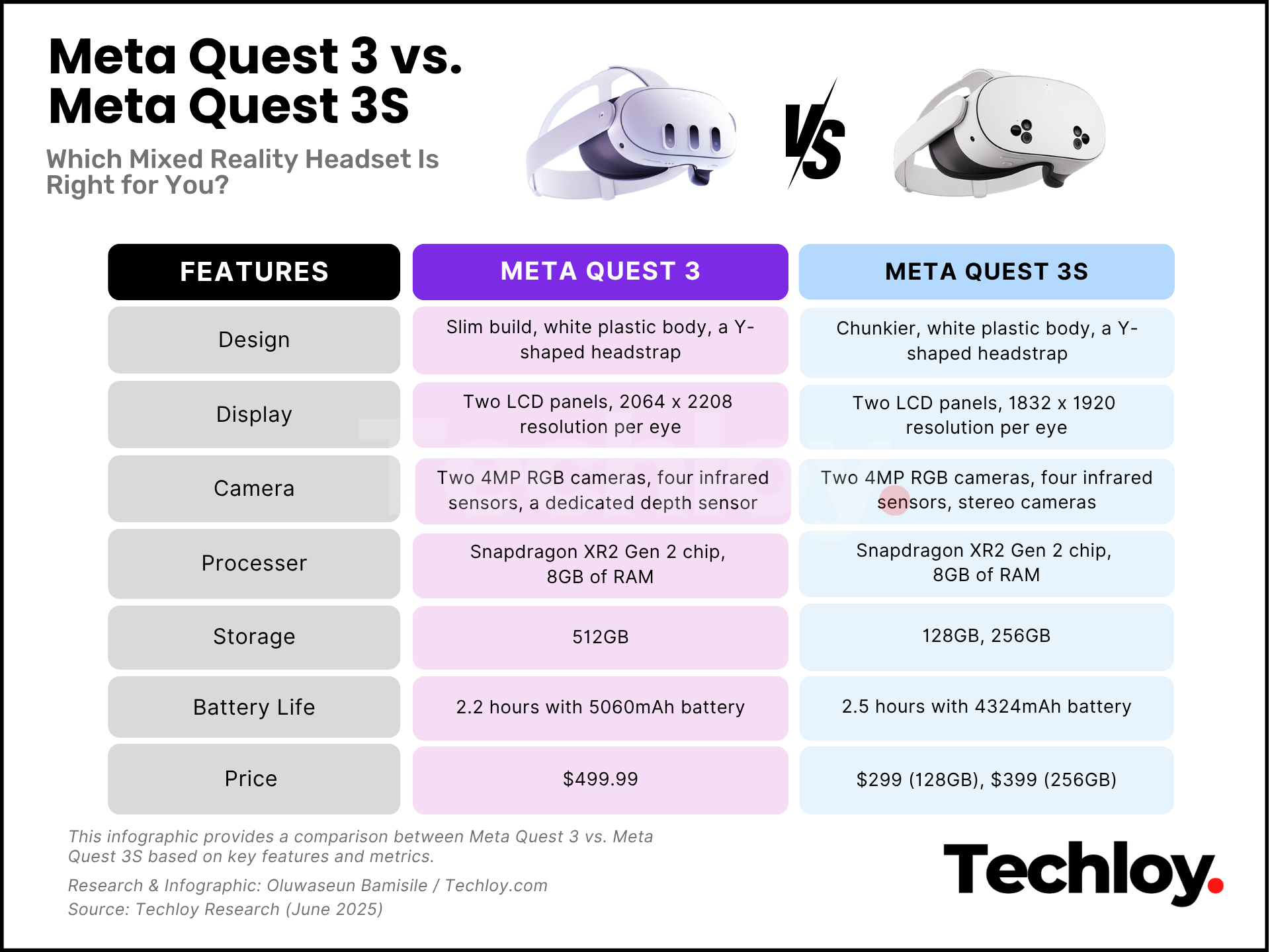
Using your Meta Quest as a monitor provides a powerful portable workspace with the right setup. Windows 11 users get the best experience with Mixed Reality Link, while console players benefit from the universal HDMI Link method.
Investing in a halo strap and ensuring strong Wi-Fi connectivity will significantly improve your daily workflow. Start by selecting the connection method that fits your hardware today to unlock your infinity office.


