
You have a sharp computer monitor sitting on your desk, and you want to stream Netflix, Disney+, or Prime Video without firing up a web browser. Connecting a Fire TV Stick to that monitor turns it into a full smart streaming hub with true 4K HDR playback. Most browsers cap video quality at 1080p on services like Disney+ and HBO Max, but the Fire Stick bypasses those limits entirely.
Monitors are not identical to TVs, though. Many lack built-in speakers, deliver weak power through USB ports, and require manual input switching. Getting audio right and supplying stable power are the two biggest hurdles you will face. This guide walks you through every step, from hardware checks to Bluetooth pairing, so you can enjoy crisp 4K streaming on your desktop display in under 15 minutes.
Required Hardware for Fire TV Stick and Monitor Setup
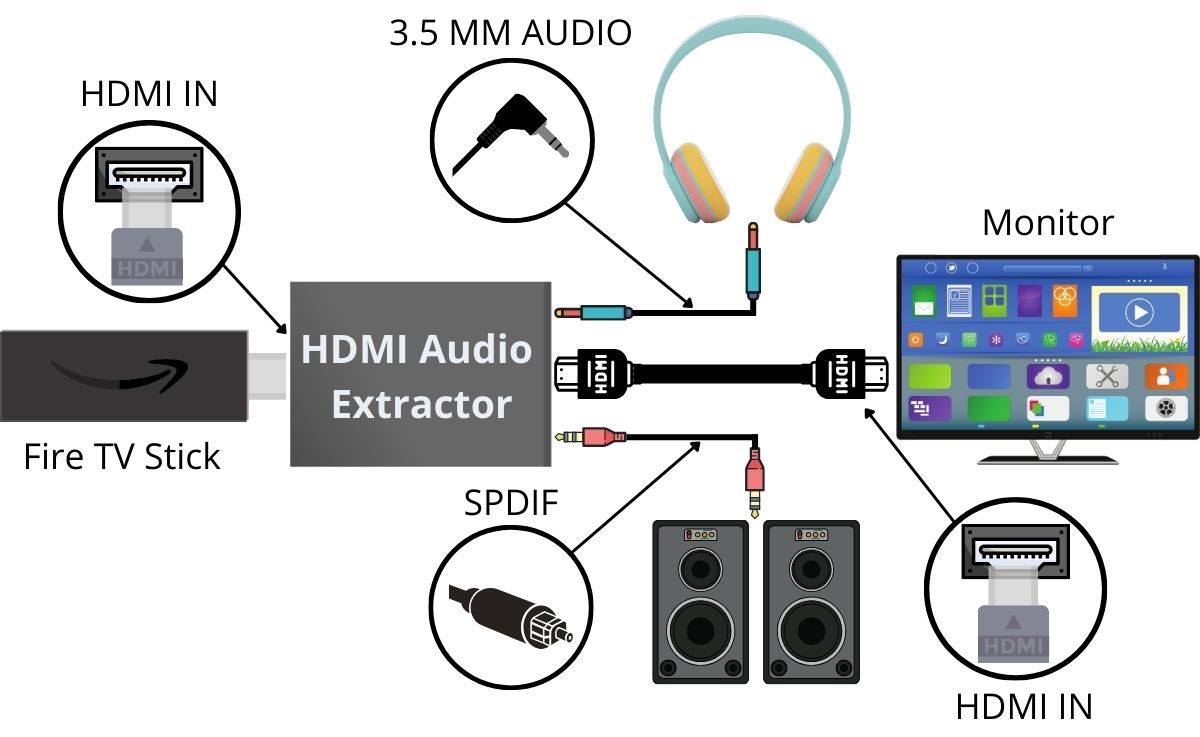
Before you plug anything in, confirm your hardware meets the basic requirements for smooth streaming.
Verify HDMI Port and Power Compatibility
Your monitor must have an HDMI input port. Most modern 4K displays include at least one HDMI 2.0 or higher port, which supports 4K resolution at 60Hz. Avoid older HDMI 1.4 ports when possible, since they may limit performance.
Do not rely on your monitor’s USB port to power the Fire Stick. Most monitor USB ports deliver only 500mA, which causes boot failures, random restarts, or overheating. Use the included USB power adapter plugged into a wall outlet or a powered USB hub instead. This ensures stable 1.5A power delivery.
Gather the Cables You Need
You only need two cables for this setup:
– HDMI cable (included with the Fire Stick)
– USB power cable (also included)
If your HDMI port sits flush against a wall or is blocked by the monitor casing, grab an HDMI extender or right-angle adapter. These small accessories reduce port strain and make installation cleaner.
Step-by-Step Fire TV Stick Connection Process
Follow these clear steps to get your Fire TV Stick running on your monitor in under 10 minutes.
Plug In and Power Up Correctly
- Insert the Fire TV Stick directly into an available HDMI port on your monitor.
- Connect the USB power cable to the stick, then plug it into the wall power adapter.
- Plug the adapter into a nearby electrical outlet.
Using the wall adapter is critical. Skipping this step is the most common cause of connection failures.
Switch Your Monitor Input Source
Turn on your monitor and use its physical buttons or on-screen menu to navigate to Input Source or Source Selection. Choose the HDMI port where you plugged in the Fire Stick (HDMI 1, HDMI 2, etc.).
Within seconds, the Fire TV startup screen should appear. If nothing shows up after 15 seconds, double-check the input source and confirm the power adapter is securely connected.
Complete the Initial Setup
Follow the on-screen prompts to finish configuration:
1. Select your preferred language.
2. Connect to your Wi-Fi network (required for streaming).
3. Sign in with your Amazon account to unlock subscriptions and personalized content.
Once logged in, the Fire Stick automatically detects your monitor’s native resolution and enables HDR if supported. No manual configuration required.
Fix Audio Output Issues on Your Monitor
Audio is the biggest challenge when pairing a Fire TV Stick with a monitor, since most monitors lack quality speakers or proper audio routing.
Pair Bluetooth Headphones or Speakers
The easiest solution is Bluetooth audio. The Fire TV Stick 4K Max supports native Bluetooth connectivity, so you can pair wireless headphones or speakers directly without any phone app.
To pair your device:
1. Go to Settings, then Controllers and Bluetooth Devices, then Other Bluetooth Devices.
2. Put your headphones or speaker in pairing mode.
3. Select the device when it appears on screen.
This allows private listening with high-quality wireless audio. Popular choices include AirPods, Sony WH-1000XM5, and Bluetooth-enabled soundbars.
Use the Monitor Audio Jack If Available
Some monitors pass HDMI audio through a 3.5mm headphone jack. If yours has one, plug in wired headphones or external speakers. Then confirm audio output is set to HDMI in the Fire Stick settings.
Go to Settings, then Display and Sounds, then Audio Output and confirm it shows HDMI. If you still hear no sound, check the monitor’s internal settings, since some disable HDMI audio by default.
Run Simultaneous Audio Streams
Advanced users can run multiple audio sources at once. For example, stream Fire Stick content to Bluetooth headphones while keeping PC audio running through a wired USB or 3.5mm jack. This works seamlessly for late-night viewing without disturbing others.
Optimize Your Setup for 4K and HDR Streaming
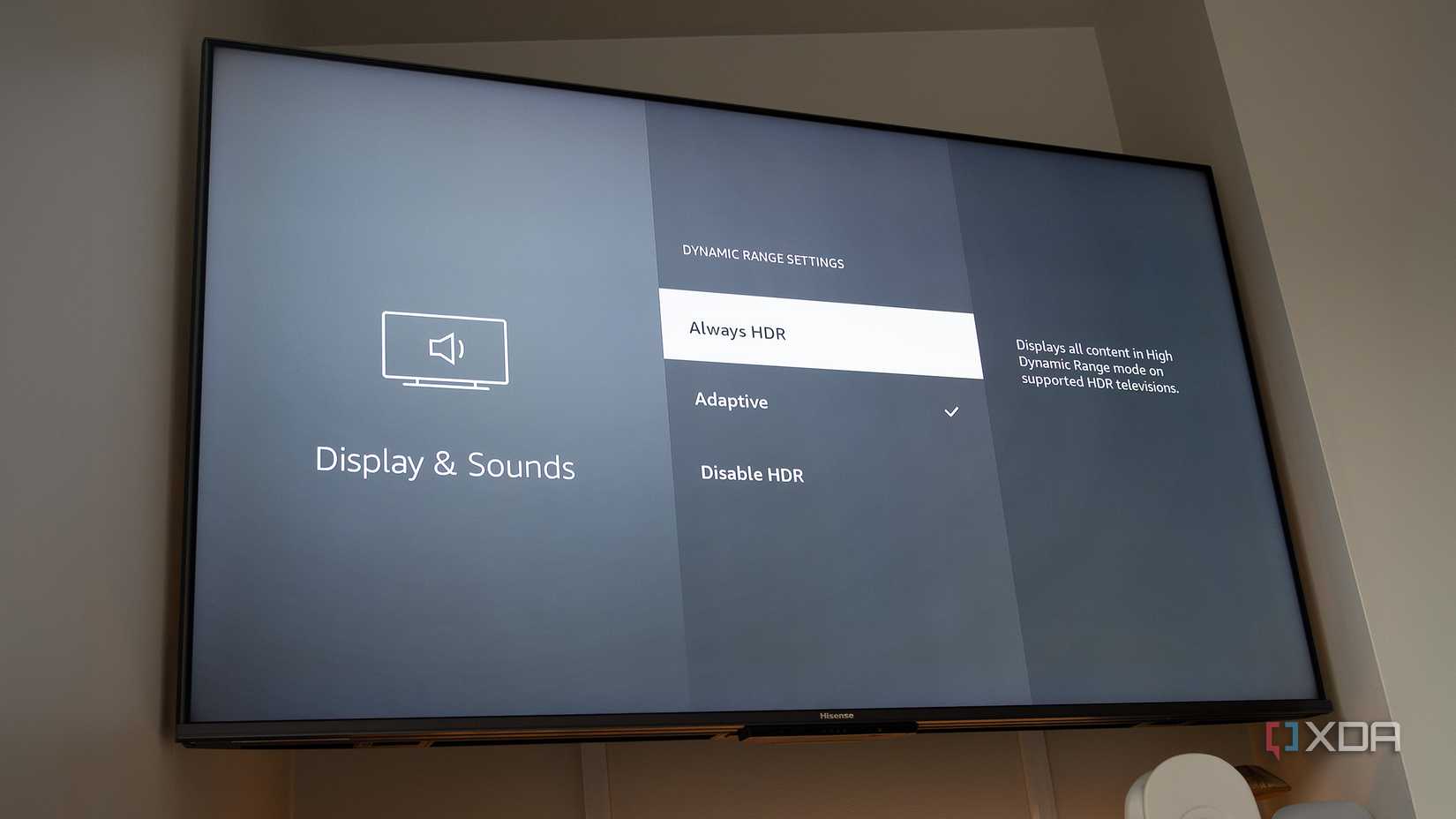
Maximize your visual experience by ensuring your setup supports full 4K resolution and HDR.
Confirm 4K Resolution Detection
After setup, verify the Fire Stick outputs in 4K:
1. Go to Settings, then Display and Sounds, then Display.
2. Check that Resolution is set to Auto (up to 4K UHD).
If it shows 1080p, your monitor may not be detected correctly. Try reseating the HDMI cable or testing with another port.
Enable HDR Automatically
HDR enhances contrast, color depth, and brightness. The Fire Stick detects HDR capability automatically and enables it when supported.
To confirm HDR is active:
– Play an HDR title (such as a 4K movie on Prime Video)
– Look for an HDR indicator in the video info panel
– If colors look flat, go to Display Settings and ensure HDR is enabled
Note that HDR only works if your monitor supports it. Common HDR-compatible monitors include Dell UltraSharp, LG UltraFine, and ASUS ProArt series.
Why Fire Stick Outperforms Browser Streaming

Using a Fire TV Stick on your monitor beats browser-based streaming in several key ways.
Bypass 1080p Browser Limits
Streaming services like Disney+, HBO Max, and Hulu intentionally cap browser playback at 1080p, even if your monitor is 4K. This means you are not seeing the full clarity your screen can deliver.
The Fire Stick bypasses these restrictions and streams content in native 4K resolution with full bitrate quality. On a 27-inch or larger 4K display, the difference is striking, with more detail, sharper text, and richer visuals.
Enjoy a Smoother Interface
The Fire TV OS is optimized for streaming. Compared to browser tabs that lag, buffer, or consume CPU resources, the Fire Stick offers:
– Instant app launches
– Smooth scrolling
– Faster search results
– Lower system load on your PC
This makes switching between work and entertainment seamless. Just toggle the HDMI input and go.
Troubleshoot Common Fire TV Stick Problems
Even with proper setup, issues can arise. Here is how to fix them fast.
No Power or Random Reboots
If your Fire Stick won’t turn on or keeps restarting, the cause is usually insufficient power from the monitor USB port. Always use the wall power adapter and never rely on monitor USB for power.
No Picture or Black Screen
If your monitor shows “No Signal” or stays black, check these common causes:
– Wrong HDMI input selected (switch to the correct HDMI source)
– Loose HDMI connection (reseat the cable firmly)
– Faulty port (try a different HDMI port on the monitor)
Audio Not Working
If sound is missing or cutting out, try these solutions:
– Pair Bluetooth headphones directly to the Fire Stick
– Check the monitor’s audio settings (some mute HDMI audio by default)
– Connect external speakers to the monitor’s 3.5mm jack
Cropped or Stretched Image
If the picture doesn’t fill the screen or appears zoomed in, go to Settings, then Display and Sounds, then Display, then HDMI Scaling. Set it to Auto or match your monitor’s native aspect ratio (usually 16:9).
Best Use Cases for Fire TV Stick on a Monitor
This setup shines in specific real-world scenarios.
Home Office Entertainment Hub
Turn your work monitor into an after-hours streaming center. No need for a second screen. After work, switch HDMI inputs and enjoy 4K content without cluttering your desk.
Dorm Rooms and Small Apartments
Space is limited in dorms and studios. One monitor does double duty: productivity by day, entertainment by night. The Fire Stick is compact, affordable, and easy to store.
Night Owls and Roommates
Use Bluetooth headphones for silent, high-quality streaming. Watch movies or shows without waking others, which is perfect for shared living spaces.
Audiophiles and Quality Seekers
Demand the best picture and sound? The Fire Stick delivers uncapped 4K HDR and supports lossless audio formats when paired with compatible sound systems.
Final Setup Tips and Maintenance
Keep your Fire TV Stick running smoothly with these expert tips.
Use a Surge Protector
Plug the power adapter into a surge-protected power strip. This protects the device from voltage spikes and lets you power down everything at once.
Update Firmware Regularly
The Fire Stick updates automatically, but keep Wi-Fi connected. Updates improve performance, fix bugs, and add new features.
Clean Dust Buildup
If mounted behind the monitor, dust can accumulate. Wipe the stick gently every few months to prevent overheating.
Label HDMI Ports
If using multiple devices (PC, console, Fire Stick), label your HDMI ports or assign memorable names in the monitor’s OSD menu for faster switching.
Frequently Asked Questions About Connecting Fire TV Stick to Monitor
Does a Fire TV Stick work on any monitor?
A Fire TV Stick works on any monitor with an HDMI input port. Most modern monitors include this standard interface. The device functions identically on a monitor as it does on a television, giving you access to Netflix, Hulu, Disney+, Prime Video, and more.
Can a monitor USB port power a Fire TV Stick?
Most monitor USB ports cannot reliably power a Fire TV Stick. They typically deliver only 500mA, which causes boot failures, random restarts, or overheating. Use the included wall power adapter for stable 1.5A power delivery.
How do I get sound from my Fire TV Stick to my monitor?
The best way to get sound is by pairing Bluetooth headphones or speakers directly to the Fire Stick. Alternatively, if your monitor has a 3.5mm audio jack, you can connect wired headphones or external speakers through it.
Will my monitor display 4K from a Fire TV Stick?
Your monitor will display 4K from a Fire TV Stick if it supports 4K resolution and uses HDMI 2.0 or higher. The Fire Stick automatically detects your monitor’s native resolution and configures output for optimal clarity.
Why use a Fire Stick instead of streaming through my browser?
A Fire Stick bypasses the 1080p resolution caps that streaming services like Disney+, HBO Max, and Hulu impose on browser playback. It delivers native 4K HDR content with smoother performance and lower CPU load on your computer.
Can I use Bluetooth headphones and PC speakers at the same time?
Yes, the Fire TV Stick supports simultaneous audio routing. You can stream Fire Stick content to Bluetooth headphones while keeping PC audio running through a wired USB or 3.5mm connection, which is ideal for shared workspaces.
Key Takeaways for Connecting Your Fire TV Stick to a Monitor
Connecting a Fire TV Stick to a monitor is a smart, cost-effective way to unlock premium 4K HDR streaming without buying a new TV. The three most important steps are using the wall power adapter (never the monitor USB port), selecting the correct HDMI input source, and pairing Bluetooth audio since most monitors lack quality speakers.
Your next step is simple: gather your Fire TV Stick, HDMI cable, and wall adapter, then follow the connection steps in this guide. Within 10 minutes, your monitor will transform into a powerful streaming display ready for Netflix, Prime Video, and beyond.


