
Improper monitor placement causes neck strain, back pain, and reduced focus throughout your workday. A properly installed monitor arm solves these problems by letting you adjust height, angle, and distance with precision, placing your screen exactly at eye level. Beyond comfort, it frees up significant desk space and creates a cleaner, more productive workstation.
Attaching a monitor arm depends on several factors: your desk type, monitor size, VESA compatibility, and preferred mounting style. Whether you choose a clamp, grommet, wall, or freestanding setup, following the correct procedure ensures lasting stability. This guide covers every step from initial measurements to final ergonomic adjustments, helping you attach your monitor arm securely and enjoy a healthier workspace.
Check Desk Compatibility Before Installation
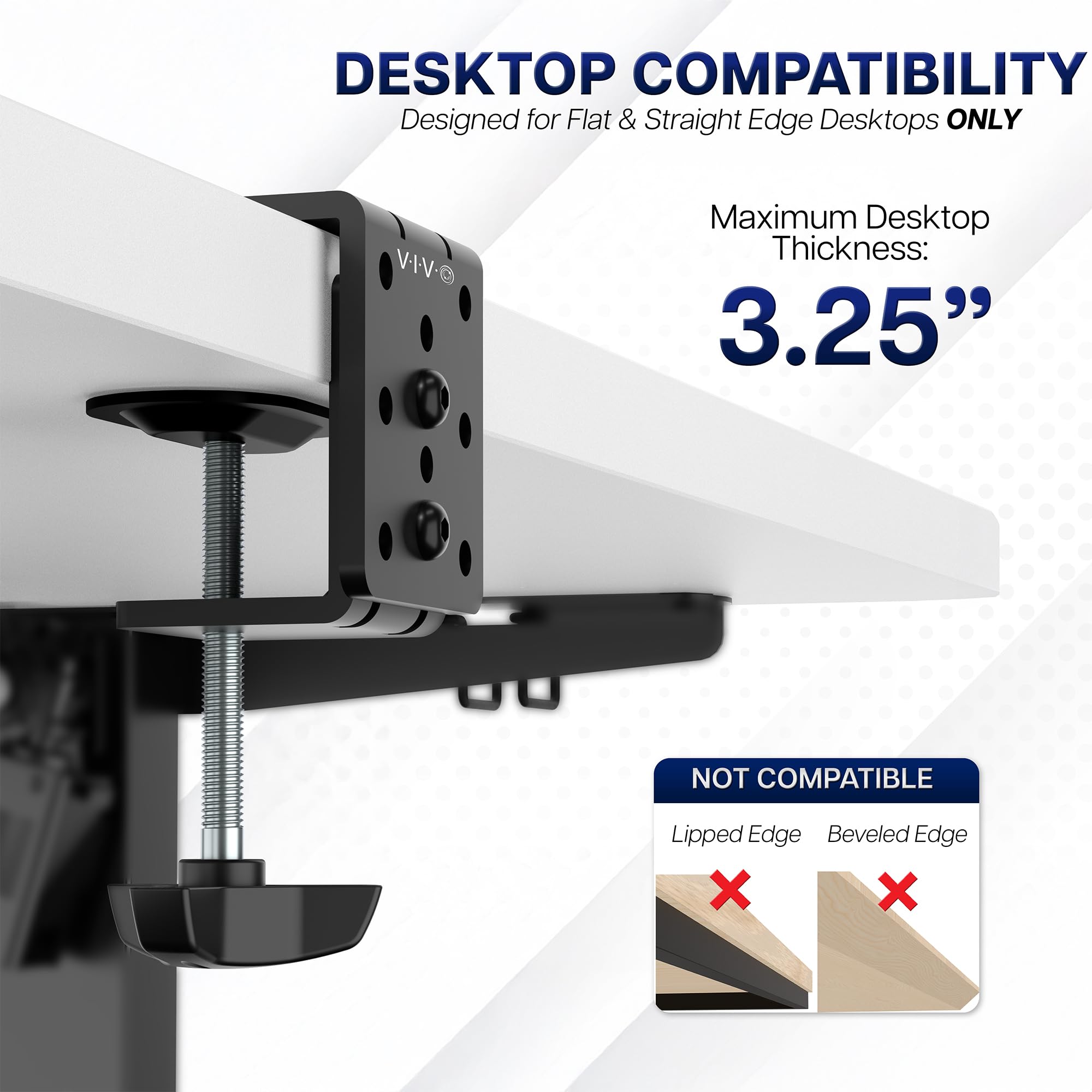
Verifying your desk can support a monitor arm prevents structural failures and equipment damage. Many installation problems trace back to overlooked desk characteristics.
Measure Desk Thickness Accurately
Most monitor arms clamp onto desks ranging from 0.4 to 2.5 inches thick. Use a ruler or caliper to measure the edge where you plan to mount. Standard office desks typically fall between 0.75 and 2 inches, which works perfectly with most C-clamps. If your desk falls outside this range, confirm the arm’s specifications before purchasing.
Test Edge Shape and Structural Integrity
Edge geometry directly affects how well a clamp grips:
- Straight edges: Provide ideal contact for C-clamps
- Beveled or curved edges: Prevent proper clamp seating; require grommet mounting instead
- Hollow-core desks: Lack internal support and need reinforcement before clamping
Apply gentle downward pressure at your planned mounting spot. Any flexing means the desk may not safely support the combined weight. Reinforce weak areas with a backing plate or switch to a grommet or wall mount.
Confirm VESA Compatibility and Weight Limits

Your monitor must match the arm’s mounting system and weight capacity for safe operation.
Identify Your VESA Pattern
Turn off and unplug your monitor, then remove the original stand to expose four screw holes on the back. Measure the distance between them horizontally and vertically:
- 75x75mm or 100x100mm: Common on 19 to 27 inch monitors
- 200x200mm or larger: Found on 32 inch and ultrawide displays
Use the bracket and screws included with your arm. Never force mismatched patterns, as this can strip screw holes or crack the monitor casing.
Match Monitor Weight to Arm Capacity
Check both your monitor’s actual weight and the arm’s maximum rating. The arm should support at least 1.5 times your monitor’s weight for reliable stability. For instance, a 15 lb monitor needs an arm rated for 20 to 35 lbs. Overloading causes gradual sagging or sudden failure.
Gather the Required Tools
Having the right equipment on hand prevents damage and ensures a smooth installation.
Essential Tools Checklist
- Phillips screwdriver (#1 or #2): For monitor and mount screws
- Allen wrench set (metric): Most arms use hex bolts in various sizes
- Bubble or digital level: Ensures straight, balanced alignment
- Measuring tape: Confirms placement and clearance distances
- Pencil: Marks drill points and clamp positions
- Drill with appropriate bits: Required only for grommet or wall mounts
- Stud finder: Essential for locating wall studs safely
Optional but Helpful Additions
- Torque wrench: Applies precise ft-lb ratings for sensitive connections
- Cable ties or Velcro straps: Organize cords after installation
- Flashlight: Improves visibility under desks during clamp setup
Choose the Right Mounting Method

Select a mounting approach based on your desk construction, available space, and installation preferences.
Clamp Mount Installation
This method works best for solid desks with straight edges and requires no drilling.
Position the Base Correctly
Place the clamp base near the desk edge, leaving at least 2 inches of clearance from the front. Center it beneath your primary work area. Apply protective rubber pads to prevent scratches and improve grip on the desk surface.
Secure the Clamp Mechanism
Slide the lower clamp plate under the desk and align it with the top base. Insert the bolts and tighten gradually using an Allen wrench. Apply 15 to 20 ft-lbs of torque, enough to prevent movement without crushing the desk material.
Verify Stability
Gently rock the arm to test for wobble. If movement occurs, recheck alignment and retighten. Confirm the base sits flush against the desk with no visible gaps.
Grommet Mount Setup
Best for thick desks, beveled edges, or setups requiring maximum stability.
Drill the Mounting Hole
Mark the center point on the desk surface. Use a hole saw or spade bit to drill a 0.5 to 1 inch diameter hole. Verify no cables or internal supports sit beneath the drilling location, then clean away debris.
Install the Grommet Base
Slide the lower metal plate under the desk, centered on the hole. Insert the grommet post from above and align the top mount. Secure with screws tightened to 10 to 15 ft-lbs.
Insert the Arm Pole
Slide the vertical pole into the grommet housing. Adjust to your desired height and tighten the locking screw. Cover the top with the included plastic cap for a finished appearance.
Wall Mount Procedure
Maximizes desk space and supports heavier displays with excellent stability.
Locate Wall Studs
Use a stud finder to identify two wooden studs spaced 16 inches apart. Mark their centers clearly. Never mount heavy monitors into drywall alone, as anchors alone cannot support the weight safely.
Mark and Drill Pilot Holes
Hold the wall plate against the studs and level it carefully. Mark the screw points, then drill pilot holes slightly smaller than your lag bolts.
Attach the Wall Plate Securely
Partially insert two lag bolts into the upper holes. Hang the mount, then drive the lower bolts. Add washers and fully tighten all four fasteners. Always confirm you’ve hit solid studs before mounting.
Freestanding Base Option
Ideal when drilling or clamping isn’t possible, such as in rental spaces.
Place and Secure the Base
Set the weighted base on your desk surface. Some models require screwing into the surface for added security. Ensure the base is large and heavy enough to counterbalance your monitor.
Understand the Limitations
Freestanding mounts offer less stability than other methods. They risk tipping if bumped and work best for lightweight monitors or temporary setups.
Attach the Monitor to the Arm
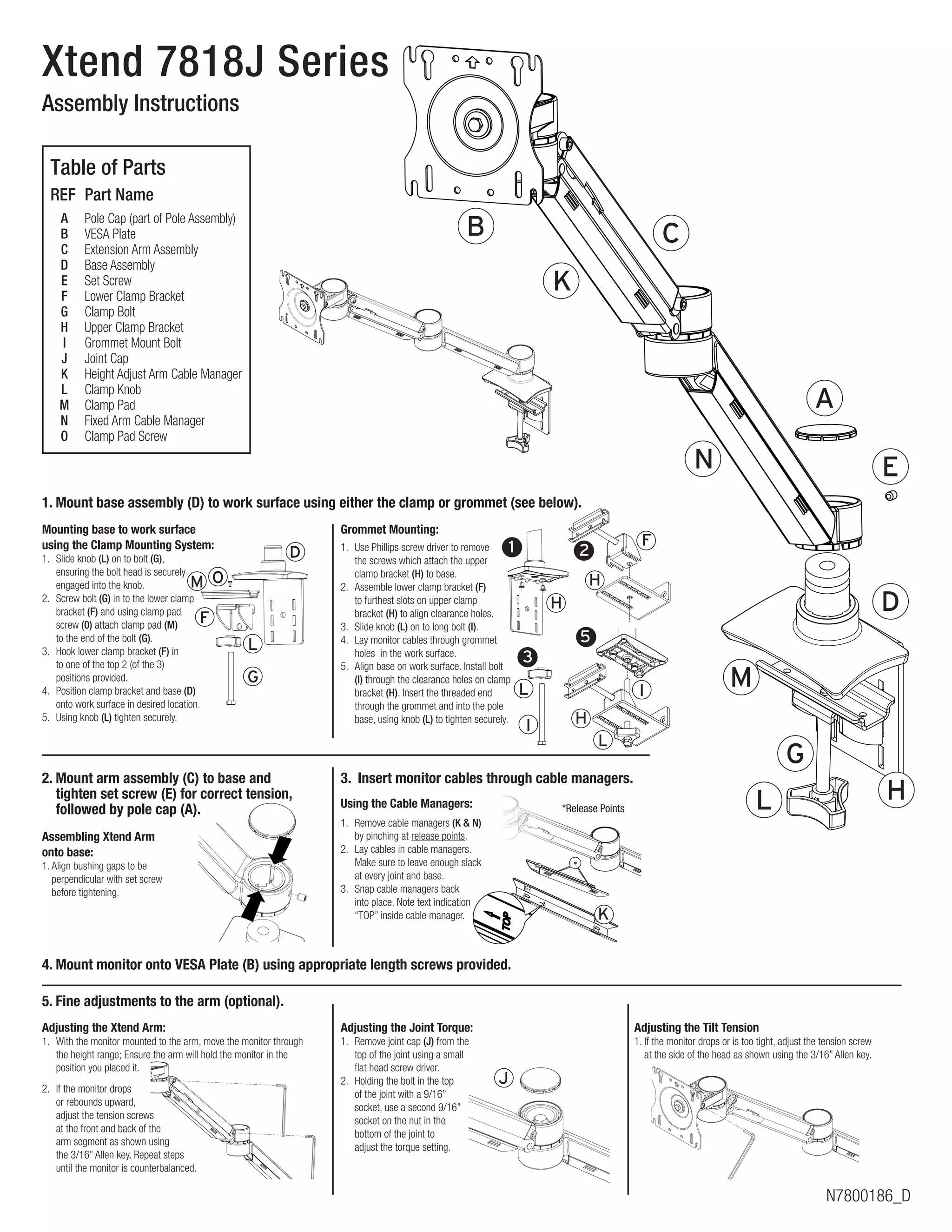
Connect your display safely once the arm is mounted.
Remove the Original Monitor Stand
Lay the monitor face-down on a soft, clean surface. Unscrew the stand using a Phillips driver and store the screws, as they may fit your VESA plate.
Install the VESA Bracket
Match the bracket to your monitor’s pattern (75x75mm, 100x100mm, or larger). Align the bracket with the screw holes, keeping the cut-out facing upward.
Use the provided screws or original stand screws only if the length matches exactly. Screws that are too long can damage internal circuits. Tighten in a cross pattern to distribute pressure evenly, applying 8 to 12 ft-lbs of torque.
Connect to the Arm
Quick-Release Mechanism
Lift the monitor and slide the VESA plate into the arm’s cradle. Push down until you hear a distinct click. Test by gently lifting to confirm the monitor stays locked. To remove, pull the release lever and lift the monitor off.
Screw-On Attachment
If your arm lacks a quick-release feature, align the bracket and secure it with screws through the arm’s mounting holes. Tighten fully but avoid over-torquing.
Final Connection Check
Move the monitor up, down, and side to side. Confirm it stays firmly attached with no wobbling or shifting.
Adjust Tension and Position
Fine-tune the arm for smooth, stable movement at every height.
Set Gas Spring Tension
Locate the tension screw, usually found on the arm’s joint or near the base.
- Turn counter-clockwise to increase tension for heavier monitors
- Turn clockwise to decrease tension for lighter monitors
Test by releasing the monitor at different heights. It should stay in place without drifting up or down. Some arms use opposite logic, so always test in small increments.
Calibrate Friction Joints
If tilt or swivel feels too loose or too stiff, adjust the friction screws on each joint. Tighten slightly for more resistance, but avoid over-tightening, which restricts movement entirely.
Optimize Your Ergonomic Position
Align Screen Height
Sit upright in your normal working posture. The top of the screen should sit at or slightly below eye level. Adjust arm height so you never tilt your neck up or down during use.
Set the Correct Viewing Distance
Position your monitor 20 to 40 inches away, depending on screen size:
- 24 inch monitors: approximately 24 inches away
- 32 inch monitors: approximately 32 inches away
Aim for roughly one arm’s length for most setups.
Adjust Tilt and Angle
Tilt the screen 10 to 20 degrees backward to reduce glare and match your natural gaze. For dual monitor setups, align the bezels and angle each screen slightly inward for a seamless panoramic view.
Manage Cables and Maintain Your Setup
Keep your workspace clean and your arm functioning smoothly over time.
Route Cables Neatly
Use built-in cable channels along the arm and pole. Clip power, HDMI, USB, and audio cables inside the management system. Leave a service loop with extra slack behind the monitor so you can adjust position without straining cords.
Prevent Tangles and Damage
Secure loose cables with Velcro straps or adhesive clips. Avoid tight bends that can damage internal wires or stress connection ports.
Perform Monthly Maintenance
- Inspect all screws for looseness and retighten as needed
- Check rubber pads on clamps for wear or compression
- Clean joints with a dry cloth to remove dust buildup
- Lubricate pivot points sparingly with light machine oil if movement becomes stiff
Troubleshoot Common Installation Issues
Address problems quickly to maintain optimal performance.
Fix Monitor Wobble
Loose connections cause most wobbling. Tighten the clamp bolts, VESA plate screws, and arm joint screws systematically. If the desk itself flexes, add a wooden support board under the mounting area.
Stop Monitor Sagging
Increase gas spring tension by turning the tension knob counter-clockwise on most models. Test after each quarter-turn. Persistent sagging usually means the monitor exceeds the arm’s weight capacity.
Resolve Clamp Slippage
Replace worn rubber pads and verify your desk thickness matches the clamp range. On beveled edges, switch to a grommet mount for a more secure connection.
Smooth Stiff Movement
Apply light machine oil to pivot points when movement becomes rough. Avoid WD-40, as it attracts dust and debris. Loosen friction screws slightly if joints feel too tight.
Final Safety and Selection Tips

Make smart choices that ensure long-term safety and performance.
Never Clamp Tempered Glass Desks
Standard C-clamps can crack tempered glass due to concentrated stress points. Use specialized glass adapters or a wall mount instead for glass surfaces.
Respect Weight Limits Strictly
Exceeding capacity risks sudden collapse and potential injury. Always verify combined weight for multi-monitor arms before installation.
Know When to Hire a Professional
Consider expert help for wall mounting on concrete or brick, uncertain stud or wiring locations, and large displays over 40 inches or 50 lbs.
Match Mount Type to Your Needs
| Your Situation | Best Mount Type |
|---|---|
| No drilling, standard desk | Clamp |
| Maximum stability, thick desk | Grommet |
| Full desk clearance needed | Wall |
| Rental or portable use | Freestanding |
Premium arms offer smoother motion, better cable management, and wider adjustability, making them worth the investment for daily professional use.
Frequently Asked Questions About Attaching a Monitor Arm
What tools do I need to attach a monitor arm?
You need a Phillips screwdriver, Allen wrench set, level, measuring tape, and pencil for every installation. Clamp and freestanding mounts require only basic hand tools, while grommet and wall mounts also need a drill with appropriate bits. A stud finder is essential for wall installations to locate safe mounting points.
Can I attach a monitor arm to any desk?
Not every desk works with every mount type. Standard wood and laminate desks between 0.75 and 2 inches thick accept C-clamps easily. Beveled, curved, or hollow-core desks need grommet mounting. Tempered glass desks require specialized adapters or wall mounting, as standard clamps can crack the glass.
How do I know if my monitor is VESA compatible?
Turn off and unplug your monitor, then remove the original stand. Look for four threaded screw holes arranged in a square pattern on the back. Measure the distance between the holes horizontally and vertically. Common patterns include 75x75mm, 100x100mm, and 200x200mm. Most monitors between 19 and 32 inches use one of these standard configurations.
What happens if my monitor is too heavy for the arm?
Exceeding the arm’s weight limit causes gradual sagging, difficulty adjusting height, and potential sudden failure. Always choose an arm rated for at least 1.5 times your monitor’s actual weight. If sagging persists after tension adjustment, the arm likely cannot safely support your display and should be replaced with a higher-capacity model.
How tight should I tighten the clamp bolts?
Tighten clamp bolts to 15 to 20 ft-lbs of torque for most installations. This provides enough force to prevent slipping without crushing or damaging the desk material. Use a torque wrench for accuracy, or tighten until snug plus a quarter turn with a standard Allen wrench.
Should I hire a professional to mount my monitor arm?
Professional installation is recommended for wall mounting on concrete or brick surfaces, when stud locations are uncertain, and for displays over 40 inches or 50 lbs. If you’re uncomfortable with drilling near electrical wiring or lack experience with structural mounting, hiring a professional ensures safety and proper installation.
Key Takeaways for a Secure Monitor Arm Installation
Successfully attaching a monitor arm comes down to three critical factors: matching your equipment, following precise steps, and maintaining the setup over time. Always verify desk compatibility, VESA pattern, and weight limits before installation begins. Use the correct torque settings during assembly to prevent both slippage and damage.
Your monitor arm should enhance your workspace for years when installed properly. Start by checking desk thickness and edge shape, then confirm VESA compatibility and gather all necessary tools. Follow the mounting steps for your chosen method, attach the monitor with proper torque, and calibrate tension for smooth movement. Regular monthly inspections keep everything tight and functional.
Take 15 minutes to measure your desk and identify your VESA pattern before purchasing an arm. This single step prevents most installation failures and ensures you select equipment that fits your specific setup perfectly.


