
Your ultra-wide monitor sits in front of you, but chaos rules the screen. Windows overlap, apps vanish behind others, and your focus keeps breaking. The solution is learning how to split monitor in half so you can create two distinct, organized workspaces on one physical display. You don’t need a second monitor to gain this level of control.
True screen splitting goes beyond placing two windows side-by-side. It delivers structured separation with dedicated zones, independent taskbars, and apps that stay exactly where you place them. Whether you’re coding while referencing documentation, watching live charts while trading, or managing constant chat notifications, a properly configured split screen turns clutter into clarity. This guide covers every method available, including hardware, GPU, and software approaches.
Check Monitor PBP and PiP Support First

Before installing any software, determine if your monitor can split natively. Some premium displays support Picture-by-Picture (PBP) or Picture-in-Picture (PiP) through built-in hardware features that allow true physical splitting.
Access Your Monitor OSD Menu
Press the physical menu button on your display and navigate to the input or display settings section. Look for these options:
- PBP (Picture-by-Picture): Divides the screen into two equal halves from different video sources
- PiP (Picture-in-Picture): Overlays a smaller window from a secondary input on top of your main display
If PBP appears as an option, select it and assign your inputs (such as HDMI plus DisplayPort). Each side then acts as an independent display, which works perfectly for dual PC setups or console plus PC configurations.
Understand Hardware Splitting Limitations
Most consumer monitors lack PBP and PiP capabilities entirely. PBP also requires two separate video sources, meaning you cannot use it to split a single PC signal on most displays. Internal splitting of one source is rare and typically found only on specialized business monitors.
If your monitor doesn’t support these features, you’ll need to move on to software or GPU-based solutions.
Use AMD Eyefinity or NVIDIA Surround for Virtual Displays
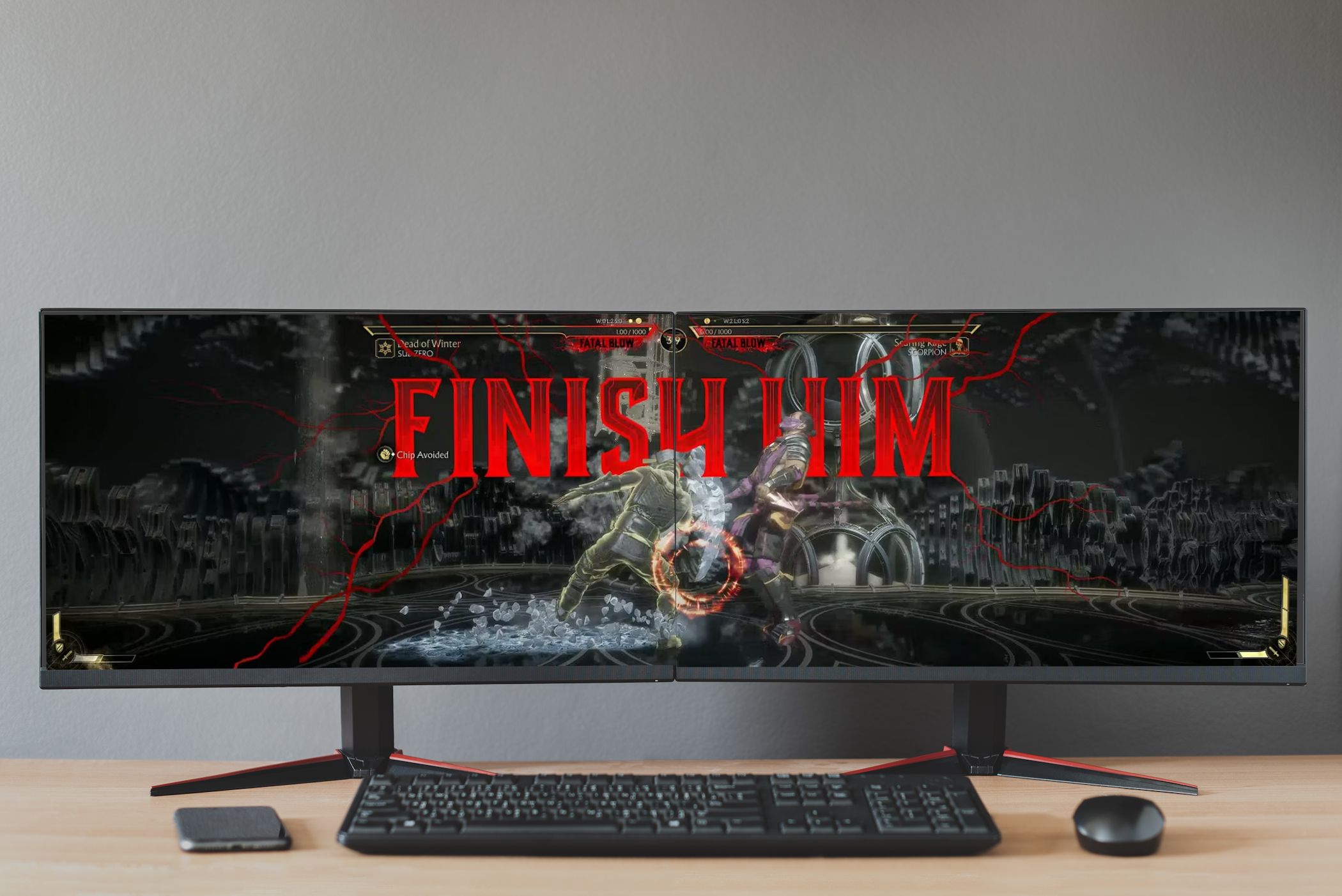
Compatible graphics cards offer driver-level tools that simulate multiple displays on one screen. This approach tricks Windows into treating each half as a separate logical monitor.
Enable AMD Eyefinity
For AMD Radeon graphics card users, follow these steps:
- Open AMD Radeon Software
- Navigate to Display, then Multi-Display
- Click Create under the Eyefinity section
- Select your ultra-wide monitor
- Choose a 2-display layout (such as 1920×1080 plus 1920×1080 for a 3840×1080 screen)
- Set bezel compensation to 0mm
- Apply the configuration and confirm
Windows now recognizes two virtual displays. You can drag windows between them just like physical monitors.
Configure NVIDIA Surround
For NVIDIA graphics card users, the process involves:
- Opening NVIDIA Control Panel
- Going to Set up multiple displays
- Locating Surround or VR Surround options
- Enabling the feature and selecting your monitor
- Choosing a dual-display configuration
- Disabling bezel compensation
- Applying changes and rebooting if prompted
After setup, each half behaves as a standalone display within Windows.
Evaluate GPU Method Tradeoffs
This approach offers full OS recognition of two displays and supports independent wallpapers per zone. However, setup can be complex, configurations may break after driver updates, and full-screen apps can override your split arrangement. Use this method if you want deep OS integration without third-party software.
Install DisplayFusion for Complete Virtualization

For most users seeking how to split monitor in half with maximum control, DisplayFusion delivers the best experience. It creates virtual zones with independent taskbars, custom hotkeys, and window rules without requiring a second PC.
Download and Install DisplayFusion
Visit the official DisplayFusion website and download the free trial. The paid version unlocks all features. Install and launch the application once downloaded.
Create a 50/50 Split Layout
Open DisplayFusion Settings and navigate to Functions, then Split Monitor. Click Add New Layout and name it “Half Split.” Add two zones with these specifications:
- Zone 1: X=0, Y=0, Width=50%, Height=100%
- Zone 2: X=50%, Y=0, Width=50%, Height=100%
Save your layout when finished.
Enable Independent Taskbars
Go to Taskbar settings and select Multi-Monitor Taskbars. Check the option to enable multi-monitor taskbars. Set the taskbar position to appear only within each zone. You can optionally assign different wallpapers to each side for visual distinction.
Each side now has its own taskbar, system tray, and visual identity, mimicking a true dual-monitor setup.
Assign Hotkeys for Quick Snapping
Navigate to Hotkeys and add a new hotkey. Set the action to Move Window to Zone, select Left Half as the zone, and assign Win+Ctrl+Left as the shortcut. Repeat the process for the right side using Win+Ctrl+Right. You can now snap any window to either half instantly.
Use DesktopCoral for Always-On Apps
If you don’t need full screen splitting but want specific apps to remain visible and never get covered, DesktopCoral provides an elegant solution.
Install and Run DesktopCoral
Download DesktopCoral for free from DonationCoder. Install and launch the application after download.
Create a Sidebar Safe Zone
Right-click the DesktopCoral tray icon and select Settings. Drag the resize handle to create a 200px-wide vertical bar on either the right or left side. Set the position to Right and opacity to 0% to keep it invisible. Check the option to prevent windows from overlapping this area.
Place Spotify, Teams, or WhatsApp in this zone. Other windows cannot overlap it, even when you maximize them.
Why DesktopCoral Outperforms Standard Snapping
Apps stay visible during full-screen work without manual resizing after each reboot. The tool has zero performance impact and remains completely free. It’s perfect for communication apps, music players, or monitoring dashboards that require constant visibility.
Try Microsoft PowerToys FancyZones
For a free, Microsoft-backed solution, PowerToys includes FancyZones. This tool works well for tiling windows but lacks true virtualization features.
Install PowerToys
Open the Microsoft Store or visit the PowerToys GitHub page. Install and launch the application.
Create a Two-Column Zone Layout
Open FancyZones settings and click Edit zones. Choose a grid layout or custom configuration. Set the number of columns to 2 and rows to 1. Name this layout “Half Split” and save your changes.
Snap Windows to Zones
Hold Shift while dragging a window to activate the zones feature. Release the window over the left or right half to snap it into place. Alternatively, use Win+Ctrl+Alt plus an arrow key to move the active window between zones.
Recognize FancyZones Limitations
The tool doesn’t create independent taskbars. Windows can still overlap if you don’t snap them properly. No safe zones exist to repel other apps. Zones reset after display configuration changes. FancyZones works best for occasional tiling rather than permanent splitting.
Compare All Splitting Methods

| Method | Independent Taskbars | Prevents Overlap | Cost | Setup Difficulty |
|---|---|---|---|---|
| Hardware PBP | Yes (per input) | Yes | Free (if supported) | Low |
| AMD/NVIDIA Virtual Display | Possible | Yes | Free | Medium |
| DisplayFusion | Yes | Yes | Paid ($35) | Medium |
| DesktopCoral | No | Yes (safe zone) | Free | Low |
| PowerToys FancyZones | No | No | Free | Low |
Choose based on your specific needs. Use PBP for dual PC configurations. Select DisplayFusion for a single PC with full dual-monitor feel. Choose DesktopCoral to keep chat and music apps always visible. Pick PowerToys for quick tiling tasks.
Fix Common Splitting Problems
Even well-configured setups can encounter issues. Here’s how to troubleshoot the most frequent problems.
Windows Maximize Across Entire Screen
Some apps, particularly full-screen games or legacy software, ignore zones and span the full display. In DisplayFusion, use Window Rules to force specific apps to maximize only within their assigned zone. You can also disable full-screen optimizations in the app’s properties.
Taskbar Appears on Wrong Side
After reboot, virtual taskbars may misalign or disappear. Set DisplayFusion to run at startup automatically. Reapply your layout in settings if needed. Restart the application if taskbars vanish unexpectedly.
Zones Misaligned After Sleep
GPU or driver resets can break virtual displays when waking from sleep. Reapply your Eyefinity or Surround profile. Update your GPU drivers to the latest version. Software like DisplayFusion typically restores layouts automatically on wake.
Performance Lags with Multiple Tools
Running PowerToys alongside DisplayFusion can cause conflicts and input issues. Use only one window management tool at a time. Disable FancyZones if you’re using DisplayFusion. Restart explorer.exe if the UI freezes or becomes unresponsive.
Optimize Your Split Setup for Productivity

A split screen only delivers value if it reduces distractions and improves your focus throughout the workday.
Assign Workflows to Specific Zones
Designate your left half for primary work like coding, writing, or design tasks. Use the right half for reference materials such as documentation, browsers, or email. DisplayFusion rules can auto-launch apps in their designated zones.
Use Different Wallpapers Per Zone
Set distinct backgrounds for each side of your split. Visual separation reduces mental clutter and helps you maintain focus on the current task.
Automate with Profile Switching
Create different layouts for various activities. A coding mode might feature a terminal on the left and browser on the right. Gaming mode could run the game full screen with Discord in a safe zone. Trading mode might display charts on the left and news feed on the right. Switch between profiles using hotkeys for maximum efficiency.
Frequently Asked Questions About Splitting a Monitor in Half
Can I split my monitor in half without buying a second display?
Yes, you can split a single monitor using several methods. Hardware PBP works if your monitor supports it. GPU virtualization through AMD Eyefinity or NVIDIA Surround creates virtual displays. Software tools like DisplayFusion, DesktopCoral, or PowerToys FancyZones provide window management without additional hardware.
Does Windows have a built-in feature to split the screen in half?
Windows includes basic snap functionality using Win+Left or Win+Right arrow keys. This snaps windows to either half of the screen. However, it doesn’t create independent taskbars, prevent overlap, or offer persistent zones. For true splitting capabilities, third-party software works better.
What is the difference between PBP and PiP on a monitor?
PBP (Picture-by-Picture) divides the screen into two equal halves, each displaying content from a different video source simultaneously. PiP (Picture-in-Picture) shows one source in full screen while overlaying a smaller window from a second source. PBP suits dual PC setups while PiP works for monitoring secondary feeds.
Is DisplayFusion worth the cost for splitting one monitor?
DisplayFusion costs approximately $35 and delivers independent taskbars, zone enforcement, hotkeys, and boot persistence. For users who regularly manage complex workflows on a single ultra-wide display, the productivity gains justify the cost. Casual users may find free alternatives sufficient.
Will splitting my monitor affect gaming performance?
GPU virtualization methods like Eyefinity or Surround can impact gaming performance because they treat the display as multiple monitors. Software-based splitting has minimal performance impact since it only manages window placement. Full-screen games may ignore virtual zones regardless of method.
Can I split a 4K monitor into two 1080p sections?
Yes, you can split a 4K monitor into two 1080p sections using GPU virtualization or software tools. AMD Eyefinity and NVIDIA Surround can create virtual 1920×1080 displays on a 3840×2160 panel. DisplayFusion also supports defining zones at any resolution you specify.
Final Thoughts on Splitting Your Monitor in Half
Learning how to split monitor in half transforms a single display into two purpose-built workspaces. The best method depends on your specific needs and budget. DisplayFusion delivers the most complete experience with independent taskbars and zone enforcement. DesktopCoral offers a free solution for keeping critical apps visible. PowerToys FancyZones handles basic tiling without complexity.
Start by checking if your monitor supports PBP or PiP natively. If not, download DisplayFusion or DesktopCoral and configure your zones today. Your workflow will thank you.


