
You’re working on a tight laptop screen, juggling multiple windows, and constantly minimizing apps just to get things done. What if you could spread your desktop across two or more screens like a digital command center? That’s exactly what extending your monitor does, and Windows makes this process straightforward for any user. Whether you want to know how to use extend monitor setups for productivity, gaming, or remote work, this guide walks you through every step.
In this article, you’ll learn how to connect a second display, activate extend mode, arrange your screens, customize per-monitor settings, and even turn another Windows device into a wireless second screen. We’ll also cover troubleshooting tips and productivity shortcuts so you can master multi-monitor workflows on Windows 10 and Windows 11.
Connect Your Monitor Before Extending

Before Windows can extend your desktop, your second screen must be properly connected and detected by the system.
Choose the Right Cable and Port
Ensure you’re using a compatible video cable: HDMI, DisplayPort, USB-C (with video support), or DVI. Check both your PC and monitor for available ports, then plug in the cable firmly on both ends.
💡 Pro Tip: If your laptop only has USB-C, use a USB-C to HDMI adapter or dock. Make sure it supports video output, not just charging.
Power On and Select the Correct Input
Turn on the external monitor and use its physical buttons to select the correct input source (e.g., HDMI 1, DisplayPort). If the screen stays black, double-check the input selection, since this is a common oversight.
Test Wireless Display Adapters
For wireless setups like the Microsoft Wireless Display Adapter:
1. Plug the adapter into the TV or monitor’s HDMI port.
2. Power the adapter via USB or power cable.
3. On your PC, press Windows + K to open the Cast menu.
4. Choose your adapter from the list to connect.
Once connected, proceed to enable extend mode.
Activate Extend Mode with Win + P
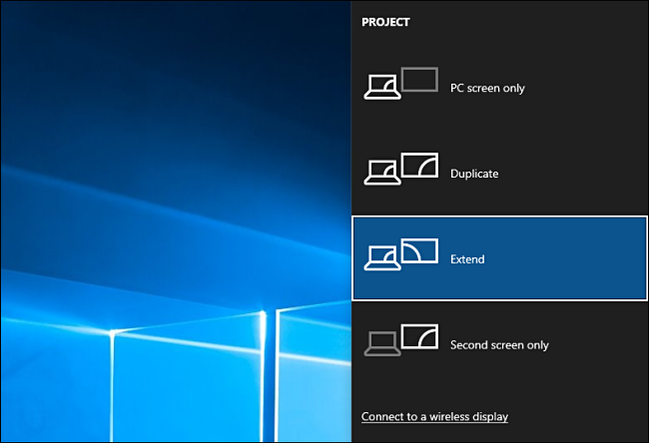
The fastest way to switch display modes is the Windows + P keyboard shortcut.
Open the Projection Menu
- Hold the Windows Key and press P.
- A sidebar appears with four options:
– PC screen only
– Duplicate
– Extend
– Second screen only
Select Extend for Multi-Screen Workflow
Click or use arrow keys to choose Extend. This expands your desktop across both screens, letting you drag windows from one monitor to the other.
⚠️ Warning: If “Extend” isn’t available, Windows may not detect the second screen. Go to Settings > System > Display and click Detect under Multiple displays.
Detect and Identify Your Displays
Even with a proper connection, Windows might not recognize your monitor immediately.
Force Windows to Detect Monitors
- Open Start > Settings > System > Display.
- Scroll down to Multiple displays.
- Click Detect to scan for connected screens.
Repeat if needed. If still undetected, check cables, restart your PC, or update drivers.
Identify Which Screen Is Which
With multiple monitors, it’s easy to lose track of which is which.
- In Display settings, click Identify.
- A large number (1, 2, etc.) appears on each screen.
- Match the numbers to the layout in the settings window.
Use this when arranging screen positions.
Arrange Monitor Layout Correctly
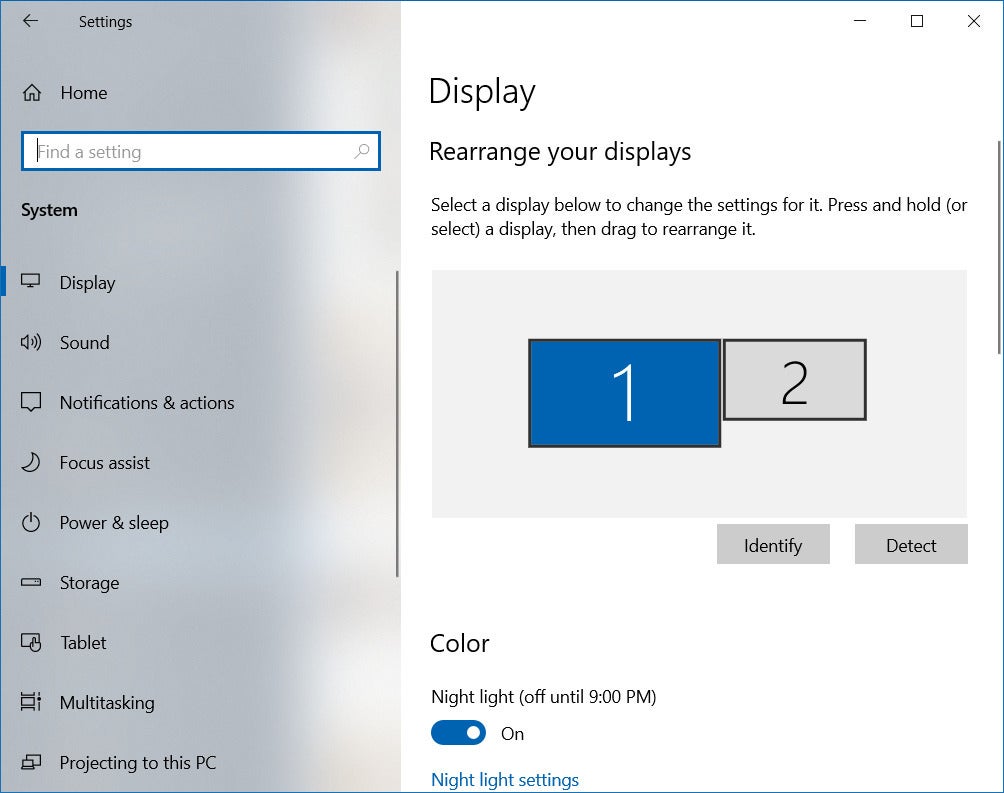
Proper screen arrangement ensures smooth mouse movement between monitors.
Drag Screens to Match Physical Setup
- In Display settings, find the visual layout of monitors.
- Click and drag the numbered boxes to reflect real-world placement:
– Place monitor 2 to the right if it’s physically on the right.
– Stack one above the other for vertical arrangements like portrait mode. - Click Apply.
Verify Cursor Movement
Move your mouse to the edge of one screen. It should appear on the adjacent screen only if that monitor is positioned next to it in settings.
🔄 Example: If your right monitor appears on the left in settings, the cursor moves the wrong way. Fix the layout to match reality.
You can also adjust orientation (landscape or portrait) and resolution per screen in this menu.
Customize Display Settings Per Monitor
Each monitor can have unique visual settings for clarity and comfort.
Set Resolution and Scaling
- In Display settings, click on a monitor tile.
- Adjust:
– Display resolution to native (recommended)
– Scale (100%, 125%, 150%, etc.) to make text and apps larger - Repeat for each monitor.
💡 Tip: Use different scaling if monitors vary in size (e.g., 100% on laptop, 150% on 4K external monitor). Windows handles scaling well in extend mode.
Adjust Brightness and Refresh Rate
For brightness, use the monitor’s physical buttons or software controls. For refresh rate:
1. Click Advanced display settings.
2. Select the Refresh rate dropdown.
3. Choose the highest supported value (e.g., 60Hz, 120Hz, 144Hz).
This is ideal for gaming or video editing on extended displays.
Manage Windows Across Extended Monitors
Once extended, Windows lets you control how apps behave when docking or undocking.
Remember Window Positions When Docking
Enable smart window memory:
1. Go to Settings > System > Display.
2. Under Multiple displays, turn on Remember window locations based on monitor connection.
Now, when you reconnect your external monitor, open apps return to their previous screens.
Prevent Lost Windows When Undocking
Avoid minimized chaos when disconnecting by turning on Minimize windows when a monitor is disconnected. This automatically minimizes windows from the removed screen so they don’t vanish into digital oblivion.
✅ Best Practice: Enable both settings if you use a laptop with a docking station daily.
Use Another Windows Device as a Second Monitor
No extra monitor? Use a spare laptop, Surface, or tablet as a wireless extended screen.
Check Compatibility First
Requirements include:
– Both devices running Windows 10 or 11
– Both supporting Miracast (most modern PCs do)
– Connection on the same Wi-Fi network or close enough for Wi-Fi Direct
– Secondary device has the Connect app installed (built-in on most)
📌 Supported Devices: Surface Pro, Surface Go, Surface Book 2, and most Dell, HP, Lenovo business laptops.
Set Up Wireless Extend Mode
Turn a second Windows device into a monitor with no extra hardware needed.
Prepare the Secondary Device
- On the device acting as the monitor, press Start.
- Type Connect and open the Connect app.
- A message appears: “[Device Name] is ready to connect wirelessly.”
Leave it running.
Connect from Primary PC
- On your main PC, press Windows + K.
- Wait for devices to appear.
- Click the name of the secondary device (e.g., “Surface Pro 7”).
- Accept the prompt on the second device if it appears.
Switch to Extend Mode
- Press Windows + P on the primary PC.
- Select Extend instead of Duplicate or Second screen only.
- Open Display settings and use Identify or arrange the new screen as needed.
You now have a fully functional extended desktop.
🚀 Use Case: Travelers can use a lightweight Surface Go as a portable second screen, ideal for presentations or coding on the go.
Troubleshoot Common Extend Monitor Issues

Even with the right setup, problems can occur. Here’s how to fix them fast.
No Signal or Undetected Monitor
Symptoms: Black screen, undetected monitor.
Fix:
1. Re-seat cables at both ends.
2. Confirm monitor power and correct input source.
3. Press Windows + P and ensure a second display shows.
4. In Display settings, click Detect.
5. Update graphics drivers via Device Manager or the manufacturer website (Intel, NVIDIA, AMD).
🔧 Driver Tip: Outdated GPU drivers are a top cause of detection failure.
Mouse Moves Wrong Way Between Screens
Cause: Misaligned screen layout.
Fix:
1. Go to Settings > System > Display.
2. Click Identify to see which number is which screen.
3. Drag the monitor boxes to match physical positions.
4. Click Apply and test cursor movement.
Repeat until navigation feels natural.
Wireless Connection Fails
Symptoms: Device not found, connection drops.
Fix:
1. Ensure both devices support Miracast by opening Command Prompt and typing netsh wlan show drivers. Look for “Wireless Display Supported: Yes”.
2. Make sure Wi-Fi is on, even if using Ethernet.
3. Run the Connect app on the secondary device before trying to cast.
4. Restart Wi-Fi on both devices.
5. Temporarily disable firewall or antivirus if blocking discovery.
🔄 Alternative: Use a third-party app like Duet Display or Spacedesk if Miracast fails.
Optimize Your Extend Monitor Setup for Productivity

Extending your monitor is about smarter work, not just more space.
Arrange for Workflow Efficiency
- Left screen: Email, chat apps, reference docs
- Right screen: Active work like coding, writing, or design
- Top or bottom (if stacked): Notifications and dashboards
Use Snap Layouts (hover over the maximize button) to split each screen into zones.
Use Keyboard Shortcuts
Speed up multi-monitor control with these shortcuts:
– Win + Shift + Left/Right Arrow: Move window between monitors
– Win + Left/Right Arrow: Snap window to side of current screen
– Win + P: Toggle projection modes
– Win + K: Open wireless cast menu
⏱️ Time-Saver: These shortcuts eliminate dragging windows across screens.
Plan Ahead: Windows 10 End of Life
Windows 10 support ends October 14, 2025. After that date:
– No security updates
– No driver support
– Potential compatibility issues with new monitors and wireless adapters
Upgrade to Windows 11 for Long-Term Use
Windows 11 offers:
– Smoother Miracast performance
– Better multi-monitor taskbar support
– Enhanced Snap Layouts and Widgets
Ensure your PC meets Windows 11 requirements (TPM 2.0, Secure Boot, etc.) before upgrading.
Frequently Asked Questions About Extending Monitors
How do I extend my monitor using Windows + P?
Press Windows Key + P to open the projection sidebar, then select Extend. This expands your desktop across all connected displays, letting you drag windows between screens.
Why is the Extend option greyed out in Windows?
The Extend option appears greyed out when Windows doesn’t detect a second display. Check your cable connections, confirm the monitor’s input source, and click Detect under Settings > System > Display > Multiple displays.
Can I extend my monitor wirelessly without extra hardware?
Yes. If you have a second Windows device with Miracast support, open the Connect app on it, then press Windows + K on your primary PC to pair them. After connecting, press Windows + P and choose Extend.
How do I fix my mouse moving the wrong way between screens?
Open Settings > System > Display, click Identify to see screen numbers, then drag the monitor boxes to match your physical setup. Click Apply and test cursor movement again.
Will extending my monitor work on Windows 10 after October 2025?
Windows 10 support ends on October 14, 2025. After that, no security updates or driver patches will be released, which may cause compatibility issues with new monitors and wireless adapters. Upgrading to Windows 11 is recommended.
What’s the difference between Extend and Duplicate mode?
Duplicate mirrors the same content on all screens, useful for presentations. Extend creates one large desktop across multiple screens, ideal for multitasking and productivity.
Key Takeaways for Extending Your Monitor in Windows
Learning how to use extend monitor setups transforms how you work, play, and create on Windows. Start with a solid physical or wireless connection, then press Windows + P to activate Extend mode. Arrange your screens to match your desk layout, customize resolution and scaling per monitor, and enable window memory settings for smooth docking transitions.
Your next step: plug in your second screen right now, press Win + P, choose Extend, and experience the productivity boost of a true multi-monitor workspace.


