
You want to show a presentation, stream a movie, or simply enjoy mobile apps on a bigger display. Learning how to screen share phone to monitor unlocks a flexible way to expand your screen without buying new hardware. Whether you own an iPhone or Android device, there is a reliable method that fits your gear, network, and goals.
This guide walks you through every proven technique, from wireless casting protocols to direct cable connections. You will discover which option delivers the lowest lag, which works without Wi-Fi, and which setup is best for gaming, work, or entertainment. By the end, you will be able to mirror your phone confidently in any situation.
Wireless Screen Mirroring Protocols Compared

Wireless screen sharing is the most popular way to cast your phone to a monitor because it removes cable clutter. Success depends on your device type, network quality, and the protocols your monitor supports.
Use Native Screen Mirroring on iPhone and Android
Every modern smartphone ships with a built-in screen mirroring tool. The name changes by brand, but the function is the same.
For iPhone (AirPlay):
1. Swipe down from the top-right corner to open Control Center.
2. Tap Screen Mirroring.
3. Choose your compatible monitor or Apple TV from the list.
4. A blue AirPlay icon confirms the active connection.
For Android (Smart View, Cast, or Wireless Display):
1. Swipe down twice from the top of your screen.
2. Locate Smart View, Cast, Screen Share, or Wireless Projection.
3. Tap the option and select your monitor from the detected devices.
4. If no devices appear, confirm both gadgets share the same Wi-Fi network.
Note: Some Android models bury this feature under Settings > Display > Cast.
This method works best with smart monitors, modern TVs, or receivers that support your phone’s native protocol.
Cast With Google Cast (Chromecast)
Google Cast is ideal for streaming apps like YouTube, Netflix, or Google Photos directly to your monitor. The phone acts as a remote while playback happens on the big screen.
If your monitor has Chromecast built in:
1. Open a Cast-compatible app.
2. Tap the Cast icon (a rectangle with a Wi-Fi symbol).
3. Select your monitor from the device list.
4. To mirror your full screen, open the Google Home app, tap the menu, and choose Cast screen/audio.
If you use a Chromecast dongle:
1. Plug the dongle into the monitor’s HDMI port and connect power.
2. Join the same Wi-Fi network on both phone and dongle.
3. Follow the same Cast steps listed above.
✅ Pro Tip: Full-screen mirroring drains battery and bandwidth quickly. Use app-specific casting whenever possible for smoother playback.
Mirror iPhone Content With Apple AirPlay
AirPlay is the gold standard for iPhone users who want high-quality video and full-screen mirroring. It requires an AirPlay-compatible receiver.
Requirements:
– A monitor with AirPlay 2 support, or
– An Apple TV box, or
– A third-party AirPlay receiver connected via HDMI
Setup Steps:
1. Connect the iPhone and receiver to the same Wi-Fi network.
2. Open Control Center and tap Screen Mirroring.
3. Choose your AirPlay-compatible display.
4. Enter the on-screen code if prompted.
⚠️ No Wi-Fi? AirPlay requires a network connection. For offline use, switch to a wired method below.
AirPlay delivers excellent video quality but only works reliably between Apple-certified devices.
Link Directly With Miracast
Miracast creates a peer-to-peer wireless link between your Android phone and a compatible display. It bypasses your Wi-Fi router entirely.
Best Use Cases:
– Older Android phones without Chromecast support
– Locations with no internet access
– Non-smart monitors paired with a Miracast dongle
Setup Steps:
1. Plug a Miracast adapter into the monitor’s HDMI port and power it on.
2. On your Android phone, go to Settings > Display > Wireless Display.
3. Enable the feature and wait for the adapter to appear.
4. Tap the adapter name to start mirroring.
🔄 Troubleshooting: If the screen flickers, restart both devices and confirm the adapter supports Miracast, not just basic screen mirroring.
Miracast mirrors your entire screen with minimal lag, making it great for presentations or light gaming.
Wired Connection Methods for Zero Latency

Wired connections deliver the most stable performance because they bypass wireless interference entirely. They are the best choice for gaming, video editing, or professional presentations.
Connect With an HDMI Adapter
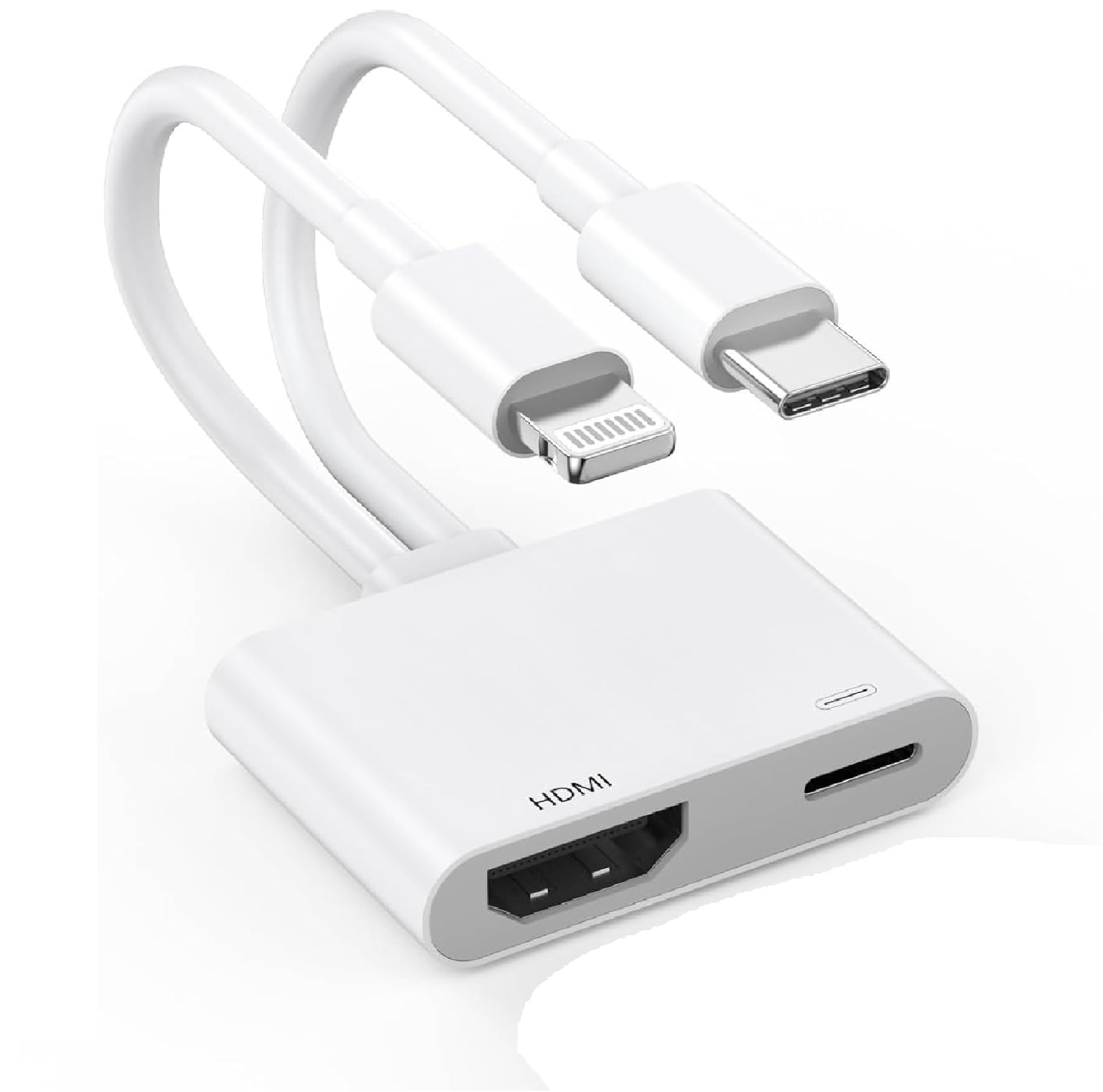
Most phones lack a built-in HDMI port, so an adapter is required.
Adapter Type by Device:
– Android phones and iPhone 15 or newer: Use a USB-C to HDMI adapter
– iPhone 5 through 14: Use a Lightning to HDMI adapter
Setup Steps:
1. Plug the adapter into your phone.
2. Connect a standard HDMI cable from the adapter to the monitor.
3. Switch the monitor’s input source to the correct HDMI port.
4. Your phone screen appears instantly.
🔋 Power Note: Some adapters draw heavy power. Use a powered USB hub or keep your phone plugged into a charger during long sessions.
This method supports 1080p or even 4K output, depending on your phone and adapter quality.
Use a Direct USB-C to USB-C Cable
If both your phone and monitor support DisplayPort Alt Mode, a single USB-C cable can carry video and audio.
Requirements:
– Phone must support video output over USB-C (most Samsung Galaxy S8 and newer, Google Pixel 3 and newer)
– Monitor must have a USB-C input with DisplayPort support
– A standard USB-C to USB-C cable
Setup Steps:
1. Connect the cable between phone and monitor.
2. Switch the monitor input to USB-C.
3. Wait a few seconds for the screen to appear.
❌ Not working? Your phone may not support video output. Check the manufacturer’s specifications before buying a cable.
This clean, single-cable solution is perfect for modern office setups and home studios.
Plug in via Direct HDMI (Rare Devices)
A few tablets and laptops include built-in HDMI ports. In those cases:
1. Use a standard HDMI cable.
2. Connect directly to the monitor.
3. Select the correct HDMI input on the display.
While uncommon for smartphones, this method is rock-solid when available.
Mirror Android to a Windows PC Monitor
You can use a Windows PC as a wireless display for your Android phone without installing third-party apps.
Requirements:
– Same Wi-Fi network for both devices
– Windows 10 or 11 with the Wireless Display feature enabled
Setup on Your PC:
1. Press Windows + S, type “optional features”, and open the settings page.
2. Click “Add a feature”.
3. Find and install “Wireless Display”.
4. After installation, search for “Connect” and launch the app.
5. The screen turns blue, signaling it is ready to receive.
Setup on Your Android Phone:
1. Swipe down to quick settings.
2. Tap Smart View, Cast, or Screen Mirroring.
3. Select your PC name from the list.
4. Confirm the connection on your phone.
✅ Bonus: You can resize the window or go full screen. This method is ideal for multitasking or demoing mobile apps during meetings.
Share Your Screen Through Video Calls
When direct mirroring is not possible, video conferencing apps let you share your screen with remote participants.
Use Zoom, Teams, or Google Meet
Setup Steps:
1. Join a meeting on your preferred platform.
2. Tap “Share Screen” (usually under “More” or the three-dot menu).
3. On Android, choose “Share Entire Screen” or a specific app.
4. On iOS, tap “Start Broadcast”.
5. Your screen becomes visible to all participants.
⚠️ Limitation: Others see your screen through the app. Your local monitor will not display it unless you also share the PC screen.
This method is best for remote presentations, training sessions, or virtual collaboration.
Use Third-Party Mirroring Apps
Apps like Solstice Mirror, ApowerMirror, or Scrcpy offer advanced features such as remote control and multi-device support.
General Workflow:
1. Install the app on both your phone and the receiving device.
2. Connect both to the same Wi-Fi network.
3. Open the app and scan a QR code or enter a pairing code.
4. Grant screen recording permission when prompted.
Advanced Capabilities:
– Control your phone from a PC mouse or keyboard
– Record the mirrored screen
– Share multiple devices to one display
💡 Pro Tip: Solstice Pod is excellent for classrooms and meeting rooms where multiple users need to share screens simultaneously.
Optimize Performance and Fix Common Issues
Even the best setup can fail. Follow these tips to keep your screen sharing smooth and stable.
Strengthen Your Wi-Fi Connection
Screen mirroring is data-intensive. A weak signal causes lag, freezing, or disconnections.
Best Practices:
– Stay within range of your router
– Avoid crowded networks with many active users
– Restart the router if the signal drops
– Use the 5 GHz band instead of 2.4 GHz for faster speeds
🔐 Security: Never mirror sensitive data over public Wi-Fi. Always use a password-protected network.
Manage Phone Resources
A busy phone struggles to mirror smoothly.
Before You Start:
– Close unused background apps
– Lower screen brightness
– Enable Do Not Disturb to block notifications
– Keep your phone plugged into a charger
⏱️ Tip: Some phones automatically stop mirroring when battery drops below 20%.
Troubleshoot Connection Failures
If mirroring fails, try these steps:
1. Restart the phone, monitor, and router.
2. Confirm both devices share the same Wi-Fi network (same SSID).
3. Check for firmware updates on both phone and monitor.
4. Verify protocol compatibility (AirPlay, Miracast, or Google Cast).
If no devices appear:
– Confirm the monitor’s screen sharing feature is enabled
– For dongles, ensure they are powered and in pairing mode
Protect Your Privacy During Screen Sharing
Mirroring exposes everything on your phone, including notifications and private apps.
Reduce Privacy Risks
Before Sharing:
– Close banking, messaging, and email apps
– Turn on Do Not Disturb to hide notifications
– Disable personal hotspot and file-sharing features
🛑 Never mirror on public networks. Attackers can intercept unsecured streams.
Connect Only to Trusted Devices
Only mirror to:
– Monitors you control
– Verified receivers like Apple TV or Chromecast
– Password-protected networks
Avoid unknown dongles or public displays that may log your activity.
Quick Method Comparison
| Method | Best For | Latency | Setup Speed | OS Support |
|---|---|---|---|---|
| AirPlay | iPhone users | Low | Fast | iOS only |
| Google Cast | Streaming apps | Very Low | Fast | Android and iOS |
| Miracast | No Wi-Fi needed | Medium | Medium | Android only |
| HDMI Adapter | Gaming and HD video | None | Fast | Universal |
| USB-C Direct | Modern devices | None | Fast | Android and USB-C iPhones |
| Windows Connect | Android to PC | Low | Medium | Android and Windows |
| Video Call Share | Remote meetings | High | Fast | Universal |
Frequently Asked Questions About Screen Sharing Phone to Monitor
Can I screen share my phone to a monitor without Wi-Fi?
Yes. Use a wired HDMI or USB-C connection for zero-latency performance without any network. Alternatively, Miracast creates a direct peer-to-peer link using Wi-Fi Direct, which does not require a router or internet access.
Why is my screen mirroring lagging or freezing?
Lag usually comes from a weak Wi-Fi signal, network congestion, or background apps draining phone resources. Move closer to the router, switch to the 5 GHz band, and close unused apps before mirroring.
Do all monitors support screen sharing from phones?
No. Older or non-smart monitors require an external adapter or dongle such as Chromecast, Apple TV, or a Miracast receiver. Check your monitor’s specifications for AirPlay, Chromecast, or Miracast compatibility before attempting to connect.
Is screen sharing the same as casting?
Not exactly. Casting sends specific content (like a YouTube video) from an app to the display while letting you use your phone for other tasks. Screen mirroring duplicates your entire phone screen, including notifications and app interfaces.
Can I use my iPhone with a USB-C to HDMI adapter?
Yes, but only iPhone 15 and newer models use USB-C. Older iPhones (5 through 14) require a Lightning to HDMI adapter. Confirm your iPhone model before purchasing the correct adapter.
Is it safe to screen share on public Wi-Fi?
No. Public networks are unsecured and can expose your data to attackers. Always use a private, password-protected Wi-Fi network or a wired connection when sharing sensitive content.
Final Thoughts on Choosing the Best Screen Sharing Method
The best way to screen share phone to monitor depends on your gear, network, and goal. Wired HDMI and USB-C connections offer unmatched stability for gaming, video editing, and professional presentations. Wireless options like AirPlay, Google Cast, and Miracast provide freedom and convenience for casual streaming and mobile demos.
Before you start, verify protocol compatibility between your phone and monitor. Optimize your Wi-Fi network, close background apps, and protect your privacy by avoiding public networks. With the right setup, your smartphone becomes a powerful presentation and entertainment tool on any big screen. Pick the method that matches your device, follow the steps above, and enjoy seamless mirroring today.


