
Need to capture what’s happening on your screen for a tutorial, meeting, or gameplay session? Learning how to screen record on a monitor opens up endless possibilities for sharing knowledge, documenting workflows, and creating content. Modern tools make this process simple, even if you have zero technical experience.
This guide walks you through every step of screen recording on a monitor. You’ll discover the best desktop apps, browser-based tools, and hybrid solutions. We’ll cover region selection, audio management, webcam overlays, and troubleshooting tips so you can record with confidence and clarity.
Choose the Right Recording Tool
Desktop Apps vs. Browser Tools
Desktop applications give you the most control and quality. Programs like Bandicam and ScreenRec run locally on your computer, supporting system audio, webcam overlays, and long recording sessions. They work offline and offer advanced encoding options for professional results.
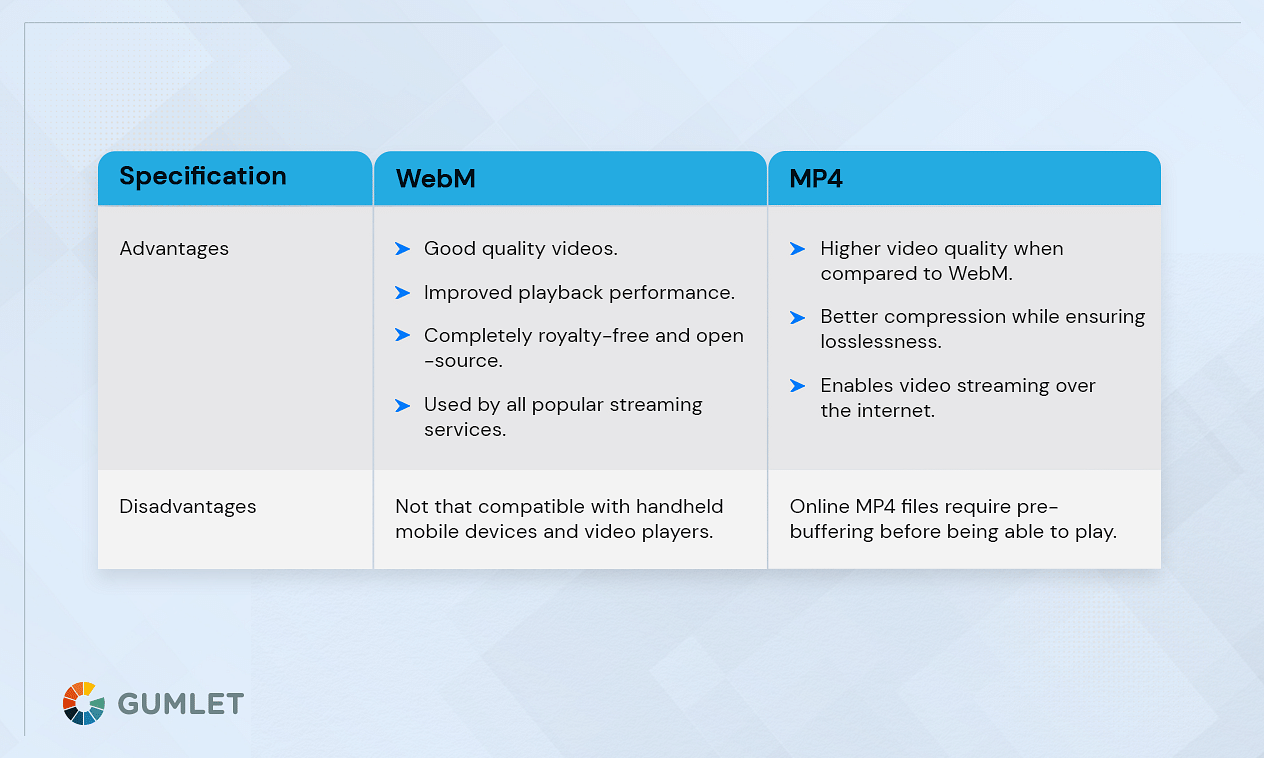
Browser-based tools like ScreenPal Online require no installation. Just open the website, click record, and start capturing. These tools use temporary browser memory, making them fast but limited by session length. Firefox saves recordings as WEBM files, while Chrome and Edge use MP4.
Hybrid tools offer both options. A lightweight web version handles quick tasks, while a full desktop app manages advanced editing and system-level capture.
Match the Tool to Your Goal
For continuous monitoring or scheduled recordings, Bandicam supports 24/7 capture with no time limits. Teaching a virtual class? ScreenPal offers AI captions and virtual backgrounds for engaging lessons. Sharing internal workflows quickly? ScreenRec auto-uploads to the cloud and copies a shareable link the moment you stop recording.
Linux users get native support through ScreenRec’s apt repository, while Mac users benefit from optimized versions for both Apple Silicon and Intel chips.
Select What to Capture on Your Monitor
Record the Full Screen
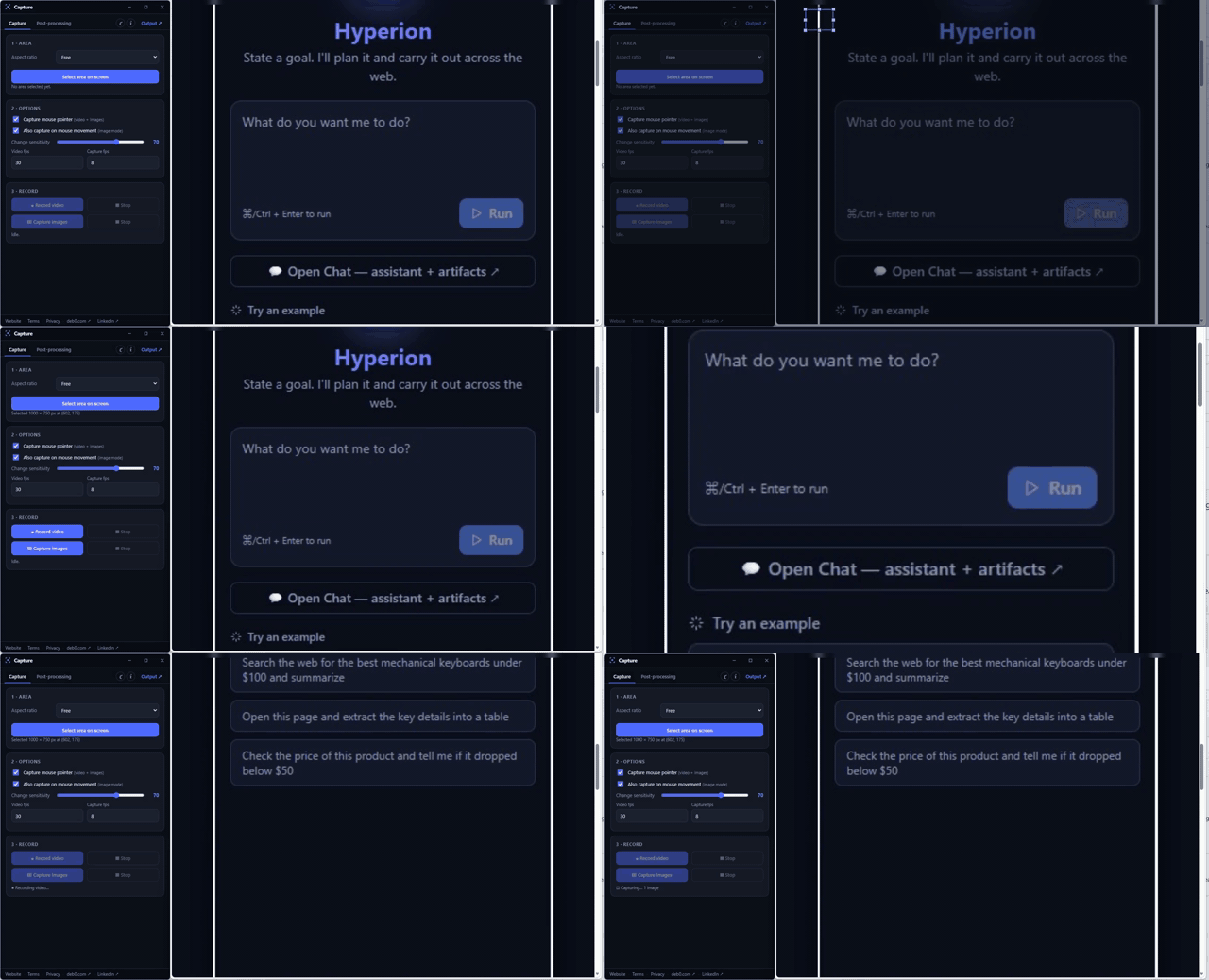
To capture everything visible across all monitors, choose full screen mode. In Bandicam, select “Screen Recording” then “All display” to record dual screens at once. ScreenRec lets you pick the primary or secondary monitor directly from its dropdown menu.
A semi-transparent overlay highlights the entire screen before recording starts. Avoid this mode if you only need part of the screen, since it increases file size and may expose sensitive information.
Capture a Custom Region
Want to focus on a specific area? Use region selection. Bandicam’s “Rectangle on screen” mode lets you drag and resize the recording box freely. ScreenRec highlights the selected zone with a visible border while keeping the control menu accessible in the corner.
This approach works perfectly for recording a browser window, calculator, or any small app without capturing desktop distractions.
Pro tip: Set a hotkey like F12 to start and stop recording quickly after defining your region.
Target a Specific Window
Need to record one application, even if it’s hidden behind others? Use window-specific recording. Bandicam locks onto any open window like Excel, PowerPoint, or a game. As long as the app runs, the recorder captures it regardless of focus.
ScreenPal also supports single-window capture, though with less precision than Bandicam’s dedicated mode. Use this method when demonstrating software features or troubleshooting an app.
Follow the Cursor
To keep attention on user interaction, enable mouse-following mode. Bandicam’s “Around mouse” setting dynamically centers the recording frame around the cursor, making it perfect for tutorials where movement matters.
ScreenPal doesn’t auto-track the mouse, but its “Highlight cursor” option adds visual emphasis during playback. This feature works best for step-by-step guides, onboarding videos, and UI walkthroughs.
Manage Audio Sources
Record System Sound
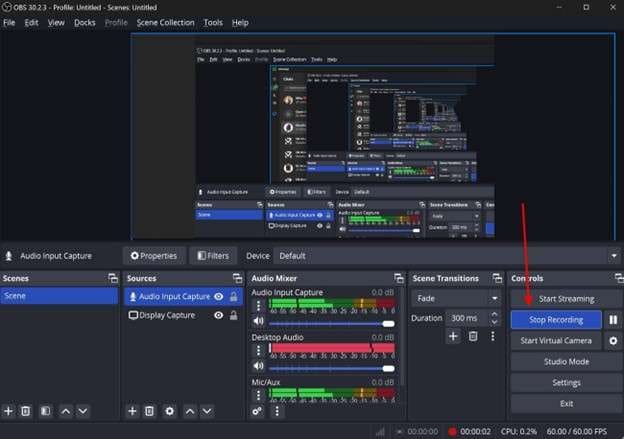
Capturing internal audio like video playback, game sounds, or Zoom calls requires system sound recording. ScreenRec and Bandicam support this feature natively. In ScreenRec, toggle system sound on or off during recording. In Bandicam, enable “Audio input and output recording.”
An older version of ScreenRec had audio distortion that was fixed in v2.0.3 from December 2022. Always update your software to avoid this issue. The online version of ScreenPal records microphone audio but may not capture system sound unless you use the desktop app.
Add Voice Narration
Use a microphone to narrate your screen activity. All major tools allow mic input. ScreenRec shows an on-screen warning if the mic disconnects, and the app fixed a bug where devices reset after restart in v1.0.74.
In Bandicam, navigate to Recording settings to select your preferred mic. ScreenPal lets you toggle mute during recording.
Common mistake: Forgetting to test mic levels beforehand. Always record a short test clip first.
Mix Mic and System Audio
For professional tutorials, mix voiceover and system sound together. Both ScreenRec and Bandicam allow dual audio capture. This lets you explain steps while showing app sounds or video clips simultaneously.
ScreenPal desktop supports mixing, while the online version does not. Poor mic placement can cause echo when both sources are active, so use headphones to prevent feedback.
Add a Webcam Overlay

Position Your Facecam
Enhance engagement by adding a webcam feed to your recording. ScreenRec supports “Desktop + Webcam” mode. Bandicam lets you move the facecam window freely or enlarge it to fill the screen.
ScreenPal gives the most flexibility by letting you drag the webcam preview anywhere, resize it, or turn it off mid-recording. This feature works great for customer support demos, instructor-led courses, and personal vlogs.
Customize Your Background
ScreenPal stands out with virtual backgrounds. You can blur, remove, or replace your background with a stock image or custom upload. This feature is ideal for privacy or branding purposes.
Bandicam and ScreenRec do not offer background manipulation. This feature works best with good lighting and a modern webcam.
Record Webcam Only
Turn your setup into a dedicated camera recorder. Resize the webcam feed to fill the entire screen in Bandicam or ScreenPal. This bypasses the need for separate camera software.
Use this mode for recording video messages or quick clips without screen content.
Use Advanced Recording Features
Draw During Recording
Highlight key points with real-time annotations. Bandicam offers pen tools, arrows, and text overlays while recording, making it great for teaching or marking up designs.
ScreenPal includes “Draw and zoom,” letting you magnify sections and sketch over them live. Use drawing tools sparingly to avoid cluttering your video.
ScreenRec lacks real-time drawing but offers “Point and Comment” for static images.
Highlight Mouse and Keystrokes
Make interactions visible to viewers. Bandicam adds click effects, displays keystrokes, and highlights the cursor. ScreenPal also supports cursor highlighting.
Enable these effects only when needed, since they can become distracting in casual recordings.
Schedule or Record Continuously
Automate capture with scheduled recording. Bandicam lets you set start and end times or intervals, perfect for unattended logging or daily backups.
The software also supports 24/7 recording limited only by storage space. A 1080p recording at 60 FPS can use 1 to 2 GB per hour, so monitor your disk space carefully.
ScreenRec does not offer scheduling features.
Add Text and Logos
Branding matters for professional content. Bandicam allows insertion of text, images, or logos directly into the video stream. Use this feature for watermarking or adding titles.
ScreenPal adds animated text and effects in post-editing. Its free version has no watermark, unlike many competitors. ScreenRec focuses on sharing rather than branding.
Set Output Quality and Format
Choose Video Format
Most tools default to MP4, the most compatible format. ScreenRec exports only MP4. Bandicam supports both MP4 and AVI. ScreenPal saves as MP4 in Chrome and Edge, and WEBM in Firefox.
Older versions of ScreenRec had MP4 playback issues that were fixed in v1.0.72 and v1.0.89. Always update your software. WEBM files require conversion for some editors, so stick to Chrome if MP4 is essential.
Adjust Resolution and FPS
For crisp visuals, set 1080p or higher resolution. ScreenRec supports up to 4K recording. Frame rates range from 15 to 120 FPS. Choose higher FPS for smooth gameplay and lower FPS for standard tutorials.
In ScreenRec, adjust quality through SD, HD, or 4K settings. Bandicam offers manual quality sliders for fine control.
Higher resolution and FPS increase CPU load. Use multi-thread encoding to reduce lag during recording.
Optimize for Multi-Monitor Setups
With multiple displays, ensure correct capture. ScreenRec fixed scaling issues in v3.0.0 and v3.3.8, so menus now appear on the correct monitor.
Set the quick access menu on any screen before recording. The selection box should snap accurately to scaled resolutions like 125% or 150%.
Save, Edit, and Share Recordings
Cloud vs. Local Storage
ScreenRec uses cloud-first saving. Recordings auto-upload to a private account, even if you’re offline. Uploads resume when connectivity returns, and you get a shareable link instantly.
Bandicam and ScreenPal save locally by default. Files go to your hard drive, and you must manually upload to YouTube, Google Drive, or email.
ScreenRec uses 128-bit encryption. The Business tier adds password protection and user restrictions. ScreenPal Online stores data in browser memory until you save it.
Edit Your Recording
Trim, cut, or enhance videos in post-production. ScreenPal’s desktop editor includes trimming, blurring, music, and AI captions. Bandicam focuses on real-time tools rather than editing.
ScreenRec skips editing features, since its strength lies in instant sharing. Use editing to blur sensitive data, shorten intros, or combine multiple clips.
Share Securely
Distribute your video safely. ScreenRec copies a link to your clipboard when you stop recording, ideal for fast collaboration.
ScreenPal lets you choose public, unlisted, or password-protected links. Bandicam requires manual upload to sharing platforms. Use password protection for client demos or internal reviews.
Fix Common Screen Recording Issues
App Crashes During Recording
If the recorder freezes or closes unexpectedly, update to the latest version. ScreenRec v5.0.13 from July 2025 fixed crashes during recording.
Older versions had memory leaks that were fixed in v1.0.85, so long recordings now stay stable. Close unused apps to free RAM before long sessions.
Audio Crackling or Sync Issues
Hearing crackling in system audio? Update ScreenRec to v2.0.3 or later. Ensure no other app is using the audio driver exclusively.
If mic and system sound are out of sync, lower the frame rate or disable real-time effects.
Menu Appears on Wrong Monitor
In multi-monitor setups, the control menu may show on the primary screen even when recording the secondary. This was fixed in ScreenRec v1.0.74 and v3.3.8.
Restart the app and reselect the target monitor as a workaround.
Microphone Resets After Restart
ScreenRec v1.0.74 fixed a bug where the selected mic reverted to default. If this happens, manually reselect your device in settings.
Bandicam requires you to set the mic each time unless saved in a profile.
False Offline Status
ScreenRec once showed “offline” incorrectly, which was fixed in v1.0.86. If you see this message, check your internet connection or restart the app.
Offline mode is supported, so recordings save locally and sync later when you reconnect.
Frequently Asked Questions About Screen Recording on a Monitor
What is the easiest way to screen record on a monitor?
The easiest method is using a browser-based tool like ScreenPal Online. No installation is required. Just open the website, select what you want to record, and click the record button. For more advanced features, desktop apps like ScreenRec offer one-click recording with automatic cloud upload.
Can I screen record on a monitor without downloading software?
Yes, browser-based recorders like ScreenPal Online let you record directly from Chrome, Edge, Firefox, or Safari. These tools work without installation but may have limitations on system audio capture and session length.
How do I record system audio during screen recording?
Desktop apps like ScreenRec and Bandicam support system audio natively. Enable “Audio input and output recording” in Bandicam settings or toggle system sound in ScreenRec. Browser-based tools often require the desktop version for system audio capture.
Why does my screen recorder lag during long sessions?
Lag usually comes from high CPU load or memory leaks. Close unused apps to free resources. Update your software to the latest version, since recent updates fixed memory issues. Lower the frame rate or resolution if problems persist.
How do I record multiple monitors at once?
Bandicam supports dual monitor capture through its “All display” option in fullscreen mode. ScreenRec lets you select either the primary or secondary monitor from its dropdown menu. Make sure your software is updated to avoid scaling issues.
What video format should I use for screen recordings?
MP4 is the most compatible format and works on all devices and platforms. ScreenRec exports only MP4. If you use Firefox with ScreenPal Online, recordings save as WEBM, which may require conversion for some video editors.
Key Takeaways for Screen Recording on Your Monitor
Screen recording on a monitor is now accessible to everyone, from beginners to professionals. Choose a desktop app for full features, a browser tool for speed, or a hybrid solution for maximum flexibility. Focus on your audience by using annotations for clarity, mixing audio for depth, and sharing securely with password protection.
With the right settings and updated software, you can record smoothly, reliably, and professionally every time. Start by downloading ScreenRec for cloud-based simplicity, Bandicam for advanced features, or ScreenPal for browser-based convenience. Test your setup with a short clip before recording anything important, and you’ll be creating polished screen recordings in minutes.


