
You spend hours every day looking at your screen for work, gaming, or browsing. If your monitor sits too high, too close, or at the wrong angle, you risk neck pain, eye strain, and poor posture that builds up over time. Learning how to place monitor correctly using science-backed ergonomic principles protects your body and boosts your focus. This guide walks you through exact positioning rules for height, distance, angle, lighting, and multi-screen setups, plus quick fixes for the most common mistakes.
Monitor Height: Align the Top Edge With Your Eye Level

Position the Top Edge at or Slightly Below Eye Level
Your monitor’s top edge should sit at or just below eye level. When you settle into your chair, your gaze should naturally land on the top third of the screen, roughly 2 to 3 inches below the upper edge. This keeps your neck neutral and prevents unnecessary tilting.
Looking up strains neck muscles and exposes your eyes to air, causing dryness. Looking down too far pushes your head forward and tightens your upper back. The goal is minimal head movement and maximum comfort throughout the day.
Angle the Center Screen 15° to 18° Below Horizontal
The center of your screen should rest 15° to 18° below your horizontal line of sight. Your eyes naturally settle in a slight downward gaze, and this position reduces strain while using your wider lower visual field.
To find your natural resting eye level:
– Sit back fully in your chair.
– Close your eyes briefly, then open them.
– Note where your gaze lands naturally.
– Adjust the screen so its center sits just below that point.
Raise or Lower Your Screen With a Stand or Riser
Most desks are too low for proper alignment. If your monitor sits too low:
– Use a monitor riser, stack of sturdy books, or adjustable arm.
– Avoid laptop stands unless they elevate the screen to the correct height.
If your monitor sits too high:
– Remove the default stand or switch to a lower-profile base.
– Use a VESA-compatible arm mount to fine-tune the height.
– Do not tilt the screen excessively to compensate, since this distorts the viewing angle.
Viewing Distance: Follow the Arm’s Length Rule
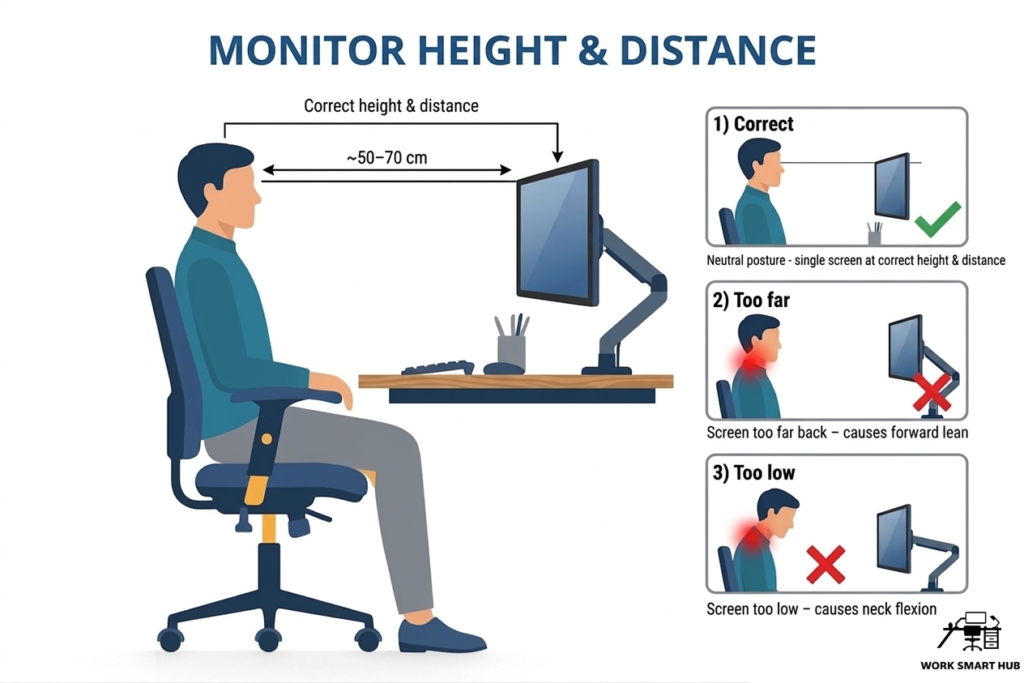
Sit 50 to 70 cm From the Screen
The ideal distance between your eyes and the monitor is 50 to 70 cm (20 to 28 inches), roughly the length of your extended arm. This range balances visual clarity with reduced effort from your eye’s focusing and alignment systems.
Closer than 50 cm forces your eyes to work harder, causing fatigue. Farther than 70 cm makes text harder to read, prompting you to slouch or squint. Staying within this range keeps your eyes relaxed and your posture upright.
Adjust Font Size Instead of Moving Closer
If text feels too small at arm’s length:
– Increase the font size or zoom level in your settings.
– Raise your screen resolution instead of leaning in.
– A solid rule: text should appear three times larger than the smallest size you can still read.
For larger screens (27 inches or more), you may need to sit slightly farther, up to 80 cm, especially when using 1440p or 4K resolution.
Screen Angle and Tilt: Stay Within the Comfort Zone

Use a Slight Backward Tilt of 10° to 20°
Tilt your monitor slightly backward (10° to 20°) if needed, especially on glossy screens. This reduces glare and keeps the screen perpendicular to your line of sight.
Never tilt the screen upward, since this forces you to look up and strains your neck. Flat panels rarely need much tilt, while curved monitors should face you directly without angular distortion.
Stay Within the +15° to –30° Visual Zone
Your eyes can comfortably focus within a 45° cone, from 15° above to 30° below horizontal. The optimal zone for computer work sits in the lower half of this range.
Apply these benchmarks:
– Top of screen: at eye level
– Center of screen: 15° to 18° below eye level
– Bottom of screen: within 30° downward
This keeps your head upright and reduces muscle load across your neck and shoulders.
Eliminate Glare and Lighting Issues
Position Your Monitor Perpendicular to Windows
Glare is a leading cause of eye strain and awkward head tilting. To prevent it:
– Place your monitor at a 90° angle to windows and bright task lights.
– Never face a window directly or place a bright light behind the screen.
Bright backlighting creates contrast stress, forcing your eyes to constantly adjust between bright surroundings and a dimmer room.
Use Blinds or Anti-Glare Filters When Needed
If you cannot reposition your desk:
– Close blinds or use curtains during peak sunlight hours.
– Install an anti-glare screen filter with a matte finish.
– Avoid glossy screens in brightly lit rooms.
Match Screen Brightness to Your Environment
Screen brightness should match the ambient lighting in your room:
– In a bright room: increase brightness to compete with surrounding light.
– In a dim room: lower brightness to avoid the “TV in a dark room” effect.
Use automatic brightness settings if available, or adjust manually as lighting changes throughout the day.
Center Alignment: Prevent Neck Twisting
Place Your Primary Screen Directly in Front
Your main monitor must be centered with your body, not offset to one side. An off-center screen forces you to twist your neck and trunk, leading to uneven muscle strain and potential long-term injury.
To check alignment:
– Sit back in your chair at a 100° to 110° recline.
– Extend your right arm straight forward.
– Your middle finger should nearly touch the center of the screen.
This ensures your torso and head face forward without rotation.
Avoid Static Postures Throughout the Day
Even with perfect alignment, staying still too long causes fatigue. Shift positions occasionally, leaning forward or reclining slightly, but always return to a neutral posture as your base.
Multi-Monitor Setup: Reduce Head Movement
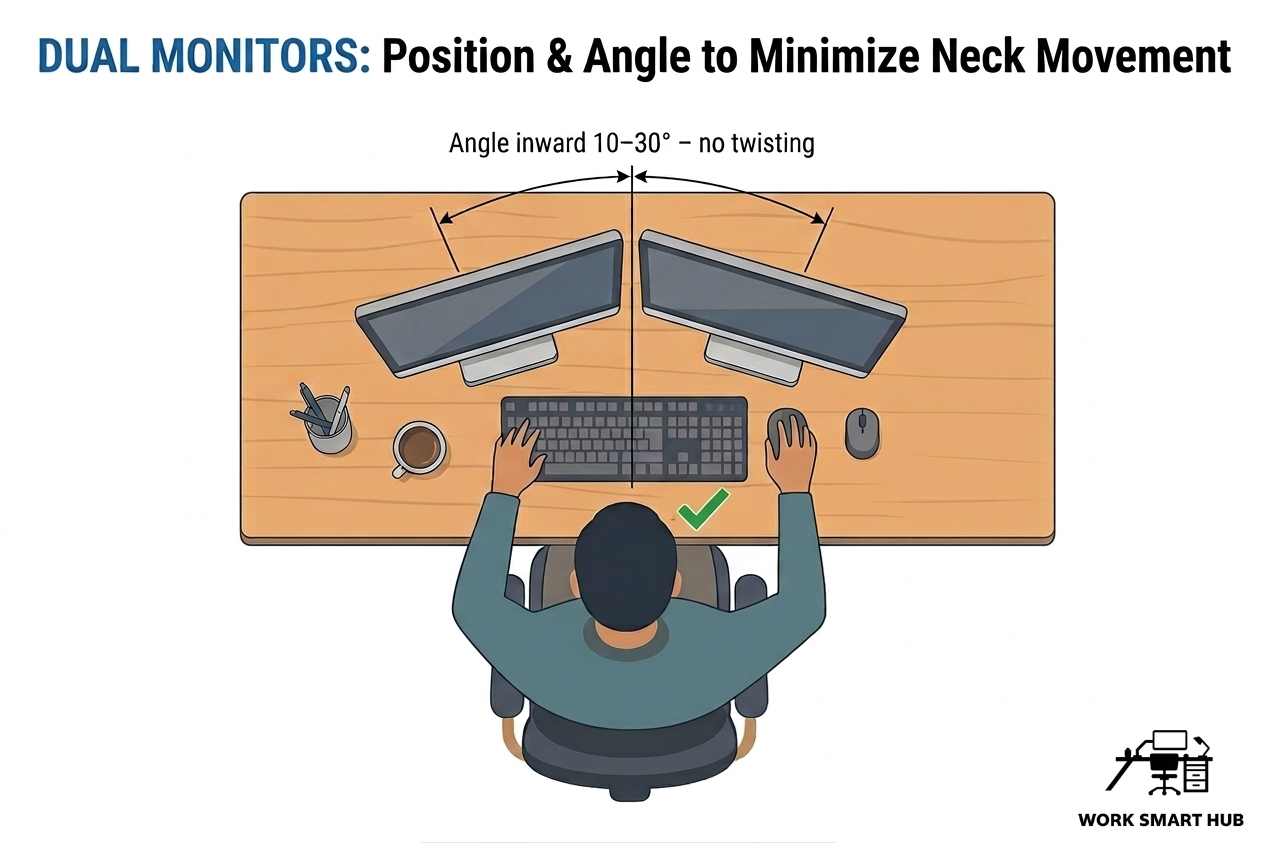
Equal Usage: Use a Shallow Curve Layout
If you use both monitors equally:
– Place them edge to edge directly in front of you.
– Angle them inward slightly to form a shallow semi-circle.
– Keep both at the same height, distance, and tilt.
This minimizes eye and head movement while maintaining ergonomic alignment.
Primary and Secondary: Angle the Secondary Toward You
For a main workspace plus a reference screen:
– Primary monitor: centered, arm’s length away, full ergonomic specs.
– Secondary monitor: placed to the side, angled 30° to 45° toward you.
– Align the top edges of both screens.
– Match viewing distance, and do not push the secondary screen too far back.
Pro Tip: Angle the secondary screen toward your dominant eye for faster visual processing and less eye fatigue.
Sync With Your Chair and Desk Setup
Recline Slightly at 100° to 110°
Sit with a slight recline of 100° to 110° in your chair. This reduces pressure on your spinal discs and lets your arms hang naturally.
Avoid sitting bolt upright, since this increases lower back strain. Use lumbar support to maintain your spine’s natural curve.
Keep Feet Flat and Knees at 90°
Your feet should rest flat on the floor or on a footrest. Your knees should form a 90° angle, with thighs parallel to the floor.
Crossed legs or dangling feet disrupt pelvic alignment and lead to lower back pain over time.
Set Elbows at 90° and Wrists Neutral
When typing:
– Keep elbows at 90° to 110°, close to your sides.
– Keep wrists straight and neutral, aligned with your forearms.
– Position your keyboard and mouse at the same height.
Use a keyboard tray or adjustable desk if your current setup forces your wrists up or down.
Common Mistakes and How to Fix Them
Monitor Too High
Consequence: Neck pain from tilting your head back, plus dry eyes from increased exposure.
Fix: Lower the monitor. Remove the stand or use a VESA arm to adjust height. Never place a laptop on a stand without an external keyboard.
Monitor Too Low
Consequence: Forward head posture, upper back strain, and rounded shoulders.
Fix: Raise the monitor with a stand, riser, or adjustable mount. Ensure the top edge reaches eye level when seated.
Monitor Too Close
Consequence: Eye strain, blurred vision, and headaches from excessive focusing.
Fix: Move back to arm’s length. Increase font size or screen resolution instead of leaning in.
Monitor Too Far
Consequence: Squinting, leaning forward, and slouching to read text.
Fix: Bring the monitor closer to 50 to 70 cm. Adjust zoom settings if necessary.
Glare on the Screen
Consequence: Eye fatigue, squinting, and awkward head tilting to see content.
Fix: Rotate the monitor 90° from light sources. Use blinds, curtains, or anti-glare filters.
Off-Center Placement
Consequence: Chronic neck twisting, uneven muscle loading, and potential spinal imbalance.
Fix: Center the primary screen. Use monitor arms to fine-tune position.
Slouching or Rounding Shoulders
Consequence: Reduced lung capacity, spinal misalignment, and chronic back pain.
Fix: Engage your core, use lumbar support, and keep shoulders relaxed. Adjust chair depth so there is 2 to 3 inches between your knees and the seat edge.
Movement and Breaks: Prevent Static Strain
Follow the 20-20-20 Rule
Every 20 minutes, look at something 20 feet away for at least 20 seconds. This resets your eye’s focusing system and prevents accommodation fatigue.
Set a timer or use a break reminder app to stay consistent.
Take Micro-Breaks Every Hour
Stand up, stretch, and walk around every 30 to 60 minutes. Even 30 seconds helps reset your posture and circulation.
Try these quick stretches:
– Neck rolls: Gentle circles to release tension.
– Shoulder shrugs: Lift and lower shoulders to relieve tightness.
– Spinal twists: Pivot your feet and rotate your torso slowly (do not twist while lifting).
– Wrist stretches: Extend your arm and gently pull your fingers back.
Quick Setup Checklist
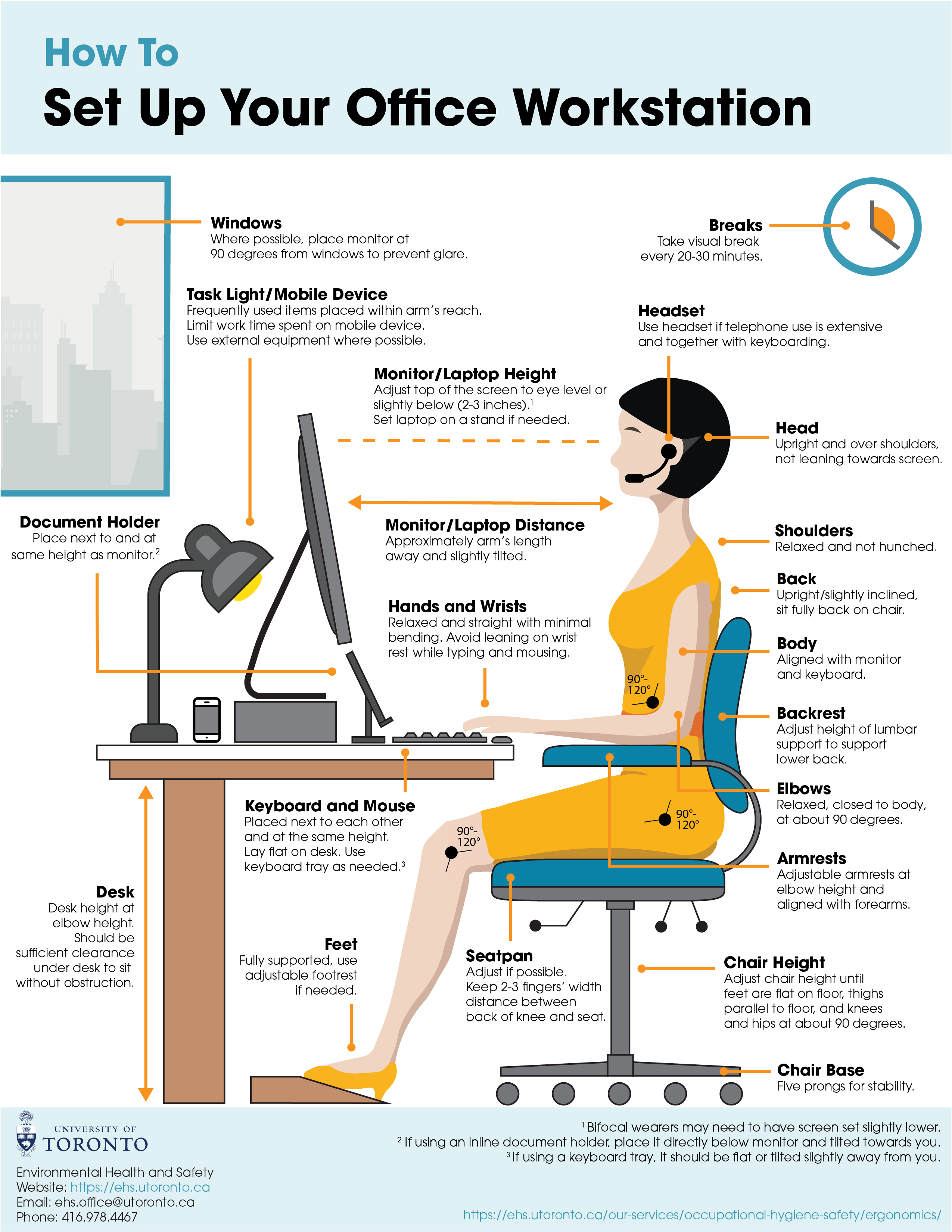
- Glare-free zone: Monitor perpendicular to windows, no reflections
- Centered screen: Directly in front, aligned with your body
- Top edge at eye level: Eyes hit the top third of the screen
- Center 15° to 18° below horizontal: Natural downward gaze
- Arm’s length away: 50 to 70 cm (20 to 28 inches)
- Same height and distance: For multi-monitor setups
- Chair supports posture: 100° to 110° recline, feet flat, knees at 90°
- Elbows at 90°, wrists neutral: Keyboard and mouse at proper height
- Font and brightness adjusted: Readable without leaning or squinting
- Movement scheduled: 20-20-20 rule and hourly micro-breaks
Frequently Asked Questions About How to Place Monitor
What Is the Correct Height for a Computer Monitor?
The top edge of your monitor should sit at or slightly below eye level. Your eyes should naturally land on the top third of the screen, with the center positioned 15° to 18° below your horizontal line of sight.
How Far Should I Sit From My Monitor?
Sit at a distance of 50 to 70 cm (20 to 28 inches), roughly the length of your extended arm. This range reduces eye strain and keeps your posture upright without forcing you to slouch or lean forward.
Should the Monitor Be Straight or Tilted?
A slight backward tilt of 10° to 20° works well for most setups, especially on glossy screens. Avoid tilting the screen upward, since this forces you to look up and strains your neck.
Where Should I Place My Monitor Relative to a Window?
Position your monitor at a 90° angle to any window. Never face a window directly or place a bright light behind the screen, since both create glare and contrast issues that lead to eye fatigue.
How Do I Set Up Two Monitors Ergonomically?
For equal use, place both screens edge to edge in a shallow semi-circle. For a primary and secondary setup, center the main monitor and angle the secondary screen 30° to 45° toward you, keeping both at the same height and distance.
How Often Should I Take Breaks From Screen Time?
Follow the 20-20-20 rule: every 20 minutes, look at something 20 feet away for at least 20 seconds. Additionally, stand up and stretch every 30 to 60 minutes to reset your posture and circulation.
Key Takeaways for Placing Your Monitor the Right Way
Knowing how to place monitor correctly protects your body from long-term damage and sharpens your daily comfort. Start with the three core measurements: top edge at eye level, center 15° to 18° below horizontal, and a viewing distance of 50 to 70 cm. Eliminate glare by positioning your screen perpendicular to windows, and sync your monitor with a chair that supports a 100° to 110° recline with feet flat and knees at 90°.
Your next step is simple. Spend five minutes today applying the checklist above, adjusting height, distance, and angle until everything aligns. Then set a reminder to recheck your setup once a month. Small adjustments now prevent years of neck pain, eye strain, and poor posture later.


