
A blank screen, flickering backlight, or unresponsive power button often signals it’s time to crack open your display. Whether you’re chasing a no-signal error, swapping failed capacitors, or clearing years of dust buildup, knowing how to open a PC monitor is the essential first step. This guide delivers a clear, model-agnostic roadmap for disassembling modern LCD and LED monitors without cracking the bezel or frying internal boards. You’ll learn the exact tools, techniques, and safety warnings needed to access internals on units like the Acer G246HL, Dell 1905FP, or Viotek W2711SE.
Identify Monitor Type and Associated Risks

Before grabbing any tools, confirm what kind of display you’re working on. The technology inside determines both your disassembly approach and the danger level involved. Most modern screens use LED-backlit LCD panels, while older units may contain bulkier CRT (cathode ray tube) hardware. Never open a CRT monitor unless you have specific high-voltage training. These units contain capacitors that hold lethal charges even after being unplugged for days.
For LED and LCD monitors, the main risks during teardown include:
– Cracking the plastic bezel through improper prying
– Tearing ribbon cables that link the T-Con board to the panel
– Shorting the power board with a stray metal tool
– Permanent screen damage from bending or applying pressure
Always power off and unplug the monitor for at least 30 minutes before starting. If the power cord is detachable, remove it entirely. Work on a clean, static-free surface and wear nitrile gloves to keep skin oils off the screen.
LCD vs. LED: What Matters for Repair
Though often used interchangeably, LCD refers to the liquid crystal layer that forms images, while LED describes the backlight technology powering visibility. Most “LED monitors” are actually LCD panels with LED backlighting. This distinction matters because accessing the backlight, critical for brightness issues, requires separating the LCD from the rear light array. LED-backlit models are generally thinner and contain fewer internal parts than older CCFL-backlit LCDs.
Locate Hidden Screws Before Anything Else
Manufacturers routinely hide screws beneath rubber feet, stickers, and VESA mount covers. Flip the monitor face-down on a soft towel and inspect every edge carefully. Use a plastic spudger to gently lift:
– Rubber feet (often magnetic or adhesive-backed)
– Brand logos or warranty seals
– The VESA mounting plate recess
Some models, such as the Acer AL1716, conceal screws under removable plastic caps that need light prying. Never force removal. If no screws are visible, search for a service manual online before proceeding.
Gather the Essential Disassembly Toolkit

Opening a monitor isn’t a task for household screwdrivers or kitchen knives. Metal tools risk scratching surfaces and shorting circuits. The right toolkit ensures safe, damage-free access every time.
Required Screwdrivers and Bits
Match your screwdriver precisely to the fastener type:
– Phillips #00: For tiny button board screws
– Phillips #0: The most common size for internal chassis
– Phillips #1: For larger structural screws
– Flathead 2.5 mm: Needed for some adjustment pots or casing screws
A multi-bit driver like the Narwhal 6-in-1 or a Pro Tech Toolkit with magnetic mat keeps small parts organized and prevents loss during teardown.
Safe Prying Tools for Bezel Removal
Plastic latches secure the rear casing to the front bezel. To release them without damage:
– iFixit Opening Tool: Wedge into seams to start separation
– iFixit Opening Picks (Set of 6): Slide along edges to disengage clips
– Spudger: Use the flat end to pry, the pointed end to disconnect cables
Avoid metal tools entirely. Plastic or nylon prying instruments prevent scratches and electrical shorts.
Optional but Highly Recommended
For advanced repairs beyond simple case opening:
– Soldering iron (60W Hakko 503F): Replace bulging capacitors
– Solder wick or desoldering braid: Remove old solder cleanly
– Heat gun: Soften adhesive on sealed panels
– Needle-nose pliers: Handle small connectors or retrieve dropped screws
Begin Disassembly: Open the Back Panel
With tools ready and screws removed, it’s time to separate the housing. This step varies slightly by model but follows a universal sequence that works across most LED and LCD monitors.
Start at the Bottom Edge
Place the monitor face-down on a microfiber cloth. Insert an iFixit opening tool into the seam at the bottom center and gently twist to pop the first latch. Work outward toward the corners, using opening picks to maintain separation as you progress.
Some models, like the Viotek W2711SE, use stronger retention clips along the back panel. Apply steady pressure and listen for faint clicks indicating latch release.
Work Around All Four Sides
Move clockwise around the monitor, sliding picks into the gap to prevent re-latching. Never force the tool. If resistance increases, stop and check for missed screws. Forcing can crack the casing or damage internal connectors.
Once fully separated, lift the rear cover straight back and set it aside safely.
Remove Internal Shielding
Under the outer shell, most monitors have a metal EMI shield secured with Phillips #0 screws. Unscrew all fasteners and carefully lift the plate. This exposes the mainboard, power supply, and backlight inverter.
Label each screw type and location with tape or a parts organizer. Shielding screws are often shorter than case screws.
Access Internal Components Safely
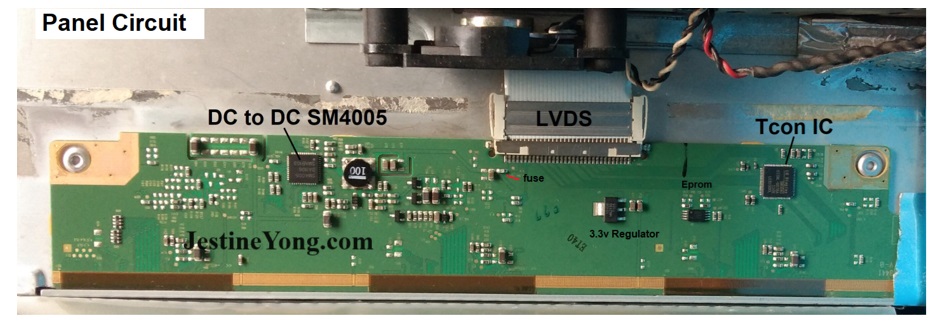
With the internals exposed, proceed with caution. High-voltage components and delicate ribbon cables demand precise handling throughout the process.
Disconnect the Power Board First
Locate the power supply board, usually near the AC input. Unplug:
– Main power cable to the inverter or backlight
– DC output to the mainboard
– Any connectors labeled “LED+” or “INV”
Use the spudger’s flat edge to gently lift ribbon locks before pulling cables free. Never yank by the wires.
Handle the T-Con Board with Care
The timing controller (T-Con) board sits at the top or bottom of the LCD panel and connects via one or two flat flex cables. These control pixel response and refresh rate. If you’re troubleshooting a white screen on startup or a vertical red line, inspect these cables first.
To disconnect:
1. Flip open the ZIF (zero insertion force) connector latch
2. Slide the cable out smoothly
3. Set aside without bending
Separate the LCD Panel from the Chassis
For backlight or inverter replacement:
1. Remove screws securing the panel to the rear frame
2. Carefully tilt the screen forward
3. Disconnect remaining flex cables (often labeled “LVDS” or “Main”)
Support the panel at all times. Bending can permanently damage the liquid crystal matrix.
Troubleshoot Common Issues During Disassembly
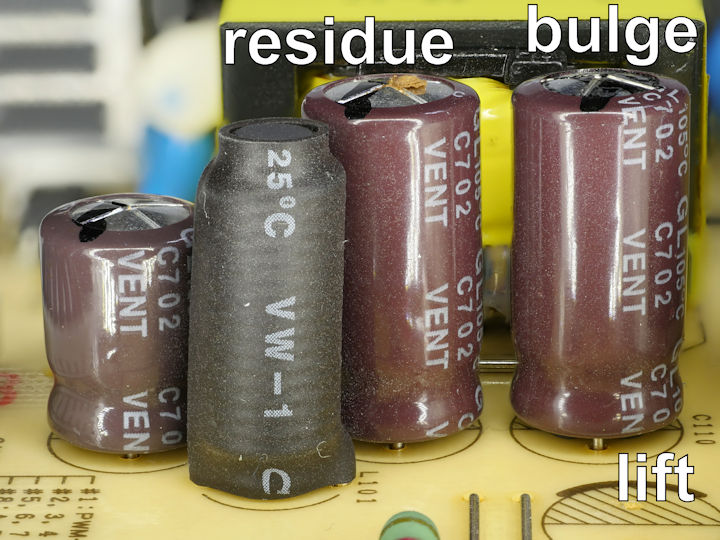
Opening the monitor gives you direct access to diagnose root causes. Match symptoms to internal components for faster, more accurate repairs.
No Power or Random Shutdowns
Check the power board for:
– Bulging or leaking capacitors (common in Dell 1905FP and Acer AL1716)
– Burnt resistors or charred traces
– Loose solder joints on input or output connectors
Use a multimeter to test output voltages. If capacitors are swollen, desolder and replace them using lead-free rosin-core solder and solder wick.
Backlight Not Working
Symptoms include a dark screen with a faint image visible when illuminated by a flashlight.
Test the following:
– Disconnect and reconnect the backlight cable
– Inspect the inverter board for cracked solder
– Try a universal backlight inverter as a test replacement
For LED-backlit models, check continuity across the LED strips using diode mode on a multimeter.
Vertical Lines or White Screen
This usually indicates a T-Con or LVDS cable issue:
– Re-seat all panel connectors
– Inspect for bent pins or corrosion
– Replace the T-Con board if visible damage exists
Avoid touching the gold contacts. Use gloves and handle boards by the edges only.
Reassemble with Precision
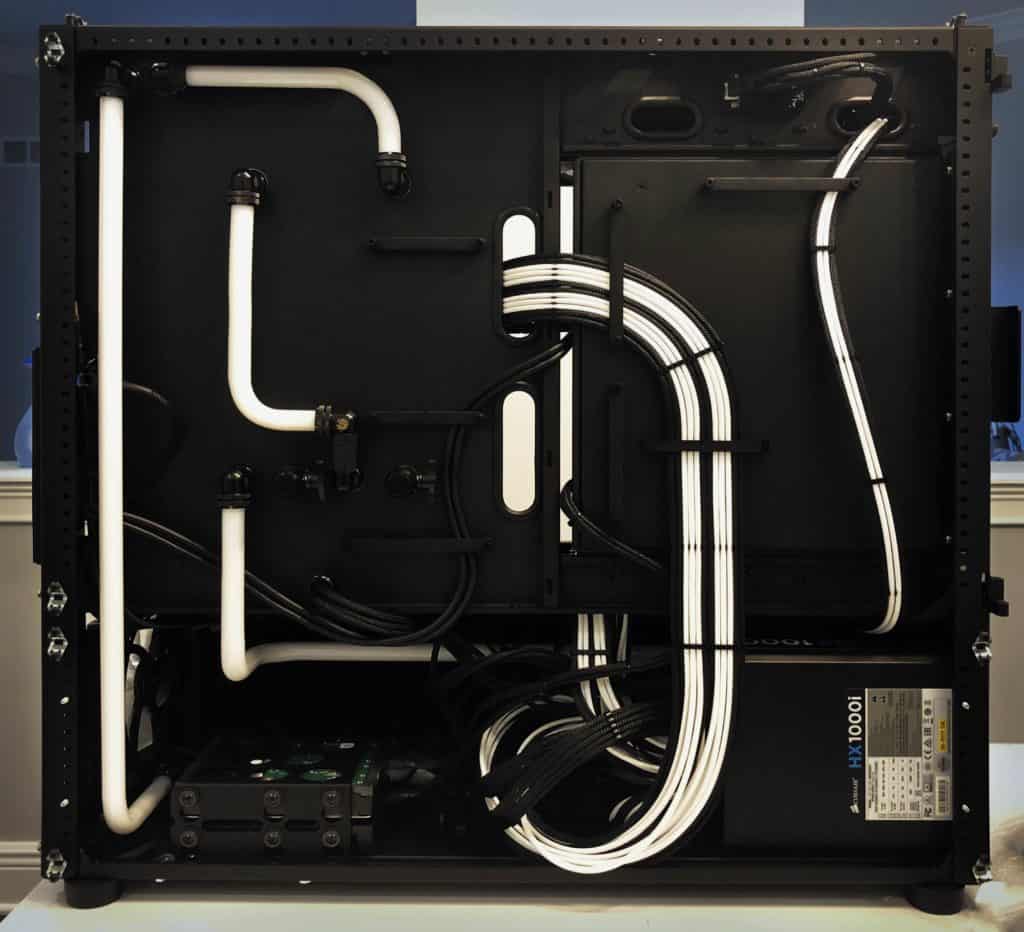
After repair or inspection, reassembly must be meticulous. One misaligned screw or pinched cable can cause new failures immediately.
Route Cables Neatly
Ensure all ribbons lie flat without twists:
– Reconnect T-Con cables first
– Lock ZIF connectors firmly
– Secure power and signal lines away from sharp edges
Use cable ties sparingly and avoid tension on any connection.
Replace Screws in Correct Locations
Use your labeled organizer to return each screw to its original hole. Over-tightening can strip plastic threads or crack the housing. Tighten until snug and stop there.
Test Before Full Closure
Before snapping the back panel shut:
1. Reconnect only essential cables (power and mainboard)
2. Plug in and power on
3. Verify display function and backlight
If issues persist, reopen and recheck connections. Never fully reassemble a non-working unit until confirmed operational.
Prevent Damage and Extend Monitor Lifespan
Opening your monitor once doesn’t mean it has to fail again. Apply these maintenance tips to avoid future disassembly sessions.
Clean Internals Without Risk
Use an electronics cleaning bundle:
– Compressed air to blow dust from vents and heatsinks
– Isopropyl alcohol (90%+) on lint-free swabs for board cleaning
– Never spray liquid directly; apply to cloth first
Dust buildup causes overheating, which leads to random power-offs.
Avoid Capacitor Failure
The “capacitor plague” killed thousands of older monitors. Prevent recurrence by:
– Ensuring proper ventilation around the monitor
– Avoiding prolonged exposure to heat sources
– Replacing low-quality capacitors with 105°C-rated ones during repair
Handle Bezel Latches Gently
Models like the Viotek W2711SE use fragile plastic latches. When closing:
– Align edges perfectly before pressing
– Apply even pressure around the perimeter
– Listen for all clips to engage
Forcing can break latches, making future repairs significantly harder.
Frequently Asked Questions About Opening a PC Monitor
Is it safe to open a PC monitor at home?
Yes, but only for LED and LCD monitors. Never open a CRT monitor without professional training, as it contains capacitors that can deliver lethal shocks even when unplugged. Always disconnect power and wait at least 30 minutes before starting any disassembly.
What tools do I need to open a PC monitor?
You need precision screwdrivers (Phillips #00, #0, #1, and a 2.5 mm flathead), plastic opening tools like iFixit picks and spudgers, and nitrile gloves. For deeper repairs, add a soldering iron, solder wick, and isopropyl alcohol for cleaning.
Where are the screws hidden on a monitor?
Manufacturers commonly hide screws under rubber feet, warranty stickers, brand logos, and VESA mount covers. Always flip the monitor face-down on a soft towel and inspect every edge before attempting to pry the case open.
Can I fix a monitor with no display by opening it?
Often yes. Common internal causes include failed capacitors on the power board, a broken backlight inverter, or loose ribbon cable connections. Opening the monitor lets you inspect and repair these components directly.
How do I avoid cracking the bezel when opening a monitor?
Use only plastic prying tools and work slowly around the perimeter. Start at the bottom edge, release each latch with steady pressure, and slide opening picks into the seam to prevent re-latching. Never force the case apart if resistance increases.
Should I replace capacitors myself when opening the monitor?
If you have soldering experience, yes. Bulging or leaking capacitors are a common failure point in older monitors like the Dell 1905FP and Acer AL1716. Use lead-free rosin-core solder, a 60W iron, and solder wick for clean removal and replacement.
Key Takeaways for Opening Your PC Monitor Safely
Opening a PC monitor becomes straightforward when you follow a methodical approach. Start by identifying hidden screws and using only plastic prying tools to avoid cracking the bezel. Disconnect internal cables carefully, especially ribbon cables and power board connectors, and always test the unit before fully reassembling the housing. With the right tools and patience, you can diagnose and repair common issues like failed capacitors, dead backlights, and unresponsive controls without replacing the entire monitor.


